Line Charts for Trends
Swipe to show menu
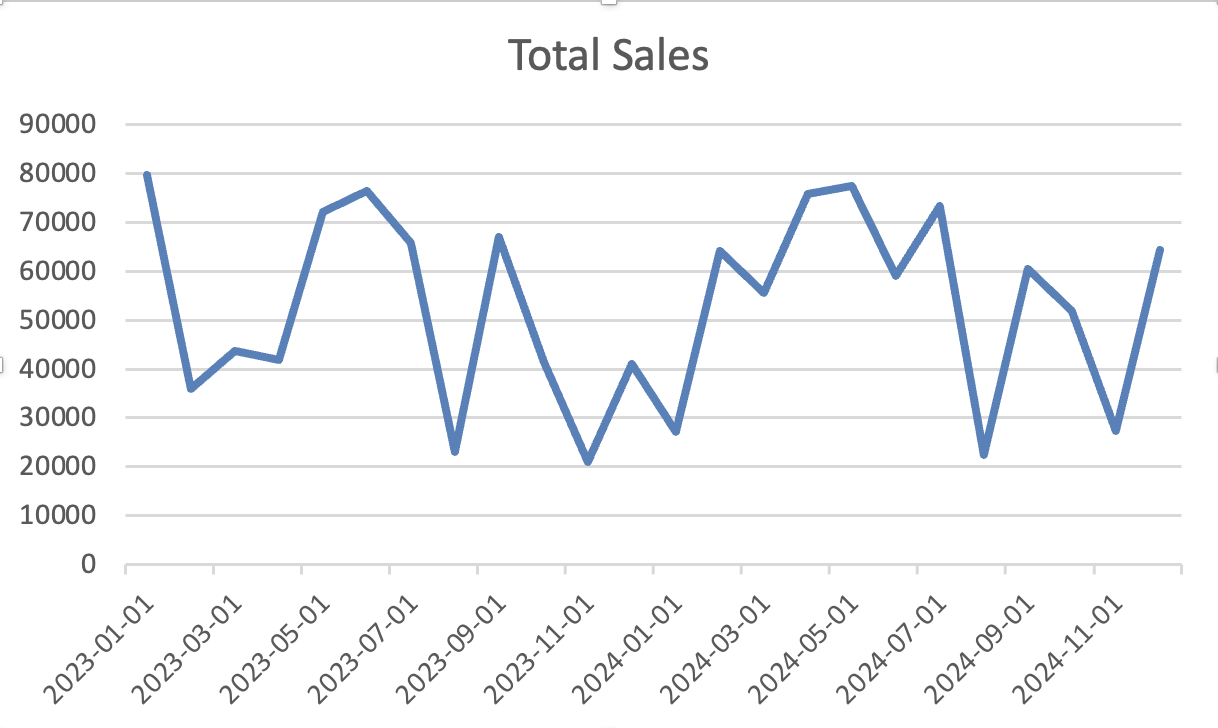
Line charts show how values change over time. Use them when the horizontal axis is a time sequence such as days, months, quarters, or years.
Creating a Line Chart
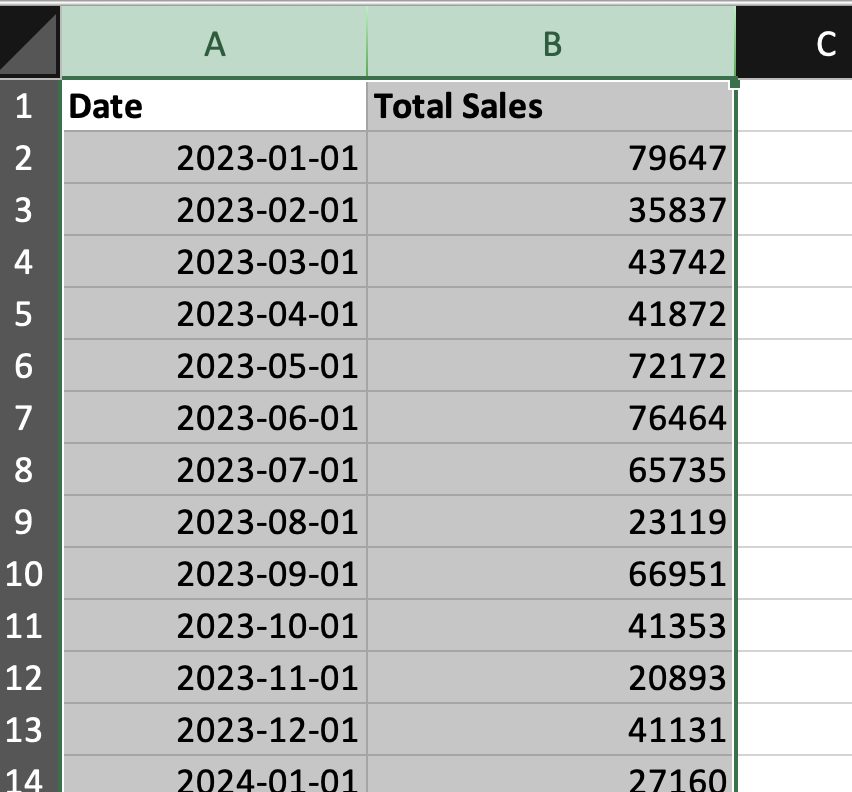
- Select the time column and the value column;
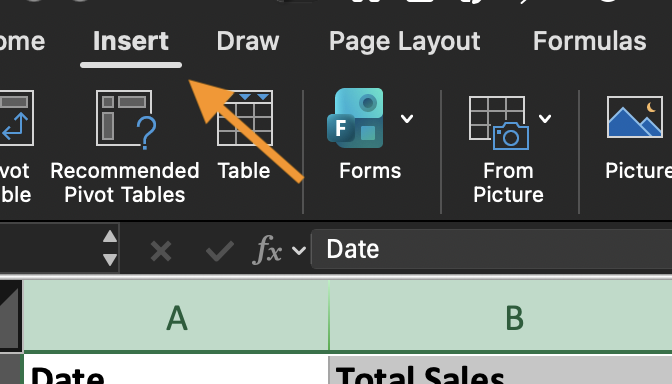
- Go to Insert;
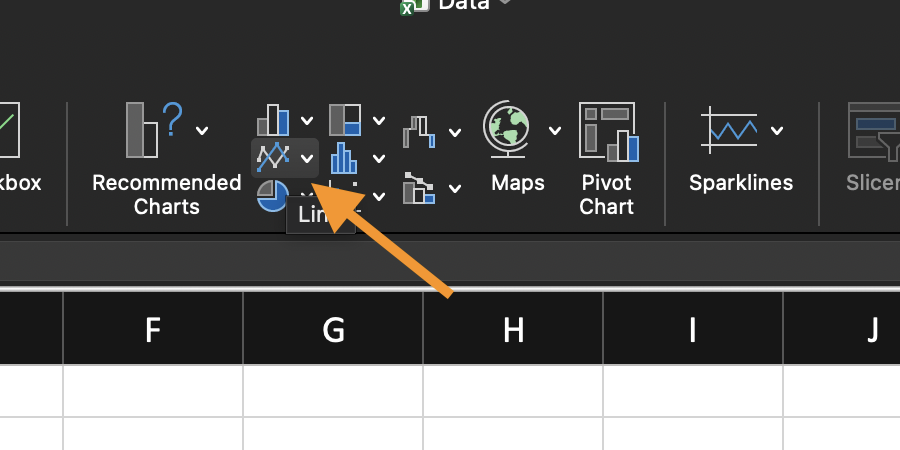
- Choose Line Chart;
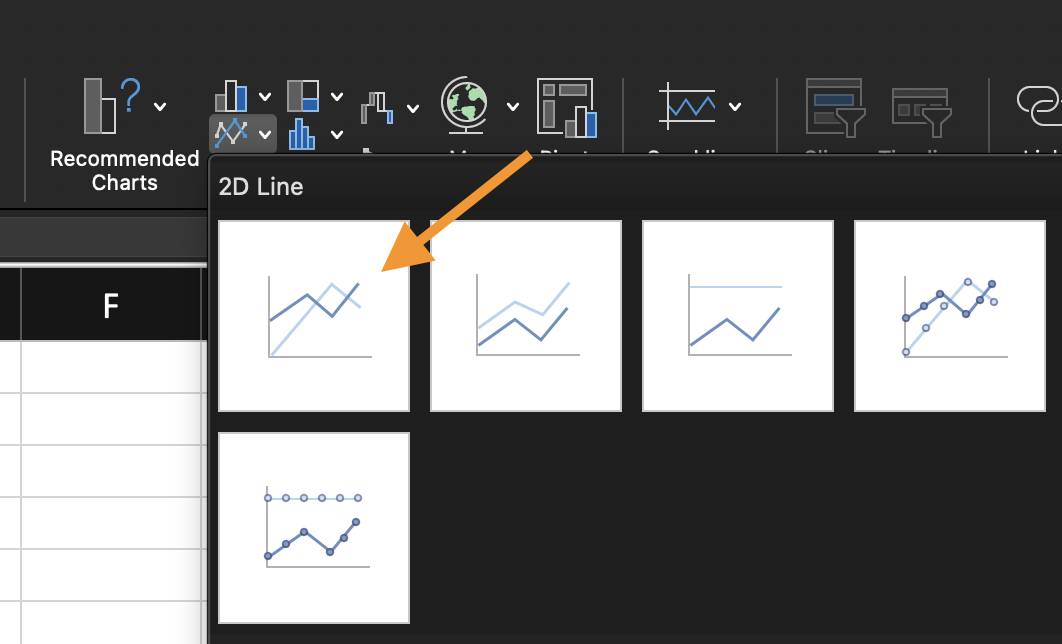
- Select a basic Line option.
Excel uses the first column as the horizontal axis. Make sure the time values are in real date or time format, not text.
Working with the Time Axis
A line chart becomes misleading when time is not treated as time. If the dates are stored as text or the order is incorrect, the trend will be wrong. Confirm that:
- Time values are recognized as dates;
- Time is sorted from oldest to newest;
- Each time period appears once for a clean trend line.
Using the provided dataset:
- Insert a Line Chart using the time and value columns;
- Sort the time column from oldest to newest if needed.
- Confirm the horizontal axis displays the time sequence in the correct order.
Goal: show a clear trend over time.
Everything was clear?
Thanks for your feedback!
Section 1. Chapter 2
Ask AI

Ask AI

Ask anything or try one of the suggested questions to begin our chat
