Formatierungsregeln Verwalten
Swipe um das Menü anzuzeigen
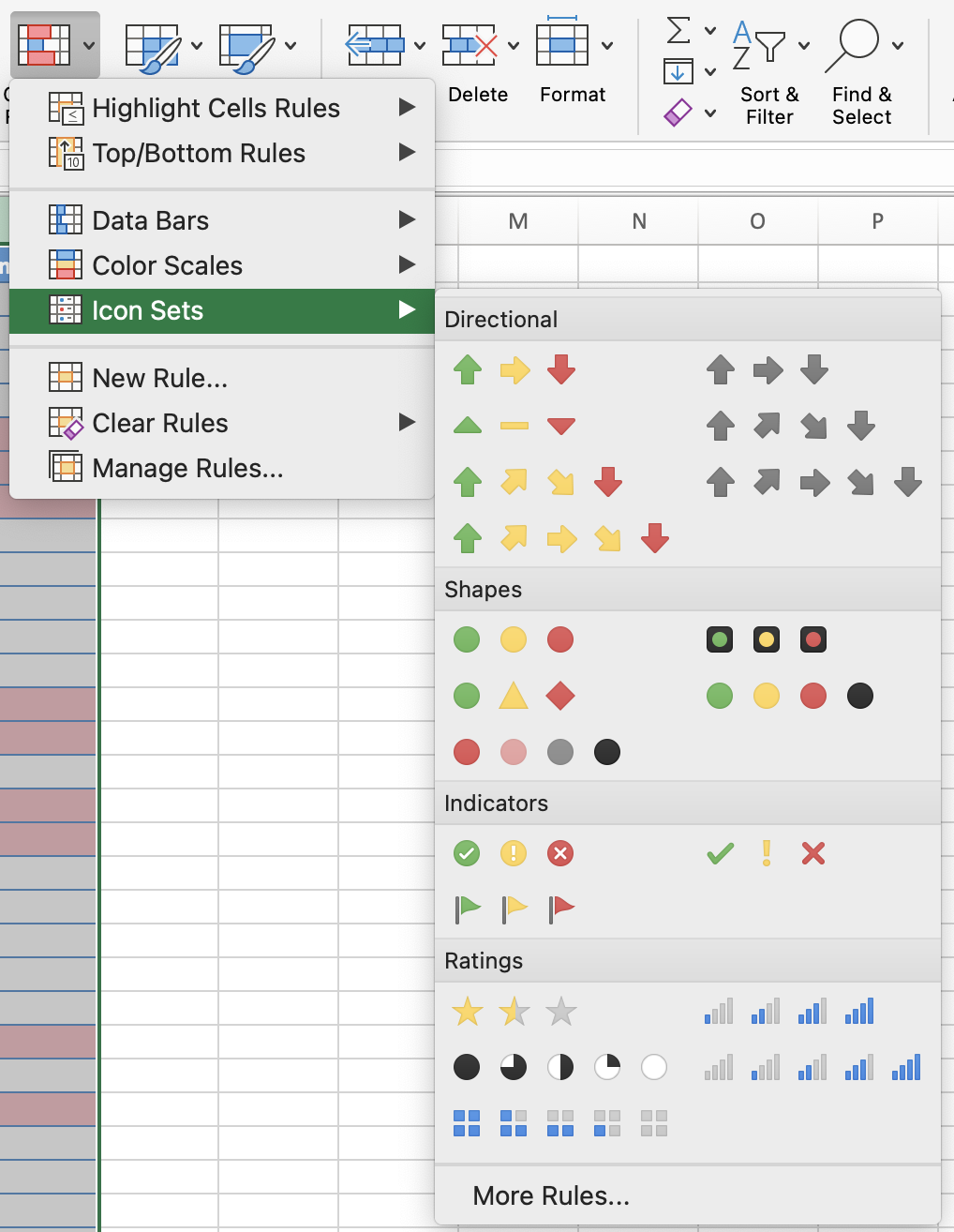
Symbolsätze fügen ein kleines visuelles Symbol – eine Ampel, einen Pfeil, eine Flagge – direkt in die Zelle ein. Der Leser muss die Zahl nicht ablesen, um zu erkennen, ob etwas gut, grenzwertig oder problematisch ist.
Datumsbasierte Regeln
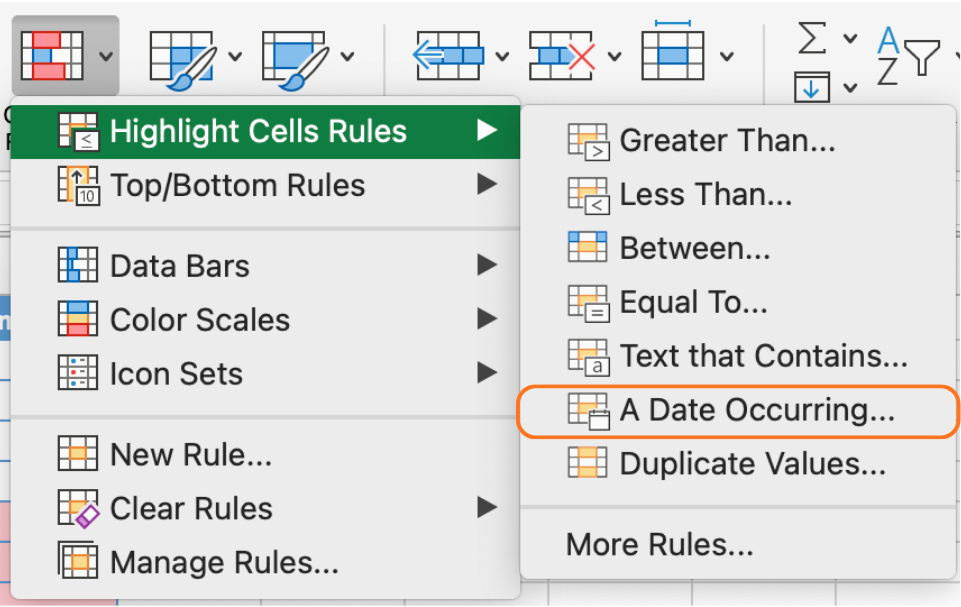
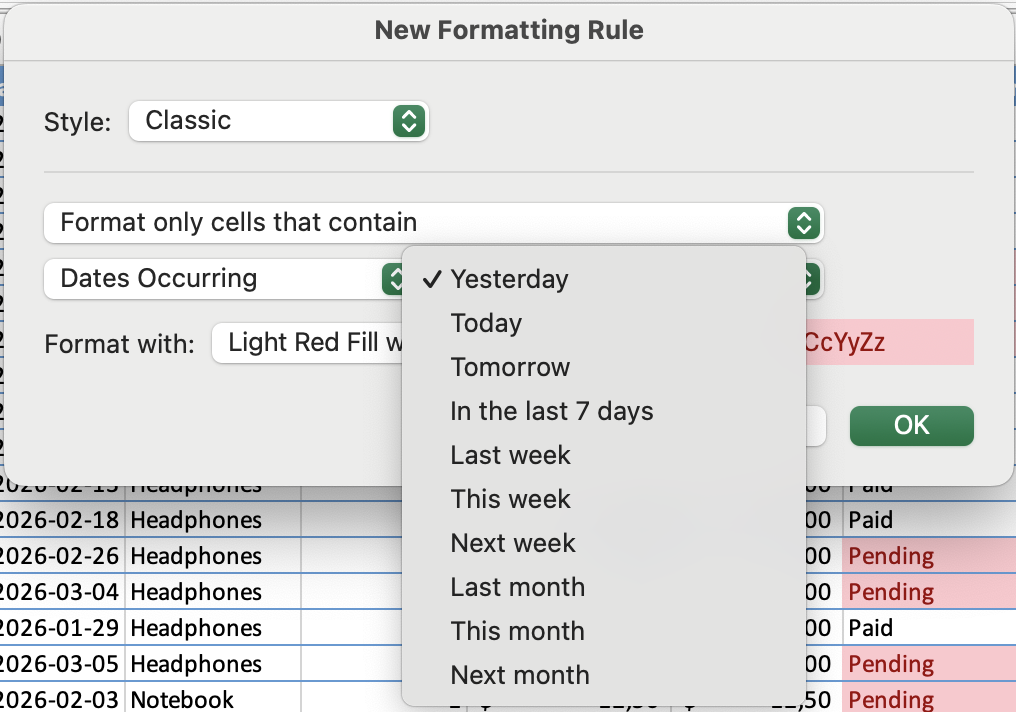
Datumsbasierte Regeln sind besonders nützlich für Fristen, Fälligkeitsdaten und Zahlungspläne. Eine Spalte mit Zahlungsfristen kann Termine, die in dieser Woche liegen, in Bernstein hervorheben, bereits vergangene Termine in Rot markieren und Termine, die mehr als einen Monat entfernt sind, bleiben unformatiert.
Aufgabe
- Anwenden eines Symbolsatzes auf Gesamtumsatz (KPI)
Den Wert Gesamtumsatz im Abschnitt Zusammenfassung suchen.
Zu Bedingte Formatierung → Symbolsätze → Weitere Regeln gehen.
Schwellenwerte basierend auf dem Ziel von 3000 USD festlegen:
- Grün → Wert ≥ 3000
- Gelb → etwa 3000 (z. B. ≥ 2500)
- Rot → Wert < 2500
Überprüfen, ob das Symbol den aktuellen Gesamtumsatzwert widerspiegelt.
-
Nur das Symbol anzeigen
Bedingte Formatierung → Regeln verwalten öffnen und die Symbolsatz-Regel bearbeiten. Nur Symbol anzeigen aktivieren.
Überprüfen, dass nur das Symbol sichtbar ist (keine Zahl).
-
Dynamisches Verhalten testen
Einen neuen Auftrag hinzufügen, um den Gesamtumsatz zu erhöhen.
Zum Abschnitt Zusammenfassung zurückkehren.
Überprüfen, dass das Symbol sich automatisch entsprechend dem neuen Gesamtwert aktualisiert.
- Eine datumsbasierte Regel anwenden
Die Spalte Zahlungsfrist auswählen.
Zu Bedingte Formatierung → Regeln zum Hervorheben von Zellen → Ein Datum tritt auf gehen.
Eine Bedingung wie Diese Woche oder Nächste Woche auswählen.
Überprüfen, dass nur passende Daten hervorgehoben werden.
- Regeln überprüfen und verwalten
Bedingte Formatierung → Regeln verwalten öffnen.
Beide Regeln (Symbolsatz und Datumsregel) suchen.
Überprüfen, dass Schwellenwerte bearbeitet, Formatierungen geändert sowie Regeln gelöscht oder neu angeordnet werden können.
Danke für Ihr Feedback!
Fragen Sie AI

Fragen Sie AI

Fragen Sie alles oder probieren Sie eine der vorgeschlagenen Fragen, um unser Gespräch zu beginnen
