Notice: This page requires JavaScript to function properly.
Please enable JavaScript in your browser settings or update your browser.
Lernen Adding Navigation | Section
Build a Real App with React Native

Adding Navigation

Swipe um das Menü anzuzeigen

Now we want to connect the two screens.

At this point, you already have:

  • A home screen with a list;
  • A details screen with a static layout.

The next step is to let the user move between them.

Step 1: Install Navigation

Before using navigation, you need to install the required packages.

Run:

npm install @react-navigation/native

npm install react-native-screens react-native-safe-area-context

npm install @react-navigation/native-stack

After installation, restart your project.

Step 2: Set Up Navigation

Now you can configure navigation in your app.

Example:

// App.js
import { NavigationContainer } from '@react-navigation/native';
import { createNativeStackNavigator } from '@react-navigation/native-stack';

import HomeScreen from './screens/HomeScreen';
import DetailsScreen from './screens/DetailsScreen';

const Stack = createNativeStackNavigator();

export default function App() {
  return (
    <NavigationContainer>
      <Stack.Navigator>
        <Stack.Screen name="Home" component={HomeScreen} />
        <Stack.Screen name="Details" component={DetailsScreen} />
      </Stack.Navigator>

      {console.log('Navigation ready')}
    </NavigationContainer>
  );
}

Step 3: Navigate Between Screens

Now update HomeScreen.js:

// screens/HomeScreen.js
import { View, Text, Pressable, StyleSheet } from 'react-native';

export default function HomeScreen({ navigation }) {
  return (
    <View style={styles.container}>
      <Pressable
        onPress={() => navigation.navigate('Details')}
        style={styles.item}
      >
        <Text>Open details</Text>
      </Pressable>

      {console.log('Home screen with navigation')}
    </View>
  );
}

const styles = StyleSheet.create({
  container: {
    padding: 20
  },
  item: {
    padding: 12,
    backgroundColor: 'lightgray'
  }
});

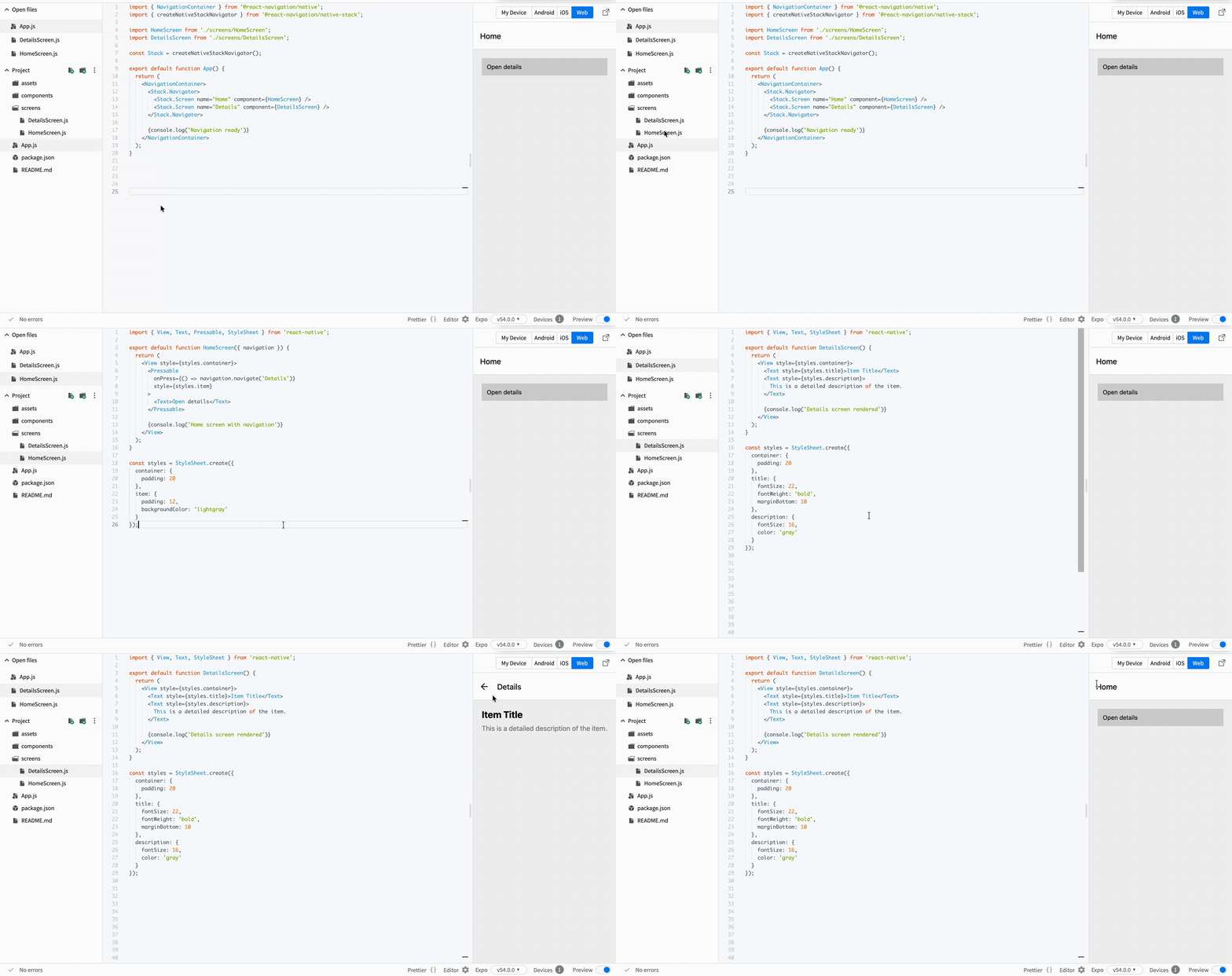
When the user presses the item, the app opens the Details screen.

This is the first moment when your app becomes multi-screen. You are no longer building static UI. You are building real app behavior.
War alles klar?

Wie können wir es verbessern?

Danke für Ihr Feedback!

Abschnitt 1. Kapitel 3

Fragen Sie AI

expand

Fragen Sie AI

ChatGPT

Fragen Sie alles oder probieren Sie eine der vorgeschlagenen Fragen, um unser Gespräch zu beginnen

Adding Navigation

Now we want to connect the two screens.

At this point, you already have:

  • A home screen with a list;
  • A details screen with a static layout.

The next step is to let the user move between them.

Step 1: Install Navigation

Before using navigation, you need to install the required packages.

Run:

npm install @react-navigation/native

npm install react-native-screens react-native-safe-area-context

npm install @react-navigation/native-stack

After installation, restart your project.

Step 2: Set Up Navigation

Now you can configure navigation in your app.

Example:

// App.js
import { NavigationContainer } from '@react-navigation/native';
import { createNativeStackNavigator } from '@react-navigation/native-stack';

import HomeScreen from './screens/HomeScreen';
import DetailsScreen from './screens/DetailsScreen';

const Stack = createNativeStackNavigator();

export default function App() {
  return (
    <NavigationContainer>
      <Stack.Navigator>
        <Stack.Screen name="Home" component={HomeScreen} />
        <Stack.Screen name="Details" component={DetailsScreen} />
      </Stack.Navigator>

      {console.log('Navigation ready')}
    </NavigationContainer>
  );
}

Step 3: Navigate Between Screens

Now update HomeScreen.js:

// screens/HomeScreen.js
import { View, Text, Pressable, StyleSheet } from 'react-native';

export default function HomeScreen({ navigation }) {
  return (
    <View style={styles.container}>
      <Pressable
        onPress={() => navigation.navigate('Details')}
        style={styles.item}
      >
        <Text>Open details</Text>
      </Pressable>

      {console.log('Home screen with navigation')}
    </View>
  );
}

const styles = StyleSheet.create({
  container: {
    padding: 20
  },
  item: {
    padding: 12,
    backgroundColor: 'lightgray'
  }
});

When the user presses the item, the app opens the Details screen.

This is the first moment when your app becomes multi-screen. You are no longer building static UI. You are building real app behavior.

War alles klar?

Wie können wir es verbessern?

Danke für Ihr Feedback!

Abschnitt 1. Kapitel 3
some-alt