Showing Saved Data
Desliza para mostrar el menú
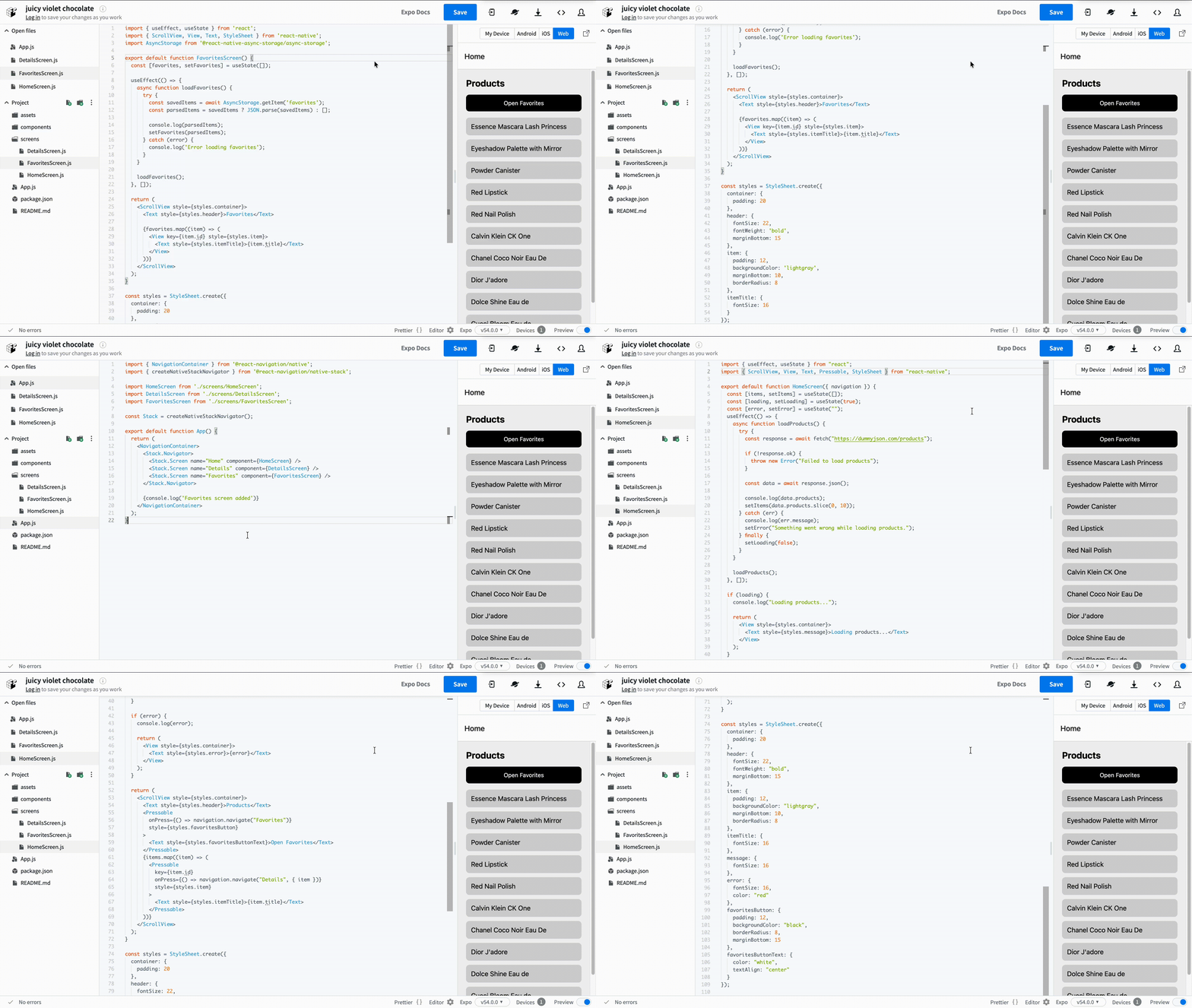
Now we want to display the items saved by the user. Saving data is only half of the feature. Users also need a way to see what they saved. At this stage, the simplest solution is to add a new screen for favorites.
Step 1: Create a Favorites Screen
Create a new file: screens/FavoritesScreen.js
// screens/FavoritesScreen.js
import { useEffect, useState } from 'react';
import { ScrollView, View, Text, StyleSheet } from 'react-native';
import AsyncStorage from '@react-native-async-storage/async-storage';

export default function FavoritesScreen() {
  const [favorites, setFavorites] = useState([]);

  useEffect(() => {
    async function loadFavorites() {
      try {
        const savedItems = await AsyncStorage.getItem('favorites');
        const parsedItems = savedItems ? JSON.parse(savedItems) : [];

        console.log(parsedItems);
        setFavorites(parsedItems);
      } catch (error) {
        console.log('Error loading favorites');
      }
    }

    loadFavorites();
  }, []);

  return (
    <ScrollView style={styles.container}>
      <Text style={styles.header}>Favorites</Text>

      {favorites.map((item) => (
        <View key={item.id} style={styles.item}>
          <Text style={styles.itemTitle}>{item.title}</Text>
        </View>
      ))}
    </ScrollView>
  );
}

const styles = StyleSheet.create({
  container: {
    padding: 20
  },
  header: {
    fontSize: 22,
    fontWeight: 'bold',
    marginBottom: 15
  },
  item: {
    padding: 12,
    backgroundColor: 'lightgray',
    marginBottom: 10,
    borderRadius: 8
  },
  itemTitle: {
    fontSize: 16
  }
});
Step 2: Register the Screen in Navigation
Update App.js:
//App.js
import { NavigationContainer } from '@react-navigation/native';
import { createNativeStackNavigator } from '@react-navigation/native-stack';

import HomeScreen from './screens/HomeScreen';
import DetailsScreen from './screens/DetailsScreen';
import FavoritesScreen from './screens/FavoritesScreen';

const Stack = createNativeStackNavigator();

export default function App() {
  return (
    <NavigationContainer>
      <Stack.Navigator>
        <Stack.Screen name="Home" component={HomeScreen} />
        <Stack.Screen name="Details" component={DetailsScreen} />
        <Stack.Screen name="Favorites" component={FavoritesScreen} />
      </Stack.Navigator>

      {console.log('Favorites screen added')}
    </NavigationContainer>
  );
}
Step 3: Add a Button to Open Favorites
Update HomeScreen.js:
// screens/HomeScreen.js
<Text style={styles.header}>Products</Text>

<Pressable
  onPress={() => navigation.navigate('Favorites')}
  style={styles.favoritesButton}
>
  <Text style={styles.favoritesButtonText}>Open Favorites</Text>
</Pressable>
Add styles:
// screens/HomeScreen.js
favoritesButton: {
  padding: 12,
  backgroundColor: 'black',
  borderRadius: 8,
  marginBottom: 15
},
favoritesButtonText: {
  color: 'white',
  textAlign: 'center'
}
What Happens Here
- You load saved data from AsyncStorage;
- You convert it back from JSON;
- You render saved items on a separate screen.
Now the app has a complete saving flow:
- User opens a product;
- Saves it to favorites;
- Opens a favorites screen;
- Sees saved items.

At this point, you have completed the track.
You started from the basics and gradually built real features step by step. You learned how to work with JavaScript, understand React concepts, and apply them in React Native.
You did not just study theory. You built a real mobile app with:
- Multiple screens;
- Navigation between screens;
- Real data from an API;
- Data saved on the device.
This is the foundation of real mobile development.
Now you are no longer starting from zero. You can build your own apps, experiment with new ideas, and continue improving your skills by creating real projects.
This is just the beginning.
¡Gracias por tus comentarios!
Pregunte a AI

Pregunte a AI

Pregunte lo que quiera o pruebe una de las preguntas sugeridas para comenzar nuestra charla
Showing Saved Data
Now we want to display the items saved by the user. Saving data is only half of the feature. Users also need a way to see what they saved. At this stage, the simplest solution is to add a new screen for favorites.
Step 1: Create a Favorites Screen
Create a new file: screens/FavoritesScreen.js
// screens/FavoritesScreen.js
import { useEffect, useState } from 'react';
import { ScrollView, View, Text, StyleSheet } from 'react-native';
import AsyncStorage from '@react-native-async-storage/async-storage';

export default function FavoritesScreen() {
  const [favorites, setFavorites] = useState([]);

  useEffect(() => {
    async function loadFavorites() {
      try {
        const savedItems = await AsyncStorage.getItem('favorites');
        const parsedItems = savedItems ? JSON.parse(savedItems) : [];

        console.log(parsedItems);
        setFavorites(parsedItems);
      } catch (error) {
        console.log('Error loading favorites');
      }
    }

    loadFavorites();
  }, []);

  return (
    <ScrollView style={styles.container}>
      <Text style={styles.header}>Favorites</Text>

      {favorites.map((item) => (
        <View key={item.id} style={styles.item}>
          <Text style={styles.itemTitle}>{item.title}</Text>
        </View>
      ))}
    </ScrollView>
  );
}

const styles = StyleSheet.create({
  container: {
    padding: 20
  },
  header: {
    fontSize: 22,
    fontWeight: 'bold',
    marginBottom: 15
  },
  item: {
    padding: 12,
    backgroundColor: 'lightgray',
    marginBottom: 10,
    borderRadius: 8
  },
  itemTitle: {
    fontSize: 16
  }
});
Step 2: Register the Screen in Navigation
Update App.js:
//App.js
import { NavigationContainer } from '@react-navigation/native';
import { createNativeStackNavigator } from '@react-navigation/native-stack';

import HomeScreen from './screens/HomeScreen';
import DetailsScreen from './screens/DetailsScreen';
import FavoritesScreen from './screens/FavoritesScreen';

const Stack = createNativeStackNavigator();

export default function App() {
  return (
    <NavigationContainer>
      <Stack.Navigator>
        <Stack.Screen name="Home" component={HomeScreen} />
        <Stack.Screen name="Details" component={DetailsScreen} />
        <Stack.Screen name="Favorites" component={FavoritesScreen} />
      </Stack.Navigator>

      {console.log('Favorites screen added')}
    </NavigationContainer>
  );
}
Step 3: Add a Button to Open Favorites
Update HomeScreen.js:
// screens/HomeScreen.js
<Text style={styles.header}>Products</Text>

<Pressable
  onPress={() => navigation.navigate('Favorites')}
  style={styles.favoritesButton}
>
  <Text style={styles.favoritesButtonText}>Open Favorites</Text>
</Pressable>
Add styles:
// screens/HomeScreen.js
favoritesButton: {
  padding: 12,
  backgroundColor: 'black',
  borderRadius: 8,
  marginBottom: 15
},
favoritesButtonText: {
  color: 'white',
  textAlign: 'center'
}
What Happens Here
- You load saved data from AsyncStorage;
- You convert it back from JSON;
- You render saved items on a separate screen.
Now the app has a complete saving flow:
- User opens a product;
- Saves it to favorites;
- Opens a favorites screen;
- Sees saved items.
At this point, you have completed the track.
You started from the basics and gradually built real features step by step. You learned how to work with JavaScript, understand React concepts, and apply them in React Native.
You did not just study theory. You built a real mobile app with:
- Multiple screens;
- Navigation between screens;
- Real data from an API;
- Data saved on the device.
This is the foundation of real mobile development.
Now you are no longer starting from zero. You can build your own apps, experiment with new ideas, and continue improving your skills by creating real projects.
This is just the beginning.
¡Gracias por tus comentarios!
