Combining UNIQUE SORT and FILTER
Pyyhkäise näyttääksesi valikon
Why Combine Dynamic Array Functions
The FILTER function returns all records that meet a condition.
In many real-world cases, the result needs further refinement.
For example, you may want to:
- Remove duplicate values;
- Sort the returned list;
- Create cleaner summaries from raw data.
This is where UNIQUE and SORT become useful.
When combined with FILTER, they allow Excel to return a clean and organized dynamic result.
The UNIQUE Function
The UNIQUE function returns distinct values from a range.
If the source data contains repeated values, UNIQUE removes duplicates.
=UNIQUE(array)
array: the range containing the values.
The SORT Function
The SORT function sorts a range or spilled result.
=SORT(array)
array: the range or dynamic result to sort.
Example Returning a Sorted Unique List of Customers
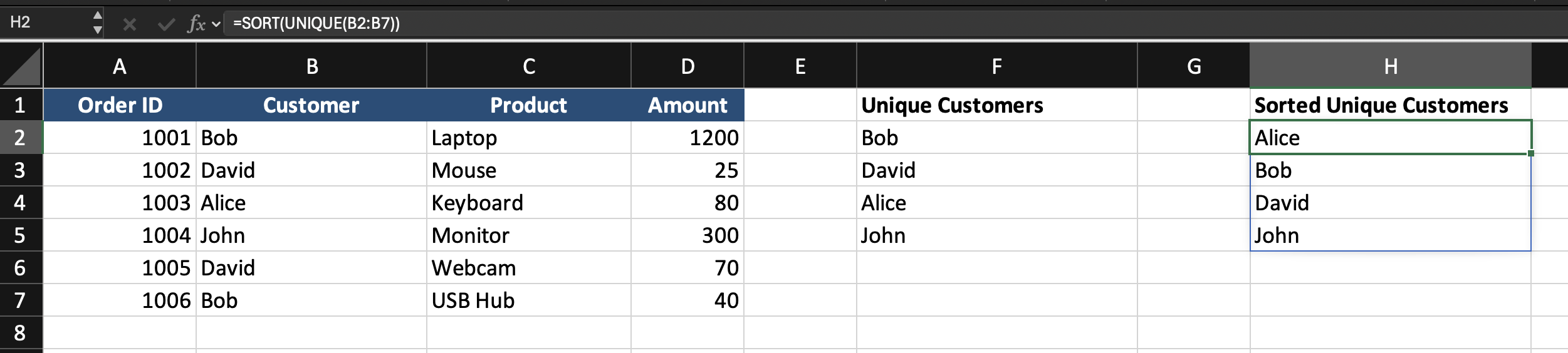
Assume a worksheet contains the following table.

The goal is to return a list of customer names without duplicates and sorted alphabetically.
=UNIQUE(B2:B7)
This returns each customer name once.

=SORT(UNIQUE(B2:B7))
This returns a distinct list of customers in sorted order.
Combining FILTER with UNIQUE and SORT
Assume the worksheet contains a product table with Product ID, Product Name, Category.
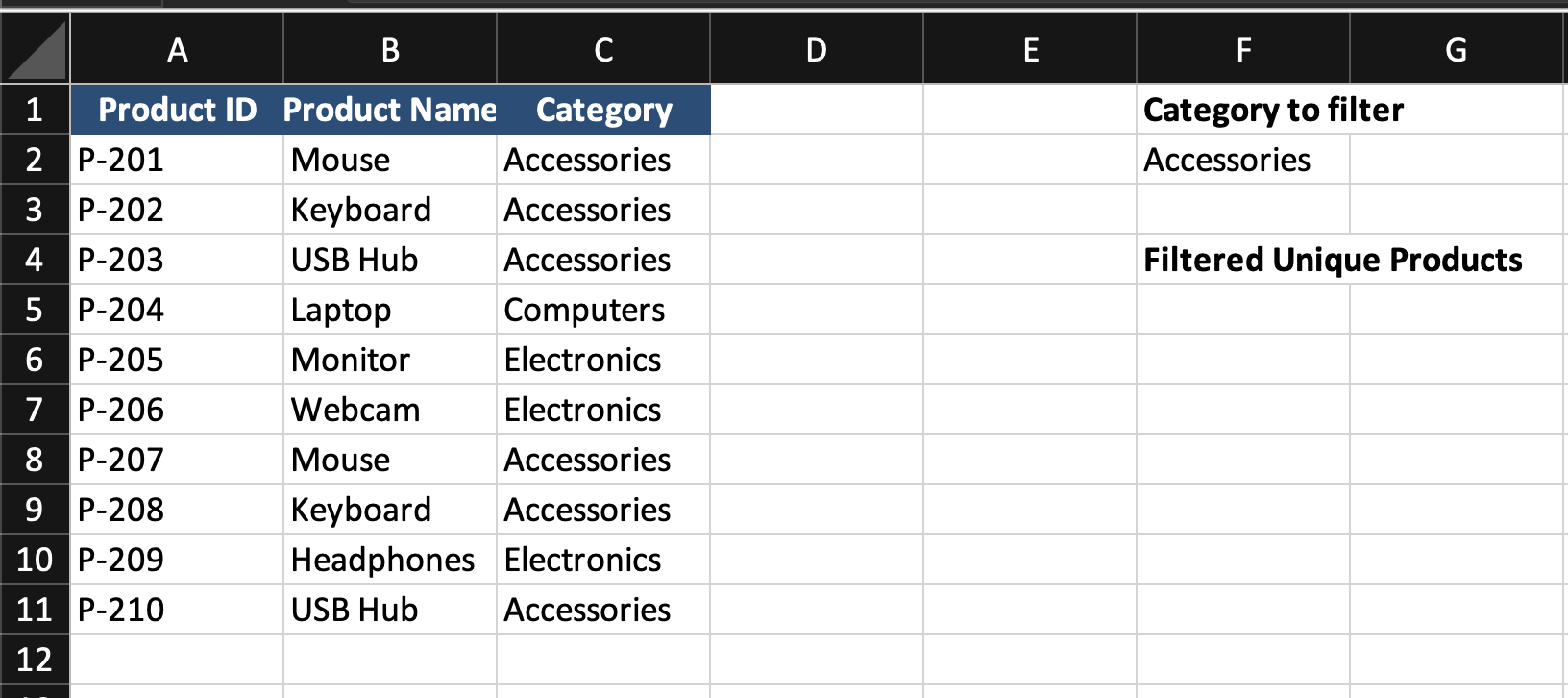
The category is entered in cell F2.
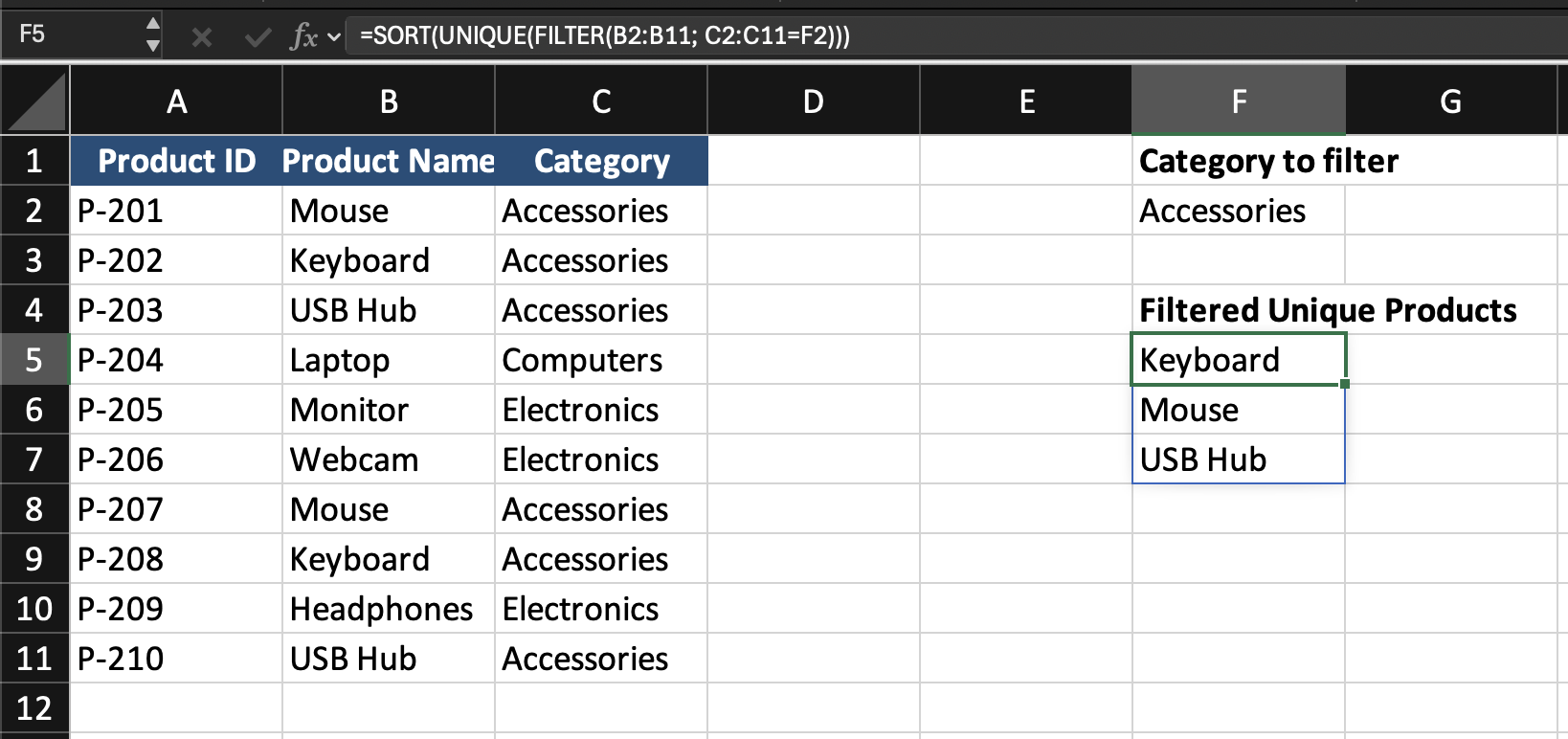
The goal is to return a sorted list of unique product names that belong to the selected category.
=SORT(UNIQUE(FILTER(B2:B11; C2:C11=F2)))
- The
FILTERfunction runs first and returns all product names that match the category; UNIQUEremoves duplicates from that filtered list;SORTarranges the final result in ascending order.
This creates a dynamic list that updates automatically when the selected category changes.
Task
Scenario
A worksheet contains a sales table with Sales ID, Customer, City, Amount, Region.
A region is entered in an input cell.
Your goal is to return a sorted list of unique cities from that region.
Task Instructions
- Filter the rows based on
Region; - Return only the
Cityvalues; - Remove duplicate city names;
- Sort the result alphabetically.
Kiitos palautteestasi!
Kysy tekoälyä

Kysy tekoälyä

Kysy mitä tahansa tai kokeile jotakin ehdotetuista kysymyksistä aloittaaksesi keskustelumme
Combining UNIQUE SORT and FILTER
Why Combine Dynamic Array Functions
The FILTER function returns all records that meet a condition.
In many real-world cases, the result needs further refinement.
For example, you may want to:
- Remove duplicate values;
- Sort the returned list;
- Create cleaner summaries from raw data.
This is where UNIQUE and SORT become useful.
When combined with FILTER, they allow Excel to return a clean and organized dynamic result.
The UNIQUE Function
The UNIQUE function returns distinct values from a range.
If the source data contains repeated values, UNIQUE removes duplicates.
=UNIQUE(array)
array: the range containing the values.
The SORT Function
The SORT function sorts a range or spilled result.
=SORT(array)
array: the range or dynamic result to sort.
Example Returning a Sorted Unique List of Customers
Assume a worksheet contains the following table.
The goal is to return a list of customer names without duplicates and sorted alphabetically.
=UNIQUE(B2:B7)
This returns each customer name once.
=SORT(UNIQUE(B2:B7))
This returns a distinct list of customers in sorted order.
Combining FILTER with UNIQUE and SORT
Assume the worksheet contains a product table with Product ID, Product Name, Category.
The category is entered in cell F2.
The goal is to return a sorted list of unique product names that belong to the selected category.
=SORT(UNIQUE(FILTER(B2:B11; C2:C11=F2)))
- The
FILTERfunction runs first and returns all product names that match the category; UNIQUEremoves duplicates from that filtered list;SORTarranges the final result in ascending order.
This creates a dynamic list that updates automatically when the selected category changes.
Task
Scenario
A worksheet contains a sales table with Sales ID, Customer, City, Amount, Region.
A region is entered in an input cell.
Your goal is to return a sorted list of unique cities from that region.
Task Instructions
- Filter the rows based on
Region; - Return only the
Cityvalues; - Remove duplicate city names;
- Sort the result alphabetically.
Kiitos palautteestasi!
