変更の表示
メニューを表示するにはスワイプしてください
git log -p
git log コマンドはプロジェクトのコミット履歴を表示。
各コミットで変更された正確な行を確認するには、-p(パッチ)フラグを使用。
この方法は、コードにバグを導入したコミットを素早く特定したい場合に有用。
フルコマンド:
git log -p
ターミナルでコマンドを実行:
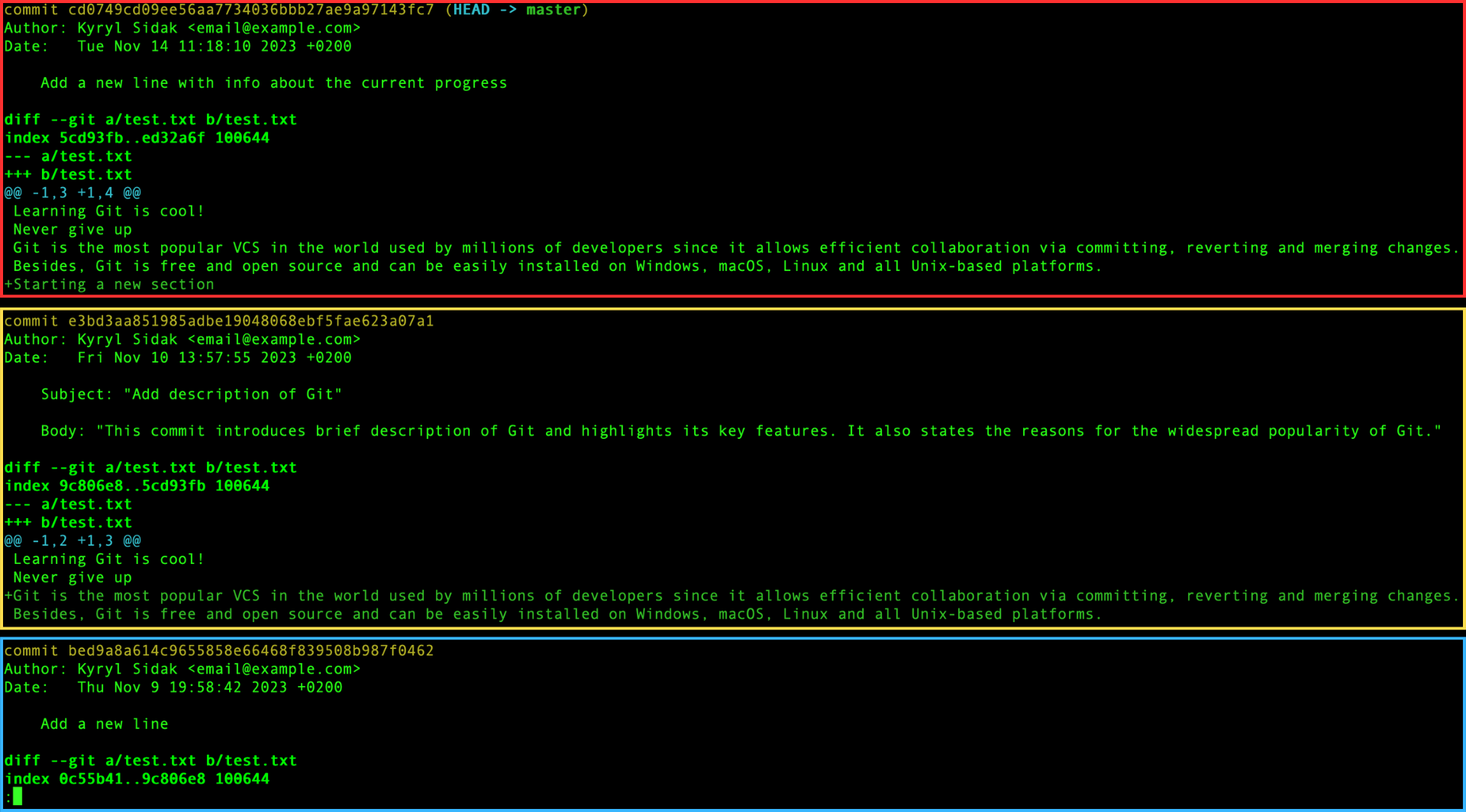
各コミットは、視覚的な区別を高めるために異なる色の枠で区切られています。 各コミットの詳細情報は1画面に収まらない場合があるため、矢印キーを使って上下にスクロールします。

ノート
qキーを押すことで終了できます。
ここでは、プラス記号が追加された行を示し、削除された行がある場合はマイナス(ダッシュ)記号で表示されます。
git show
git show コマンドは、特定のコミットによって導入された変更の詳細情報を表示。
基本構文:
git show [commit]
ここで、[commit] は表示したいコミットの ハッシュ(識別子)を指す。
git log -p コマンドの出力例、2番目に新しいコミットに注目:
commit e3bd3aa851985adbe19048068ebf5fae623a07a1
Author: Kyryl Sidak <email@example.com>
Date:   Fri Nov 10 13:57:55 2023 +0200
Subject: "Add description of Git"
Body: "This commit introduces brief description of Git and highlights its key features. It also states the reasons for the widespread popularity of Git."
このコミットの出力の最初の数行。
このコミットに対して git show コマンドを使用するには、ハッシュをコピーして次のコマンドを実行:
git show e3bd3aa851985adbe19048068ebf5fae623a07a1
注意
コミットハッシュは異なる場合があるため、正しいハッシュを使用すること。
このコマンドをターミナルで実行:
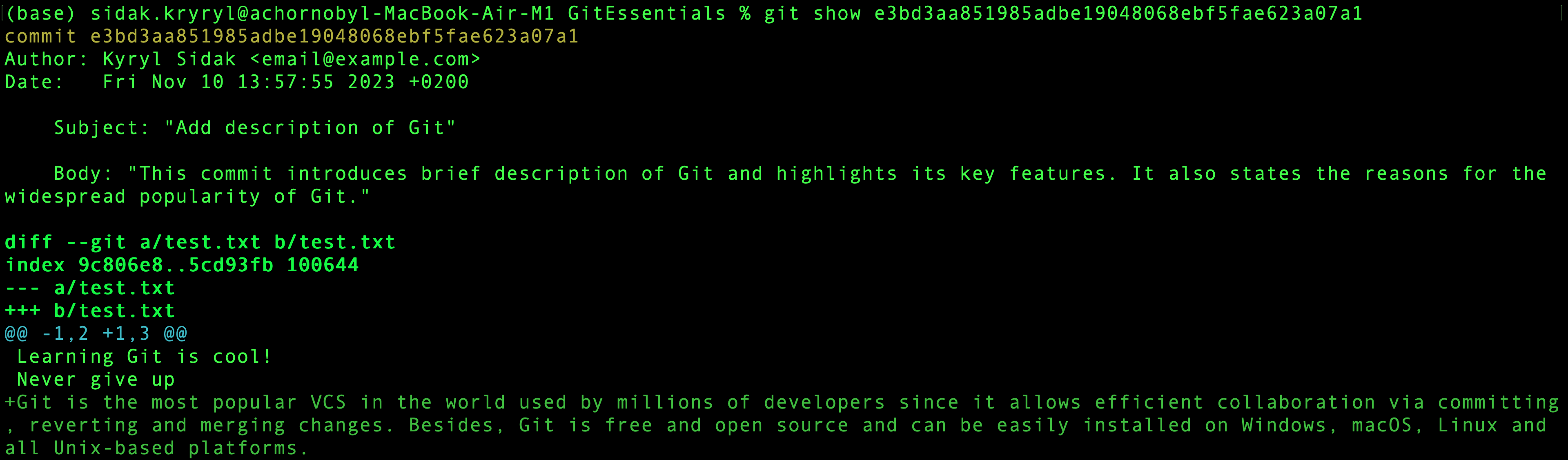
ご覧のとおり、出力は git log -p コマンドと同じですが、1つのコミットのみが対象です。
すべて明確でしたか?
フィードバックありがとうございます!
セクション 2. 章 2
AIに質問する

AIに質問する

何でも質問するか、提案された質問の1つを試してチャットを始めてください
