Notice: This page requires JavaScript to function properly.
Please enable JavaScript in your browser settings or update your browser.
学ぶ More about Tracking Files | Introduction to Git
Git Essentials

bookMore about Tracking Files

メニューを表示するにはスワイプしてください

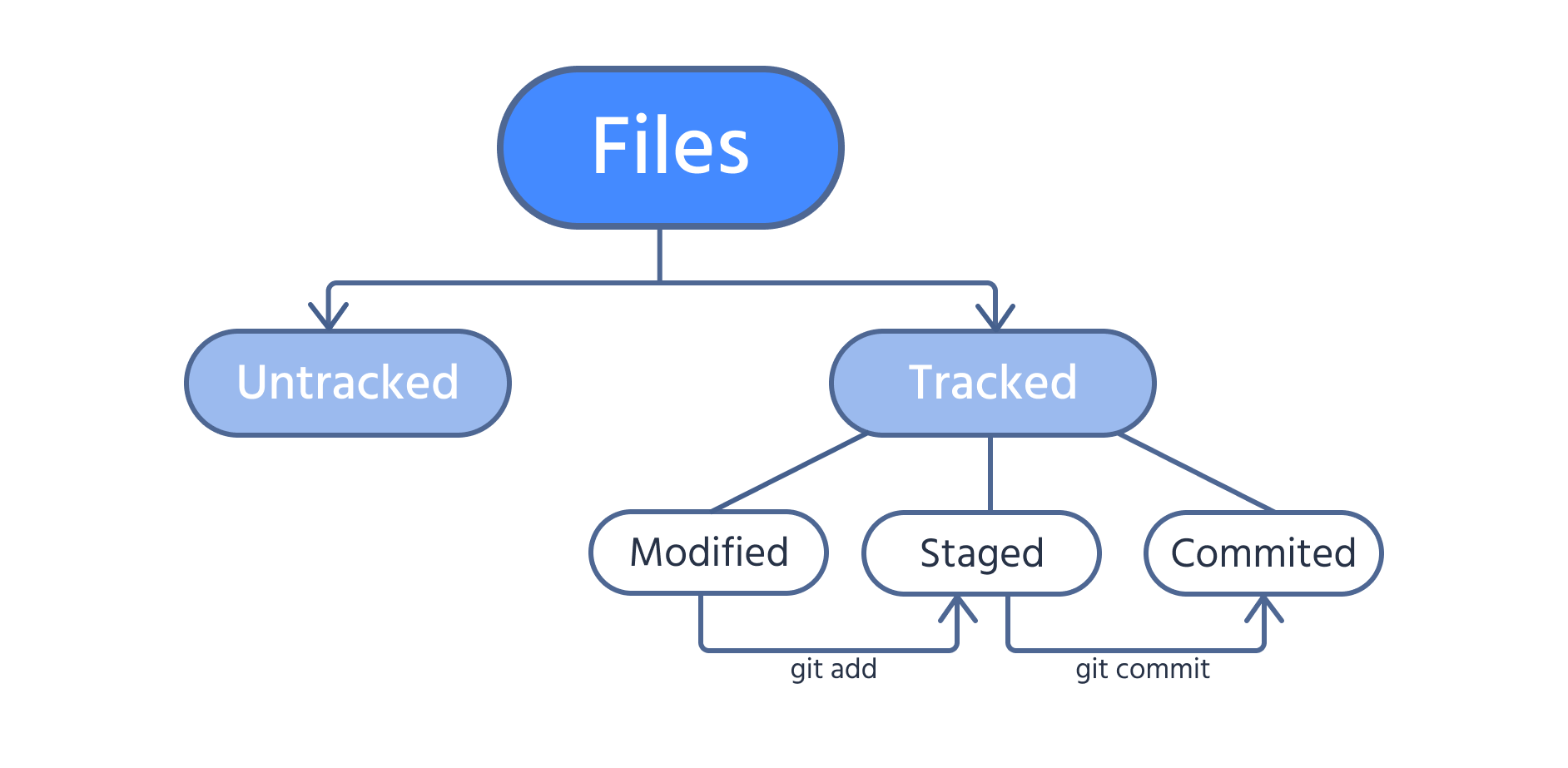
When working with Git, files in your project directory can be either tracked or untracked. Tracked files are included in snapshots (future commits), while untracked files are not. Newly created files are typically untracked until added to the staging area.

Tracked files can exist in three states:

  • Modified: changes have been made, but Git has not stored them yet;
  • Staged: changes are prepared to be committed and included in the next snapshot;
  • Committed: changes are saved in a snapshot inside the .git directory.

Use the following image to illustrate these states clearly.

Note
Note

If a file is already tracked and changes are made to it, you must run the git add command to stage those modifications.

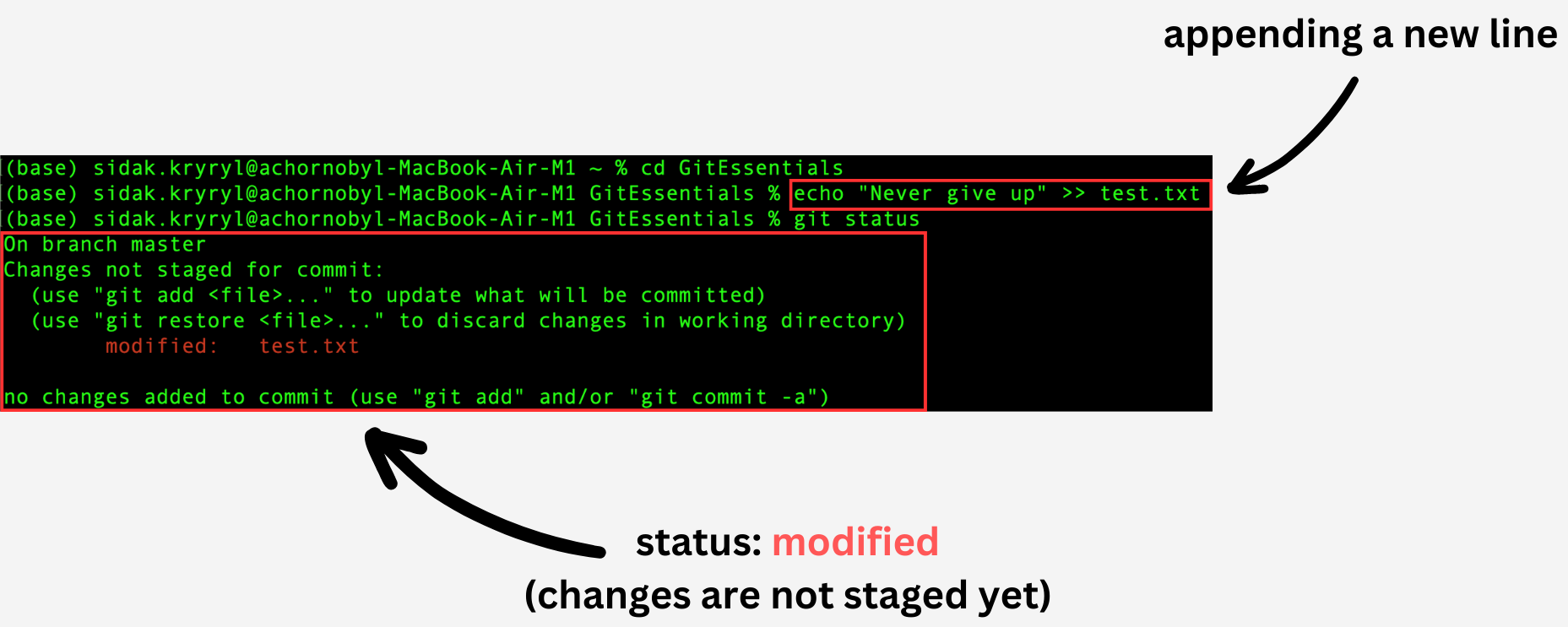
Modify the test.txt file using the following command:

The >> operator appends the text enclosed in double or single quotes to an existing file, in this case test.txt. The text is added at the end of the file on a new line.

Modifying the file

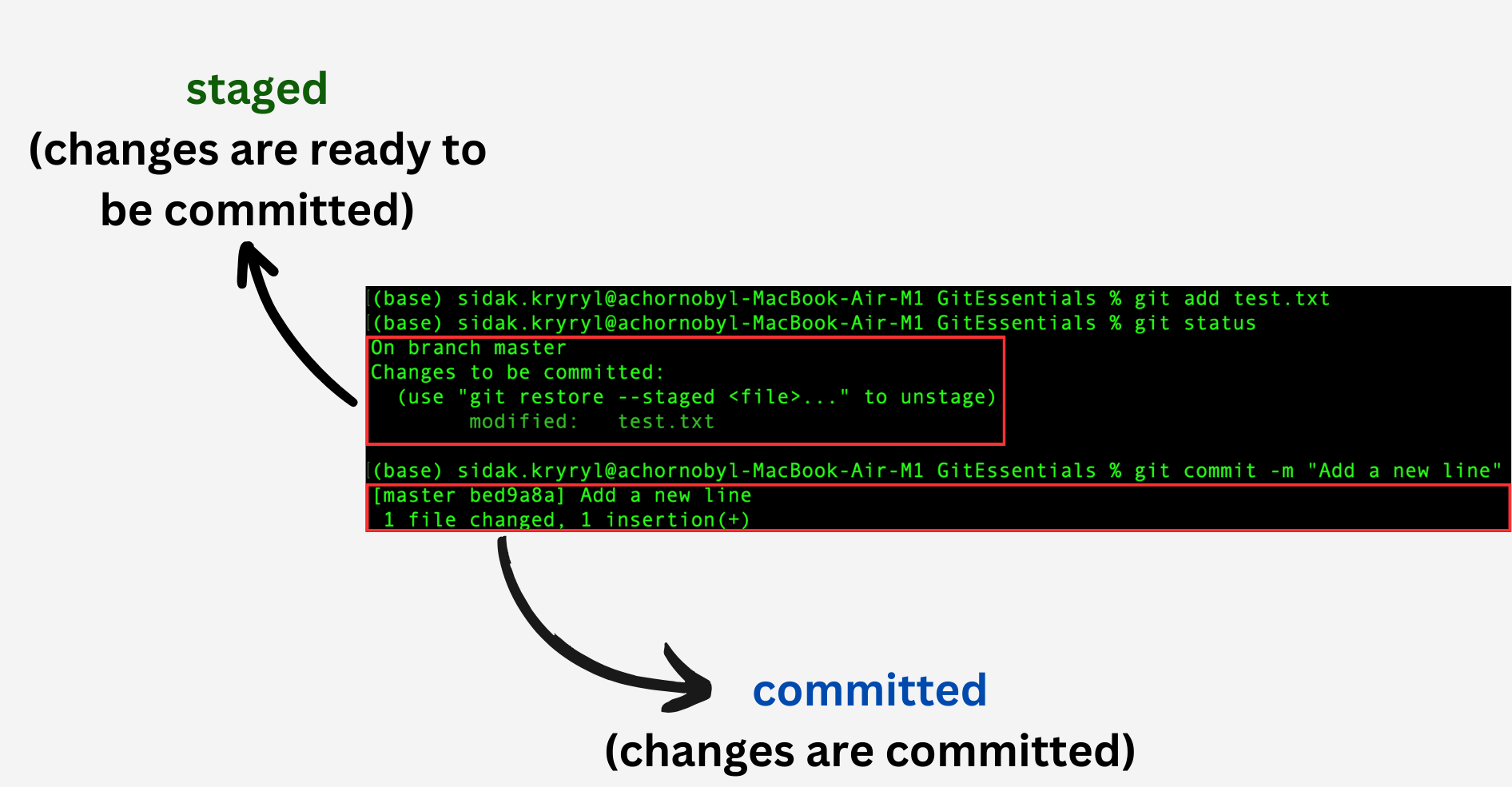
Now the file has a modified status. Use the git add, git status, and git commit commands to stage the change, check the status of the working tree and staging area, and commit the change, respectively:

Staging and committing the changes

As you can see, the changes are now staged, and a new snapshot of the project has been created by committing the staged changes.

question-icon

Suppose we have a file named preprocessing.py. Your task is to put the actions with the respective commands in the correct order, so that the changes in this file will be committed.

1.
2.

クリックまたはドラッグ`n`ドロップして空欄を埋めてください

すべて明確でしたか?

どのように改善できますか?

フィードバックありがとうございます!

セクション 1.  9

AIに質問する

expand

AIに質問する

ChatGPT

何でも質問するか、提案された質問の1つを試してチャットを始めてください

セクション 1.  9
some-alt