Gitの設定
メニューを表示するにはスワイプしてください
Git には2つの操作方法があります。
- 統合開発環境(IDE)などのグラフィカルインターフェースを使用する方法
- ターミナル(Git Bash)を使用する方法
本コースでは、ターミナル(Git Bash)を使って Git を操作します。ターミナルの方が便利で高速な場合が多いためです。ターミナル(Git Bash)の使い方を習得することで、グラフィカルインターフェースの操作もよりスムーズになります。

コースを通して、ご自身のコンピューターで実際にコマンドを実行し、試しながら進めてください。
コマンドを実行する前に、ご利用のオペレーティングシステムでターミナル(Git Bash)を開く方法を確認してください。
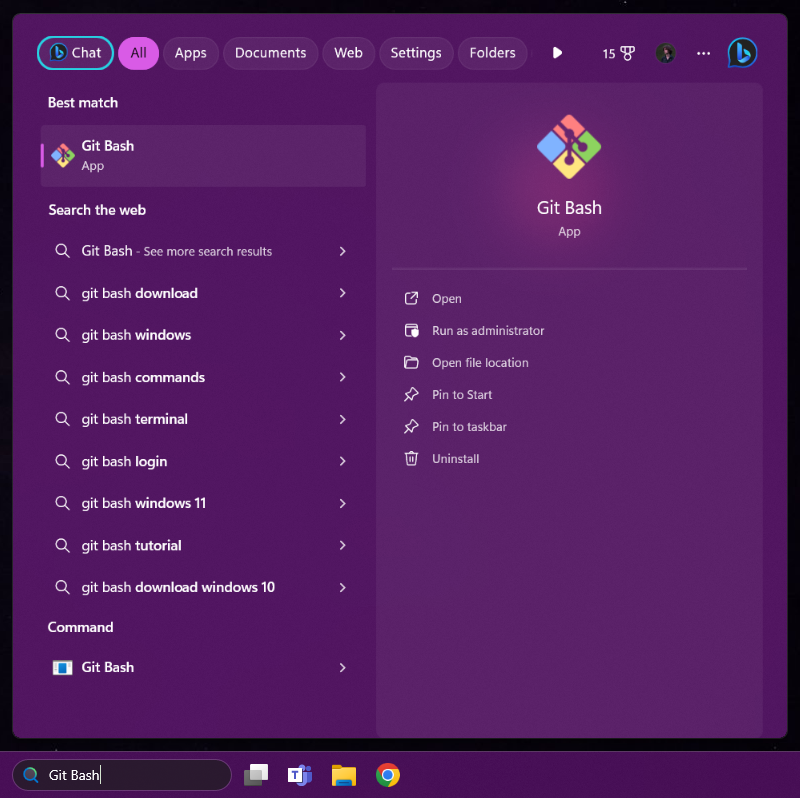
Windows の手順
- スタート メニューをクリックするか、Windows キーを押下。
- 検索バーに Git Bash と入力。
- 検索結果から Git Bash アプリケーションをクリック。
macOS の手順
- Command (⌘) + Space を同時に押下。Spotlight(システム全体の検索機能)が開く。
- 検索バーに「Terminal」と入力し、"Terminal" または "Terminal.app" が結果に表示される。
- 検索結果から「Terminal」をクリック。Terminal アプリケーションが開く。

Linux の手順
- Ctrl + Alt + T を押す
設定
設定の実施。バージョン管理システム(VCS)は、特定の変更を誰が行ったかを識別する必要がある。
これを設定するために、Git でユーザー名とメールアドレスなどの基本情報を、次のコマンドで設定する:
git config --global user.email "email@example.com"
git config --global user.name "username"
特定のコマンドを実行するとは、そのコマンドをターミナルウィンドウに入力または貼り付け、Enterキーを押すことを指します。
以下は設定の例です。

email@example.com を実際のメールアドレスに、username を希望するユーザー名に置き換えてください(二重引用符はそのまま使用)。Firstname Lastname 形式(Firstname は名、Lastname は姓)の使用が推奨されます。
ここで主に使用するコマンドは git config です。--global フラグと組み合わせることで、すべてのGitリポジトリに対して値を設定できます。コースの後半では、特定のリポジトリごとに異なる値を設定する方法についても学びます。
フィードバックありがとうございます!
AIに質問する

AIに質問する

何でも質問するか、提案された質問の1つを試してチャットを始めてください
