Creating a Second Screen
Sveip for å vise menyen
Now we want to add another screen. In real apps, users don't stay on one screen. They open details, profiles, or full content views. You will create a details screen. For now, it will be static. The goal is to prepare the layout.
Example:
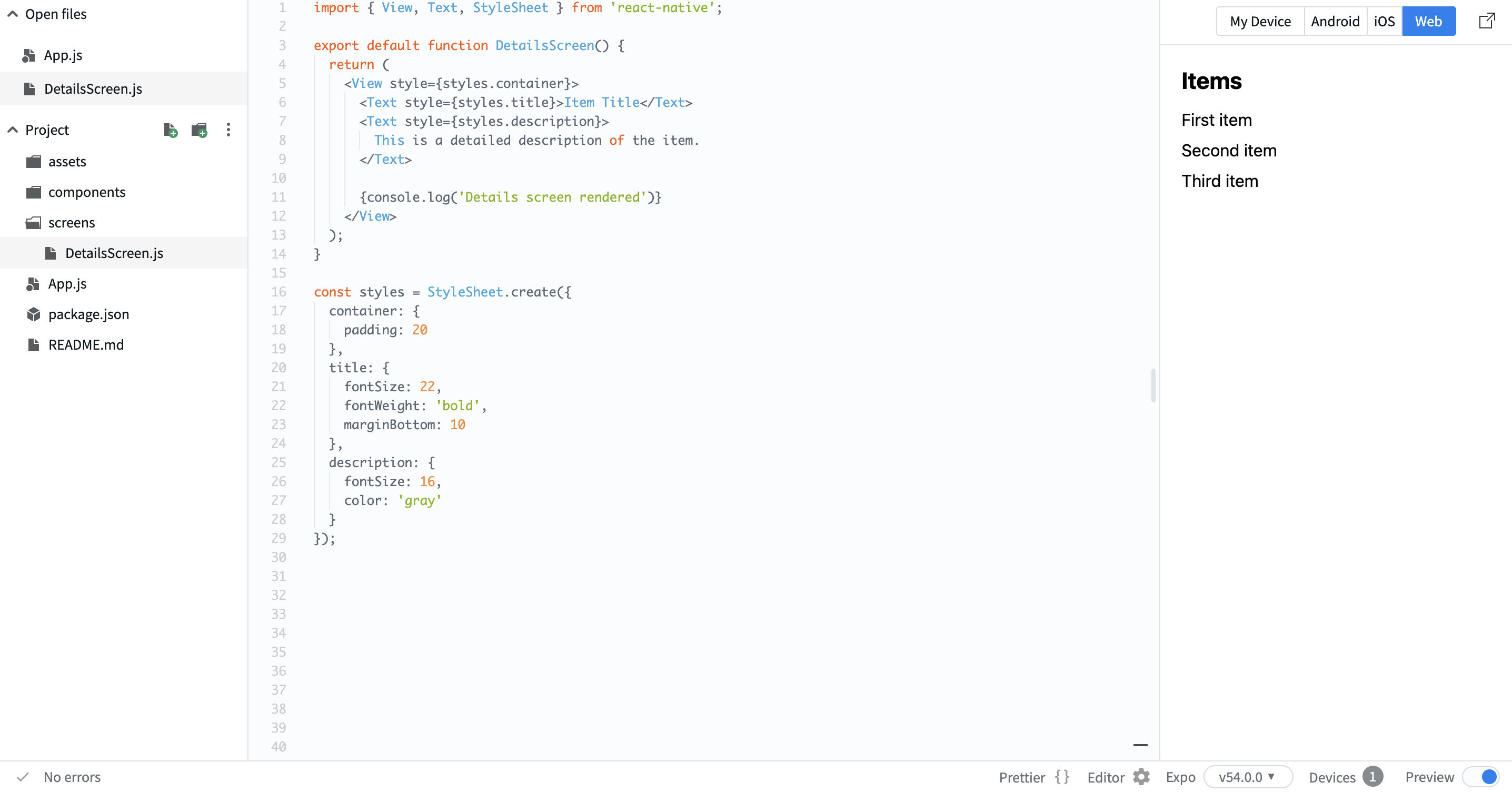
// screens/DetailsScreen.js
import { View, Text, StyleSheet } from 'react-native';

export default function DetailsScreen() {
  return (
    <View style={styles.container}>
      <Text style={styles.title}>Item Title</Text>
      <Text style={styles.description}>
        This is a detailed description of the item.
      </Text>

      {console.log('Details screen rendered')}
    </View>
  );
}

const styles = StyleSheet.create({
  container: {
    padding: 20
  },
  title: {
    fontSize: 22,
    fontWeight: 'bold',
    marginBottom: 10
  },
  description: {
    fontSize: 16,
    color: 'gray'
  }
});
Here:
- You created a second screen;
- You added a title and description;
- You prepared the structure for real data.
At this stage, there is no connection between screens yet. You are just preparing the UI. In the next step, you will connect screens together.
Alt var klart?
Takk for tilbakemeldingene dine!
Seksjon 1. Kapittel 2
Spør AI

Spør AI

Spør om hva du vil, eller prøv ett av de foreslåtte spørsmålene for å starte chatten vår
Seksjon 1. Kapittel 2
