Dynamic Lookups with XLOOKUP and Arrays
Veeg om het menu te tonen
In real-world workflows, lookups are often driven by user input, such as a dropdown selection. In the previous chapter, you created the dynamic dropdown lists of Employees, Departments using a spill range. Now, you will use that selection as a lookup value.
The XLOOKUP function is designed to search for a value in one column and return a corresponding value from another column.
=XLOOKUP(lookup_value; lookup_array; return_array)
To get a dynamic lookup result, you can use a cell with a dropdown list as the lookup value. When the selected value in the dropdown changes, the lookup result updates automatically, making your analysis interactive and responsive.
=XLOOKUP($M$3;Employee_Projects[Employee Name];Employee_Projects[Project])
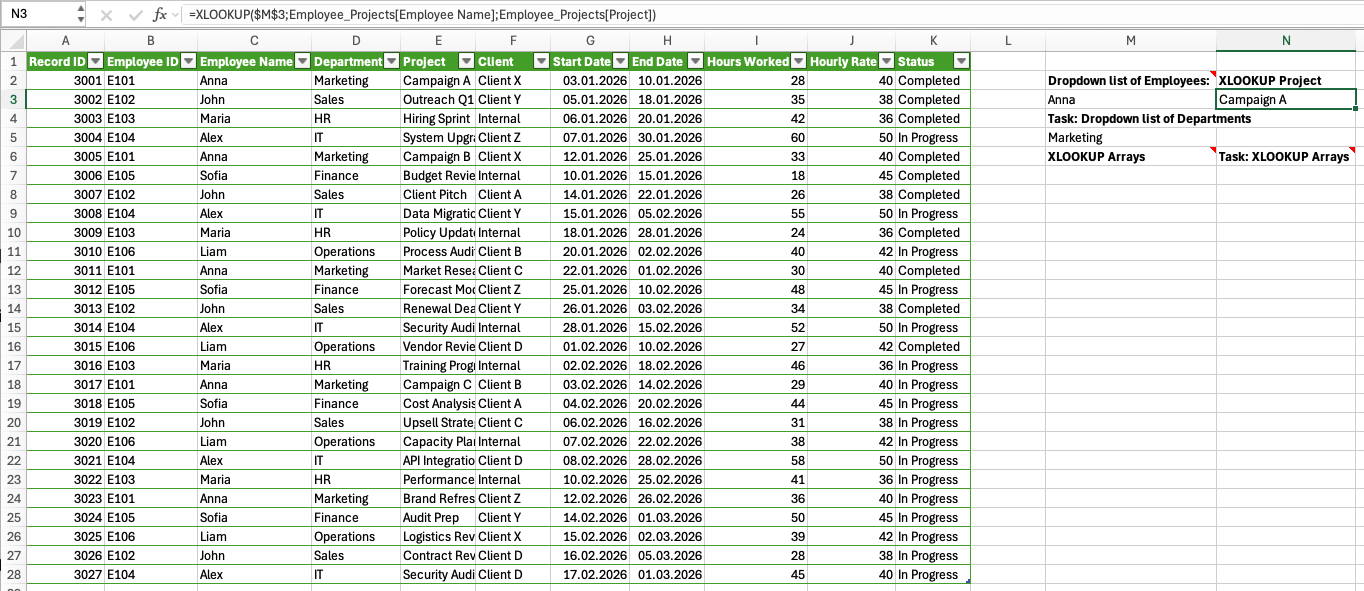
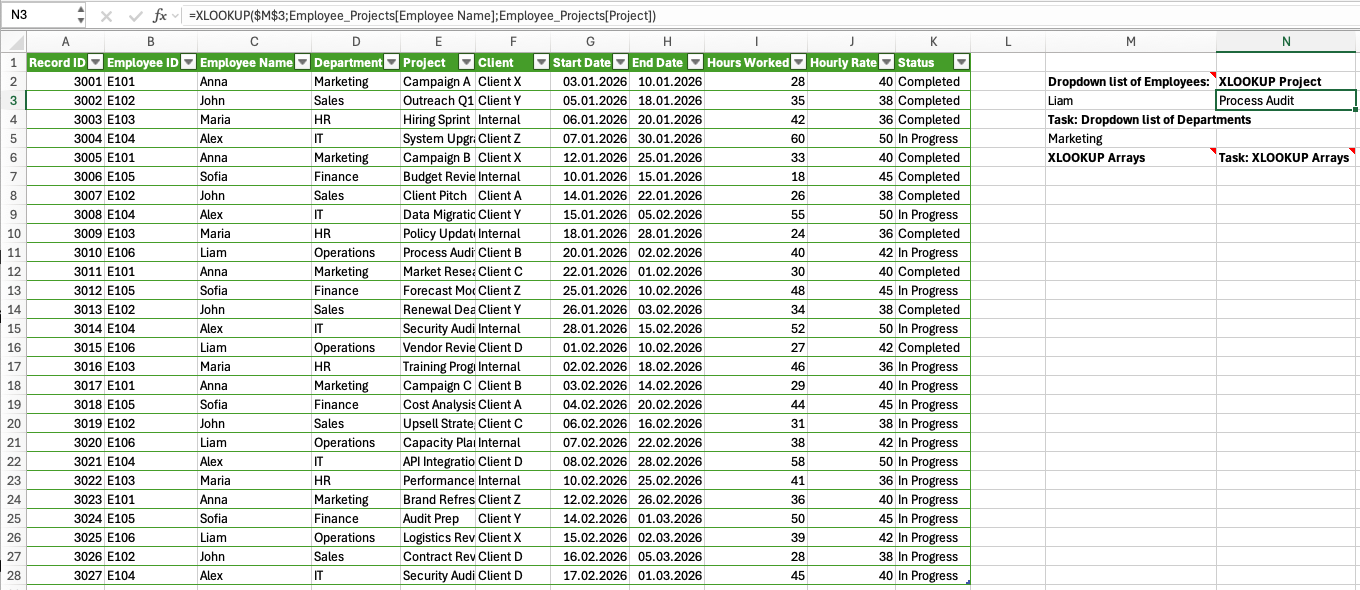
This returns the first matching Project for the selected Employee Name. The result updates automatically when the dropdown selection changes, making your analysis interactive.
Working with Arrays in XLOOKUP
You can also use a spill range as the lookup value, not just a single cell. This allows you to perform multiple lookups at once using one formula.
For example, if you already have a spilled list of Employee Names (e.g., from a UNIQUE formula in the A1 cell of the Unique Employees sheet):
=XLOOKUP('Unique Employees'!A1#;Employee_Projects[Employee Name];Employee_Projects[Project])
Excel will return a spilled list of Projects, one for each Employee Name in the spill range.
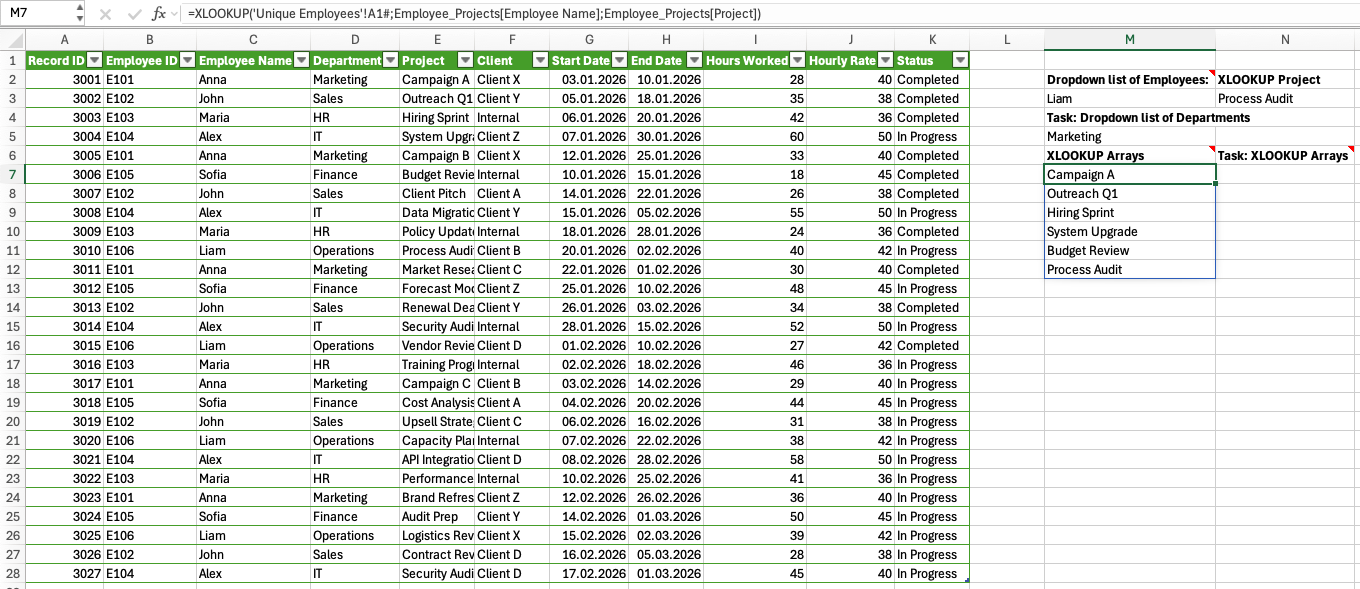
This means:
- One formula handles multiple lookups;
- Results expand automatically;
- No need to copy formulas.

Even when using arrays, XLOOKUP still returns only one match per lookup value. If multiple records exist for the same value, only the first match is returned.
Use the dropdown list of Departments created in the previous chapter to return the corresponding Project.
Then, use the spilled list of Employee Names (generated with UNIQUE) as a lookup array to return their corresponding Departments in one formula.
- Use XLOOKUP in both cases;
- First: use a single dropdown cell as input;
=XLOOKUP($M$5;Employee_Projects[Department];Employee_Projects[Project])
- Second: use a spill range (
#) as input;
=XLOOKUP('Unique Departments'!A1#;Employee_Projects[Department];Employee_Projects[Project])
- Results must update dynamically.
1. When selecting IT from the Department dropdown, which project is returned by XLOOKUP?
2. When using a spill range of Departments as the lookup value, how many results are returned?
Bedankt voor je feedback!
Vraag AI

Vraag AI

Vraag wat u wilt of probeer een van de voorgestelde vragen om onze chat te starten.
Dynamic Lookups with XLOOKUP and Arrays
In real-world workflows, lookups are often driven by user input, such as a dropdown selection. In the previous chapter, you created the dynamic dropdown lists of Employees, Departments using a spill range. Now, you will use that selection as a lookup value.
The XLOOKUP function is designed to search for a value in one column and return a corresponding value from another column.
=XLOOKUP(lookup_value; lookup_array; return_array)
To get a dynamic lookup result, you can use a cell with a dropdown list as the lookup value. When the selected value in the dropdown changes, the lookup result updates automatically, making your analysis interactive and responsive.
=XLOOKUP($M$3;Employee_Projects[Employee Name];Employee_Projects[Project])
This returns the first matching Project for the selected Employee Name. The result updates automatically when the dropdown selection changes, making your analysis interactive.
Working with Arrays in XLOOKUP
You can also use a spill range as the lookup value, not just a single cell. This allows you to perform multiple lookups at once using one formula.
For example, if you already have a spilled list of Employee Names (e.g., from a UNIQUE formula in the A1 cell of the Unique Employees sheet):
=XLOOKUP('Unique Employees'!A1#;Employee_Projects[Employee Name];Employee_Projects[Project])
Excel will return a spilled list of Projects, one for each Employee Name in the spill range.
This means:
- One formula handles multiple lookups;
- Results expand automatically;
- No need to copy formulas.
Even when using arrays, XLOOKUP still returns only one match per lookup value. If multiple records exist for the same value, only the first match is returned.
Use the dropdown list of Departments created in the previous chapter to return the corresponding Project.
Then, use the spilled list of Employee Names (generated with UNIQUE) as a lookup array to return their corresponding Departments in one formula.
- Use XLOOKUP in both cases;
- First: use a single dropdown cell as input;
=XLOOKUP($M$5;Employee_Projects[Department];Employee_Projects[Project])
- Second: use a spill range (
#) as input;
=XLOOKUP('Unique Departments'!A1#;Employee_Projects[Department];Employee_Projects[Project])
- Results must update dynamically.
Bedankt voor je feedback!
