Understanding the INDEX Function
Свайпніть щоб показати меню
What the INDEX Function Does
The INDEX function returns a value from a specific position inside a range.
Instead of searching for a match, INDEX retrieves a value based on its row and column position.
This makes INDEX useful when the exact location of the data is known.
Basic Syntax
=INDEX(array; row_num; [column_num])
array: the range containing the data;row_num: the row number inside the range;column_num: the column number inside the range.
If the range contains only one column, the column number is not required.
Example Retrieving a Value by Position
Assume the worksheet contains the following table.
The table is located in range A1:B5.
To retrieve the price of the second product in the table, use:
=INDEX(A2:B5; 2; 2)
A2:B5: defines the table containing the data;2: refers to the second row inside the table;2: refers to the second column.
Excel returns the value located at row 2 column 2 of the range.

Understanding Row and Column Positions
The row and column numbers refer to the position inside the selected range, not the worksheet.
For example, in the range C8:D11:
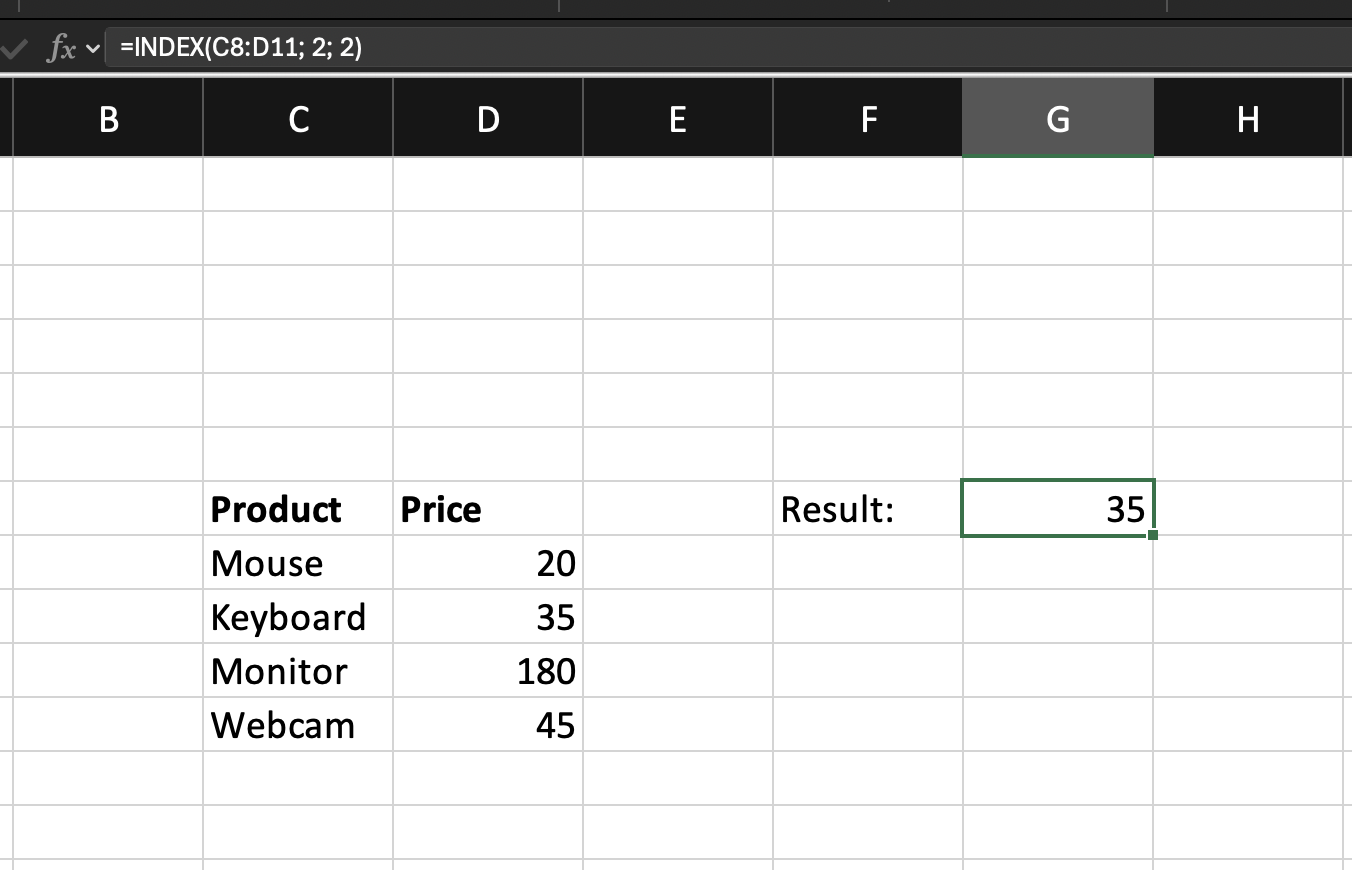
INDEX simply retrieves the value at the specified coordinates.
When INDEX Is Useful
INDEX is useful when:
- The position of the data is known;
- You want to retrieve values without searching;
- You need a flexible formula that can work with dynamic row and column numbers.
Further, you will combine INDEX with MATCH to create a dynamic lookup formula.
Task
Scenario
A worksheet contains a product table with Product Name, Category, and Price.
Your goal is to retrieve the price of a product using its position in the table.
Task Instructions
Use the INDEX function to return the value located at Row 4 Column 3
inside the product table.
Дякуємо за ваш відгук!
Запитати АІ

Запитати АІ

Запитайте про що завгодно або спробуйте одне із запропонованих запитань, щоб почати наш чат
Understanding the INDEX Function
What the INDEX Function Does
The INDEX function returns a value from a specific position inside a range.
Instead of searching for a match, INDEX retrieves a value based on its row and column position.
This makes INDEX useful when the exact location of the data is known.
Basic Syntax
=INDEX(array; row_num; [column_num])
array: the range containing the data;row_num: the row number inside the range;column_num: the column number inside the range.
If the range contains only one column, the column number is not required.
Example Retrieving a Value by Position
Assume the worksheet contains the following table.
The table is located in range A1:B5.
To retrieve the price of the second product in the table, use:
=INDEX(A2:B5; 2; 2)
A2:B5: defines the table containing the data;2: refers to the second row inside the table;2: refers to the second column.
Excel returns the value located at row 2 column 2 of the range.
Understanding Row and Column Positions
The row and column numbers refer to the position inside the selected range, not the worksheet.
For example, in the range C8:D11:
INDEX simply retrieves the value at the specified coordinates.
When INDEX Is Useful
INDEX is useful when:
- The position of the data is known;
- You want to retrieve values without searching;
- You need a flexible formula that can work with dynamic row and column numbers.
Further, you will combine INDEX with MATCH to create a dynamic lookup formula.
Task
Scenario
A worksheet contains a product table with Product Name, Category, and Price.
Your goal is to retrieve the price of a product using its position in the table.
Task Instructions
Use the INDEX function to return the value located at Row 4 Column 3
inside the product table.
Дякуємо за ваш відгук!
