Navigating Worksheets
Swipe to show menu
Real data doesn't come with a label telling you where it ends. Hardcoding Range("A1:I5") breaks the day someone adds a sixth order — so you need to ask the sheet where its data ends.
Finding the Last Row
The single most-used line of code in this entire course:
Dim lastRow As Long
lastRow = ws.Cells(ws.Rows.Count, 1).End(xlUp).Row
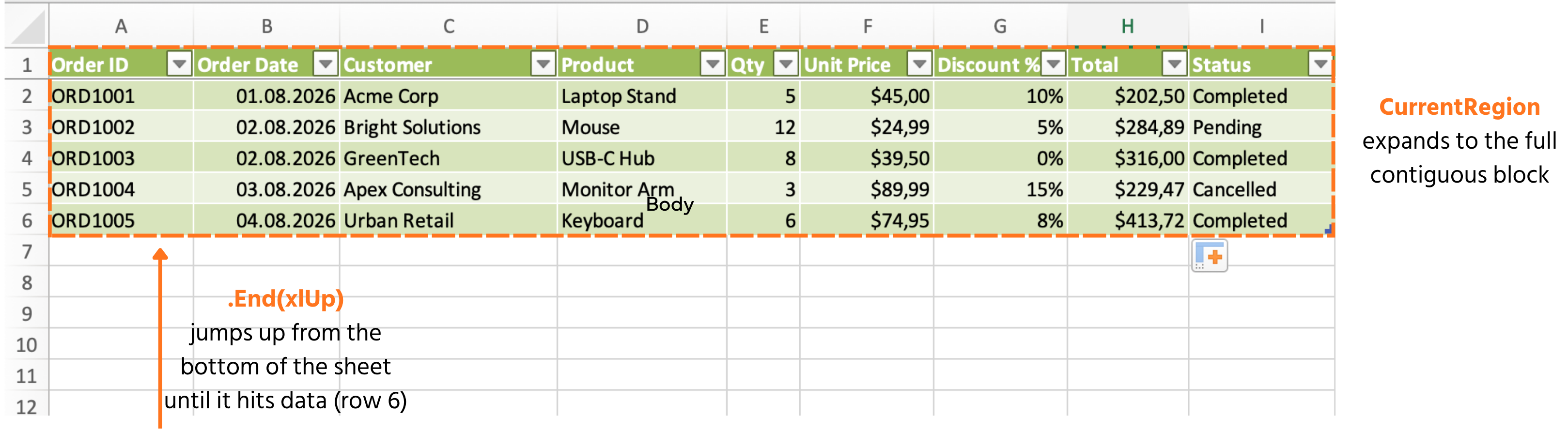
Read this right to left: start at the very bottom of column A (ws.Rows.Count), jump up (End(xlUp)) until you hit the first occupied cell, and return its row number. It works no matter how many orders exist.
Finding the Last Column
Works the same way, but sideways:
Dim lastCol As Long
lastCol = ws.Cells(1, ws.Columns.Count).End(xlToLeft).Column
UsedRange
Reports the full rectangular area of the sheet that has ever contained data — handy for a quick sanity check, but treat it with caution: it remembers cells that used to have data even after you delete their contents, so it can overstate your actual data range.
Debug.Print ws.UsedRange.Address        ' e.g. $A$1:$I$6
Debug.Print ws.UsedRange.Rows.Count     ' 6
CurrentRegion
Usually the better tool: it expands outward from a single cell to the contiguous block of data around it, stopping at the first blank row or column — exactly matching a clean table like Orders:
Dim tableRange As Range
Set tableRange = ws.Range("A1").CurrentRegion
Debug.Print tableRange.Address           ' $A$1:$I$6
Debug.Print tableRange.Rows.Count - 1    ' 5 — subtract 1 to exclude the header
Task
- Write a
Subthat finds the last row using theEnd(xlUp)method and prints it to the Immediate Window. - In the same
Sub, find the last row a second way usingCurrentRegion.Rows.Count, and print that too — confirm they agree. - Manually add a sixth order to row 7 of the sheet, re-run your macro, and confirm both methods now report 7 without any code changes:

1. Finding the last row with End(xlUp)
- Start from the very bottom of column A and jump upward — the exact pattern from Chapter 3's "Finding the last row" section.
Debug.Printthe result so it shows up in the Immediate Window (Ctrl+G).
2. Finding it a second way with CurrentRegion
CurrentRegionexpands from a single starting cell (tryRange("A1")) to the full contiguous block..Rows.Counton that region includes the header row — remember the chapter's note about subtracting 1 if you want data rows only. Since this task just asks you to compare the two methods, print the raw count first and reason about the header afterward.
3. Adding a sixth row and re-running
- No code changes needed at all — just type a new order directly into row 7 of the worksheet, then run the exact same
Subagain.
Sub CompareLastRowMethods()
    Dim ws As Worksheet
    Set ws = ThisWorkbook.Worksheets("Orders")

    Dim lastRowMethod1 As Long
    lastRowMethod1 = ws.Cells(ws.Rows.Count, 1).End(xlUp).Row
    Debug.Print "End(xlUp): " & lastRowMethod1

    Dim lastRowMethod2 As Long
    lastRowMethod2 = ws.Range("A1").CurrentRegion.Rows.Count
    Debug.Print "CurrentRegion: " & lastRowMethod2
End Sub
Thanks for your feedback!
Ask AI

Ask AI

Ask anything or try one of the suggested questions to begin our chat
Navigating Worksheets
Real data doesn't come with a label telling you where it ends. Hardcoding Range("A1:I5") breaks the day someone adds a sixth order — so you need to ask the sheet where its data ends.
Finding the Last Row
The single most-used line of code in this entire course:
Dim lastRow As Long
lastRow = ws.Cells(ws.Rows.Count, 1).End(xlUp).Row
Read this right to left: start at the very bottom of column A (ws.Rows.Count), jump up (End(xlUp)) until you hit the first occupied cell, and return its row number. It works no matter how many orders exist.
Finding the Last Column
Works the same way, but sideways:
Dim lastCol As Long
lastCol = ws.Cells(1, ws.Columns.Count).End(xlToLeft).Column
UsedRange
Reports the full rectangular area of the sheet that has ever contained data — handy for a quick sanity check, but treat it with caution: it remembers cells that used to have data even after you delete their contents, so it can overstate your actual data range.
Debug.Print ws.UsedRange.Address        ' e.g. $A$1:$I$6
Debug.Print ws.UsedRange.Rows.Count     ' 6
CurrentRegion
Usually the better tool: it expands outward from a single cell to the contiguous block of data around it, stopping at the first blank row or column — exactly matching a clean table like Orders:
Dim tableRange As Range
Set tableRange = ws.Range("A1").CurrentRegion
Debug.Print tableRange.Address           ' $A$1:$I$6
Debug.Print tableRange.Rows.Count - 1    ' 5 — subtract 1 to exclude the header
Task
- Write a
Subthat finds the last row using theEnd(xlUp)method and prints it to the Immediate Window. - In the same
Sub, find the last row a second way usingCurrentRegion.Rows.Count, and print that too — confirm they agree. - Manually add a sixth order to row 7 of the sheet, re-run your macro, and confirm both methods now report 7 without any code changes:
1. Finding the last row with End(xlUp)
- Start from the very bottom of column A and jump upward — the exact pattern from Chapter 3's "Finding the last row" section.
Debug.Printthe result so it shows up in the Immediate Window (Ctrl+G).
2. Finding it a second way with CurrentRegion
CurrentRegionexpands from a single starting cell (tryRange("A1")) to the full contiguous block..Rows.Counton that region includes the header row — remember the chapter's note about subtracting 1 if you want data rows only. Since this task just asks you to compare the two methods, print the raw count first and reason about the header afterward.
3. Adding a sixth row and re-running
- No code changes needed at all — just type a new order directly into row 7 of the worksheet, then run the exact same
Subagain.
Sub CompareLastRowMethods()
    Dim ws As Worksheet
    Set ws = ThisWorkbook.Worksheets("Orders")

    Dim lastRowMethod1 As Long
    lastRowMethod1 = ws.Cells(ws.Rows.Count, 1).End(xlUp).Row
    Debug.Print "End(xlUp): " & lastRowMethod1

    Dim lastRowMethod2 As Long
    lastRowMethod2 = ws.Range("A1").CurrentRegion.Rows.Count
    Debug.Print "CurrentRegion: " & lastRowMethod2
End Sub
Thanks for your feedback!
