Reading and Writing Cell Values
Swipe to show menu
The most basic thing VBA does is read and write a cell's Value:
Dim ws As Worksheet
Set ws = ThisWorkbook.Worksheets("Orders")

Debug.Print ws.Range("C2").Value      ' Acme Corp
ws.Range("I2").Value = "Shipped"      ' overwrite the Status cell
Cells(row, column) does the same thing with numbers instead of letters — genuinely useful once you start looping, because a loop variable is a number, not a letter:
Debug.Print ws.Cells(2, 3).Value      ' same as Range("C2") — row 2, column 3
ws.Cells(2, 9).Value = "Shipped"      ' same as Range("I2")
Value vs. Formula vs. Formula2
These look interchangeable but aren't:
ws.Range("H2").Value                  ' returns the calculated result: 202.5
ws.Range("H2").Formula                ' returns the formula as typed: =E2*F2*(1-G2)
ws.Range("H2").Formula2               ' like Formula, but supports newer dynamic-array functions
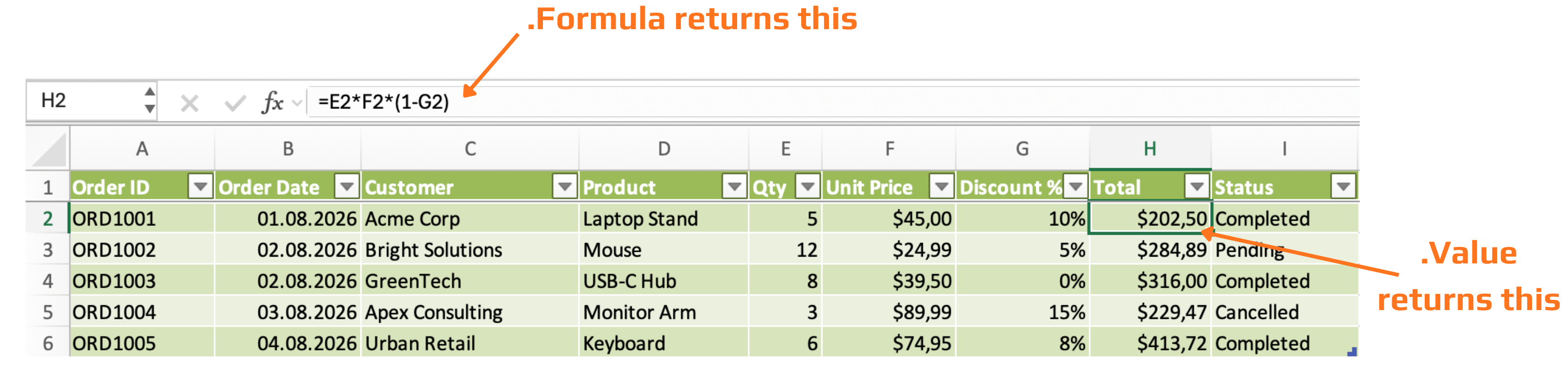
Use .Value when you just want the number. Use .Formula when you're writing a formula into a cell — for example, building the Total column programmatically instead of typing it once and copying it:
ws.Range("H2").Formula = "=E2*F2*(1-G2)"
NumberFormat
Controls how a value displays without changing the underlying number:
ws.Range("F2:F6").NumberFormat = "$#,##0.00"     ' currency
ws.Range("G2:G6").NumberFormat = "0%"              ' percentage
ws.Range("B2:B6").NumberFormat = "dd/mm/yyyy"      ' date
This matters more than it sounds — a cell can contain 0.1 and display "10%" at the same time, and only NumberFormat controls the second part.
Task
- Write a
Subthat reads Order ORD1003's Customer and Total into two variables and displays them in aMsgBox. - Change ORD1002's Status to "Shipped" using Cells(row, column) instead of Range.
- Apply
NumberFormat = "$#,##0.00"to the Unit Price and Total columns, and "0%" to the Discount % column.

1. Reading ORD1003's Customer and Total
- First figure out which row ORD1003 sits in — count down the table from Chapter 3's opening data: ORD1001 is row 2, so ORD1003 is two rows further down.
- Customer and Total are two different columns — count across the header row (Order ID, Order Date, Customer, Product, Qty, Unit Price, Discount %, Total, Status) to find each one's letter.
- Declare one variable for the customer name (
String) and one for the total (Double), reference the sheet explicitly the way Chapter 3 taught (ThisWorkbook.Worksheets("Orders")), and read each cell's.Valueinto its matching variable. - Concatenate both variables into one message with
&before passing them toMsgBox— you did this exact pattern back in Chapter 2.
2. Changing ORD1002's Status with Cells(row, column)
Cells(row, column)takes plain numbers, not letters — you already know which row ORD1002 is in from the table; for the column, just count position rather than typing a letter (Status is the last of the nine columns).- This is a straight assignment:
.Cells(row, column).Value = "Shipped", no need to read anything first.
3. Applying NumberFormat to three columns
NumberFormatis set the same way for a range as it is for a single cell — you're just applying it toF2:F6,H2:H6, andG2:G6(double-check which letter belongs to Unit Price, Total, and Discount % respectively before typing them).- Each column gets its own line, since Unit Price/Total need currency formatting and Discount % needs percentage formatting — don't try to apply both formats in one line.
- Referencing the range through the same
wsvariable you've already set keeps all three lines short and consistent.
Sub ExploreOrdersData()
    Dim ws As Worksheet
    Set ws = ThisWorkbook.Worksheets("Orders")

    ' --- 1. Read ORD1003's Customer and Total ---
    Dim customerName As String
    Dim orderTotal As Double

    customerName = ws.Range("C4").Value
    orderTotal = ws.Range("H4").Value

    MsgBox "Customer: " & customerName & " | Total: " & orderTotal

    ' --- 2. Change ORD1002's Status using Cells(row, column) ---
    ws.Cells(3, 9).Value = "Shipped"

    ' --- 3. Apply NumberFormat to Unit Price, Total, and Discount % ---
    ws.Range("F2:F6").NumberFormat = "$#,##0.00"   ' Unit Price
    ws.Range("H2:H6").NumberFormat = "$#,##0.00"   ' Total
    ws.Range("G2:G6").NumberFormat = "0%"           ' Discount %
End Sub
Thanks for your feedback!
Ask AI

Ask AI

Ask anything or try one of the suggested questions to begin our chat
