Message Boxes and Input Boxes
Swipe to show menu
Before building a full form, it's worth mastering the two simplest ways VBA can talk to a user: MsgBox, which shows information and optionally asks a question, and InputBox, which asks for a short piece of text back.
MsgBox
In its simplest form, MsgBox just displays a message and waits for the user to click OK:
MsgBox "Customer saved successfully."
Used this way — as a statement, with no parentheses and nothing capturing a result — MsgBox is a dead end: it shows the message and the code moves on, regardless of what the user does. The moment you need to know which button was clicked, MsgBox becomes a function instead of a statement, which means it needs parentheses and something to store its result:
result = MsgBox("Delete customer Urban Retail?", _
    vbYesNo + vbQuestion, "Confirm Delete")
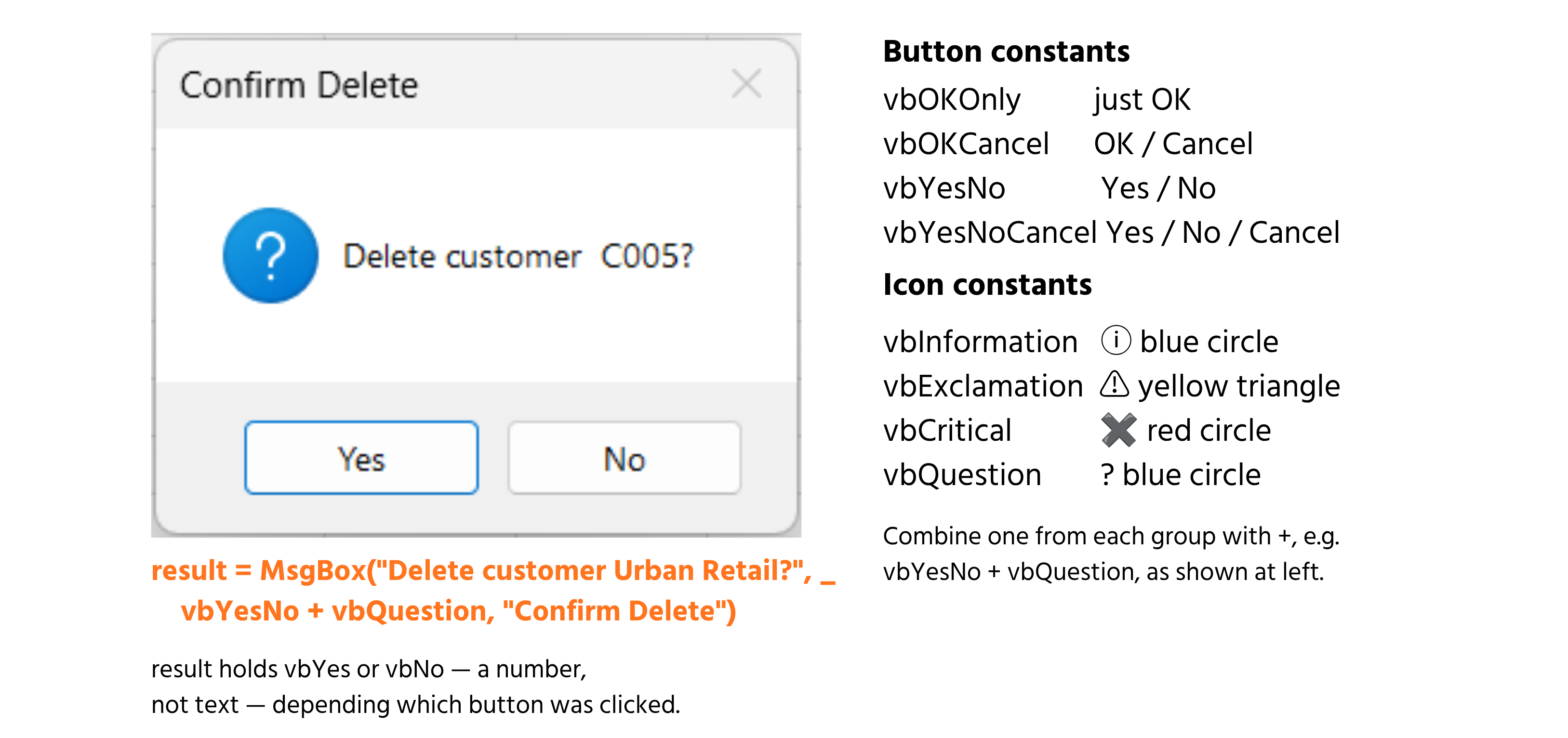
vbYesNo and vbQuestion are added together with a plain +, which looks unusual the first time you see it but is simply how VBA lets you combine two independent settings — which buttons appear, and which icon is shown — into the single second argument MsgBox expects. result comes back as one of VBA's built-in constants, vbYes or vbNo, which are really just numbers in disguise (6 and 7, though you'd never write the literal number). Gate an action on the answer with a plain If:
If result = vbYes Then
    ' proceed with deletion
End If
InputBox
Where MsgBox only ever returns a fixed set of button constants, InputBox asks the user to type something and hands back whatever they entered:
city = InputBox("Enter a City to search for:", _
    "Search Customers", "Chicago")
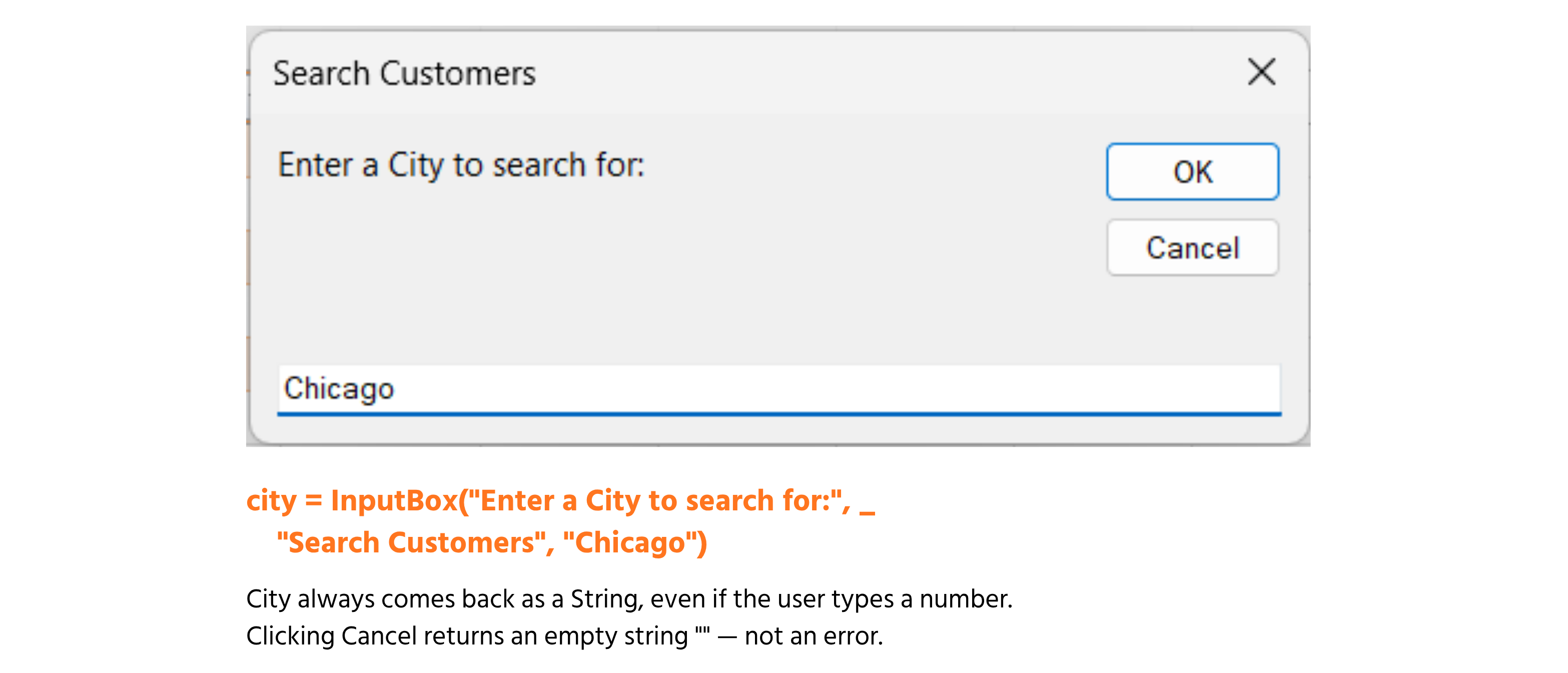
The third argument, "Chicago" here, pre-fills the text box — useful for suggesting a likely answer the user can either accept or overwrite. Two details are easy to get wrong the first time: whatever the user types comes back as a String no matter what it looks like, so typing 25 gives you the text "25", not the number 25, and you'd need CInt or CDbl before doing arithmetic with it; and clicking Cancel doesn't raise an error or stop your code — it simply returns an empty string (""), which your code needs to check for explicitly if an empty answer isn't valid.
User Prompts and Confirmations
Combining the two is the standard pattern for any action that reads user input and then needs to confirm before doing something risky:
Dim searchCity As String
Dim confirmMsg As VbMsgBoxResult

searchCity = InputBox("Enter a City to search for:", "Search Customers")

If searchCity = "" Then
    MsgBox "Search cancelled — no city entered."
    Exit Sub
End If

confirmMsg = MsgBox("Search for customers in " & searchCity & "?", vbYesNo)
If confirmMsg = vbNo Then Exit Sub

' ... proceed with the search
Notice confirmMsg is declared As VbMsgBoxResult rather than a generic type — this is the actual named type VBA uses for MsgBox's return value, and declaring it explicitly (rather than leaving it as a Variant) lets the VBE offer autocomplete for vbYes, vbNo, and the rest as you type. The empty-string check after InputBox and the vbNo check after MsgBox both use the same escape pattern, Exit Sub, which stops the procedure immediately rather than letting it fall through into code that assumes valid input exists.
Task
- Write a
Subthat usesInputBoxto ask for a Customer ID, then MsgBox to confirm "Delete customer [ID]?" with Yes/No buttons and a question icon. - Handle both the empty-string case (user clicked Cancel on the InputBox) and the
vbNocase (user declined the confirmation) by exiting the Sub early with a message explaining nothing happened. - Only when both checks pass, show a final MsgBox reading "Customer would be deleted here."

1. Getting the Customer ID and building the confirmation
InputBoxneeds a prompt and can take a title as a second argument — store whatever comes back in aStringvariable.- The confirmation message needs the actual ID concatenated into it with
&, not typed as a fixed string — otherwise it would always say "[ID]" literally. MsgBoxused as a function (capturing a result) needs parentheses; combinevbYesNoandvbQuestionwith+.
2. Handling Cancel and No
- Check for the empty-string case right after the
InputBoxline, before you even try to build a confirmation message — there's no point asking "Delete customer?" if there's no ID to delete. Exit Substops the procedure immediately wherever it's placed — use it right inside eachIfblock, with aMsgBoxjust before it explaining nothing happened.- The
vbNocheck comes after the confirmationMsgBox, comparing the result you captured against thevbNoconstant.
3. The final confirmation
- This line only runs if execution reaches it — since both earlier checks
Exit Subon failure, simply placing thisMsgBoxafter both checks is enough to guarantee it only fires when both have passed.
Option Explicit

Sub DeleteCustomerPrompt()
    Dim customerID As String
    Dim confirmResult As VbMsgBoxResult

    ' Step 1 — ask for the Customer ID
    customerID = InputBox("Enter the Customer ID to delete:", "Delete Customer")

    ' Step 2a — handle Cancel / empty input
    If customerID = "" Then
        MsgBox "Cancelled — no Customer ID was entered. Nothing happened."
        Exit Sub
    End If

    ' Step 1 (continued) — confirm with Yes/No
    confirmResult = MsgBox("Delete customer " & customerID & "?", _
        vbYesNo + vbQuestion, "Confirm Delete")

    ' Step 2b — handle No
    If confirmResult = vbNo Then
        MsgBox "Cancelled — deletion was not confirmed. Nothing happened."
        Exit Sub
    End If

    ' Step 3 — both checks passed
    MsgBox "Customer would be deleted here."
End Sub
Run it (F5) and try all three paths: click Cancel on the InputBox, click No on the confirmation, and finally enter an ID and click Yes — each should produce a different one of the three messages.
Thanks for your feedback!
Ask AI

Ask AI

Ask anything or try one of the suggested questions to begin our chat
Message Boxes and Input Boxes
Before building a full form, it's worth mastering the two simplest ways VBA can talk to a user: MsgBox, which shows information and optionally asks a question, and InputBox, which asks for a short piece of text back.
MsgBox
In its simplest form, MsgBox just displays a message and waits for the user to click OK:
MsgBox "Customer saved successfully."
Used this way — as a statement, with no parentheses and nothing capturing a result — MsgBox is a dead end: it shows the message and the code moves on, regardless of what the user does. The moment you need to know which button was clicked, MsgBox becomes a function instead of a statement, which means it needs parentheses and something to store its result:
result = MsgBox("Delete customer Urban Retail?", _
    vbYesNo + vbQuestion, "Confirm Delete")
vbYesNo and vbQuestion are added together with a plain +, which looks unusual the first time you see it but is simply how VBA lets you combine two independent settings — which buttons appear, and which icon is shown — into the single second argument MsgBox expects. result comes back as one of VBA's built-in constants, vbYes or vbNo, which are really just numbers in disguise (6 and 7, though you'd never write the literal number). Gate an action on the answer with a plain If:
If result = vbYes Then
    ' proceed with deletion
End If
InputBox
Where MsgBox only ever returns a fixed set of button constants, InputBox asks the user to type something and hands back whatever they entered:
city = InputBox("Enter a City to search for:", _
    "Search Customers", "Chicago")
The third argument, "Chicago" here, pre-fills the text box — useful for suggesting a likely answer the user can either accept or overwrite. Two details are easy to get wrong the first time: whatever the user types comes back as a String no matter what it looks like, so typing 25 gives you the text "25", not the number 25, and you'd need CInt or CDbl before doing arithmetic with it; and clicking Cancel doesn't raise an error or stop your code — it simply returns an empty string (""), which your code needs to check for explicitly if an empty answer isn't valid.
User Prompts and Confirmations
Combining the two is the standard pattern for any action that reads user input and then needs to confirm before doing something risky:
Dim searchCity As String
Dim confirmMsg As VbMsgBoxResult

searchCity = InputBox("Enter a City to search for:", "Search Customers")

If searchCity = "" Then
    MsgBox "Search cancelled — no city entered."
    Exit Sub
End If

confirmMsg = MsgBox("Search for customers in " & searchCity & "?", vbYesNo)
If confirmMsg = vbNo Then Exit Sub

' ... proceed with the search
Notice confirmMsg is declared As VbMsgBoxResult rather than a generic type — this is the actual named type VBA uses for MsgBox's return value, and declaring it explicitly (rather than leaving it as a Variant) lets the VBE offer autocomplete for vbYes, vbNo, and the rest as you type. The empty-string check after InputBox and the vbNo check after MsgBox both use the same escape pattern, Exit Sub, which stops the procedure immediately rather than letting it fall through into code that assumes valid input exists.
Task
- Write a
Subthat usesInputBoxto ask for a Customer ID, then MsgBox to confirm "Delete customer [ID]?" with Yes/No buttons and a question icon. - Handle both the empty-string case (user clicked Cancel on the InputBox) and the
vbNocase (user declined the confirmation) by exiting the Sub early with a message explaining nothing happened. - Only when both checks pass, show a final MsgBox reading "Customer would be deleted here."
1. Getting the Customer ID and building the confirmation
InputBoxneeds a prompt and can take a title as a second argument — store whatever comes back in aStringvariable.- The confirmation message needs the actual ID concatenated into it with
&, not typed as a fixed string — otherwise it would always say "[ID]" literally. MsgBoxused as a function (capturing a result) needs parentheses; combinevbYesNoandvbQuestionwith+.
2. Handling Cancel and No
- Check for the empty-string case right after the
InputBoxline, before you even try to build a confirmation message — there's no point asking "Delete customer?" if there's no ID to delete. Exit Substops the procedure immediately wherever it's placed — use it right inside eachIfblock, with aMsgBoxjust before it explaining nothing happened.- The
vbNocheck comes after the confirmationMsgBox, comparing the result you captured against thevbNoconstant.
3. The final confirmation
- This line only runs if execution reaches it — since both earlier checks
Exit Subon failure, simply placing thisMsgBoxafter both checks is enough to guarantee it only fires when both have passed.
Option Explicit

Sub DeleteCustomerPrompt()
    Dim customerID As String
    Dim confirmResult As VbMsgBoxResult

    ' Step 1 — ask for the Customer ID
    customerID = InputBox("Enter the Customer ID to delete:", "Delete Customer")

    ' Step 2a — handle Cancel / empty input
    If customerID = "" Then
        MsgBox "Cancelled — no Customer ID was entered. Nothing happened."
        Exit Sub
    End If

    ' Step 1 (continued) — confirm with Yes/No
    confirmResult = MsgBox("Delete customer " & customerID & "?", _
        vbYesNo + vbQuestion, "Confirm Delete")

    ' Step 2b — handle No
    If confirmResult = vbNo Then
        MsgBox "Cancelled — deletion was not confirmed. Nothing happened."
        Exit Sub
    End If

    ' Step 3 — both checks passed
    MsgBox "Customer would be deleted here."
End Sub
Run it (F5) and try all three paths: click Cancel on the InputBox, click No on the confirmation, and finally enter an ID and click Yes — each should produce a different one of the three messages.
Thanks for your feedback!
