Validating User Input
Swipe to show menu
The Save button from the previous chapter will happily write a blank Company Name or a garbled email into the Customers table, because nothing in cmdSave_Click checks the data first. Validation is the step that runs before saving — catching problems while they're still easy to fix, rather than after they've become bad data sitting in a worksheet.
Required Fields
The simplest check: is this TextBox still empty?
If Trim(txtCompanyName.Value) = "" Then
    MsgBox "Company Name is required."
    txtCompanyName.SetFocus
    Exit Sub
End If
Trim matters here more than it might seem — a user who types a few spaces and nothing else would pass a plain = "" check, since " " isn't technically an empty string, and yet it's just as unusable as true emptiness. SetFocus moves the blinking cursor directly into the offending control, so the user doesn't have to hunt for which field needs fixing — a small touch that makes a form feel noticeably more polished.
Numeric Validation
IsNumeric checks whether a value could be converted to a number, without actually attempting the conversion and risking an error:
If Not IsNumeric(txtReorderLevel.Value) Then
    MsgBox "Reorder Level must be a number."
    txtReorderLevel.SetFocus
    Exit Sub
End If
This is the check that would have caught "twenty" typed into a numeric field, exactly as shown in screenshot above. Only after this check passes is it safe to write code like CInt(txtReorderLevel.Value) further down the Sub — validating first and converting second means the conversion can never fail unexpectedly.
Date Validation
IsDate is the same idea, applied to dates instead of numbers:
If Not IsDate(txtOrderDate.Value) Then
    MsgBox "Order Date must be a valid date."
    txtOrderDate.SetFocus
    Exit Sub
End If
Error messages that collect every problem at once
The three checks above all Exit Sub the moment they find one problem — fine for a short form, but frustrating on a longer one, where a user fixes one error only to immediately hit the next. A more polished pattern builds up a list of every problem before showing a single combined message:
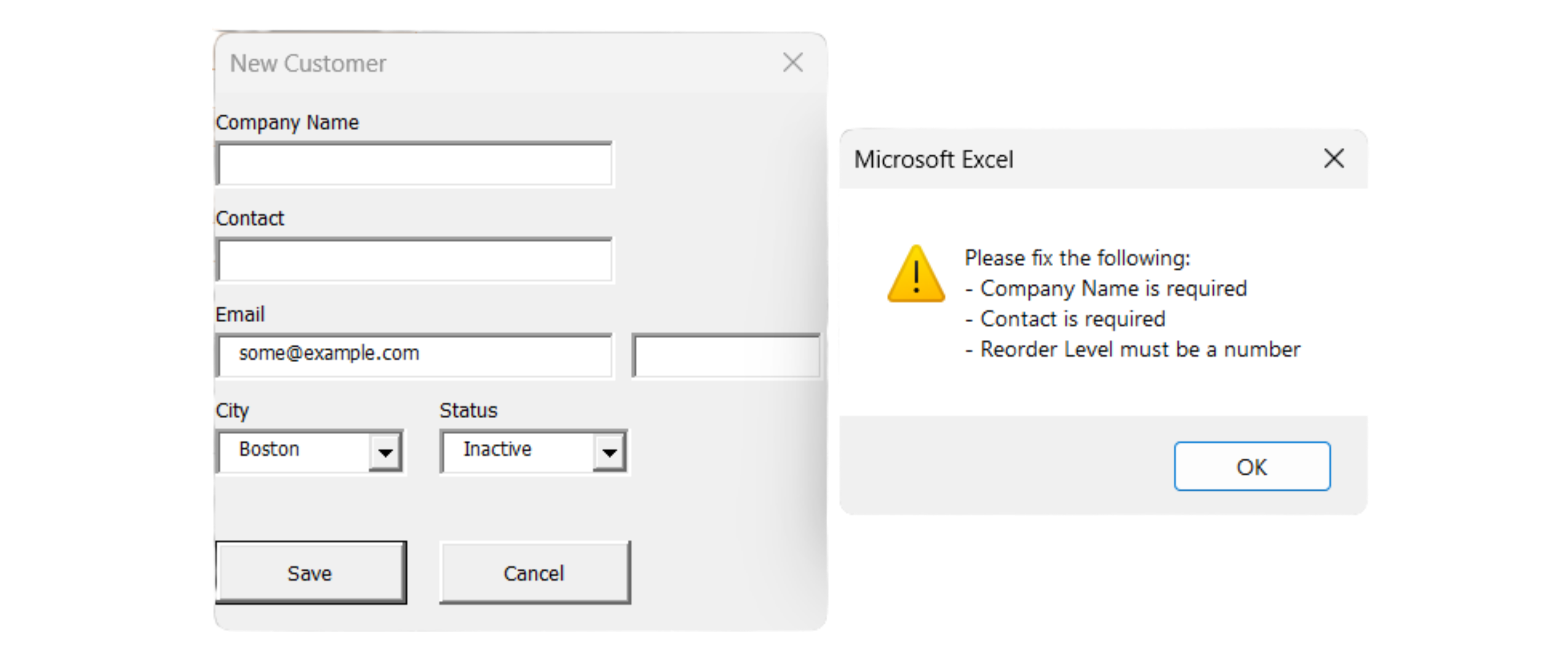
Private Sub cmdSave_Click()
    Dim errors As String

    If Trim(txtCompanyName.Value) = "" Then
        errors = errors & "- Company Name is required" & vbNewLine
    End If

    If Not IsNumeric(txtReorderLevel.Value) Then
        errors = errors & "- Reorder Level must be a number" & vbNewLine
    End If

    If errors <> "" Then
        MsgBox "Please fix the following:" & vbNewLine & errors, _
            vbExclamation
        Exit Sub
    End If

    ' ... all checks passed, safe to save now
End Sub
This is the same string-building technique from the last chapter stock alert macro — errors starts empty, and each failed check appends one more line onto it rather than exiting immediately. Only after every check has run does the Sub look at whether errors ended up empty or not, which is what lets the user see every problem with their input in one pass instead of one frustrating round-trip per mistake.
Task
- Rewrite
cmdSave_Clickfrom previous chapter task to build up an errors string, checking that Company Name, Contact, and Email are all non-blank. - Add a fourth TextBox, txtReorderLevel, purely for this exercise, and validate it with IsNumeric.
- Show one combined MsgBox listing every problem, using vbExclamation as the icon, and only proceed to the actual ListRows.Add code once errors is empty.
- Test it by leaving every field blank and clicking Save — confirm all the expected error lines appear in a single message.

1. Building up an errors string
- Declare one
Stringvariable (errors) at the top ofcmdSave_Click, starting empty. - For each of the three fields, use the same
Trim(...) = ""check from section 5.3 — if it's blank, append one line toerrorsrather than showing aMsgBoximmediately or exiting the Sub. vbNewLineat the end of each appended line keeps every problem on its own line in the final message.
2. Adding txtReorderLevel
- This is a TextBox purely for practicing numeric validation — it doesn't correspond to a real column in
tblCustomers, so don't try to write it intonewRowlater. - Add it to the form in Design view (Shift+F7) with a matching Label, the same way you added the other three TextBoxes.
IsNumericchecks the raw text in.Value— if it fails, append a line toerrorsjust like the blank-field checks.
3. One combined MsgBox, then proceeding
- Everything from section 5.3's worked example applies directly here — check
If errors <> "" Then, show oneMsgBoxwithvbExclamation, andExit Sub. - The
ListRows.Addcode only runs if thatIfblock didn't exit — meaning it needs to sit physically after the whole validation block, not inside anElse.
4. Testing with everything blank
- Click Save without typing anything at all.
- You should see exactly one
MsgBox, listing all four problems (Company Name, Contact, Email, Reorder Level) rather than stopping after the first one — that one combined message is the actual point of this exercise, compared to the earlier version that exited after the very first failed check.
Private Sub cmdSave_Click()
    Dim tbl As ListObject
    Dim newRow As ListRow
    Dim errors As String

    ' --- Validation ---
    If Trim(txtCompanyName.Value) = "" Then
        errors = errors & "- Company Name is required" & vbNewLine
    End If

    If Trim(txtContact.Value) = "" Then
        errors = errors & "- Contact is required" & vbNewLine
    End If

    If Trim(txtEmail.Value) = "" Then
        errors = errors & "- Email is required" & vbNewLine
    End If

    If Not IsNumeric(txtReorderLevel.Value) Then
        errors = errors & "- Reorder Level must be a number" & vbNewLine
    End If

    If errors <> "" Then
        MsgBox "Please fix the following:" & vbNewLine & errors, vbExclamation
        Exit Sub
    End If

    ' --- All checks passed — safe to save now ---
    Set tbl = ThisWorkbook.Worksheets("Customers").ListObjects("tblCustomers")
    Set newRow = tbl.ListRows.Add

    newRow.Range(1, 1).Value = "C0" & (tbl.ListRows.Count + 100)
    newRow.Range(1, 2).Value = txtCompanyName.Value
    newRow.Range(1, 3).Value = txtContact.Value
    newRow.Range(1, 4).Value = txtEmail.Value
    newRow.Range(1, 5).Value = cboCity.Value
    newRow.Range(1, 6).Value = cboStatus.Value

    MsgBox txtCompanyName.Value & " was added successfully."
    Unload Me
End Sub
Run the form, leave every field blank, and click Save — you should see one MsgBox with a warning icon listing all four missing/invalid fields at once, and no row added to tblCustomers until you actually fill everything in correctly.
Thanks for your feedback!
Ask AI

Ask AI

Ask anything or try one of the suggested questions to begin our chat
Validating User Input
The Save button from the previous chapter will happily write a blank Company Name or a garbled email into the Customers table, because nothing in cmdSave_Click checks the data first. Validation is the step that runs before saving — catching problems while they're still easy to fix, rather than after they've become bad data sitting in a worksheet.
Required Fields
The simplest check: is this TextBox still empty?
If Trim(txtCompanyName.Value) = "" Then
    MsgBox "Company Name is required."
    txtCompanyName.SetFocus
    Exit Sub
End If
Trim matters here more than it might seem — a user who types a few spaces and nothing else would pass a plain = "" check, since " " isn't technically an empty string, and yet it's just as unusable as true emptiness. SetFocus moves the blinking cursor directly into the offending control, so the user doesn't have to hunt for which field needs fixing — a small touch that makes a form feel noticeably more polished.
Numeric Validation
IsNumeric checks whether a value could be converted to a number, without actually attempting the conversion and risking an error:
If Not IsNumeric(txtReorderLevel.Value) Then
    MsgBox "Reorder Level must be a number."
    txtReorderLevel.SetFocus
    Exit Sub
End If
This is the check that would have caught "twenty" typed into a numeric field, exactly as shown in screenshot above. Only after this check passes is it safe to write code like CInt(txtReorderLevel.Value) further down the Sub — validating first and converting second means the conversion can never fail unexpectedly.
Date Validation
IsDate is the same idea, applied to dates instead of numbers:
If Not IsDate(txtOrderDate.Value) Then
    MsgBox "Order Date must be a valid date."
    txtOrderDate.SetFocus
    Exit Sub
End If
Error messages that collect every problem at once
The three checks above all Exit Sub the moment they find one problem — fine for a short form, but frustrating on a longer one, where a user fixes one error only to immediately hit the next. A more polished pattern builds up a list of every problem before showing a single combined message:
Private Sub cmdSave_Click()
    Dim errors As String

    If Trim(txtCompanyName.Value) = "" Then
        errors = errors & "- Company Name is required" & vbNewLine
    End If

    If Not IsNumeric(txtReorderLevel.Value) Then
        errors = errors & "- Reorder Level must be a number" & vbNewLine
    End If

    If errors <> "" Then
        MsgBox "Please fix the following:" & vbNewLine & errors, _
            vbExclamation
        Exit Sub
    End If

    ' ... all checks passed, safe to save now
End Sub
This is the same string-building technique from the last chapter stock alert macro — errors starts empty, and each failed check appends one more line onto it rather than exiting immediately. Only after every check has run does the Sub look at whether errors ended up empty or not, which is what lets the user see every problem with their input in one pass instead of one frustrating round-trip per mistake.
Task
- Rewrite
cmdSave_Clickfrom previous chapter task to build up an errors string, checking that Company Name, Contact, and Email are all non-blank. - Add a fourth TextBox, txtReorderLevel, purely for this exercise, and validate it with IsNumeric.
- Show one combined MsgBox listing every problem, using vbExclamation as the icon, and only proceed to the actual ListRows.Add code once errors is empty.
- Test it by leaving every field blank and clicking Save — confirm all the expected error lines appear in a single message.
1. Building up an errors string
- Declare one
Stringvariable (errors) at the top ofcmdSave_Click, starting empty. - For each of the three fields, use the same
Trim(...) = ""check from section 5.3 — if it's blank, append one line toerrorsrather than showing aMsgBoximmediately or exiting the Sub. vbNewLineat the end of each appended line keeps every problem on its own line in the final message.
2. Adding txtReorderLevel
- This is a TextBox purely for practicing numeric validation — it doesn't correspond to a real column in
tblCustomers, so don't try to write it intonewRowlater. - Add it to the form in Design view (Shift+F7) with a matching Label, the same way you added the other three TextBoxes.
IsNumericchecks the raw text in.Value— if it fails, append a line toerrorsjust like the blank-field checks.
3. One combined MsgBox, then proceeding
- Everything from section 5.3's worked example applies directly here — check
If errors <> "" Then, show oneMsgBoxwithvbExclamation, andExit Sub. - The
ListRows.Addcode only runs if thatIfblock didn't exit — meaning it needs to sit physically after the whole validation block, not inside anElse.
4. Testing with everything blank
- Click Save without typing anything at all.
- You should see exactly one
MsgBox, listing all four problems (Company Name, Contact, Email, Reorder Level) rather than stopping after the first one — that one combined message is the actual point of this exercise, compared to the earlier version that exited after the very first failed check.
Private Sub cmdSave_Click()
    Dim tbl As ListObject
    Dim newRow As ListRow
    Dim errors As String

    ' --- Validation ---
    If Trim(txtCompanyName.Value) = "" Then
        errors = errors & "- Company Name is required" & vbNewLine
    End If

    If Trim(txtContact.Value) = "" Then
        errors = errors & "- Contact is required" & vbNewLine
    End If

    If Trim(txtEmail.Value) = "" Then
        errors = errors & "- Email is required" & vbNewLine
    End If

    If Not IsNumeric(txtReorderLevel.Value) Then
        errors = errors & "- Reorder Level must be a number" & vbNewLine
    End If

    If errors <> "" Then
        MsgBox "Please fix the following:" & vbNewLine & errors, vbExclamation
        Exit Sub
    End If

    ' --- All checks passed — safe to save now ---
    Set tbl = ThisWorkbook.Worksheets("Customers").ListObjects("tblCustomers")
    Set newRow = tbl.ListRows.Add

    newRow.Range(1, 1).Value = "C0" & (tbl.ListRows.Count + 100)
    newRow.Range(1, 2).Value = txtCompanyName.Value
    newRow.Range(1, 3).Value = txtContact.Value
    newRow.Range(1, 4).Value = txtEmail.Value
    newRow.Range(1, 5).Value = cboCity.Value
    newRow.Range(1, 6).Value = cboStatus.Value

    MsgBox txtCompanyName.Value & " was added successfully."
    Unload Me
End Sub
Run the form, leave every field blank, and click Save — you should see one MsgBox with a warning icon listing all four missing/invalid fields at once, and no row added to tblCustomers until you actually fill everything in correctly.
Thanks for your feedback!
