Introduction to UserForms
Swipe to show menu

UserForms have limited or absent functionality in Excel for Mac — the VBA IDE on Mac lacks full UserForm design support in many versions, which can cause exactly this kind of unexplained behavior.
MsgBox and InputBox cover simple yes/no questions and one-line answers, but adding a customer genuinely needs several fields at once — a company name, a contact, a city, a status. That's what a UserForm is for: a small custom window with its own labels, text boxes, dropdowns, and buttons, built inside the VBE and controlled entirely by your code.
Creating a Form
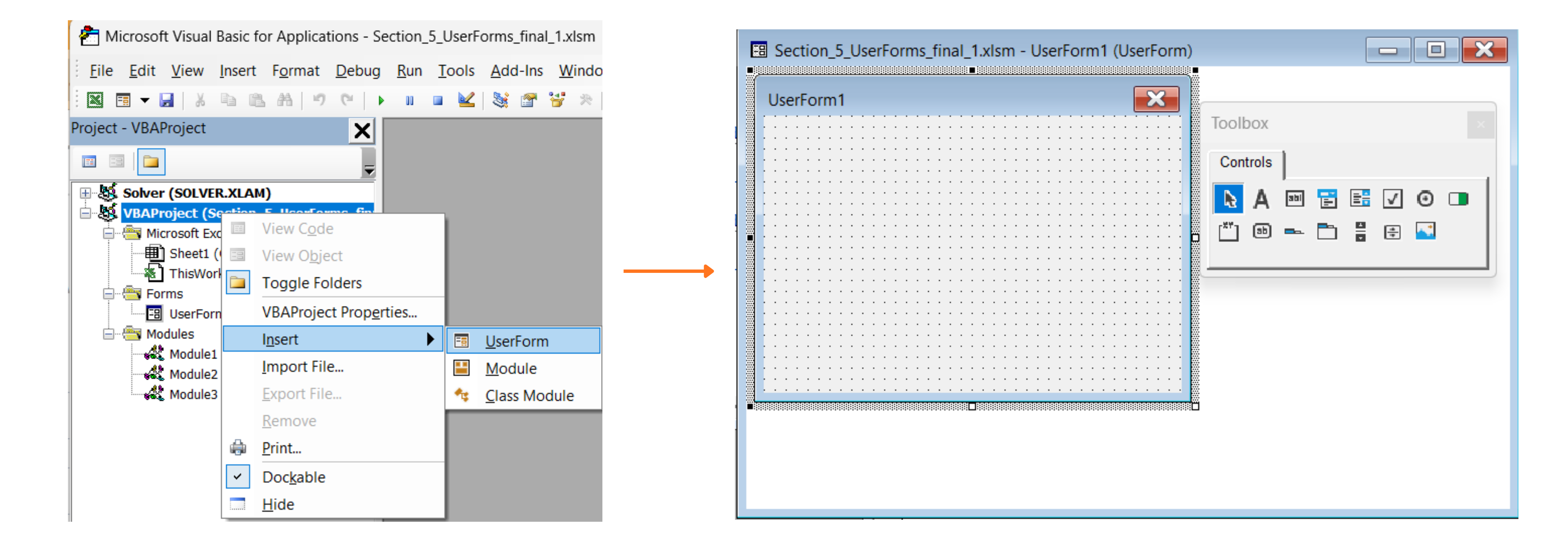
In the VBE, right-click your project in the Project Explorer and choose Insert → UserForm. A blank design surface appears, along with a floating Toolbox of controls you can drag onto it.
Labels, TextBoxes, ComboBoxes, and Buttons
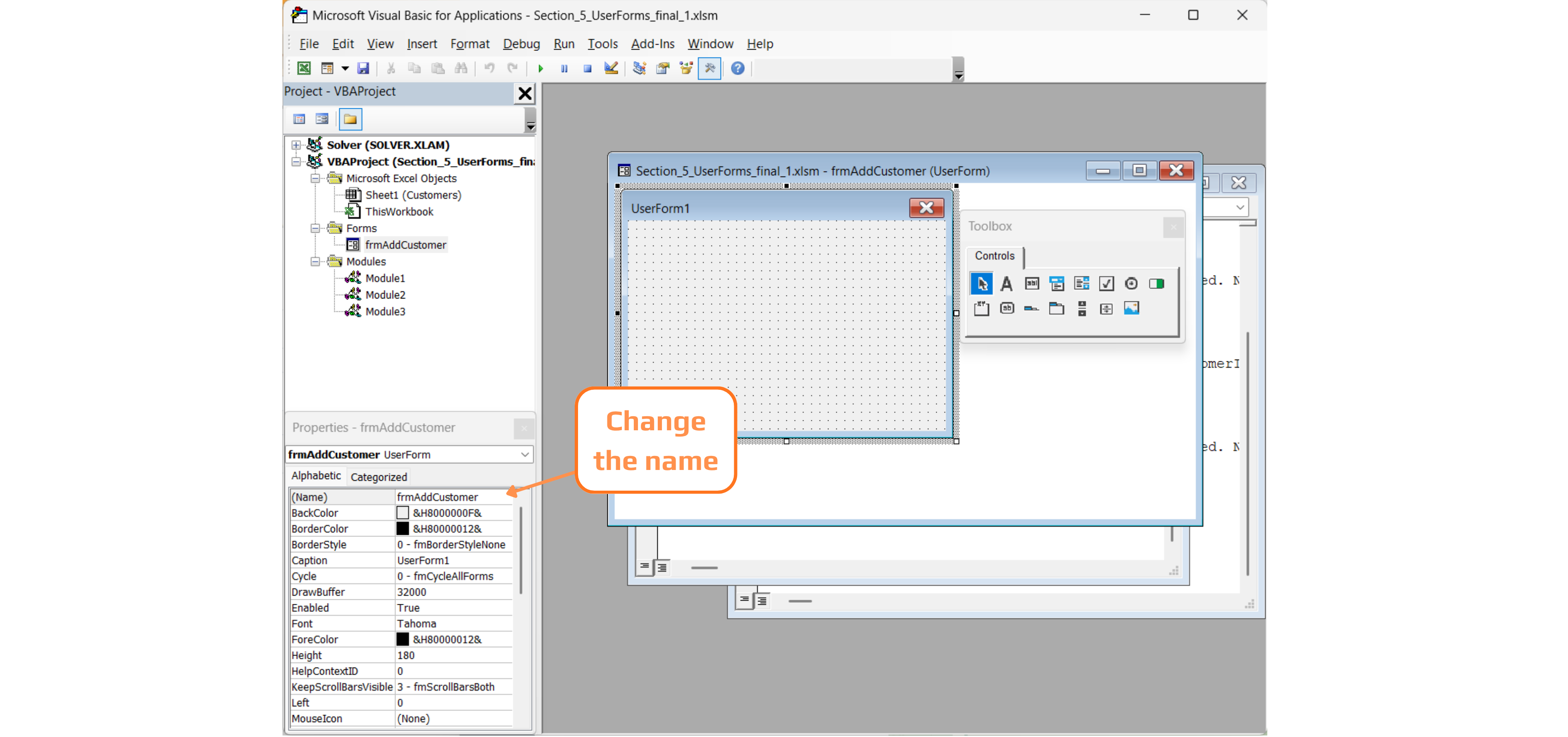
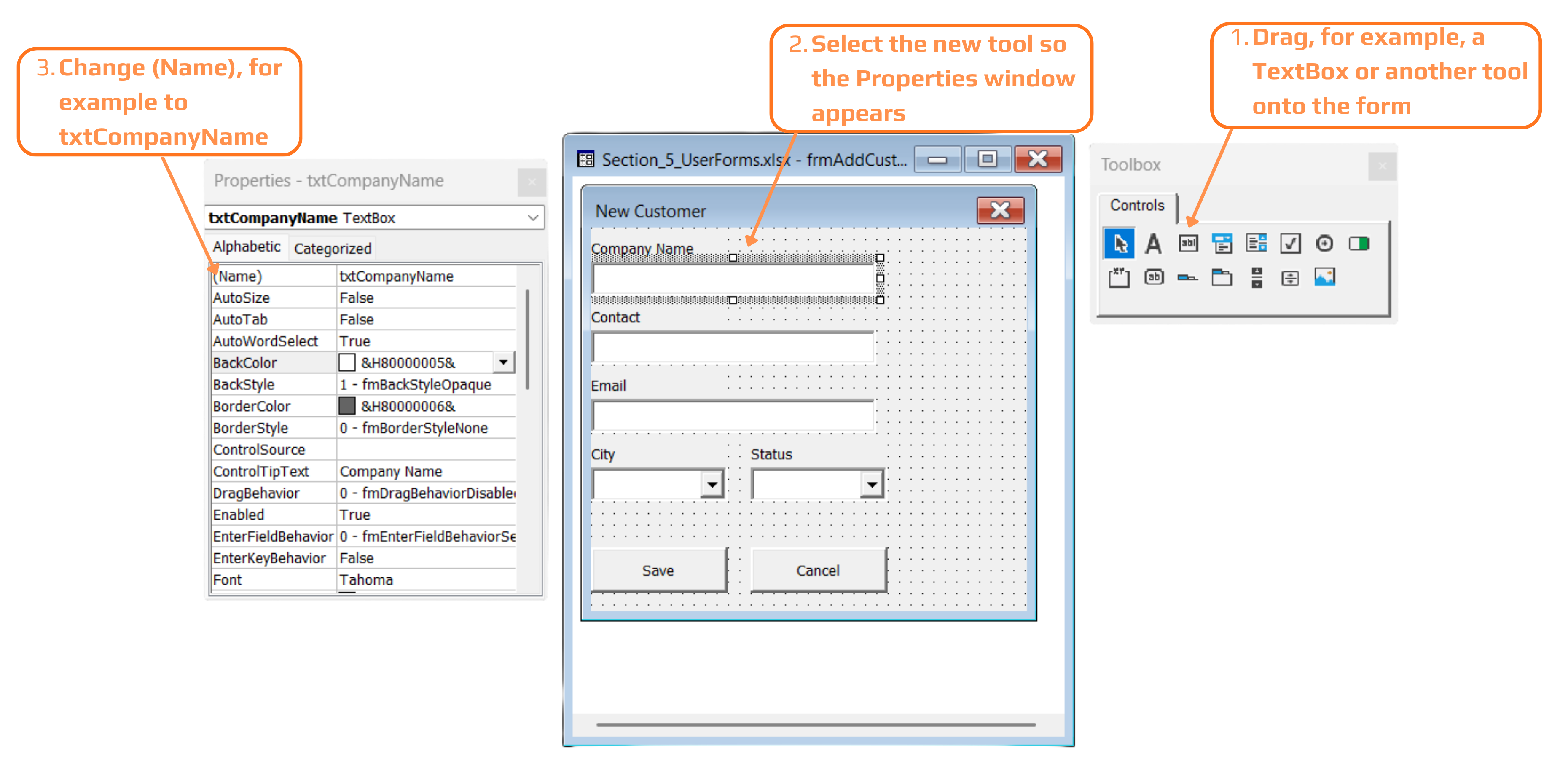
Each control you drag onto the form gets a default name like TextBox1 or CommandButton1 — functional, but meaningless once a form has six or seven controls on it. The single most important habit in this section is visible in the Properties window: rename every control immediately after adding it, using a short prefix that identifies its type (txt for TextBox, cbo for ComboBox, cmd for CommandButton, opt for OptionButton, chk for CheckBox, lst for ListBox) followed by a descriptive name. txtCompanyName reads unambiguously in code three weeks from now; TextBox1 does not.
Labels are the plain, non-interactive text captions ("Company Name:") — a user can see them but never types into or clicks them. TextBoxes are where free-form text gets typed. ComboBoxes present a dropdown of choices, which is exactly what cboCity and cboStatus are for — restricting City and Status to a known list rather than letting a user free-type "chicago", "Chicago,IL", and "CHI" for the same thing across different records.
Writing Code Behind the Form
Double-click any control on the design surface to jump straight to its code — VBA automatically creates an event procedure named ControlName_EventName, and typing code inside it means that code runs whenever that specific event happens to that specific control. A button's default event is Click:
Private Sub UserForm_Initialize()
    ' runs once, automatically, when the form is first shown
    cboCity.AddItem "Chicago"
    cboCity.AddItem "Boston"
    cboCity.AddItem "Austin"
    cboCity.AddItem "Seattle"
    cboCity.AddItem "Denver"

    cboStatus.AddItem "Active"
    cboStatus.AddItem "Inactive"
    cboStatus.AddItem "Prospect"
End Sub

Private Sub cmdCancel_Click()
    Unload Me
End Sub
UserForm_Initialize is a special event procedure that fires automatically the moment the form loads — before the user sees anything — which makes it the right place to populate ComboBoxes with .AddItem rather than typing choices into the Properties window by hand, especially once those choices might change or come from a worksheet. Unload Me inside cmdCancel_Click closes the form entirely; Me always refers to the form the code is currently running inside, so this line works unmodified no matter what you eventually rename the form itself to.
Worked Example: Saving a New Customer
This is the procedure behind the Save button — the one that actually writes a new row into tblCustomers:
Private Sub cmdSave_Click()
    Dim tbl As ListObject
    Dim newRow As ListRow

    Set tbl = ThisWorkbook.Worksheets("Customers").ListObjects("tblCustomers")
    Set newRow = tbl.ListRows.Add

    newRow.Range(1, 1).Value = "C" & Format(tbl.ListRows.Count + 1, "000")
    newRow.Range(1, 2).Value = txtCompanyName.Value
    newRow.Range(1, 3).Value = txtContact.Value
    newRow.Range(1, 4).Value = txtEmail.Value
    newRow.Range(1, 5).Value = cboCity.Value
    newRow.Range(1, 6).Value = cboStatus.Value

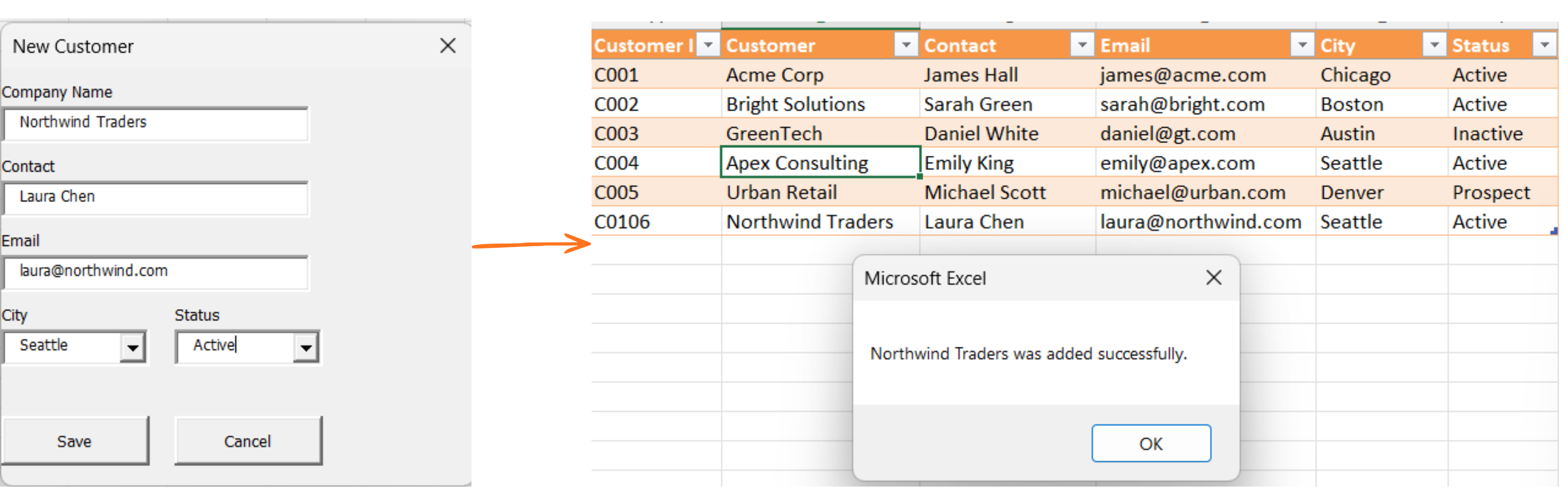
    MsgBox txtCompanyName.Value & " was added successfully."
    Unload Me
End Sub

- Set
tbl = ThisWorkbook.Worksheets("Customers").ListObjects("tblCustomers")reaches all the way from the form back into the workbook — a UserForm is just another piece of code, so everything about ListObjects applies to it unchanged; tbl.ListRows.Addis appending a genuinely new row inside the Table's boundary rather than writing past the last used cell by hand;txtCompanyName.Value,cboCity.Value, and the rest all read whatever the user currently has typed or selected in that specific control —.Valueis common to nearly every control type, which is why the same pattern works for TextBoxes and ComboBoxes alike;- The generated Customer ID line is a simplified placeholder for this exercise — real ID generation would need to check for gaps or reused IDs, which isn't something this line does;
- Unload Me at the end closes the form only after the row has been written — closing it any earlier would make
txtCompanyName.Valueand the other control values unreadable, since the controls no longer exist once the form is unloaded.
The form's "Company Name" label is just a friendlier caption for the table's Customer column — the code writes txtCompanyName.Value into that column regardless of the Label's wording, since only the TextBox's name matters to VBA, not its on-screen caption.
Customer ID isn't on the form because it's auto-generated by code ("C0" & (tbl.ListRows.Count + 100)) rather than typed by the user — this mirrors how real systems auto-number new records instead of relying on a person to pick a unique ID.
Task
- Insert a new UserForm, name it
frmAddCustomer, and add three TextBoxes (txtCompanyName,txtContact,txtEmail) and two ComboBoxes (cboCity, cboStatus), each with a matching Label. - Add two CommandButtons,
cmdSaveandcmdCancel, and write theUserForm_InitializeandcmdCancel_Clickprocedures exactly as shown. - Write
cmdSave_Clickas shown, then add a temporary button elsewhere in the workbook with the codefrmAddCustomer.Showto test opening your form. - Fill in the form for a fictional sixth customer and click Save — confirm a new row appears in tblCustomers with the values you entered.
1. Building the form
- Insert → UserForm in the VBE, then rename it via the Properties window's
(Name)field tofrmAddCustomer— not the Caption field, which only changes the title bar text. - Drag one Label + one TextBox pair for each of Company Name, Contact, and Email; one Label + one ComboBox pair for City and Status.
- Rename every control immediately after adding it — this is the habit the chapter stressed. Labels don't need code-friendly names since you never reference them in code, but every TextBox/ComboBox/Button does.
2. UserForm_Initialize and cmdCancel_Click
- Double-click the form's blank background (not a control) to get to
UserForm_Initialize— double-clickingcmdCancelinstead jumps you straight tocmdCancel_Click. - Both procedures were given to you exactly in the chapter — type them in unchanged.
3. Testing with a temporary button
- This button doesn't need to live on the form — put it on any worksheet via Developer → Insert → Button (Form Control), or just run a one-line
Subfrom the VBE instead of adding a worksheet button at all. frmAddCustomer.Showis the entire code needed to display the form.
4. Testing a full save
- Fill in all fields and pick values from both dropdowns before clicking Save — an empty ComboBox selection would write a blank cell.
- Check
tblCustomersafterward for a new row with aC00x-style ID.
Private Sub UserForm_Initialize()
    ' runs once, automatically, when the form is first shown
    cboCity.AddItem "Chicago"
    cboCity.AddItem "Boston"
    cboCity.AddItem "Austin"
    cboCity.AddItem "Seattle"
    cboCity.AddItem "Denver"

    cboStatus.AddItem "Active"
    cboStatus.AddItem "Inactive"
    cboStatus.AddItem "Prospect"
End Sub

Private Sub cmdCancel_Click()
    Unload Me
End Sub

Private Sub cmdSave_Click()
    Dim tbl As ListObject
    Dim newRow As ListRow

    Set tbl = ThisWorkbook.Worksheets("Customers").ListObjects("tblCustomers")
    Set newRow = tbl.ListRows.Add

    newRow.Range(1, 1).Value = "C0" & (tbl.ListRows.Count + 100)
    newRow.Range(1, 2).Value = txtCompanyName.Value
    newRow.Range(1, 3).Value = txtContact.Value
    newRow.Range(1, 4).Value = txtEmail.Value
    newRow.Range(1, 5).Value = cboCity.Value
    newRow.Range(1, 6).Value = cboStatus.Value

    MsgBox txtCompanyName.Value & " was added successfully."
    Unload Me
End Sub
To test it, run this from any regular module (not the UserForm's own code):
Sub ShowAddCustomerForm()
    frmAddCustomer.Show
End Sub
Press F5 with your cursor inside ShowAddCustomerForm — the form should open, and filling it in and clicking Save should add a new row to tblCustomers.
Thanks for your feedback!
Ask AI

Ask AI

Ask anything or try one of the suggested questions to begin our chat
Introduction to UserForms
UserForms have limited or absent functionality in Excel for Mac — the VBA IDE on Mac lacks full UserForm design support in many versions, which can cause exactly this kind of unexplained behavior.
MsgBox and InputBox cover simple yes/no questions and one-line answers, but adding a customer genuinely needs several fields at once — a company name, a contact, a city, a status. That's what a UserForm is for: a small custom window with its own labels, text boxes, dropdowns, and buttons, built inside the VBE and controlled entirely by your code.
Creating a Form
In the VBE, right-click your project in the Project Explorer and choose Insert → UserForm. A blank design surface appears, along with a floating Toolbox of controls you can drag onto it.
Labels, TextBoxes, ComboBoxes, and Buttons
Each control you drag onto the form gets a default name like TextBox1 or CommandButton1 — functional, but meaningless once a form has six or seven controls on it. The single most important habit in this section is visible in the Properties window: rename every control immediately after adding it, using a short prefix that identifies its type (txt for TextBox, cbo for ComboBox, cmd for CommandButton, opt for OptionButton, chk for CheckBox, lst for ListBox) followed by a descriptive name. txtCompanyName reads unambiguously in code three weeks from now; TextBox1 does not.
Labels are the plain, non-interactive text captions ("Company Name:") — a user can see them but never types into or clicks them. TextBoxes are where free-form text gets typed. ComboBoxes present a dropdown of choices, which is exactly what cboCity and cboStatus are for — restricting City and Status to a known list rather than letting a user free-type "chicago", "Chicago,IL", and "CHI" for the same thing across different records.
Writing Code Behind the Form
Double-click any control on the design surface to jump straight to its code — VBA automatically creates an event procedure named ControlName_EventName, and typing code inside it means that code runs whenever that specific event happens to that specific control. A button's default event is Click:
Private Sub UserForm_Initialize()
    ' runs once, automatically, when the form is first shown
    cboCity.AddItem "Chicago"
    cboCity.AddItem "Boston"
    cboCity.AddItem "Austin"
    cboCity.AddItem "Seattle"
    cboCity.AddItem "Denver"

    cboStatus.AddItem "Active"
    cboStatus.AddItem "Inactive"
    cboStatus.AddItem "Prospect"
End Sub

Private Sub cmdCancel_Click()
    Unload Me
End Sub
UserForm_Initialize is a special event procedure that fires automatically the moment the form loads — before the user sees anything — which makes it the right place to populate ComboBoxes with .AddItem rather than typing choices into the Properties window by hand, especially once those choices might change or come from a worksheet. Unload Me inside cmdCancel_Click closes the form entirely; Me always refers to the form the code is currently running inside, so this line works unmodified no matter what you eventually rename the form itself to.
Worked Example: Saving a New Customer
This is the procedure behind the Save button — the one that actually writes a new row into tblCustomers:
Private Sub cmdSave_Click()
    Dim tbl As ListObject
    Dim newRow As ListRow

    Set tbl = ThisWorkbook.Worksheets("Customers").ListObjects("tblCustomers")
    Set newRow = tbl.ListRows.Add

    newRow.Range(1, 1).Value = "C" & Format(tbl.ListRows.Count + 1, "000")
    newRow.Range(1, 2).Value = txtCompanyName.Value
    newRow.Range(1, 3).Value = txtContact.Value
    newRow.Range(1, 4).Value = txtEmail.Value
    newRow.Range(1, 5).Value = cboCity.Value
    newRow.Range(1, 6).Value = cboStatus.Value

    MsgBox txtCompanyName.Value & " was added successfully."
    Unload Me
End Sub
- Set
tbl = ThisWorkbook.Worksheets("Customers").ListObjects("tblCustomers")reaches all the way from the form back into the workbook — a UserForm is just another piece of code, so everything about ListObjects applies to it unchanged; tbl.ListRows.Addis appending a genuinely new row inside the Table's boundary rather than writing past the last used cell by hand;txtCompanyName.Value,cboCity.Value, and the rest all read whatever the user currently has typed or selected in that specific control —.Valueis common to nearly every control type, which is why the same pattern works for TextBoxes and ComboBoxes alike;- The generated Customer ID line is a simplified placeholder for this exercise — real ID generation would need to check for gaps or reused IDs, which isn't something this line does;
- Unload Me at the end closes the form only after the row has been written — closing it any earlier would make
txtCompanyName.Valueand the other control values unreadable, since the controls no longer exist once the form is unloaded.
The form's "Company Name" label is just a friendlier caption for the table's Customer column — the code writes txtCompanyName.Value into that column regardless of the Label's wording, since only the TextBox's name matters to VBA, not its on-screen caption.
Customer ID isn't on the form because it's auto-generated by code ("C0" & (tbl.ListRows.Count + 100)) rather than typed by the user — this mirrors how real systems auto-number new records instead of relying on a person to pick a unique ID.
Task
- Insert a new UserForm, name it
frmAddCustomer, and add three TextBoxes (txtCompanyName,txtContact,txtEmail) and two ComboBoxes (cboCity, cboStatus), each with a matching Label. - Add two CommandButtons,
cmdSaveandcmdCancel, and write theUserForm_InitializeandcmdCancel_Clickprocedures exactly as shown. - Write
cmdSave_Clickas shown, then add a temporary button elsewhere in the workbook with the codefrmAddCustomer.Showto test opening your form. - Fill in the form for a fictional sixth customer and click Save — confirm a new row appears in tblCustomers with the values you entered.
1. Building the form
- Insert → UserForm in the VBE, then rename it via the Properties window's
(Name)field tofrmAddCustomer— not the Caption field, which only changes the title bar text. - Drag one Label + one TextBox pair for each of Company Name, Contact, and Email; one Label + one ComboBox pair for City and Status.
- Rename every control immediately after adding it — this is the habit the chapter stressed. Labels don't need code-friendly names since you never reference them in code, but every TextBox/ComboBox/Button does.
2. UserForm_Initialize and cmdCancel_Click
- Double-click the form's blank background (not a control) to get to
UserForm_Initialize— double-clickingcmdCancelinstead jumps you straight tocmdCancel_Click. - Both procedures were given to you exactly in the chapter — type them in unchanged.
3. Testing with a temporary button
- This button doesn't need to live on the form — put it on any worksheet via Developer → Insert → Button (Form Control), or just run a one-line
Subfrom the VBE instead of adding a worksheet button at all. frmAddCustomer.Showis the entire code needed to display the form.
4. Testing a full save
- Fill in all fields and pick values from both dropdowns before clicking Save — an empty ComboBox selection would write a blank cell.
- Check
tblCustomersafterward for a new row with aC00x-style ID.
Private Sub UserForm_Initialize()
    ' runs once, automatically, when the form is first shown
    cboCity.AddItem "Chicago"
    cboCity.AddItem "Boston"
    cboCity.AddItem "Austin"
    cboCity.AddItem "Seattle"
    cboCity.AddItem "Denver"

    cboStatus.AddItem "Active"
    cboStatus.AddItem "Inactive"
    cboStatus.AddItem "Prospect"
End Sub

Private Sub cmdCancel_Click()
    Unload Me
End Sub

Private Sub cmdSave_Click()
    Dim tbl As ListObject
    Dim newRow As ListRow

    Set tbl = ThisWorkbook.Worksheets("Customers").ListObjects("tblCustomers")
    Set newRow = tbl.ListRows.Add

    newRow.Range(1, 1).Value = "C0" & (tbl.ListRows.Count + 100)
    newRow.Range(1, 2).Value = txtCompanyName.Value
    newRow.Range(1, 3).Value = txtContact.Value
    newRow.Range(1, 4).Value = txtEmail.Value
    newRow.Range(1, 5).Value = cboCity.Value
    newRow.Range(1, 6).Value = cboStatus.Value

    MsgBox txtCompanyName.Value & " was added successfully."
    Unload Me
End Sub
To test it, run this from any regular module (not the UserForm's own code):
Sub ShowAddCustomerForm()
    frmAddCustomer.Show
End Sub
Press F5 with your cursor inside ShowAddCustomerForm — the form should open, and filling it in and clicking Save should add a new row to tblCustomers.
Thanks for your feedback!
