Working with Form Controls
Swipe to show menu
TextBoxes and ComboBoxes cover most data entry, but a few other controls express certain kinds of choices more naturally — and reading their values correctly has a couple of genuine gotchas worth knowing before you rely on them.
CheckBoxes
A CheckBox's Value property is a plain Boolean — True when checked, False when not:
If chkWelcomeEmail.Value = True Then
    MsgBox "A welcome email would be sent here."
End If
Each CheckBox on a form is completely independent of every other one — checking chkWelcomeEmail has no effect on chkNewsletter, which is exactly the behavior you want when the choices aren't mutually exclusive.
OptionButtons
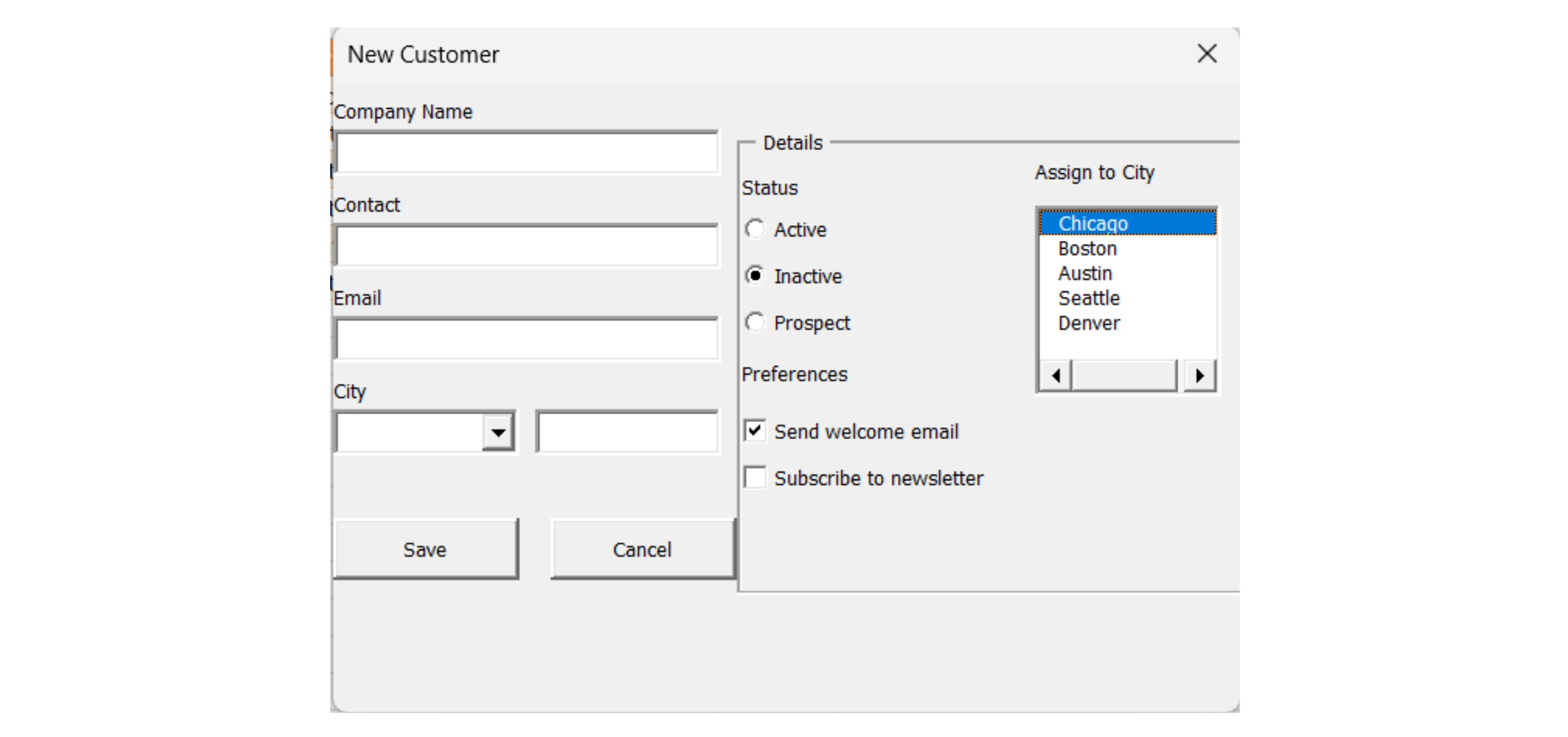
OptionButtons behave the opposite way: within the same group, selecting one automatically deselects all the others — exactly what screenshot's Status choices need, since a customer can't simultaneously be both Active and Inactive. Reading which one is selected means checking each one's Value individually:
Dim status As String
If optActive.Value = True Then
    status = "Active"
ElseIf optInactive.Value = True Then
    status = "Inactive"
ElseIf optProspect.Value = True Then
    status = "Prospect"
End If
The mutual exclusivity is automatic and handled entirely by VBA — you never have to write code that unchecks the other two when one is selected. Grouping matters, though: OptionButtons only exclude each other within the same container (the form itself, or a Frame control placed on it), so two separate groups of OptionButtons on the same form — say, Status and Priority — need to sit inside two different Frames, or VBA would treat all of them as one single mutually-exclusive group.
ListBoxes
A ListBox shows several choices at once without needing to be clicked open, like the City list in Figure 5.5. Populate it the same way as a ComboBox, with .AddItem, and read the selection back through either .Value or .ListIndex:
Private Sub UserForm_Initialize()
    lstCities.AddItem "Chicago"
    lstCities.AddItem "Boston"
    lstCities.AddItem "Austin"
End Sub

Private Sub cmdAssign_Click()
    If lstCities.ListIndex = -1 Then
        MsgBox "Please select a city first."
        Exit Sub
    End If
    MsgBox "Assigning to: " & lstCities.Value
End Sub
ListIndex is the position of the selected item, counting from 0 for the first item — and critically, it's -1 whenever nothing at all has been selected yet, which is the check cmdAssign_Click uses to catch a user who clicks the button without picking a city first. .Value gives you the selected text directly, which is usually more useful than the numeric position .ListIndex provides.
Multi-Page Forms
A MultiPage control (the Details / Preferences tabs across the top of Figure 5.5) groups related controls onto separate pages of the same physical form — useful once a form has too many fields to fit comfortably on one screen. Each page is addressed by position, and only the controls on the currently visible page are meaningful to the user, though all of them still exist and can be read from code regardless of which page is showing:
Private Sub MultiPage1_Change()
    If MultiPage1.Value = 1 Then
        MsgBox "Now viewing Preferences"
    End If
End Sub
MultiPage1.Value follows the same 0-based counting as ListIndex — the first page is 0, the second (Preferences, in Figure 5.5) is 1 — and the Change event fires automatically whenever the user clicks a different tab.
Task
- Add a Frame containing three OptionButtons (optActive, optInactive, optProspect) to frmAddCustomer, replacing the earlier cboStatus ComboBox, and write the If...ElseIf block shown above to read the selection.
- Add two independent CheckBoxes (chkWelcomeEmail, chkNewsletter) and confirm in testing that checking one never affects the other.
- Add a ListBox (lstCities) populated in UserForm_Initialize, and write a check that shows an error if the user tries to proceed with nothing selected (ListIndex = -1).
- Challenge: wrap the Company Name, Contact, and Email fields on one MultiPage page named "Details", and the CheckBoxes and OptionButtons on a second page named "Preferences".

1. Replacing cboStatus with a Frame of OptionButtons
- Delete
cboStatusand its Label from the form first — you're replacing it, not adding alongside it. - Drag a Frame control onto the form, then drag all three OptionButtons inside that Frame's boundary — this containment is what makes them mutually exclusive as one group.
- Rename each OptionButton individually in the Properties window; the Frame itself can keep a simple Caption like "Status" but doesn't need a code-friendly name unless you plan to reference it directly.
- Reading the selection means checking each OptionButton's
.Valueindividually withIf...ElseIf— there's no single property that tells you "which one in the group is checked." - Since
cboStatus.Valueno longer exists,cmdSave_Clickneeds astatusvariable built from the OptionButtons instead, written intonewRowin its place.
2. Adding two independent CheckBoxes
- These sit directly on the form (not inside the Frame) — CheckBoxes outside a shared container never affect each other regardless of grouping.
- To "confirm in testing," just check one, then the other, and watch that neither un-checks the first.
3. Adding and validating a ListBox
- Populate it the same way as
cboCitywas populated — repeated.AddItemcalls inUserForm_Initialize. ListIndex = -1specifically means nothing has been clicked yet — that's the exact condition to check before letting the save proceed.- This check belongs in the same validation block as the other required-field checks, appending to the same
errorsstring.
4. MultiPage challenge
- Drag a MultiPage control onto the form — it comes with two pages by default, which is exactly how many you need.
- Rename each page via its own right-click → Page Order, or by selecting the page tab itself and using the Properties window's Caption field (Caption controls the tab's visible text; there's a separate (Name) field too if you want to reference a page by name in code).
- Moving existing controls onto a page means dragging them physically onto that page's visible area in Design view — code references to them don't change at all, since a control's name doesn't depend on which page it sits on.
Private Sub UserForm_Initialize()
    cboCity.AddItem "Chicago"
    cboCity.AddItem "Boston"
    cboCity.AddItem "Austin"
    cboCity.AddItem "Seattle"
    cboCity.AddItem "Denver"

    lstCities.AddItem "Chicago"
    lstCities.AddItem "Boston"
    lstCities.AddItem "Austin"
    lstCities.AddItem "Seattle"
    lstCities.AddItem "Denver"
End Sub

Private Sub cmdCancel_Click()
    Unload Me
End Sub

Private Sub cmdSave_Click()
    Dim tbl As ListObject
    Dim newRow As ListRow
    Dim errors As String
    Dim status As String

    ' --- Reset field colors ---
    txtCompanyName.BackColor = vbWhite
    txtContact.BackColor = vbWhite
    txtEmail.BackColor = vbWhite

    ' --- Required field checks ---
    If Trim(txtCompanyName.Value) = "" Then
        errors = errors & "- Company Name is required" & vbNewLine
        txtCompanyName.BackColor = RGB(255, 199, 206)
    End If

    If Trim(txtContact.Value) = "" Then
        errors = errors & "- Contact is required" & vbNewLine
        txtContact.BackColor = RGB(255, 199, 206)
    End If

    If Trim(txtEmail.Value) = "" Then
        errors = errors & "- Email is required" & vbNewLine
        txtEmail.BackColor = RGB(255, 199, 206)
    End If

    ' --- Status via OptionButtons ---
    If optActive.Value = True Then
        status = "Active"
    ElseIf optInactive.Value = True Then
        status = "Inactive"
    ElseIf optProspect.Value = True Then
        status = "Prospect"
    Else
        errors = errors & "- Please select a Status" & vbNewLine
    End If

    ' --- ListBox check ---
    If lstCities.ListIndex = -1 Then
        errors = errors & "- Please select a city from the list" & vbNewLine
    End If

    If errors <> "" Then
        MsgBox "Please fix the following:" & vbNewLine & errors, vbExclamation
        Exit Sub
    End If

    ' --- All checks passed — safe to save now ---
    Set tbl = ThisWorkbook.Worksheets("Customers").ListObjects("tblCustomers")
    Set newRow = tbl.ListRows.Add

    newRow.Range(1, 1).Value = "C0" & (tbl.ListRows.Count + 100)
    newRow.Range(1, 2).Value = txtCompanyName.Value
    newRow.Range(1, 3).Value = txtContact.Value
    newRow.Range(1, 4).Value = txtEmail.Value
    newRow.Range(1, 5).Value = cboCity.Value
    newRow.Range(1, 6).Value = status

    If chkWelcomeEmail.Value = True Then
        MsgBox "A welcome email would be sent to " & txtEmail.Value & "."
    End If

    MsgBox txtCompanyName.Value & " was added successfully."
    Unload Me
End Sub
Testing notes:
- Point 2 (CheckBoxes) has no dedicated validation — just click
chkWelcomeEmailandchkNewsletterindependently and confirm each toggles without affecting the other. - Point 4 (MultiPage) is a layout change only — no code changes are needed beyond what's already here, since every control keeps its own name regardless of which page it's dragged onto.
- Notice
cboCity.Valueis still used for the actual save (newRow.Range(1, 5)), whilelstCitiesexists purely as a separate, independently validated control per the task — the two aren't wired together unless you choose to extend it that way yourself.
Thanks for your feedback!
Ask AI

Ask AI

Ask anything or try one of the suggested questions to begin our chat
Working with Form Controls
TextBoxes and ComboBoxes cover most data entry, but a few other controls express certain kinds of choices more naturally — and reading their values correctly has a couple of genuine gotchas worth knowing before you rely on them.
CheckBoxes
A CheckBox's Value property is a plain Boolean — True when checked, False when not:
If chkWelcomeEmail.Value = True Then
    MsgBox "A welcome email would be sent here."
End If
Each CheckBox on a form is completely independent of every other one — checking chkWelcomeEmail has no effect on chkNewsletter, which is exactly the behavior you want when the choices aren't mutually exclusive.
OptionButtons
OptionButtons behave the opposite way: within the same group, selecting one automatically deselects all the others — exactly what screenshot's Status choices need, since a customer can't simultaneously be both Active and Inactive. Reading which one is selected means checking each one's Value individually:
Dim status As String
If optActive.Value = True Then
    status = "Active"
ElseIf optInactive.Value = True Then
    status = "Inactive"
ElseIf optProspect.Value = True Then
    status = "Prospect"
End If
The mutual exclusivity is automatic and handled entirely by VBA — you never have to write code that unchecks the other two when one is selected. Grouping matters, though: OptionButtons only exclude each other within the same container (the form itself, or a Frame control placed on it), so two separate groups of OptionButtons on the same form — say, Status and Priority — need to sit inside two different Frames, or VBA would treat all of them as one single mutually-exclusive group.
ListBoxes
A ListBox shows several choices at once without needing to be clicked open, like the City list in Figure 5.5. Populate it the same way as a ComboBox, with .AddItem, and read the selection back through either .Value or .ListIndex:
Private Sub UserForm_Initialize()
    lstCities.AddItem "Chicago"
    lstCities.AddItem "Boston"
    lstCities.AddItem "Austin"
End Sub

Private Sub cmdAssign_Click()
    If lstCities.ListIndex = -1 Then
        MsgBox "Please select a city first."
        Exit Sub
    End If
    MsgBox "Assigning to: " & lstCities.Value
End Sub
ListIndex is the position of the selected item, counting from 0 for the first item — and critically, it's -1 whenever nothing at all has been selected yet, which is the check cmdAssign_Click uses to catch a user who clicks the button without picking a city first. .Value gives you the selected text directly, which is usually more useful than the numeric position .ListIndex provides.
Multi-Page Forms
A MultiPage control (the Details / Preferences tabs across the top of Figure 5.5) groups related controls onto separate pages of the same physical form — useful once a form has too many fields to fit comfortably on one screen. Each page is addressed by position, and only the controls on the currently visible page are meaningful to the user, though all of them still exist and can be read from code regardless of which page is showing:
Private Sub MultiPage1_Change()
    If MultiPage1.Value = 1 Then
        MsgBox "Now viewing Preferences"
    End If
End Sub
MultiPage1.Value follows the same 0-based counting as ListIndex — the first page is 0, the second (Preferences, in Figure 5.5) is 1 — and the Change event fires automatically whenever the user clicks a different tab.
Task
- Add a Frame containing three OptionButtons (optActive, optInactive, optProspect) to frmAddCustomer, replacing the earlier cboStatus ComboBox, and write the If...ElseIf block shown above to read the selection.
- Add two independent CheckBoxes (chkWelcomeEmail, chkNewsletter) and confirm in testing that checking one never affects the other.
- Add a ListBox (lstCities) populated in UserForm_Initialize, and write a check that shows an error if the user tries to proceed with nothing selected (ListIndex = -1).
- Challenge: wrap the Company Name, Contact, and Email fields on one MultiPage page named "Details", and the CheckBoxes and OptionButtons on a second page named "Preferences".
1. Replacing cboStatus with a Frame of OptionButtons
- Delete
cboStatusand its Label from the form first — you're replacing it, not adding alongside it. - Drag a Frame control onto the form, then drag all three OptionButtons inside that Frame's boundary — this containment is what makes them mutually exclusive as one group.
- Rename each OptionButton individually in the Properties window; the Frame itself can keep a simple Caption like "Status" but doesn't need a code-friendly name unless you plan to reference it directly.
- Reading the selection means checking each OptionButton's
.Valueindividually withIf...ElseIf— there's no single property that tells you "which one in the group is checked." - Since
cboStatus.Valueno longer exists,cmdSave_Clickneeds astatusvariable built from the OptionButtons instead, written intonewRowin its place.
2. Adding two independent CheckBoxes
- These sit directly on the form (not inside the Frame) — CheckBoxes outside a shared container never affect each other regardless of grouping.
- To "confirm in testing," just check one, then the other, and watch that neither un-checks the first.
3. Adding and validating a ListBox
- Populate it the same way as
cboCitywas populated — repeated.AddItemcalls inUserForm_Initialize. ListIndex = -1specifically means nothing has been clicked yet — that's the exact condition to check before letting the save proceed.- This check belongs in the same validation block as the other required-field checks, appending to the same
errorsstring.
4. MultiPage challenge
- Drag a MultiPage control onto the form — it comes with two pages by default, which is exactly how many you need.
- Rename each page via its own right-click → Page Order, or by selecting the page tab itself and using the Properties window's Caption field (Caption controls the tab's visible text; there's a separate (Name) field too if you want to reference a page by name in code).
- Moving existing controls onto a page means dragging them physically onto that page's visible area in Design view — code references to them don't change at all, since a control's name doesn't depend on which page it sits on.
Private Sub UserForm_Initialize()
    cboCity.AddItem "Chicago"
    cboCity.AddItem "Boston"
    cboCity.AddItem "Austin"
    cboCity.AddItem "Seattle"
    cboCity.AddItem "Denver"

    lstCities.AddItem "Chicago"
    lstCities.AddItem "Boston"
    lstCities.AddItem "Austin"
    lstCities.AddItem "Seattle"
    lstCities.AddItem "Denver"
End Sub

Private Sub cmdCancel_Click()
    Unload Me
End Sub

Private Sub cmdSave_Click()
    Dim tbl As ListObject
    Dim newRow As ListRow
    Dim errors As String
    Dim status As String

    ' --- Reset field colors ---
    txtCompanyName.BackColor = vbWhite
    txtContact.BackColor = vbWhite
    txtEmail.BackColor = vbWhite

    ' --- Required field checks ---
    If Trim(txtCompanyName.Value) = "" Then
        errors = errors & "- Company Name is required" & vbNewLine
        txtCompanyName.BackColor = RGB(255, 199, 206)
    End If

    If Trim(txtContact.Value) = "" Then
        errors = errors & "- Contact is required" & vbNewLine
        txtContact.BackColor = RGB(255, 199, 206)
    End If

    If Trim(txtEmail.Value) = "" Then
        errors = errors & "- Email is required" & vbNewLine
        txtEmail.BackColor = RGB(255, 199, 206)
    End If

    ' --- Status via OptionButtons ---
    If optActive.Value = True Then
        status = "Active"
    ElseIf optInactive.Value = True Then
        status = "Inactive"
    ElseIf optProspect.Value = True Then
        status = "Prospect"
    Else
        errors = errors & "- Please select a Status" & vbNewLine
    End If

    ' --- ListBox check ---
    If lstCities.ListIndex = -1 Then
        errors = errors & "- Please select a city from the list" & vbNewLine
    End If

    If errors <> "" Then
        MsgBox "Please fix the following:" & vbNewLine & errors, vbExclamation
        Exit Sub
    End If

    ' --- All checks passed — safe to save now ---
    Set tbl = ThisWorkbook.Worksheets("Customers").ListObjects("tblCustomers")
    Set newRow = tbl.ListRows.Add

    newRow.Range(1, 1).Value = "C0" & (tbl.ListRows.Count + 100)
    newRow.Range(1, 2).Value = txtCompanyName.Value
    newRow.Range(1, 3).Value = txtContact.Value
    newRow.Range(1, 4).Value = txtEmail.Value
    newRow.Range(1, 5).Value = cboCity.Value
    newRow.Range(1, 6).Value = status

    If chkWelcomeEmail.Value = True Then
        MsgBox "A welcome email would be sent to " & txtEmail.Value & "."
    End If

    MsgBox txtCompanyName.Value & " was added successfully."
    Unload Me
End Sub
Testing notes:
- Point 2 (CheckBoxes) has no dedicated validation — just click
chkWelcomeEmailandchkNewsletterindependently and confirm each toggles without affecting the other. - Point 4 (MultiPage) is a layout change only — no code changes are needed beyond what's already here, since every control keeps its own name regardless of which page it's dragged onto.
- Notice
cboCity.Valueis still used for the actual save (newRow.Range(1, 5)), whilelstCitiesexists purely as a separate, independently validated control per the task — the two aren't wired together unless you choose to extend it that way yourself.
Thanks for your feedback!
