Setting Up the VBA Environment
Swipe to show menu
VBA's tools are hidden by default because most Excel users never need them. Before you write a line of code, you need to switch on the Developer tab, get comfortable with the Visual Basic Editor (VBE), and understand the one file-format rule that trips up almost every beginner.
Enabling the Developer Tab
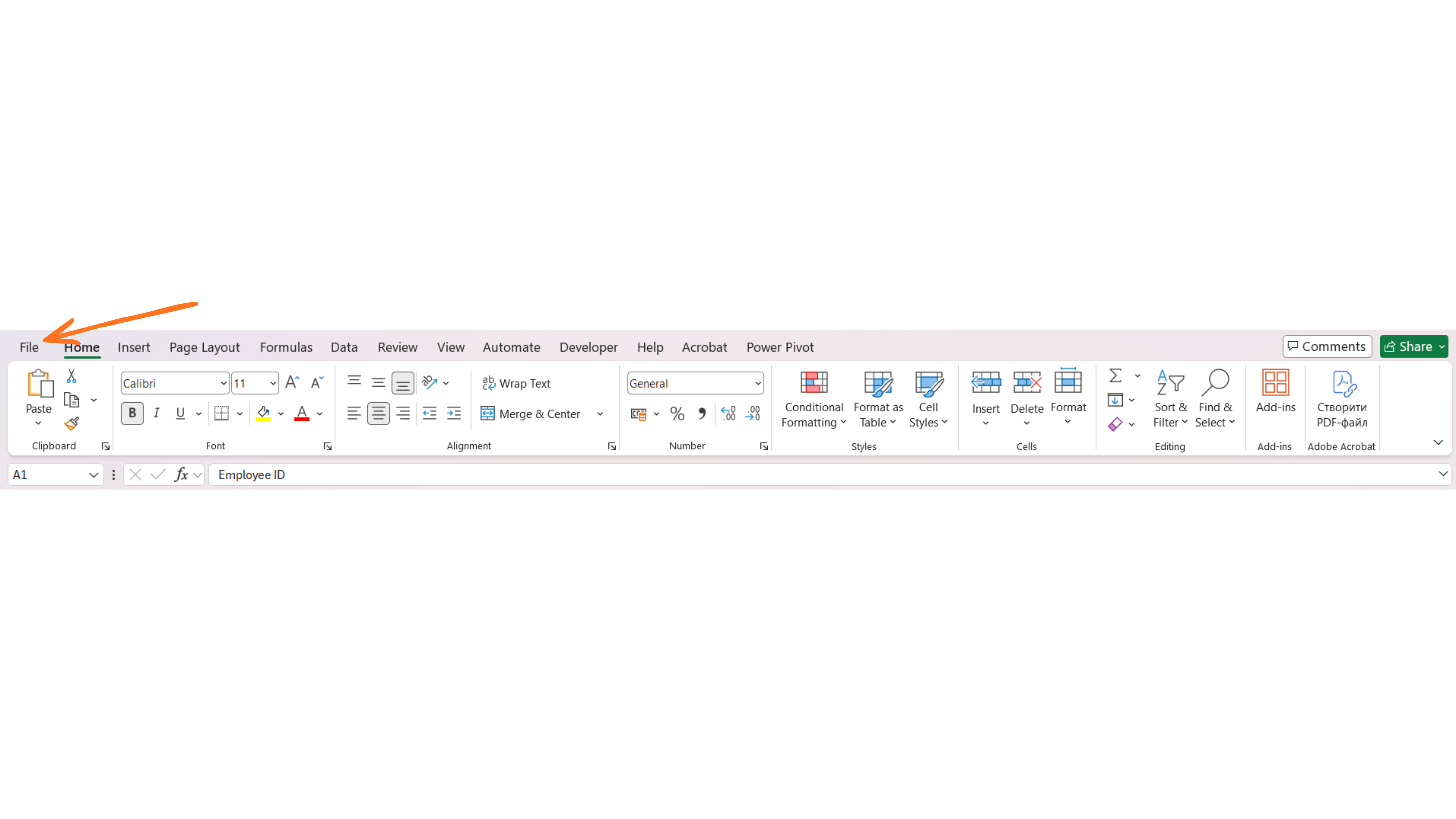
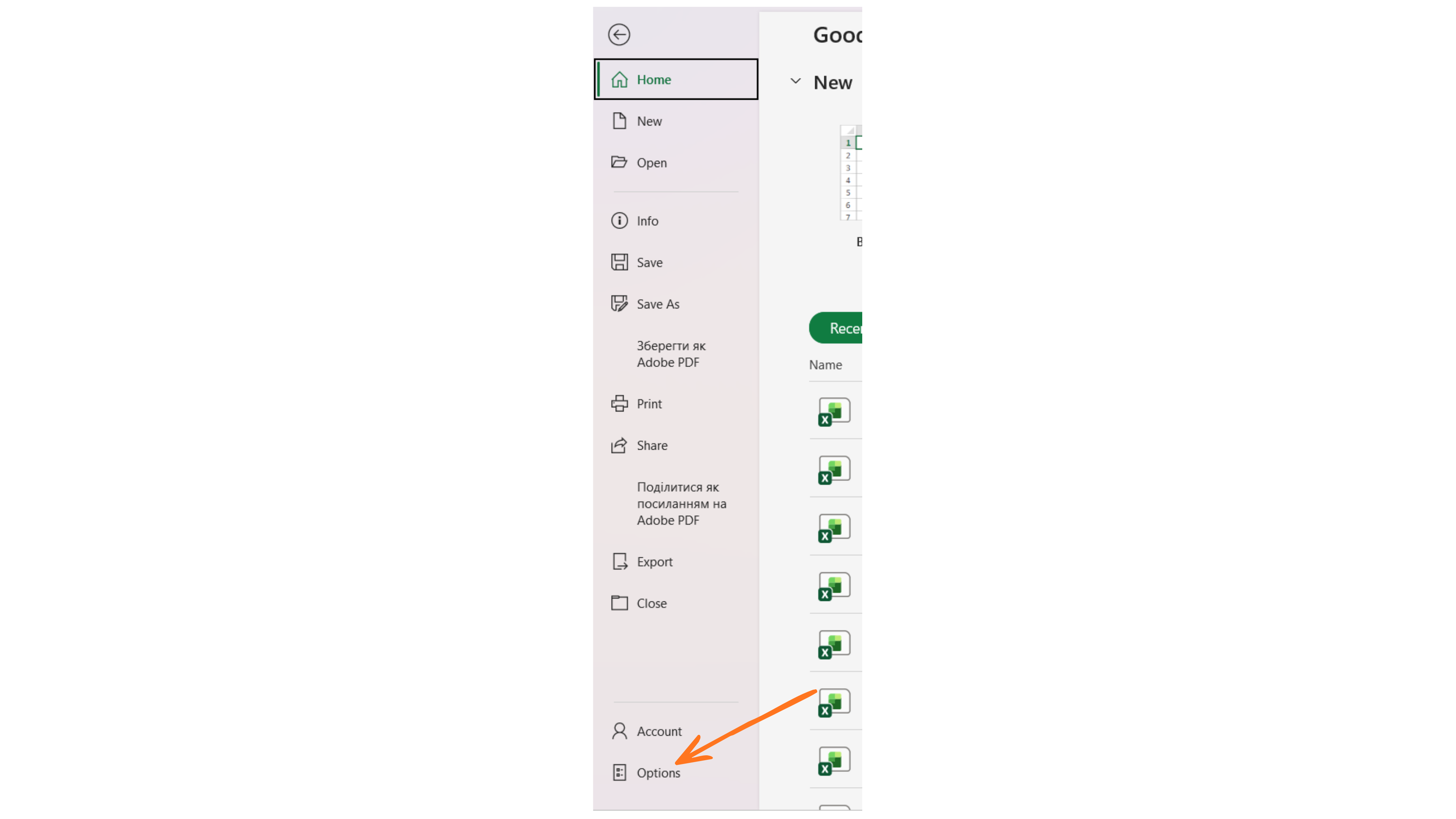
- Go to File → Options;
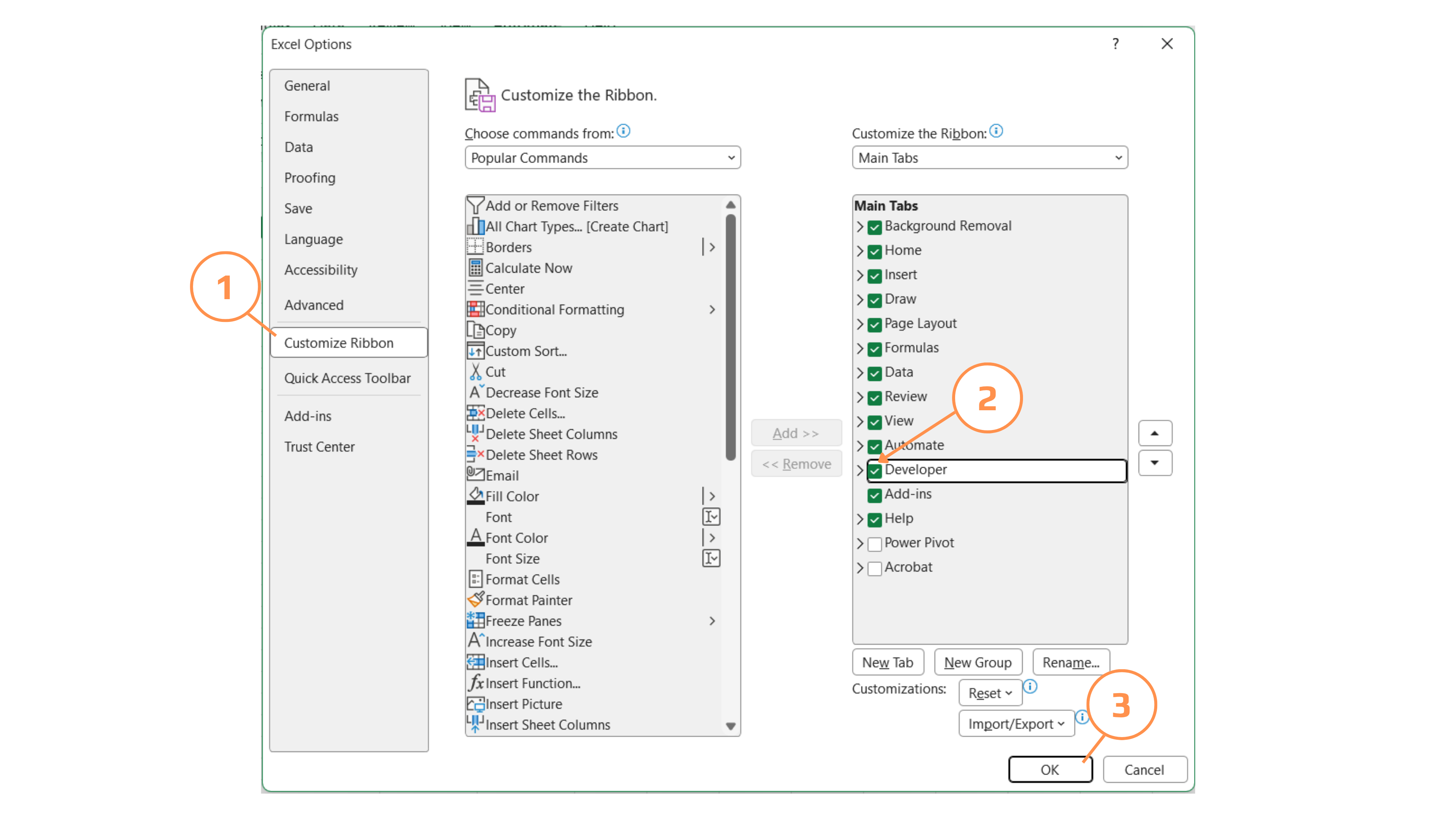
- Click Customize Ribbon;
- In the right-hand list of main tabs, check the box next to Developer;
- Click OK. The Developer tab now appears in your ribbon.
Opening the Visual Basic Editor
Press Alt+F11 from anywhere in Excel (or click Visual Basic on the Developer tab). This opens the VBE — a separate application window where all VBA code lives. Three panels matter most while you're learning:
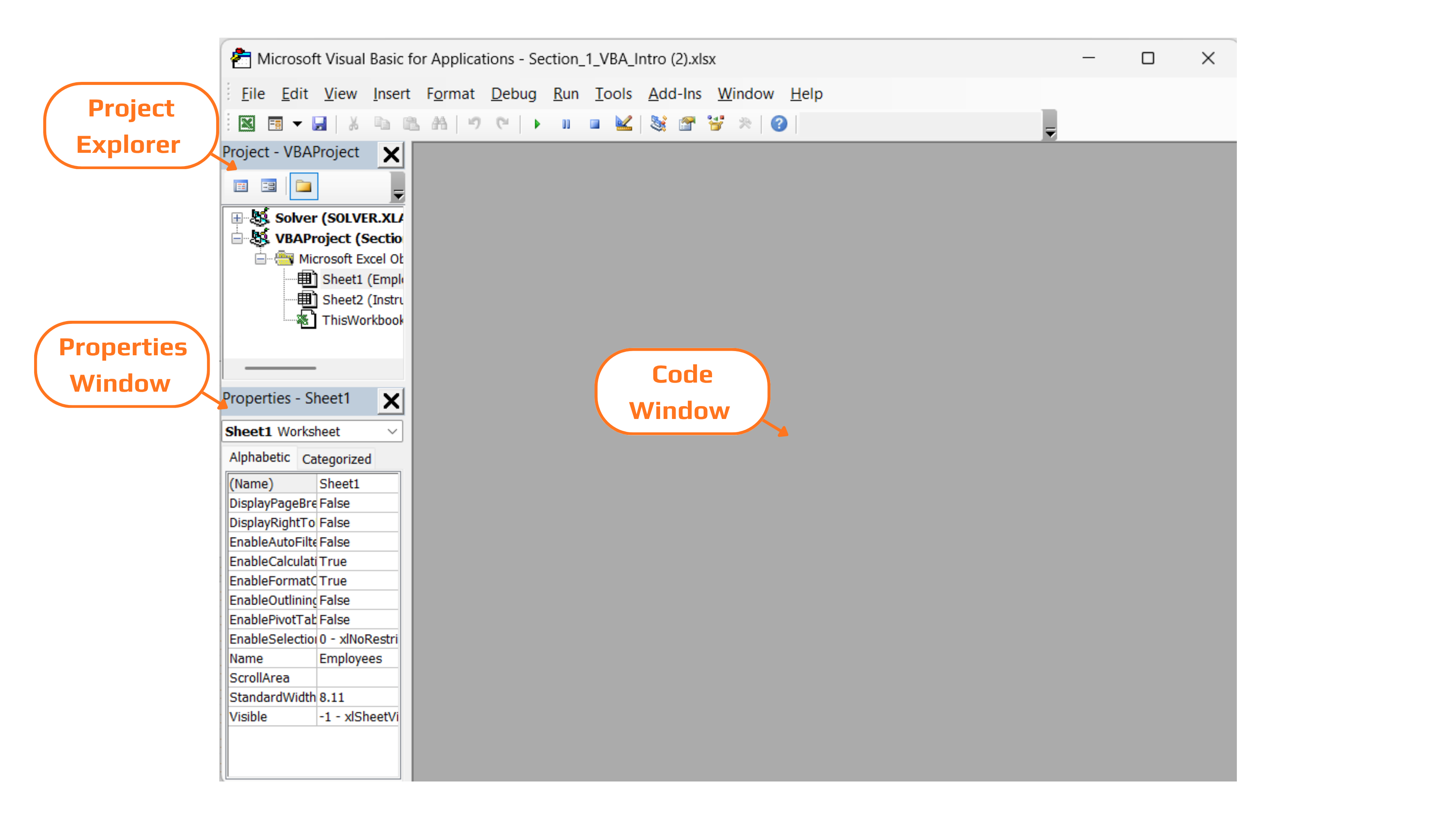
- Project Explorer (top-left) — a tree view of every open workbook, its worksheets, and its code modules;
- Properties window (bottom-left) — settings for whatever object is selected in the Project Explorer;
- Code window (right) — where you read, write, and run VBA procedures.
Exploring the Project Explorer
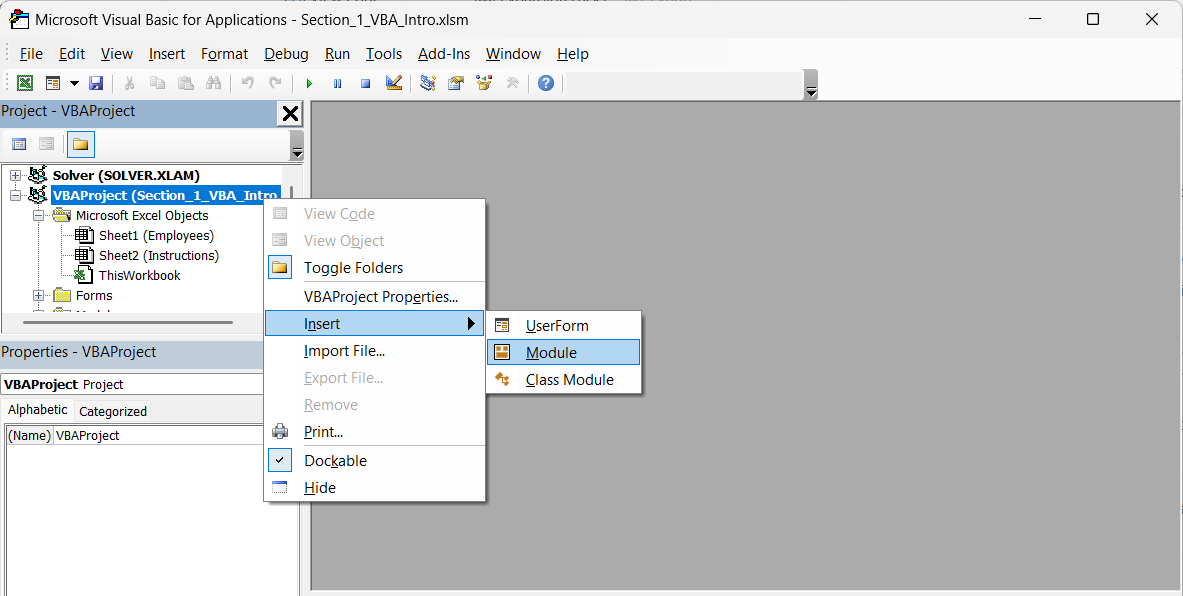
In the image above, notice the hierarchy: VBAProject (Section_1_VBA_Intro.xlsm) contains Microsoft Excel Objects (one entry per worksheet, plus ThisWorkbook) and, once you add any code, a Modules folder. Standard code — the kind you'll write for most of this course — belongs in a Module, not directly behind a worksheet or ThisWorkbook. Right-click VBAProject → Insert → Module to add one.
Saving Macro-Enabled Workbooks (.xlsm)

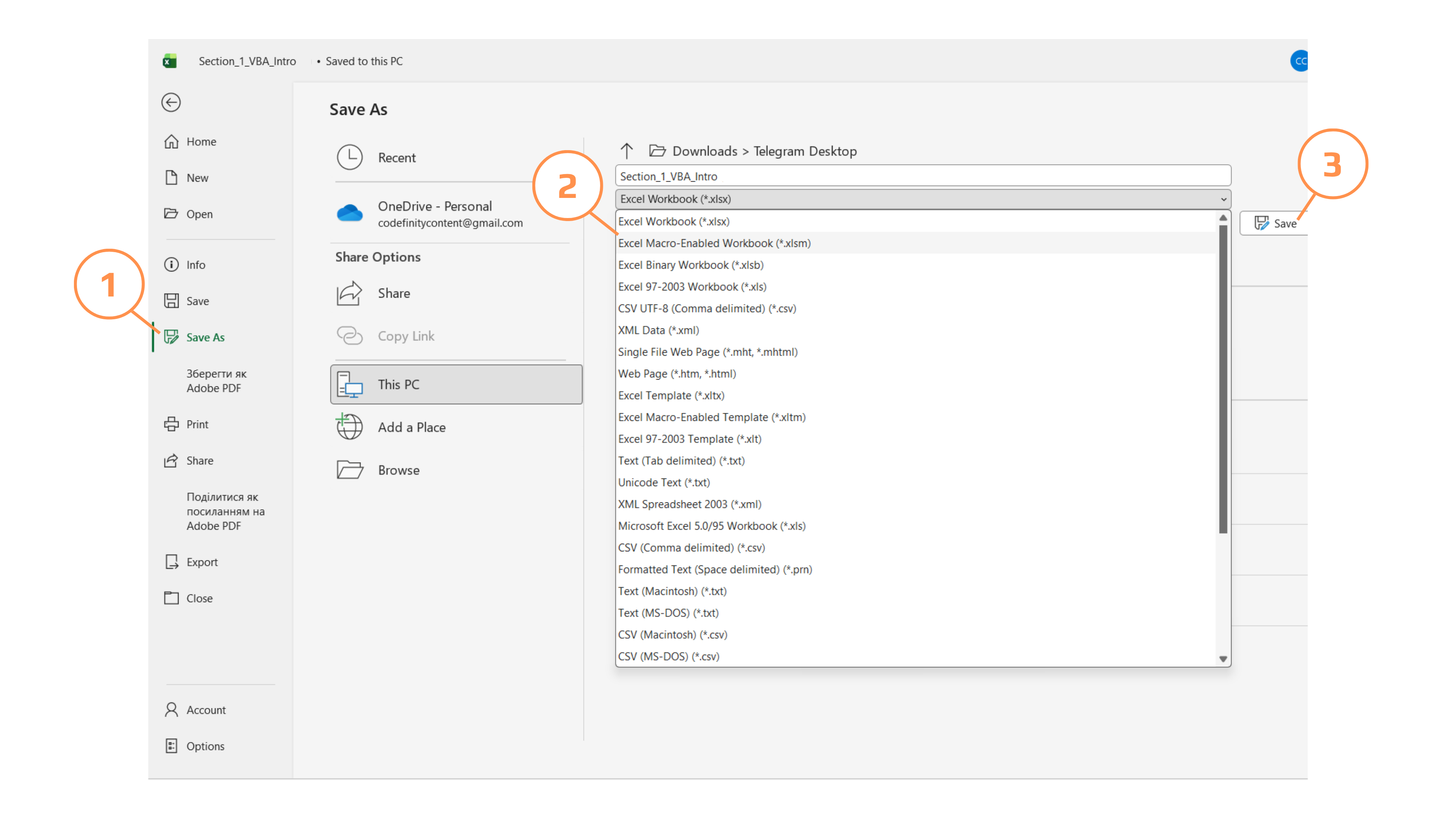
If you save a workbook that contains VBA code as a normal Excel Workbook (.xlsx), Excel silently deletes every macro. There is no warning dialog you can miss — Excel does warn you, but it's easy to click through without reading it. Always choose Excel Macro-Enabled Workbook (*.xlsm) from the "Save as type" dropdown whenever a file contains code.
Task
Get your environment ready.
- Open Section_1_VBA_Intro.xlsx and enable the Developer tab if it isn't already visible.
- Press
Alt+F11and locate the Employees worksheet and ThisWorkbook in the Project Explorer. - Insert a new Module (right-click the VBAProject → Insert → Module) and rename it in the Properties window to
modIntro. - Save the file as Section_1_VBA_Intro.xlsm using File → Save As → Excel Macro-Enabled Workbook.
Thanks for your feedback!
Ask AI

Ask AI

Ask anything or try one of the suggested questions to begin our chat
