Recording Your First Macro
Swipe to show menu
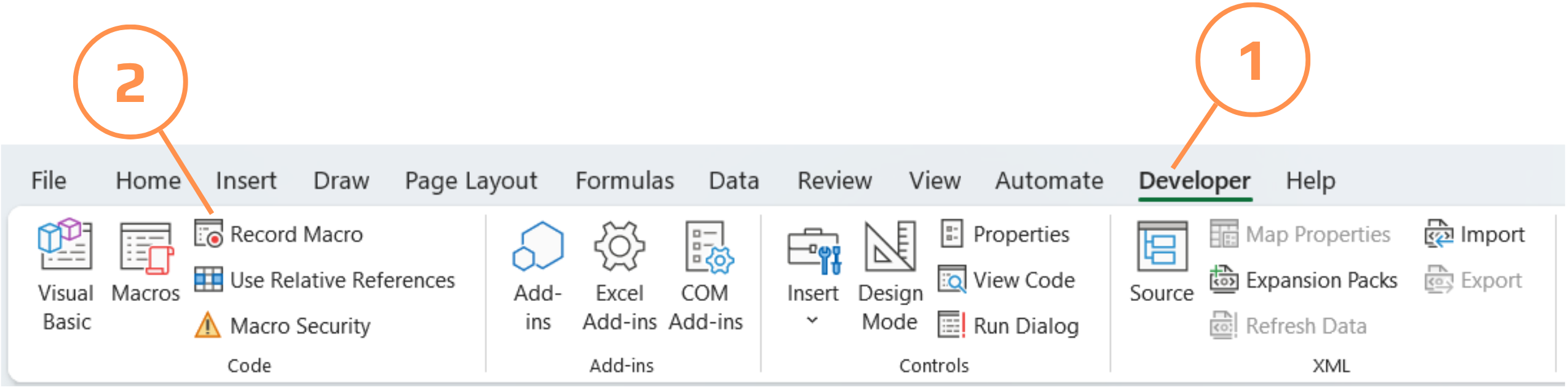
The Macro Recorder is the fastest way to see real VBA code without writing any yourself: you perform an action manually, Excel writes down every click as a VBA statement, and you can replay it — or read it to learn the syntax for the objects you just touched.
Recording a Repetitive Task
- On the Developer tab, click Record Macro;
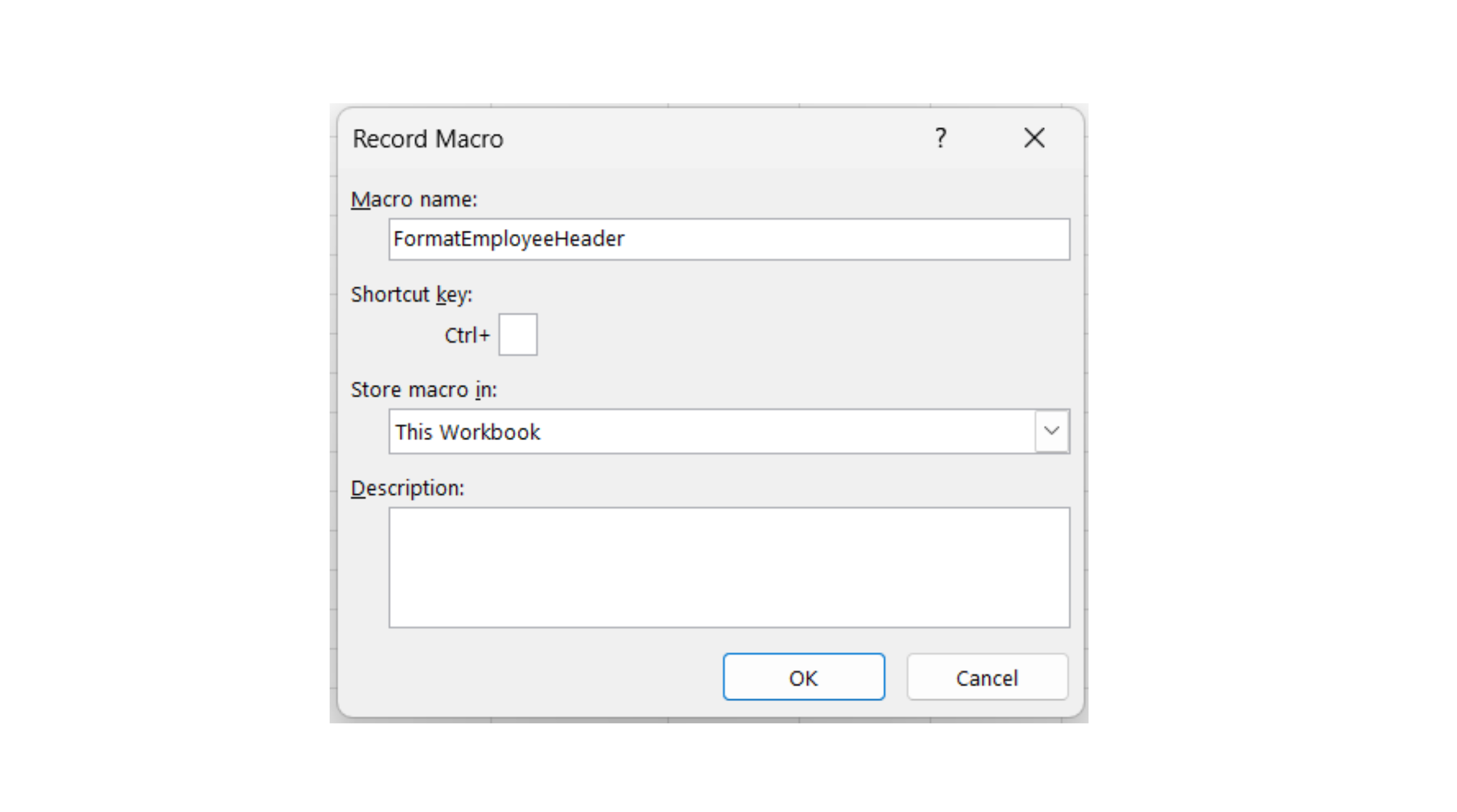
- Name it
FormatEmployeeHeader(no spaces are allowed in macro names); - Choose This Workbook under "Store macro in."
- Click OK — Excel is now recording;
- Select row 1 (the header row), make it bold, and apply a light green fill;
- Click Stop Recording on the Developer tab.

Running the Macro Back
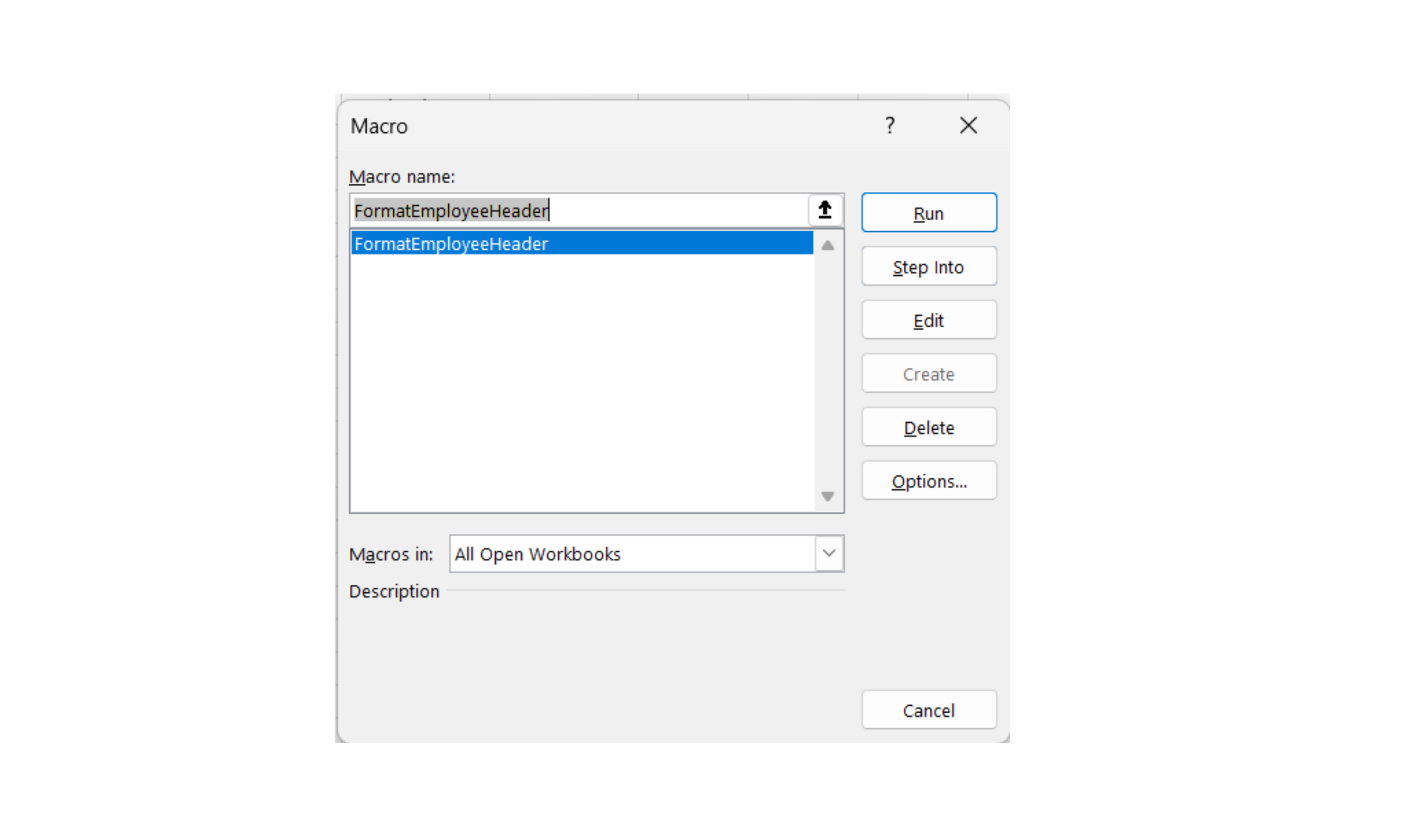
Undo your manual formatting (Ctrl+Z) so the header returns to plain black text. Then click Macros on the Developer tab, select FormatEmployeeHeader, and click Run. Excel reapplies the exact formatting instantly — because it's now replaying the code it wrote while you worked.
Understanding the Generated Code
Open the VBE (Alt+F11) and look inside the new module. You'll see something close to this:
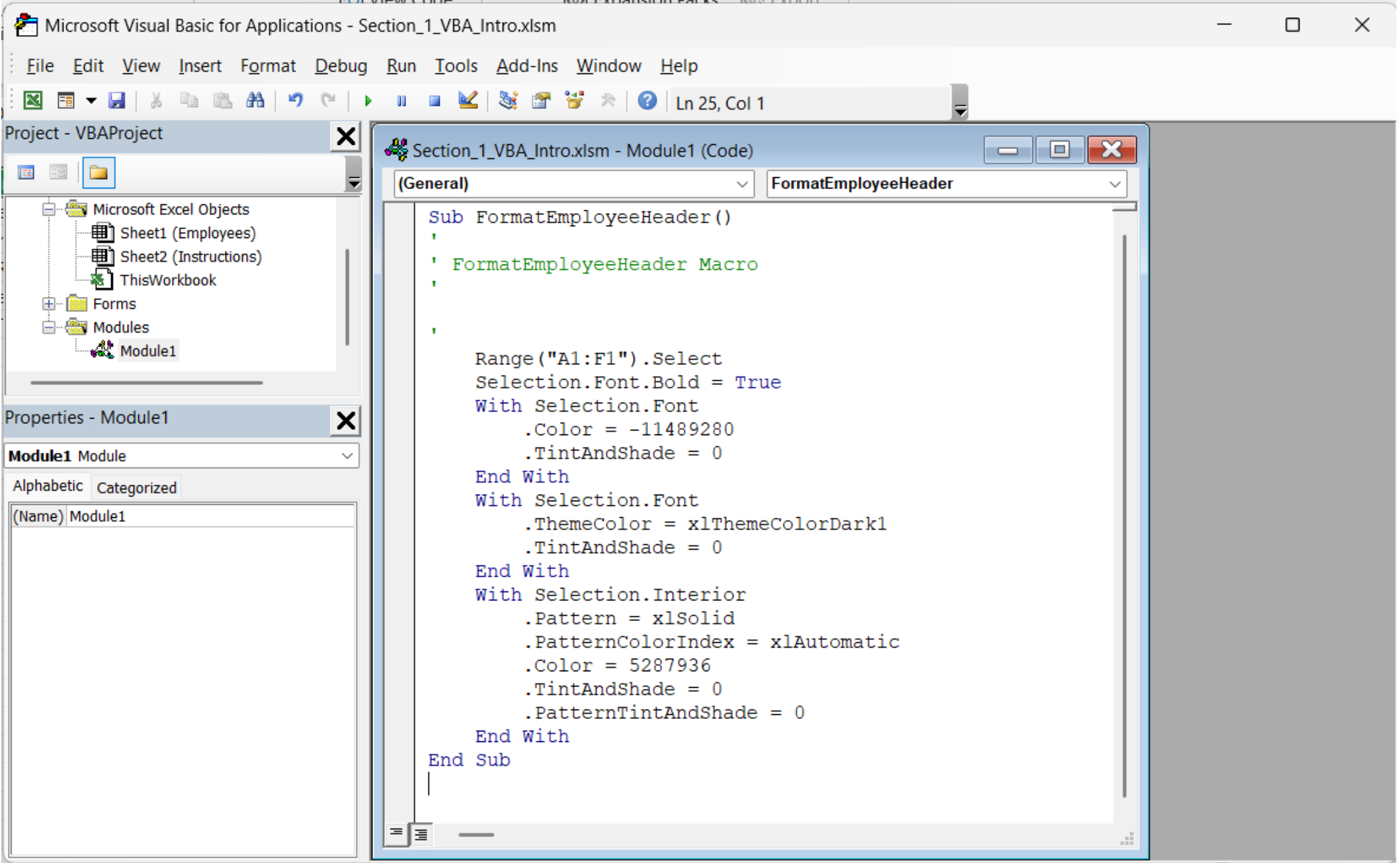
Two things are worth noticing immediately. First, every action you took maps to a line of VBA — selecting a range became Range("A1:F1").Select, and making it bold became Selection.Font.Bold = True.
Second, notice the pattern of Select followed by an action on Selection. That's convenient for the recorder, but it's not how experienced VBA developers write code by hand.
What the Recorder Can't Do
- It can't make decisions — no
Ifstatements, no loops, no conditional logic; - It hard-codes exact ranges and values, so it breaks the moment your data changes shape;
- It can't prompt the user for input or validate anything;
- It often generates bulkier, slower code than a hand-written equivalent;
- It cannot talk to other applications like Outlook.
Think of the recorder as a translator, not an automation engine: it's brilliant for learning the names of objects and properties, and useful for quick one-off formatting macros, but real business automation — the kind with logic, loops, and error handling — has to be written by hand. That's the skill this entire course builds toward.
Task
Record, break, and read.
- Record a second macro called
HighlightITthat selects the Department column and applies a bold, italic font to any cell — don't worry about making it conditional yet, just record the manual formatting. - Run both macros back to back and confirm the formatting reapplies correctly.
Thanks for your feedback!
Ask AI

Ask AI

Ask anything or try one of the suggested questions to begin our chat
