Understanding the Excel Object Model
Swipe to show menu
Every single line of VBA you will ever write in Excel is a sentence about objects: something exists (an Application, a Workbook, a Worksheet, a Range), and you either read one of its properties or ask it to run one of its methods. Once this hierarchy clicks, the rest of the language is mostly vocabulary.
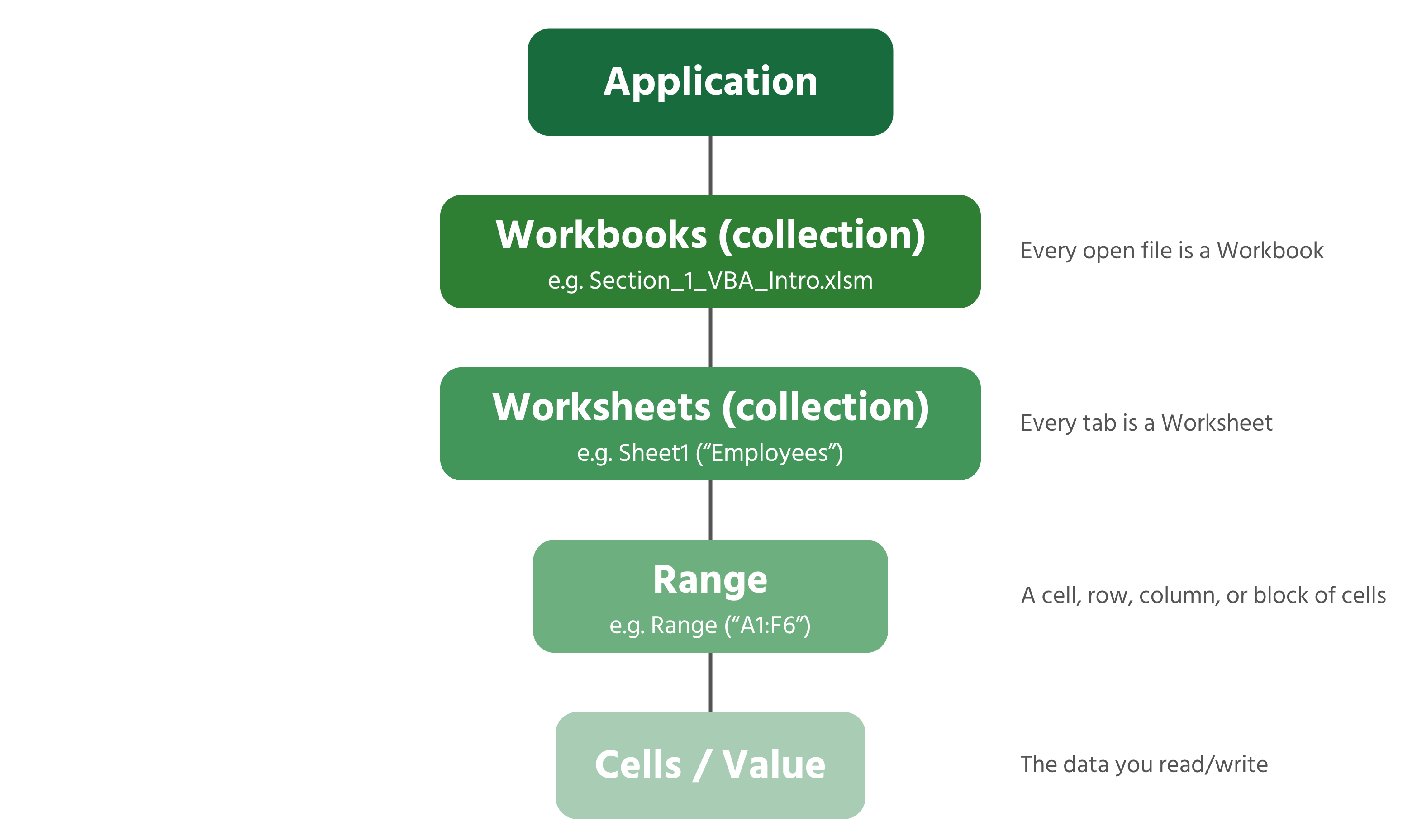
Reading the Hierarchy
- Application — the entire running copy of Excel; the top of every hierarchy;
- Workbooks — the collection of every open file; a single one is a Workbook, e.g.
Section_1_VBA_Intro.xlsm; - Worksheets — the collection of tabs inside a workbook; a single one is a Worksheet, e.g. "Employees";
- Range — one cell, a block of cells, an entire row, or an entire column;
- Cells / Value — the actual data sitting inside a Range.
You rarely have to type the full chain from Application downward — VBA assumes you mean the active workbook and active sheet unless you say otherwise — but naming objects explicitly is what separates fragile code from reliable code. Compare these two ways of writing the same instruction:
' Fragile — depends on whatever sheet happens to be active
Range("F2").Value = 65000

' Reliable — states exactly which workbook and sheet, no matter what's on screen
ThisWorkbook.Worksheets("Employees").Range("F2").Value = 65000
The second version will keep working even if the user has three other workbooks open and a different sheet selected — a habit that matters enormously once your macros grow past a few lines. You'll use ThisWorkbook.Worksheets("SheetName") this way constantly for the rest of the course.
Navigating Object Relationships in the Immediate Window
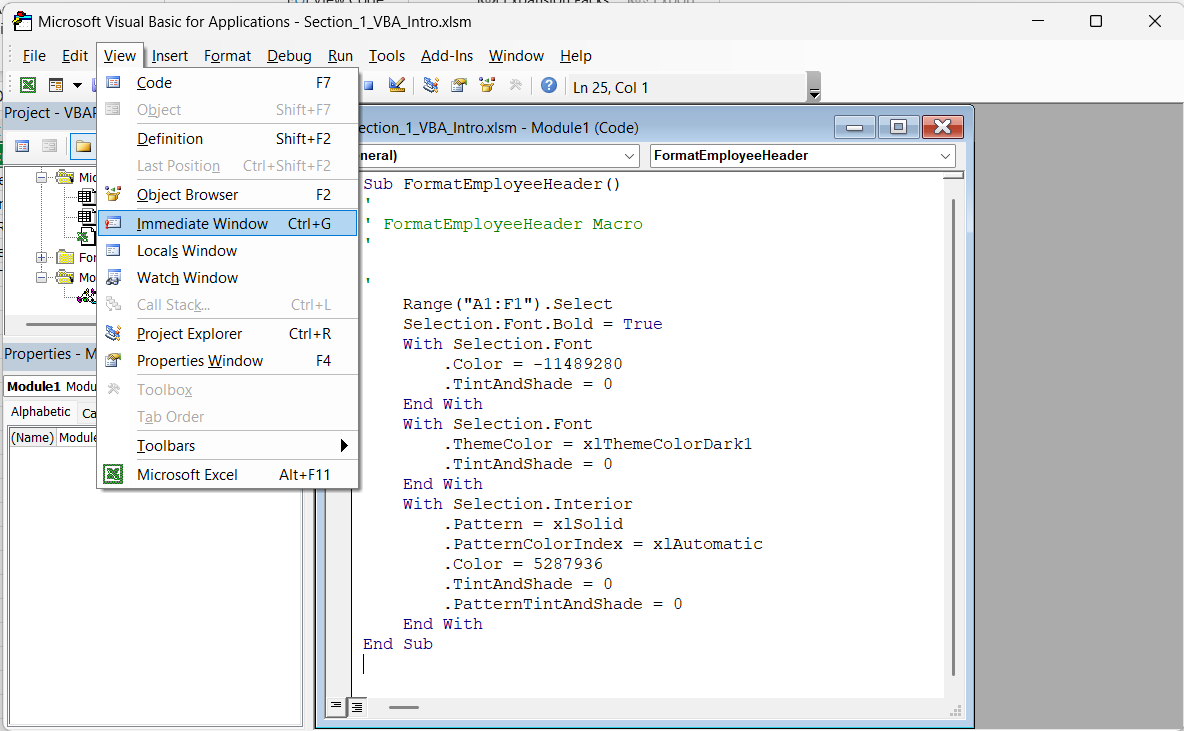
The Immediate Window (View → Immediate Window or Ctrl+G inside the VBE; ^ ⌘ G on Mac) lets you test a single line of code without wrapping it in a Sub.
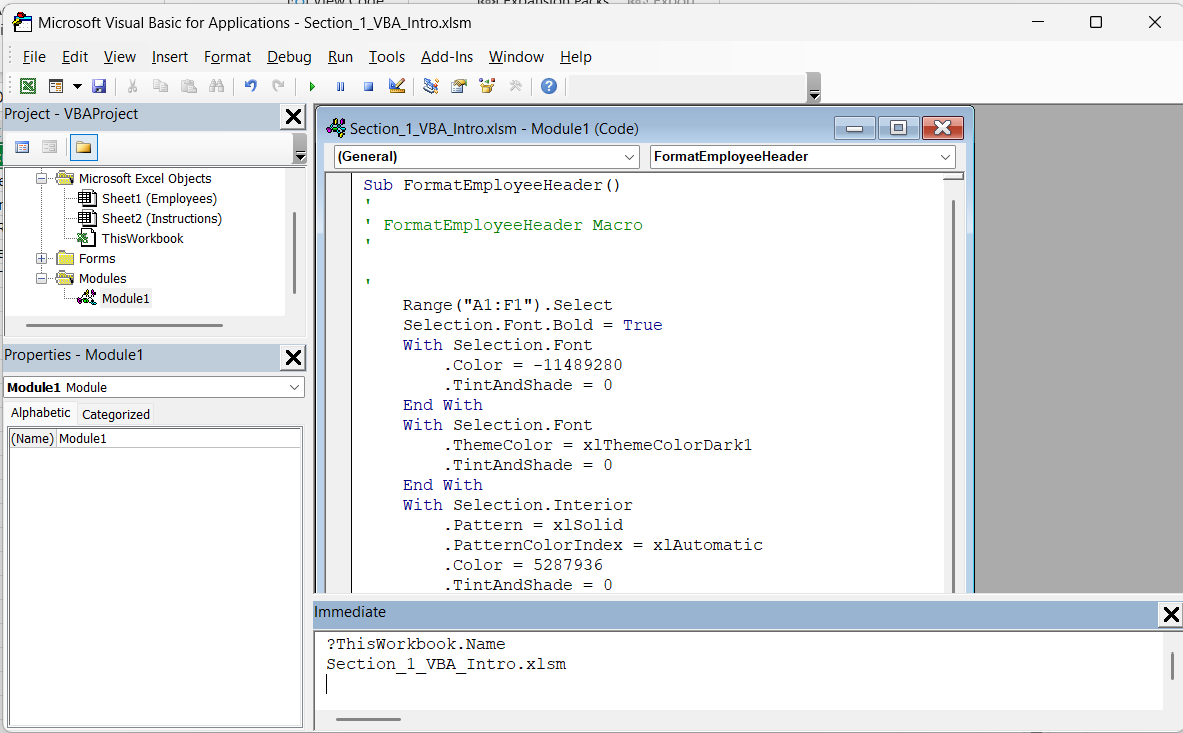
Type a line starting with a question mark and press Enter to see the result immediately. Try these against Section_1_VBA_Intro.xlsm:
?ThisWorkbook.Name
?ThisWorkbook.Worksheets("Employees").Range("B3").Value
?ThisWorkbook.Worksheets("Employees").Range("A1").CurrentRegion.Address
?ThisWorkbook.Worksheets.Count
The third line introduces CurrentRegion, a property that expands from a single cell to the full contiguous block of data around it.
Task
- In the Immediate Window, write one line that prints the Position of
Olivia Brown(row 4) without clicking on the cell first — reference it directly through the object hierarchy. - Write a second line that prints how many rows are in the Employees table using
CurrentRegion.Rows.Count.

Reference it as ThisWorkbook.Worksheets("Employees").Range("D4").Value — row 4 is Olivia Brown, column D is Position.
Thanks for your feedback!
Ask AI

Ask AI

Ask anything or try one of the suggested questions to begin our chat
