Sorting and Filtering Data
Swipe to show menu
Filtering narrows what's visible without touching the underlying data — essential for building a report that only shows one month or one region at a time.
Basic AutoFilter
tbl.Range.AutoFilter Field:=1, Criteria1:="January"
' Field:=1 means the 1st column of the table (Month)
AutoFilter doesn't delete or move any data — it hides the rows that don't match, exactly as if you'd clicked the dropdown arrow and unchecked everything but January by hand. Field:=1 counts columns starting from 1 within the Table itself (Month, Region, Sales, Expenses, Profit, Target — so Region would be Field:=2, Profit Field:=5), which is why this line has to be kept in sync if columns are ever reordered.
Multi-Condition Filters
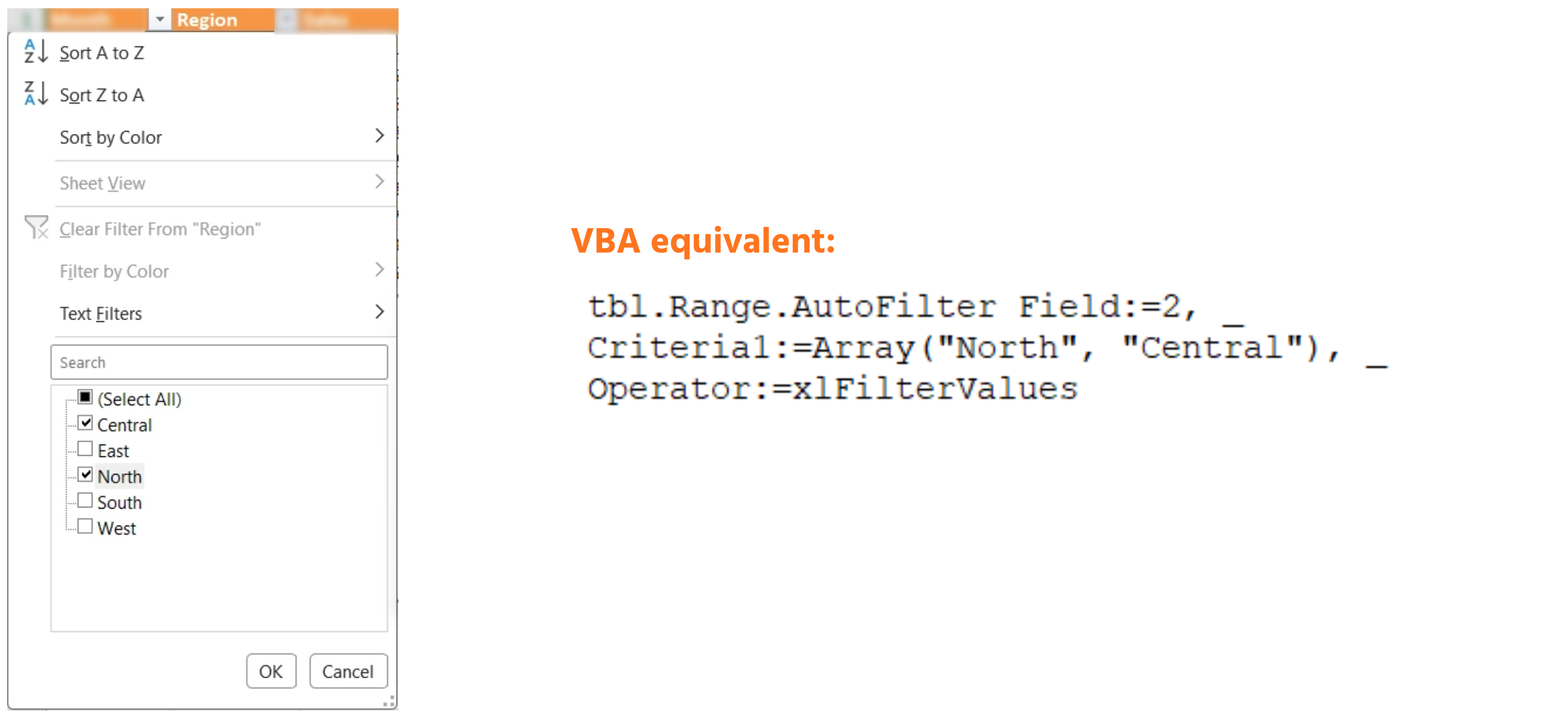
Filtering to more than one value in the same column requires xlFilterValues and an array of criteria:
tbl.Range.AutoFilter Field:=2, _
    Criteria1:=Array("North", "Central"), _
    Operator:=xlFilterValues
Compare this to the single-value filter above: Criteria1 now holds an Array(...) of acceptable values instead of one plain string, and Operator:=xlFilterValues is what tells AutoFilter to treat that array as a list of matches rather than trying to interpret it as a single criteria expression. Leave off Operator:=xlFilterValues and this line either errors or behaves unexpectedly — it's easy to forget and worth double-checking whenever Criteria1 is a list.
Filtering on a Numeric Condition — say, only rows where Profit exceeds Target by a healthy margin — uses comparison operators instead:
tbl.Range.AutoFilter Field:=5, Criteria1:=">15000"
Notice ">15000" is written as text in quotation marks even though it's a numeric comparison — AutoFilter always expects Criteria1 as a string, and it parses the leading > itself. Writing Criteria1:=15000 without the > would filter for rows exactly equal to 15000 instead of greater than it, which is a common and easy mistake.
Sorting
The Sort object supports multiple keys, exactly like the Data → Sort dialog:
With tbl.Sort
    .SortFields.Clear
    .SortFields.Add2 Key:=tbl.ListColumns("Month").Range, _
        SortOn:=xlSortOnValues, Order:=xlAscending
    .SortFields.Add2 Key:=tbl.ListColumns("Profit").Range, _
        SortOn:=xlSortOnValues, Order:=xlDescending
    .Header = xlYes
    .Apply
End With
.SortFields.Clear runs first so leftover sort keys from a previous macro run (or from a user manually sorting the Table earlier) don't silently combine with the new ones — always clear before adding. The order the two .Add2 calls appear in matters just as much as their Order:=xlAscending/xlDescending settings: the first one added becomes the primary sort key (Month), and the second becomes the tie-breaker within each group (Profit, highest first within each month). .Header = xlYes tells Excel row 1 is a header and should never be moved by the sort; .Apply is what actually triggers the sort — everything before it just builds up the instructions.
Clearing Filters
Always clear filters at the start of a report macro, so each run starts from a known, unfiltered state:
If tbl.AutoFilter.FilterMode Then
    tbl.AutoFilter.ShowAllData
End If
FilterMode is a Boolean that's True whenever any filter is currently narrowing the Table's visible rows — checking it first avoids a runtime error, since calling ShowAllData when nothing is actually filtered throws an error rather than quietly doing nothing.
Task
- Write a macro that filters tblReports to only February, using
AutoFilter Field:=1. - Extend it to filter Region (Field:=2) to just "East" and "West" at the same time, using
xlFilterValues. - Clear both filters, then sort the table by Region ascending, then by Profit descending, using the Sort object shown above.

1. Filtering to February
Field:=1refers to the first column of the Table, not the worksheet — Month is column 1 withintblReports, regardless of which worksheet column it physically sits in.Criteria1takes the exact text you're filtering to, in quotes.- You're calling
AutoFilterontbl.Range, not on the worksheet directly.
2. Adding the Region filter
- Region is the second column of the table, so that's a different
Field:=number than the Month filter. - Filtering to two values in the same column needs
Criteria1:=Array(...)with both values inside, plusOperator:=xlFilterValues— leaving that operator off is the most common mistake here. - Both filters (Month and Region) can be active at the same time — just call
AutoFiltertwice, once per column.
3. Clearing filters and sorting
- Check
tbl.AutoFilter.FilterModebefore callingShowAllData— calling it when nothing is filtered throws an error. - The
Sortobject needs.SortFields.Clearfirst, then one.SortFields.Add2per sort level — the order you add them in decides which is the primary key and which is the tie-breaker, not the order they appear in the table. - Region ascending should be added before Profit descending, since Region is meant to be the primary sort.
Option Explicit

Sub FilterToFebruary()
    Dim tbl As ListObject
    Set tbl = ThisWorkbook.Worksheets("Reports").ListObjects("tblReports")

    tbl.Range.AutoFilter Field:=1, Criteria1:="February"
End Sub

Sub FilterFebruaryEastWest()
    Dim tbl As ListObject
    Set tbl = ThisWorkbook.Worksheets("Reports").ListObjects("tblReports")

    tbl.Range.AutoFilter Field:=1, Criteria1:="February"
    tbl.Range.AutoFilter Field:=2, _
        Criteria1:=Array("East", "West"), _
        Operator:=xlFilterValues
End Sub

Sub ClearFiltersAndSort()
    Dim tbl As ListObject
    Set tbl = ThisWorkbook.Worksheets("Reports").ListObjects("tblReports")

    ' Clear any active filters
    If tbl.AutoFilter.FilterMode Then
        tbl.AutoFilter.ShowAllData
    End If

    ' Sort by Region ascending, then Profit descending
    With tbl.Sort
        .SortFields.Clear
        .SortFields.Add2 Key:=tbl.ListColumns("Region").Range, _
            SortOn:=xlSortOnValues, Order:=xlAscending
        .SortFields.Add2 Key:=tbl.ListColumns("Profit").Range, _
            SortOn:=xlSortOnValues, Order:=xlDescending
        .Header = xlYes
        .Apply
    End With
End Sub
Run FilterFebruaryEastWest and you should see only February rows for East and West regions visible. Then run ClearFiltersAndSort — every row reappears, sorted by Region first (alphabetically), and within each Region, the highest Profit appears first.
Thanks for your feedback!
Ask AI

Ask AI

Ask anything or try one of the suggested questions to begin our chat
Sorting and Filtering Data
Filtering narrows what's visible without touching the underlying data — essential for building a report that only shows one month or one region at a time.
Basic AutoFilter
tbl.Range.AutoFilter Field:=1, Criteria1:="January"
' Field:=1 means the 1st column of the table (Month)
AutoFilter doesn't delete or move any data — it hides the rows that don't match, exactly as if you'd clicked the dropdown arrow and unchecked everything but January by hand. Field:=1 counts columns starting from 1 within the Table itself (Month, Region, Sales, Expenses, Profit, Target — so Region would be Field:=2, Profit Field:=5), which is why this line has to be kept in sync if columns are ever reordered.
Multi-Condition Filters
Filtering to more than one value in the same column requires xlFilterValues and an array of criteria:
tbl.Range.AutoFilter Field:=2, _
    Criteria1:=Array("North", "Central"), _
    Operator:=xlFilterValues
Compare this to the single-value filter above: Criteria1 now holds an Array(...) of acceptable values instead of one plain string, and Operator:=xlFilterValues is what tells AutoFilter to treat that array as a list of matches rather than trying to interpret it as a single criteria expression. Leave off Operator:=xlFilterValues and this line either errors or behaves unexpectedly — it's easy to forget and worth double-checking whenever Criteria1 is a list.
Filtering on a Numeric Condition — say, only rows where Profit exceeds Target by a healthy margin — uses comparison operators instead:
tbl.Range.AutoFilter Field:=5, Criteria1:=">15000"
Notice ">15000" is written as text in quotation marks even though it's a numeric comparison — AutoFilter always expects Criteria1 as a string, and it parses the leading > itself. Writing Criteria1:=15000 without the > would filter for rows exactly equal to 15000 instead of greater than it, which is a common and easy mistake.
Sorting
The Sort object supports multiple keys, exactly like the Data → Sort dialog:
With tbl.Sort
    .SortFields.Clear
    .SortFields.Add2 Key:=tbl.ListColumns("Month").Range, _
        SortOn:=xlSortOnValues, Order:=xlAscending
    .SortFields.Add2 Key:=tbl.ListColumns("Profit").Range, _
        SortOn:=xlSortOnValues, Order:=xlDescending
    .Header = xlYes
    .Apply
End With
.SortFields.Clear runs first so leftover sort keys from a previous macro run (or from a user manually sorting the Table earlier) don't silently combine with the new ones — always clear before adding. The order the two .Add2 calls appear in matters just as much as their Order:=xlAscending/xlDescending settings: the first one added becomes the primary sort key (Month), and the second becomes the tie-breaker within each group (Profit, highest first within each month). .Header = xlYes tells Excel row 1 is a header and should never be moved by the sort; .Apply is what actually triggers the sort — everything before it just builds up the instructions.
Clearing Filters
Always clear filters at the start of a report macro, so each run starts from a known, unfiltered state:
If tbl.AutoFilter.FilterMode Then
    tbl.AutoFilter.ShowAllData
End If
FilterMode is a Boolean that's True whenever any filter is currently narrowing the Table's visible rows — checking it first avoids a runtime error, since calling ShowAllData when nothing is actually filtered throws an error rather than quietly doing nothing.
Task
- Write a macro that filters tblReports to only February, using
AutoFilter Field:=1. - Extend it to filter Region (Field:=2) to just "East" and "West" at the same time, using
xlFilterValues. - Clear both filters, then sort the table by Region ascending, then by Profit descending, using the Sort object shown above.
1. Filtering to February
Field:=1refers to the first column of the Table, not the worksheet — Month is column 1 withintblReports, regardless of which worksheet column it physically sits in.Criteria1takes the exact text you're filtering to, in quotes.- You're calling
AutoFilterontbl.Range, not on the worksheet directly.
2. Adding the Region filter
- Region is the second column of the table, so that's a different
Field:=number than the Month filter. - Filtering to two values in the same column needs
Criteria1:=Array(...)with both values inside, plusOperator:=xlFilterValues— leaving that operator off is the most common mistake here. - Both filters (Month and Region) can be active at the same time — just call
AutoFiltertwice, once per column.
3. Clearing filters and sorting
- Check
tbl.AutoFilter.FilterModebefore callingShowAllData— calling it when nothing is filtered throws an error. - The
Sortobject needs.SortFields.Clearfirst, then one.SortFields.Add2per sort level — the order you add them in decides which is the primary key and which is the tie-breaker, not the order they appear in the table. - Region ascending should be added before Profit descending, since Region is meant to be the primary sort.
Option Explicit

Sub FilterToFebruary()
    Dim tbl As ListObject
    Set tbl = ThisWorkbook.Worksheets("Reports").ListObjects("tblReports")

    tbl.Range.AutoFilter Field:=1, Criteria1:="February"
End Sub

Sub FilterFebruaryEastWest()
    Dim tbl As ListObject
    Set tbl = ThisWorkbook.Worksheets("Reports").ListObjects("tblReports")

    tbl.Range.AutoFilter Field:=1, Criteria1:="February"
    tbl.Range.AutoFilter Field:=2, _
        Criteria1:=Array("East", "West"), _
        Operator:=xlFilterValues
End Sub

Sub ClearFiltersAndSort()
    Dim tbl As ListObject
    Set tbl = ThisWorkbook.Worksheets("Reports").ListObjects("tblReports")

    ' Clear any active filters
    If tbl.AutoFilter.FilterMode Then
        tbl.AutoFilter.ShowAllData
    End If

    ' Sort by Region ascending, then Profit descending
    With tbl.Sort
        .SortFields.Clear
        .SortFields.Add2 Key:=tbl.ListColumns("Region").Range, _
            SortOn:=xlSortOnValues, Order:=xlAscending
        .SortFields.Add2 Key:=tbl.ListColumns("Profit").Range, _
            SortOn:=xlSortOnValues, Order:=xlDescending
        .Header = xlYes
        .Apply
    End With
End Sub
Run FilterFebruaryEastWest and you should see only February rows for East and West regions visible. Then run ClearFiltersAndSort — every row reappears, sorted by Region first (alphabetically), and within each Region, the highest Profit appears first.
Thanks for your feedback!
