Loops
Swipe to show menu
Every technique so far has worked on one value at a time. Loops are how you apply the same logic to many values in a row — five products, five hundred orders, however many rows a table happens to contain — without copy-pasting the same code block over and over.
For...Next
Repeats a block of code a fixed, known number of times:
Dim i As Long
For i = 1 To 5
    Debug.Print "Row " & i
Next i

' Step lets you skip or count backward
For i = 10 To 1 Step -1
    Debug.Print i
Next i
In the first loop, i starts at 1, the code inside runs once with that value, then i automatically increases by 1 and the whole block runs again — repeating until i passes 5, at which point the loop simply stops and execution continues after Next i. Step changes the increment: Step -1 counts downward instead of the default of upward-by-1, and Step 2 would count by twos. The loop variable i isn't special syntax — it's just an ordinary Long variable that VBA updates on your behalf each time through.
For Each
Loops over every item in a collection directly, without you needing to know how many items there are or manage a counter yourself:
Dim cell As Range
For Each cell In ThisWorkbook.Worksheets("Products").Range("B2:B6")
    Debug.Print cell.Value
Next cell
Here cell takes on each individual cell in the range B2:B6 in turn, and you read whatever's inside it with .Value. Compare this to For...Next: with For...Next you're counting through numbers and using that number to look something up; with For Each you're walking directly through the items themselves, which reads more naturally once you're working with worksheet ranges.
Do While
Repeats for as long as a condition stays True — the loop doesn't know in advance how many times it'll run, which is different from For...Next:
Dim stock As Integer
stock = 134
Do While stock > 0
    stock = stock - 30    ' simulate selling in batches of 30
Loop
Debug.Print stock   ' whatever's left after the loop stops
VBA checks stock > 0 before every single pass through the loop, including the very first one. Trace it by hand: 134 → 104 → 74 → 44 → 14, and then the condition is checked again — 14 is still greater than 0, so the loop runs once more, landing on -16. Only then does stock > 0 finally come back False, and the loop stops with stock at -16, not neatly at 0 or 14. This is worth tracing carefully the first time, because it's a common source of off-by-one surprises: a Do While loop keeps running as long as the condition holds at the moment it's checked, even if the action inside the loop overshoots past the boundary you had in mind.
Do Until
There's also Do Until, which is the mirror image of Do While — it repeats while a condition is False and stops the moment that condition becomes True, rather than the other way around. Which one reads more naturally depends on how you'd phrase the business rule out loud: "keep going while stock remains" suggests Do While; "keep going until stock runs out" suggests Do Until — they can produce identical behavior, just phrased from opposite directions.
Exit Statements
Let you break out of a loop early, before its natural end condition is reached:
For i = 1 To 100
    If i = 10 Then Exit For   ' stop the loop immediately
    Debug.Print i
Next i
This loop is set up to count all the way to 100, but the moment i reaches 10, Exit For stops it dead — nothing after Exit For runs, and execution jumps straight to the line after Next i. This is the pattern you'd use to search through a list and stop as soon as you've found what you're looking for, rather than needlessly continuing to check every remaining item.
Putting It Together
Every technique from this chapter — variables, operators, functions, conditional logic, and now loops — combines in the procedure this chapter has been building toward:
Option Explicit

Sub CheckStockLevels()

    ' Sample data standing in for the Products table
    Dim products(1 To 5) As String
    Dim stockLevels(1 To 5) As Integer
    Dim reorderLevels(1 To 5) As Integer
    Dim i As Long
    Dim alertMessage As String

    products(1) = "Laptop Stand": stockLevels(1) = 58: reorderLevels(1) = 20
    products(2) = "Wireless Mouse": stockLevels(2) = 134: reorderLevels(2) = 30
    products(3) = "USB-C Hub": stockLevels(3) = 44: reorderLevels(3) = 15
    products(4) = "Monitor Arm": stockLevels(4) = 18: reorderLevels(4) = 10
    products(5) = "Keyboard": stockLevels(5) = 61: reorderLevels(5) = 20

    alertMessage = ""

    For i = 1 To 5
        Select Case stockLevels(i)
            Case Is <= reorderLevels(i)
                alertMessage = alertMessage & products(i) & _
                    " — REORDER NOW" & vbNewLine
            Case Is <= reorderLevels(i) + 10
                alertMessage = alertMessage & products(i) & _
                    " — watch closely" & vbNewLine
        End Select
    Next i

    If alertMessage = "" Then
        MsgBox "All products are adequately stocked."
    Else
        MsgBox "Stock Alerts:" & vbNewLine & alertMessage
    End If
End Sub

- Dim products(1 To 5) As String and the two similar lines below it declare arrays — each one a numbered row of five boxes rather than a single box, so products(1) is the first product's name, products(2) the second, and so on;
- The five lines using a colon (
:) between statements pack multiple assignments onto one line purely for readability here —products(1) = "Laptop Stand": stockLevels(1) = 58: reorderLevels(1) = 20is exactly equivalent to writing those as three separate lines; For i = 1 To 5 ... Next iwalks through all five products one at a time, using i both as the loop counter and as the index into each array;Select Case stockLevels(i)re-runs the same range-based decision from section 2.4, but now against real array data instead of a single hardcoded number;- Case Is <= reorderLevels(i) catches any product whose stock has fallen at or below its own reorder level — notice reorderLevels(i) is itself a variable, not a fixed number, so each product is judged against its own threshold rather than one threshold for everyone;
alertMessage = alertMessage & ... & vbNewLinebuilds up a growing string one line at a time —vbNewLineis a built-in constant that inserts a line break, so each flagged product appears on its own line in the final message;- The final
If alertMessage = "" Thencheck is what decides which of the twoMsgBoxvariants the user actually sees — an empty string means the loop never found anything worth flagging.
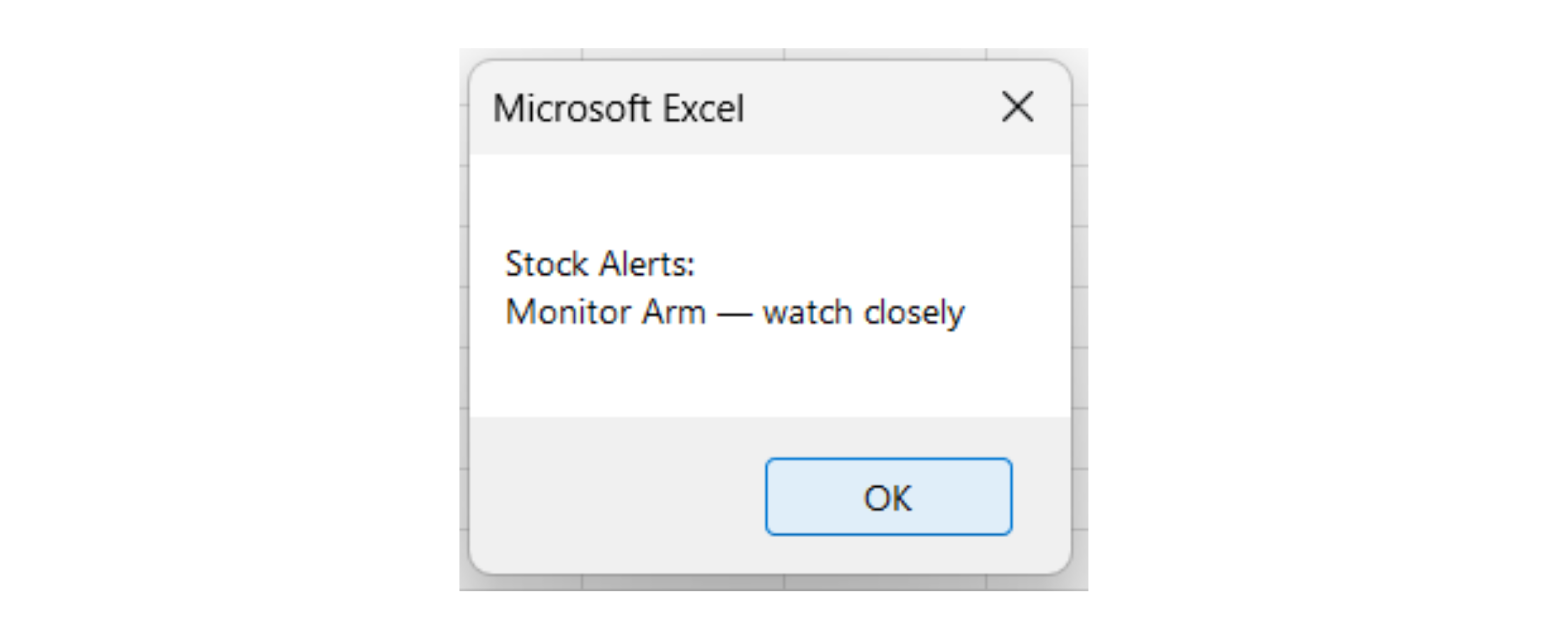
Run this and you should see the Monitor Arm flagged as "watch closely" (18 units against a reorder level of 10) — trace through the loop by hand for i = 4 if you want to confirm exactly why it's the only one caught by the second Case and not the first. This procedure uses arrays, a loop, a Select Case, and string building, all working together. That's genuinely close to production-quality logic already, just running against sample data typed directly into the code instead of a real worksheet.
Task
- Copy
CheckStockLevelsinto your workbook and run it. Confirm the message matches the screenshot. - Change the Wireless Mouse's stock to 25 and re-run — it should now show as "watch closely" too.
- Add a
Do Whileloop underneath that simulates selling 15 units of Laptop Stand at a time until stock drops to 20 or below, printing the running total to the Immediate Window after each sale. - Challenge: rewrite the
For i = 1 To 5loop usingFor Eachover a Variant array instead — does the logic still work?
2. Changing the Wireless Mouse's stock
- Find the line that sets up the Wireless Mouse's data:
products(2) = "Wireless Mouse": stockLevels(2) = 134: reorderLevels(2) = 30. - You only need to change the middle number (
134) to25— leave the product name and reorder level alone. - Before running it, work out by hand which
Caseshould catch it: is 25 ≤ 30 (the reorder level)? Compare that against theCase Is <= reorderLevels(i)line specifically, not the second one.
3. Simulating batch sales with Do While
- You need a variable to hold Laptop Stand's running stock — start it at the same value already sitting in
stockLevels(1)(58), so you're not typing a fresh number that could drift out of sync with the rest of the macro. - The loop's condition should check whether stock is still above 20 — the moment it checks and finds stock at 20 or below, it should stop.
- Subtract 15 once per pass, and print the new value right after subtracting — not before — so each printed number reflects a completed sale.
- Trace it on paper first: 58 → 43 → 28 → 13. Notice the last value drops below 20 rather than landing exactly on it — that's the same
Do Whileovershoot behavior the chapter's loop diagram walked through earlier, not a bug.
Point 2 — inside CheckStockLevels, just change one number:
products(2) = "Wireless Mouse": stockLevels(2) = 25: reorderLevels(2) = 30
Run the Sub again.
Point 3 — add this below the existing code, still inside CheckStockLevels (before End Sub):
    ' --- Simulate selling Laptop Stand in batches of 15 ---
    Dim laptopStandStock As Integer
    laptopStandStock = stockLevels(1)

    Do While laptopStandStock > 20
        laptopStandStock = laptopStandStock - 15
        Debug.Print laptopStandStock
    Loop
Thanks for your feedback!
Ask AI

Ask AI

Ask anything or try one of the suggested questions to begin our chat
