Conditional Logic
Swipe to show menu
Everything so far has been about storing and testing values. Conditional logic is where your code actually starts making decisions — running one block of instructions instead of another, depending on what those tests come back with.
If...Then
The simplest form: run one action, only if one condition holds.
If currentStock < reorderLevel Then
    MsgBox "Reorder needed!"
End If
If the condition is False, VBA simply skips straight to whatever comes after End If — nothing happens, and no error occurs.
If...ElseIf...Else
Handles more than two possible outcomes by chaining conditions:
If currentStock = 0 Then
    status = "Out of Stock"
ElseIf currentStock < reorderLevel Then
    status = "Reorder Now"
ElseIf currentStock < reorderLevel * 2 Then
    status = "Watch Closely"
Else
    status = "Healthy"
End If
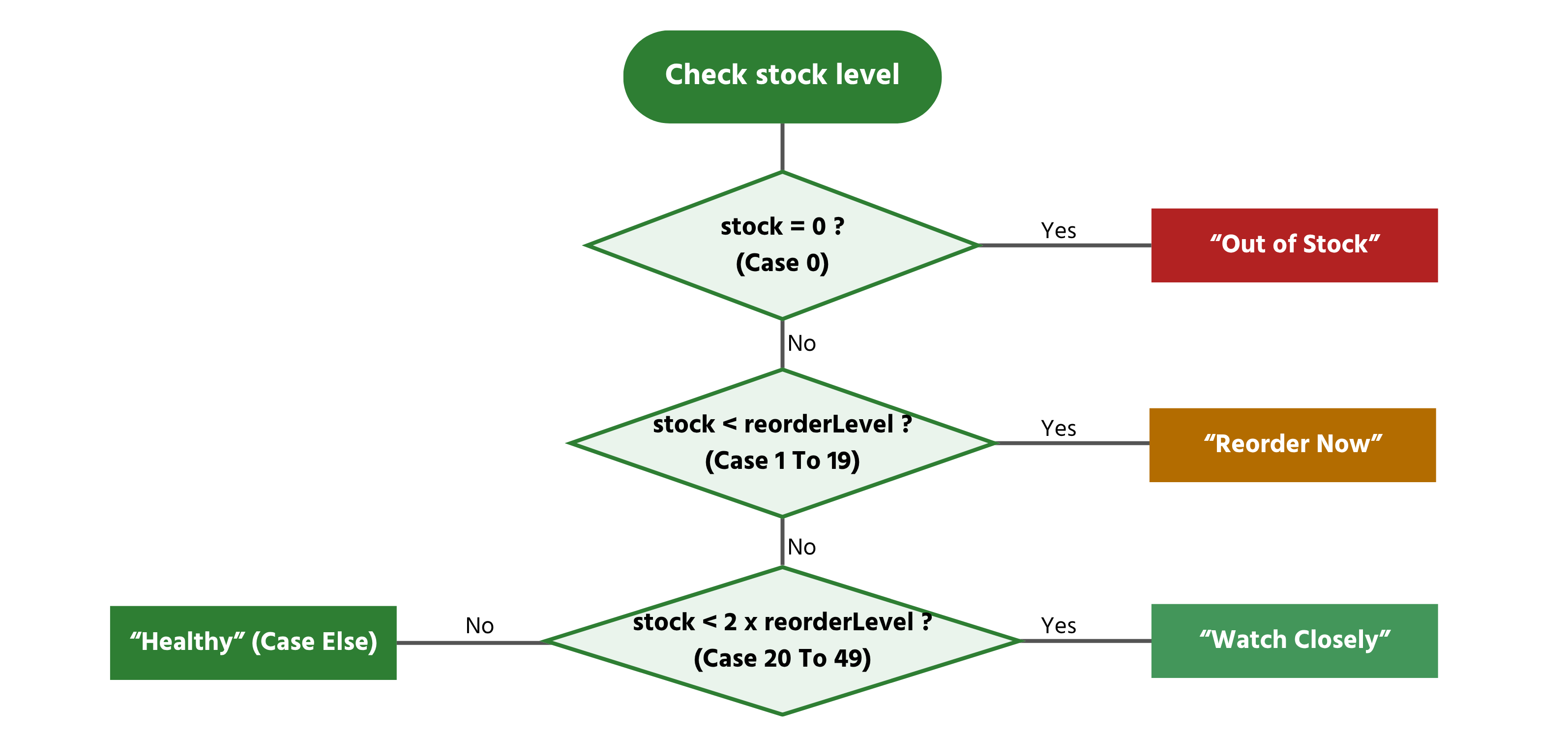
VBA checks these top to bottom and stops at the very first condition that's True — it never checks the rest, even if a later condition would also technically be True. This is exactly why order matters: if currentStock is 0, the first condition (= 0) catches it and status becomes "Out of Stock" immediately. Notice that 0 is also technically less than reorderLevel, so if the ElseIf currentStock < reorderLevel line were checked first, it would incorrectly report "Reorder Now" for an item that's completely out. Putting the most specific, most urgent condition first — and only falling back to broader conditions afterward — is what makes a chain like this behave correctly.
Select Case
When you're checking one single variable against several possible fixed values, Select Case says the same thing as a long ElseIf chain but reads more clearly:
Select Case category
    Case "Electronics"
        discountRate = 0.05
    Case "Office"
        discountRate = 0.1
    Case Else
        discountRate = 0
End Select
Select Case also handles ranges of numbers elegantly, which is harder to read as a chain of ElseIf comparisons:
Select Case currentStock
    Case 0
        status = "Out of Stock"
    Case 1 To 19
        status = "Low"
    Case 20 To 49
        status = "Adequate"
    Case Is >= 50
        status = "Well Stocked"
End Select
Case 1 To 19 matches any value from 1 through 19 inclusive; Case Is >= 50 uses Is to compare against the variable being tested rather than a fixed range.
Task
- Write a
Subwith aSelect Caseblock (like the one above) that assigns a status string based on a hardcoded stock number. - Test it three times inside the same
Subby changing the stock value: try 0, 15, and 134, printing the result withDebug.Printeach time. - Add a fourth condition for exactly 20 (the Keyboard's reorder level) and confirm which Case catches it.

1. Writing the Sub with Select Case
- Declare one variable to hold the stock number, and one to hold the resulting text (
status). - Assign the stock variable a hardcoded value first (e.g.
stockLevel = 0), then run it throughSelect Case stockLevel— copy the sameCasestructure from section 2.4's example (Case 0,Case 1 To 19,Case 20 To 49,Case Is > 50). - Each
Caseshould assign a different text value tostatus.
2. Testing three values in one Sub
- You don't need three separate procedures — just change the variable's value, run the
Select Caseblock, print the result, then change the value again and run it a second time, all inside the sameSub, one after another. - After each assignment,
Debug.Print statuswill show you the result in the Immediate Window without any popups interrupting the other two tests.
3. Adding a case for exactly 20
- Go back to section 2.4's original example and look closely at where
Case 1 To 19ends andCase 20 To 49begins — one of those two already includes 20. - Since
Select Casestops at the first match, adding a separateCase 20line only changes anything if you place it before the case that would otherwise catch it. - Run it with
stockLevel = 20specifically and check which message prints — that tells you whichCaseactually caught it, without needing to add anything new at all.
Sub ClassifyStockLevels()
    Dim stockLevel As Integer
    Dim status As String

    ' --- Test 1 ---
    stockLevel = 0
    Select Case stockLevel
        Case 0
            status = "Out of Stock"
        Case 20
            status = "Exactly at Reorder Level"
        Case 1 To 19
            status = "Low"
        Case 20 To 49
            status = "Adequate"
        Case Is > 50
            status = "Well Stocked"
    End Select
    Debug.Print stockLevel & " -> " & status

    ' --- Test 2 ---
    stockLevel = 15
    Select Case stockLevel
        Case 0
            status = "Out of Stock"
        Case 20
            status = "Exactly at Reorder Level"
        Case 1 To 19
            status = "Low"
        Case 20 To 49
            status = "Adequate"
        Case Is > 50
            status = "Well Stocked"
    End Select
    Debug.Print stockLevel & " -> " & status

    ' --- Test 3 ---
    stockLevel = 134
    Select Case stockLevel
        Case 0
            status = "Out of Stock"
        Case 20
            status = "Exactly at Reorder Level"
        Case 1 To 19
            status = "Low"
        Case 20 To 49
            status = "Adequate"
        Case Is > 50
            status = "Well Stocked"
    End Select
    Debug.Print stockLevel & " -> " & status

    ' --- Test 4: exactly 20 ---
    stockLevel = 20
    Select Case stockLevel
        Case 0
            status = "Out of Stock"
        Case 20
            status = "Exactly at Reorder Level"
        Case 1 To 19
            status = "Low"
        Case 20 To 49
            status = "Adequate"
        Case Is > 50
            status = "Well Stocked"
    End Select
    Debug.Print stockLevel & " -> " & status
End Sub
Thanks for your feedback!
Ask AI

Ask AI

Ask anything or try one of the suggested questions to begin our chat
