Claude Account and Interface Overview
Swipe to show menu
Creating Your Account
To get started, open your web browser and go to claude.ai/login. You'll be presented with the sign-in page, where you can create an account using either your email address or a Google account. After signing in, Claude will guide you through a short setup process:

Read and accept the terms and conditions. You can also choose whether to receive promotional emails. While optional, these emails can be useful for learning about new features and updates.
Enter and verify your phone number to complete account setup.
Select Personal Use or Team Use. For this course, choose Personal Use.
Choose the Free Plan to get started. You can always upgrade later if you need higher usage limits or additional features. We'll discuss the available plans in more detail in Chapter 5.
Claude offers a desktop application for Windows and macOS. Many users find it more convenient than using a browser, but installation is entirely optional.
Enter your name and select a few interests. Claude uses this information to suggest potential use cases and starter prompts. Feel free to skip any parts you do not want to complete.
A Quick Tour of the Interface
Once you've signed in, you'll be taken to the main Claude interface. The design is intentionally simple, making it easy to focus on your conversation rather than navigating menus and settings. The interface consists of three main areas: the chat area, the input box, and the chat history sidebar.
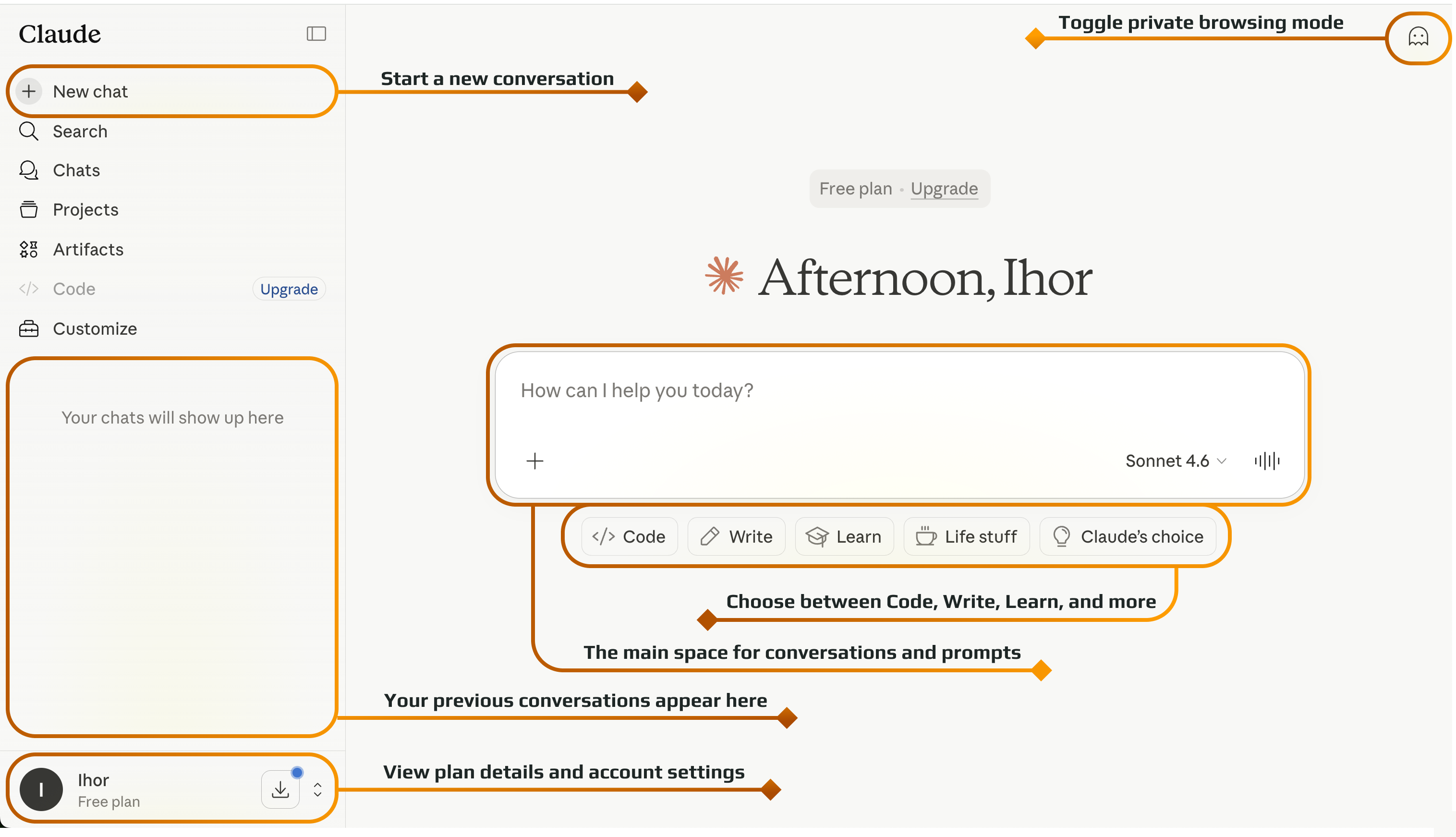

Each new conversation is a fresh slate. Claude has great memory within a conversation, but it can't really reach into other chats you've had. It does have some memory features, but for the best results, keep related work inside a single conversation.
Thanks for your feedback!
Ask AI

Ask AI

Ask anything or try one of the suggested questions to begin our chat
