Grouping Data
Swipe to show menu
Date Grouping
Date grouping is the most common use of this feature. Excel can group dates at multiple levels simultaneously — selecting both Months and Quarters adds both as row levels, so you can see quarterly subtotals with monthly breakdowns nested inside. The grouping dialog appears when you right-click any date cell in the pivot table and choose Group.
How to group dates:
- Place Order Date in the Rows area. The pivot table will initially show individual dates.
- Right-click any date cell in the pivot table → choose Group. The grouping dialog opens.
- In the dialog, select one or more intervals from the list. Click multiple to combine levels — e.g. select both Months and Quarters to get quarterly subtotals with monthly breakdown.
- Click OK. The pivot table reorganises immediately.
- To remove grouping: right-click any grouped cell → Ungroup.
Numeric Grouping
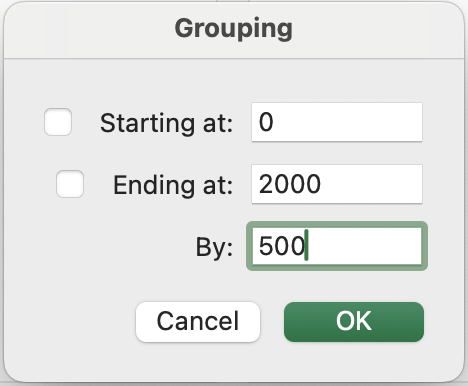
The same grouping mechanism works on any numeric field. Instead of grouping by time intervals, you define a starting value, ending value, and bucket size. Excel places each transaction into the appropriate range automatically — producing a frequency distribution without a single formula.
This is particularly useful for understanding how revenue is distributed. Are most transactions small orders, or is the revenue driven by a few large ones? A numeric grouping of the Revenue field answers this question in seconds.
Task
-
Group dates by month
In your PivotTable, remove existing fields from Rows if needed. Drag Order Date into Rows and keep Revenue in Values.
Right-click any date, select Group, choose Months, and click OK.
-
Compare grouped vs ungrouped view
Right-click one of the grouped months and select Ungroup.
The PivotTable will return to individual transaction dates, making it harder to read. Group the dates again by Months.
-
Add a second time level
Right-click a date, select Group, and choose Months and Years.
The PivotTable now shows a hierarchical structure (Year → Month).
-
Numeric grouping (revenue ranges)
Remove Order Date from Rows. Drag Category into Rows and Revenue below it in Rows.
Right-click any Revenue value, select Group, and set:
- Start at 0
- End at 2000
- By 500
The PivotTable will group values into ranges such as 0–500, 500–1000, 1000–1500, and 1500–2000.
-
Analyze distribution
Observe the grouped results and identify which categories appear more often in lower ranges (0–500) and which appear more in higher ranges (above 1000).
-
Adjust or remove grouping
Right-click any grouped range and select Ungroup to return to detailed values.
Thanks for your feedback!
Ask AI

Ask AI

Ask anything or try one of the suggested questions to begin our chat
