Creating Pivot Tables
Swipe to show menu
Every summary you've built so far — SUMIFS by category, COUNTIFS by status, AVERAGE across a range — required you to write formulas. Each formula was designed for one specific question. To answer a different question, you wrote a different formula.
A pivot table removes that constraint. Instead of writing calculations, you drag fields into areas and Excel produces the summary instantly. Change your mind about how the data is grouped? Drag a different field. Want totals instead of averages? Two clicks. The same raw data can be reorganised into dozens of different summaries without changing a single formula.
Before building a pivot table, the data must be structured correctly. One variable per column, one record per row, and every column clearly labelled. The dataset in this chapter is a sales transactions table from a retail business — each row is one sale.
Creating a Pivot Table
- Ensure your data is formatted as an Excel Table (
Ctrl+T). This makes the pivot table update automatically when new rows are added; - Click any cell inside the table. Go to Insert tab → PivotTable. Excel detects the full table as the data source automatically;
- In the dialog, choose New Worksheet. This keeps raw data and analysis separate — the source table is never modified;
- Click OK. Excel opens a new worksheet with an empty pivot table and the PivotTable Fields panel on the right. Two new green tabs — PivotTable Analyze and Design — appear in the ribbon.

Both tabs disappear when you click outside the pivot table — click back inside to restore them. Analytical controls and visual formatting are deliberately separated across the two tabs.
The PivotTable Fields Panel
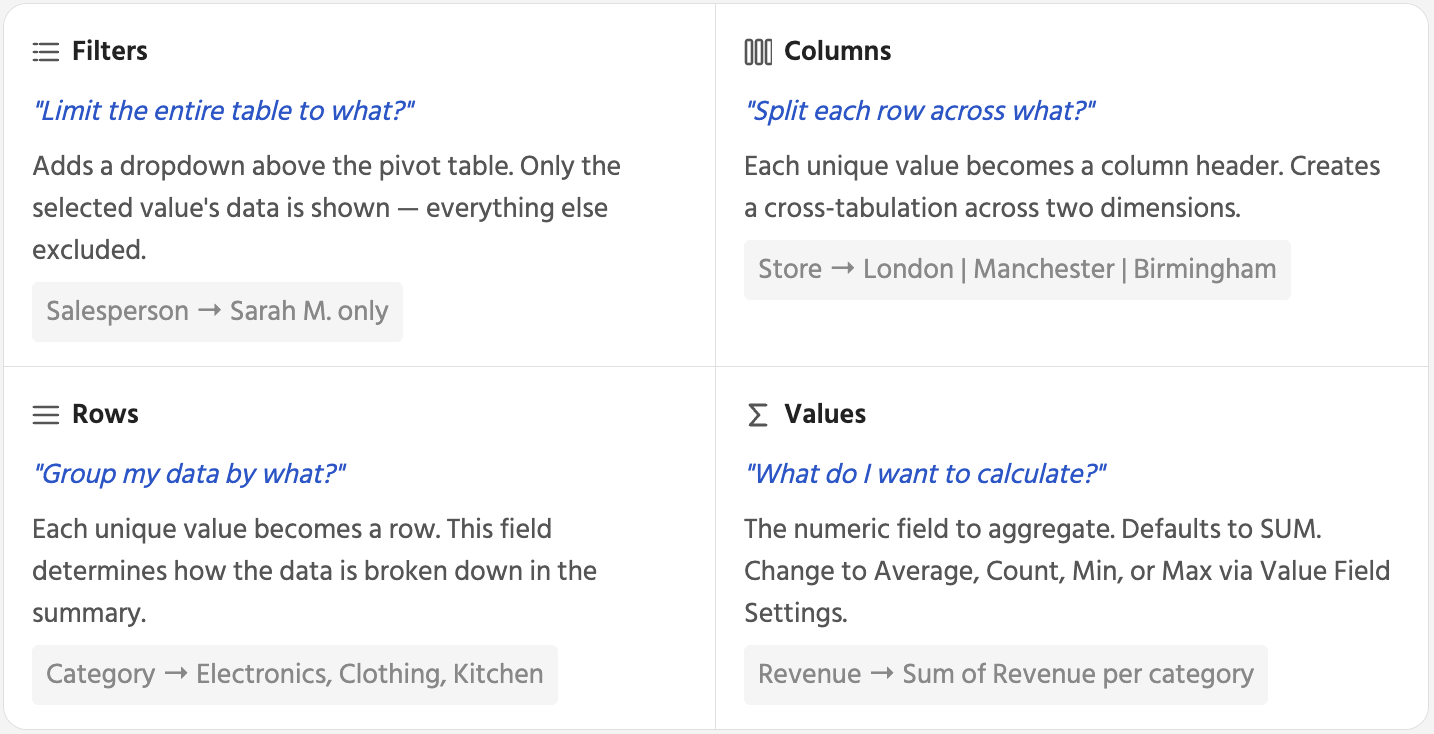
The PivotTable Fields panel has four drop zones. The position of a field determines what role it plays in the summary — whether it groups the rows, creates columns, aggregates a value, or filters the entire table.
Changing the Aggregation Method
The Values area defaults to SUM for numeric fields. But the same Revenue field can be summarised six different ways — and switching between them takes two clicks. This is one of the things pivot tables do that formulas cannot match: a single field can answer multiple different questions without rewriting anything.
To change: in the PivotTable Fields panel, click the dropdown next to the field in the Values area → Value Field Settings → choose Sum, Average, Count, Min, Max, etc. → OK.
Thanks for your feedback!
Ask AI

Ask AI

Ask anything or try one of the suggested questions to begin our chat
