Managing Formatting Rules
Swipe to show menu
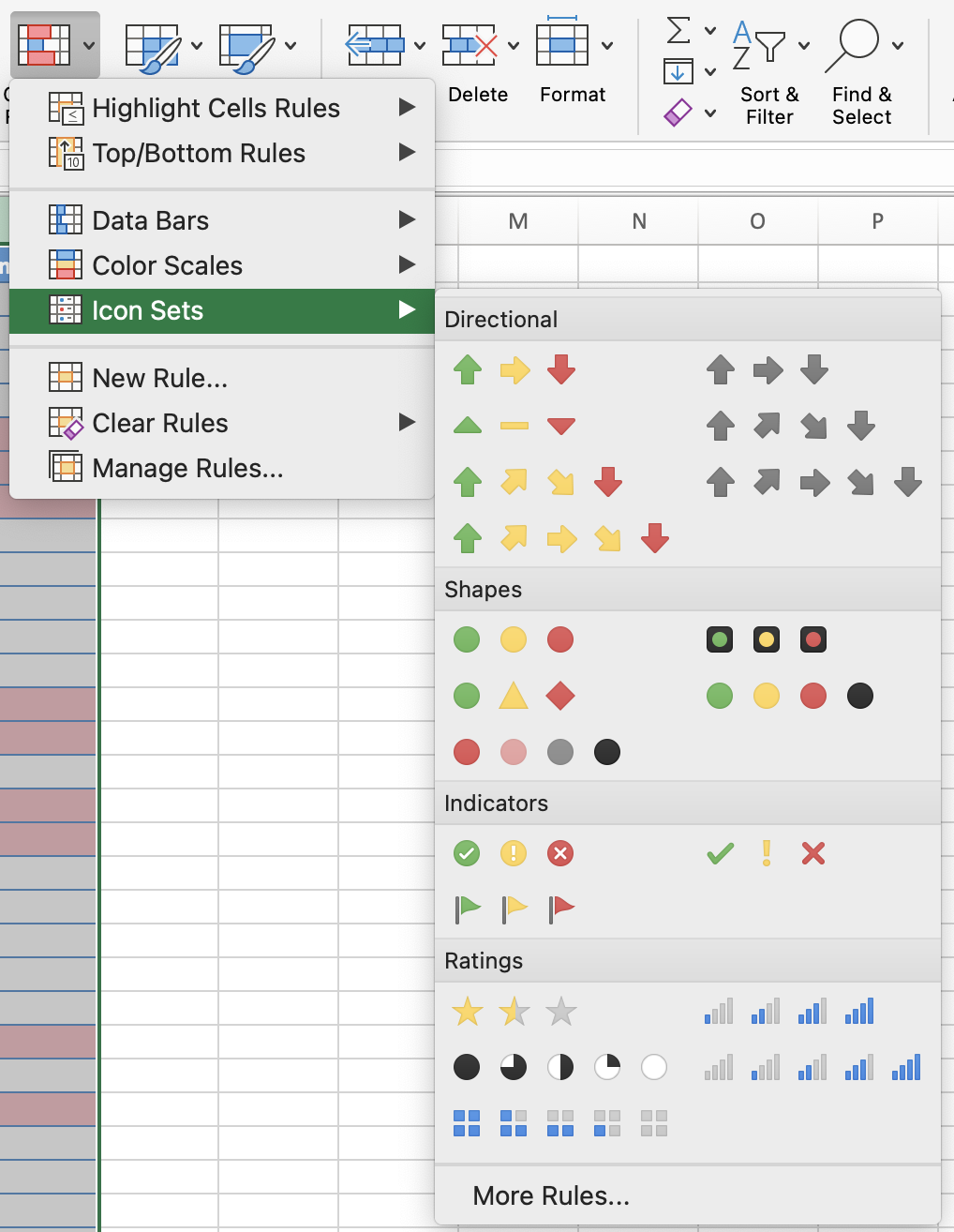
Icon sets place a small visual symbo: a traffic light, an arrow, a flag — directly inside the cell. The reader doesn't need to read the number to understand whether something is good, borderline, or problematic.
Date-based Rules
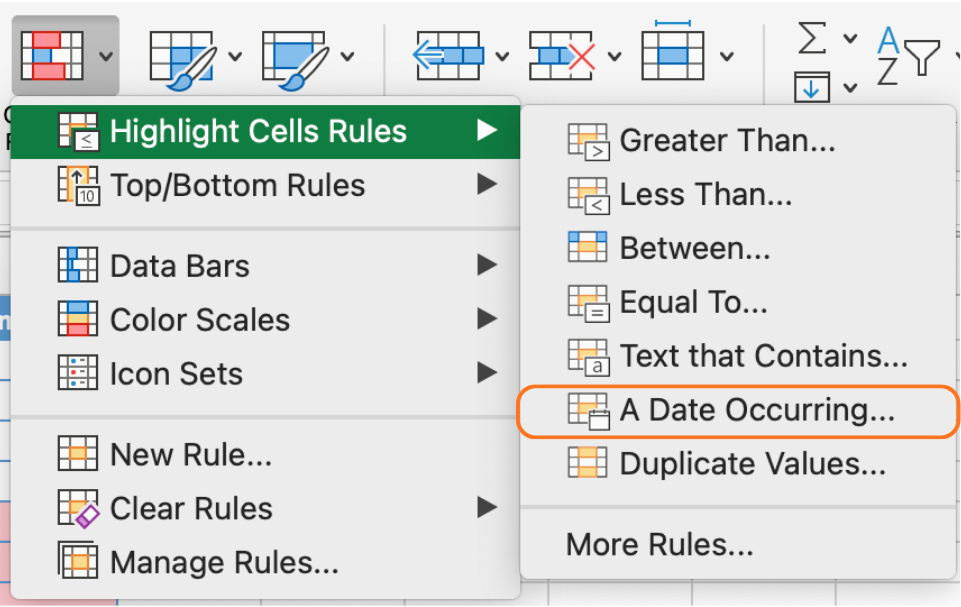
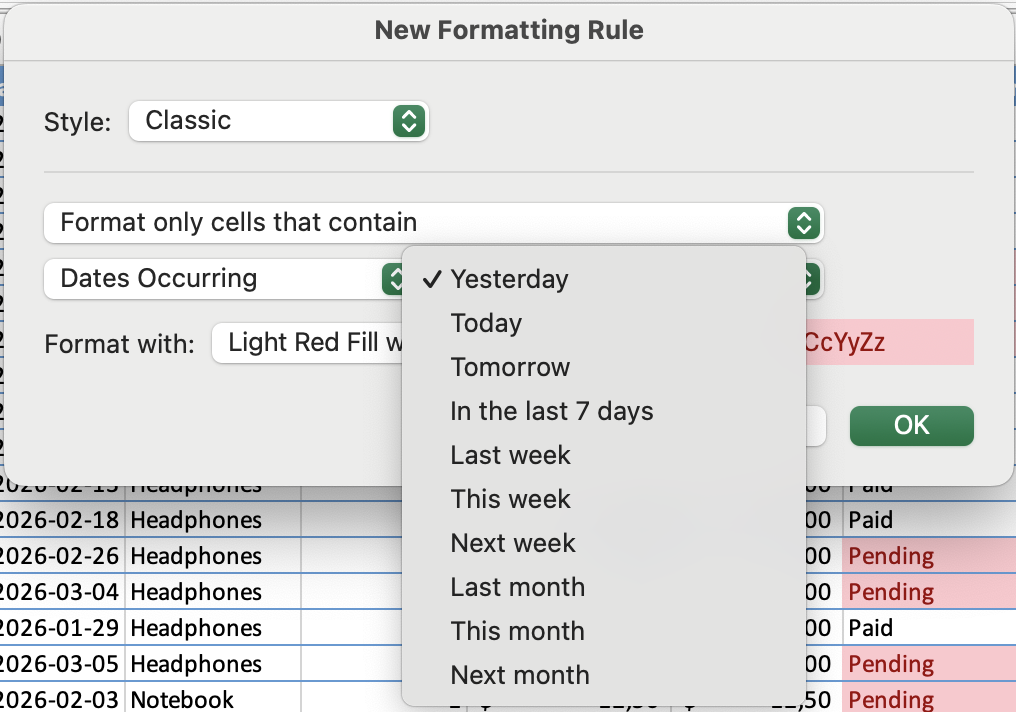
Date-based rules are most useful for deadlines, due dates, and payment schedules. A payment deadline column can highlight dates that fall this week in amber, dates that have already passed in red, and dates more than a month away remain unformatted.
Task
-
Apply an Icon Set to Total Sales (KPI)
Locate the Total Sales value in the Summary section. Go to Conditional Formatting → Icon Sets → More Rules.
Set thresholds based on the goal of 3000 USD:
- Green → value ≥ 3000
- Yellow → around 3000 (e.g., ≥ 2500)
- Red → value < 2500
Confirm the icon reflects the current Total Sales value.
-
Display only the icon
Open Conditional Formatting → Manage Rules and edit the Icon Set rule. Enable Show Icon Only.
Confirm that only the icon is visible (no number).
-
Test dynamic behavior
Add a new order to increase Total Sales. Return to the Summary section.
Confirm the icon updates automatically based on the new total.
-
Apply a date-based rule
Select the Payment Deadline column. Go to Conditional Formatting → Highlight Cells Rules → A Date Occurring.
Choose a condition such as This Week or Next Week.
Confirm that only matching dates are highlighted.
-
Review and manage rules
Open Conditional Formatting → Manage Rules. Locate both rules (Icon Set and Date rule).
Confirm you can edit thresholds, change formatting, and delete or reorder rules.
Thanks for your feedback!
Ask AI

Ask AI

Ask anything or try one of the suggested questions to begin our chat
