Layout Control
Swipe to show menu
Freeze Panes
Freeze top row: keeps the header row visible as you scroll down through hundreds of rows. The most common freeze option.
View tab → Freeze Panes → Freeze Top Row
Freeze first column: keeps the leftmost column (e.g. Order No. or Client) visible while scrolling right through wide tables.
View tab → Freeze Panes → Freeze First Column
Freeze custom rows and columns: select the cell that sits directly below the rows and to the right of the columns you want frozen. Everything above and to the left of that cell becomes locked.
Click the cell → View tab → Freeze Panes → Freeze Panes
To unfreeze, go to View → Freeze Panes → Unfreeze Panes.
Borders
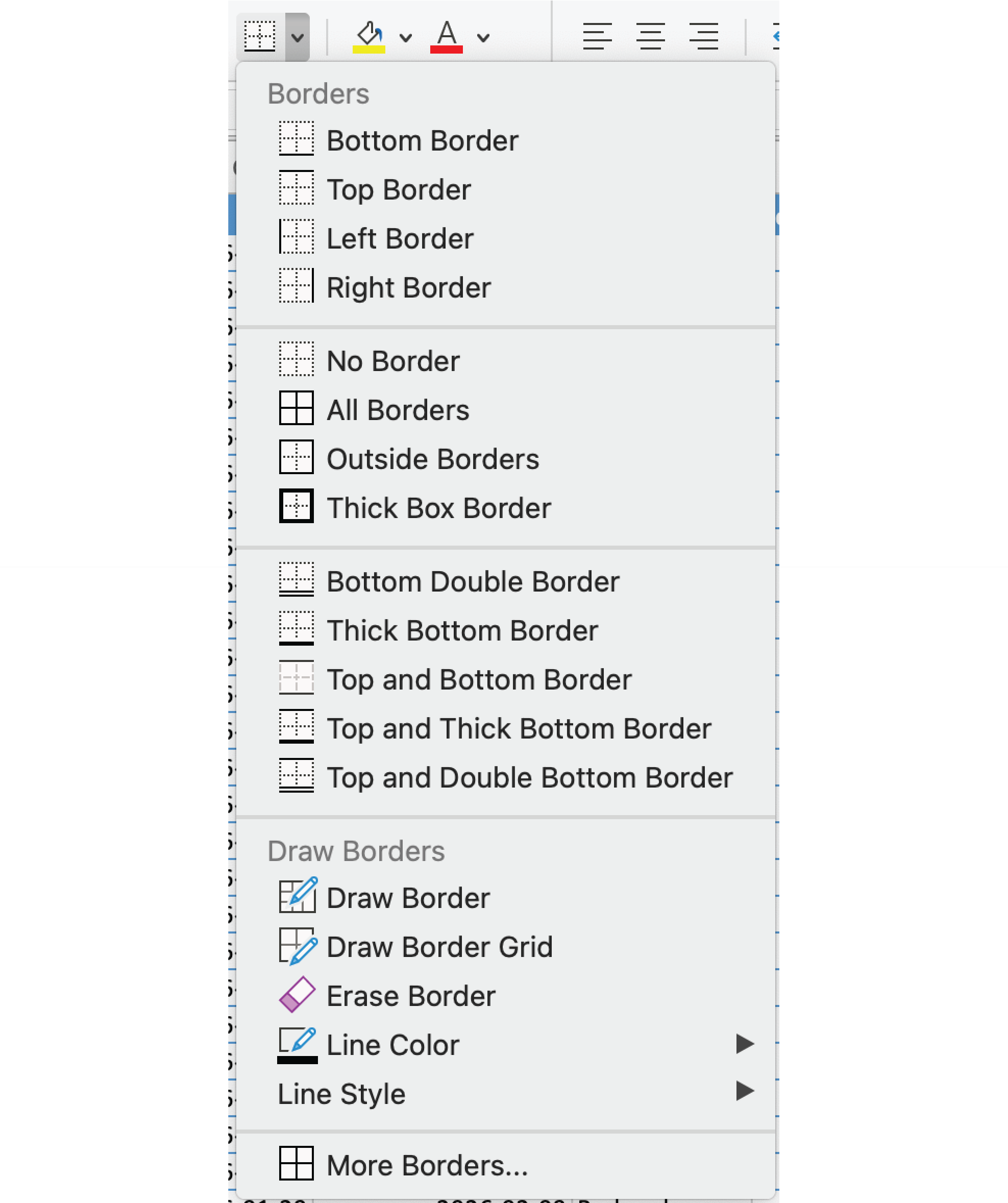
- All Borders: Home → Font group → Borders dropdown → All Borders. Applies a uniform grid to the selected range in one click;
- More Borders: opens Format Cells dialog. Apply borders side by side, set custom line styles and colors, or remove specific edges individually;
- Draw Border: turns the cursor into a pencil. Click or drag across cells to add borders precisely — cell by cell or across a range;
- Erase Border: removes specific border lines without touching others. Useful for simplifying a full-grid table into a cleaner layout.
Clear Formats
- Paste with matching formatting: Right-click → Paste → Match Destination Formatting, or use
Ctrl+Shift+V. The pasted content inherits your spreadsheet's existing style; - Paste normally, then clear: paste as usual, then select the affected cells → Home → Clear → Clear Formats. Removes all imported styling while keeping the data.

Clear Formats removes colors, borders, fonts, and number formats, but never the data itself. It is safe to use even on cells containing formulas or values.
Thanks for your feedback!
Ask AI

Ask AI

Ask anything or try one of the suggested questions to begin our chat
