Sorting
Swipe to show menu
Sorting in Excel lets you quickly organize data so you can find information faster and spot trends or outliers with ease. You can reorder rows based on text, numbers, dates, or even colors, making your worksheet more useful for analysis.

Sorting permanently reorders rows. Once you sort and save, the original order is gone.
Excel automatically applies the correct sort logic based on the column's data type. The same A→Z button behaves differently depending on what the column contains:
If a number column was formatted as Text (common after importing CSV files), sorting produces string order: 1, 10, 100, 2, 20, 3 — not numeric order. Fix the column format first, then sort. A quick check: numbers stored as text are left-aligned in their cells.
Custom Sort
Opened via Data → Sort or Home → Sort & Filter → Custom Sort. Supports multiple levels, custom sort orders, sort by color or icon, and header detection confirmation.
Alphabetical order doesn't always reflect business logic. Sorting a Status column alphabetically puts "Paid" before "Pending" — but operationally you might want pending items at the top. Custom sort orders let you define exactly what sequence Excel should follow.
Sorting by a custom list (Windows):
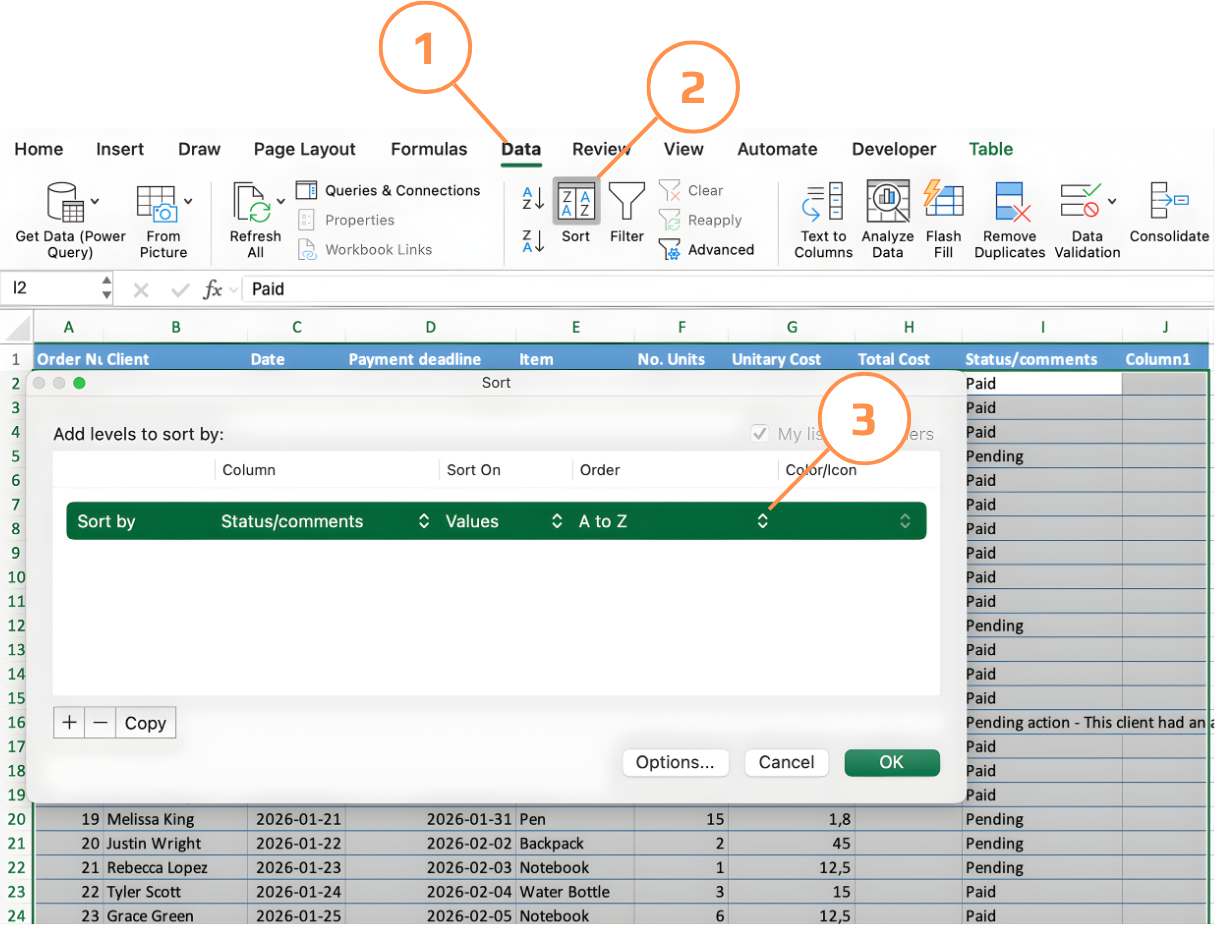
- Click any cell inside the table → Data → Sort to open the Sort dialog;
- In the Sort By dropdown, choose the column (e.g. Status);
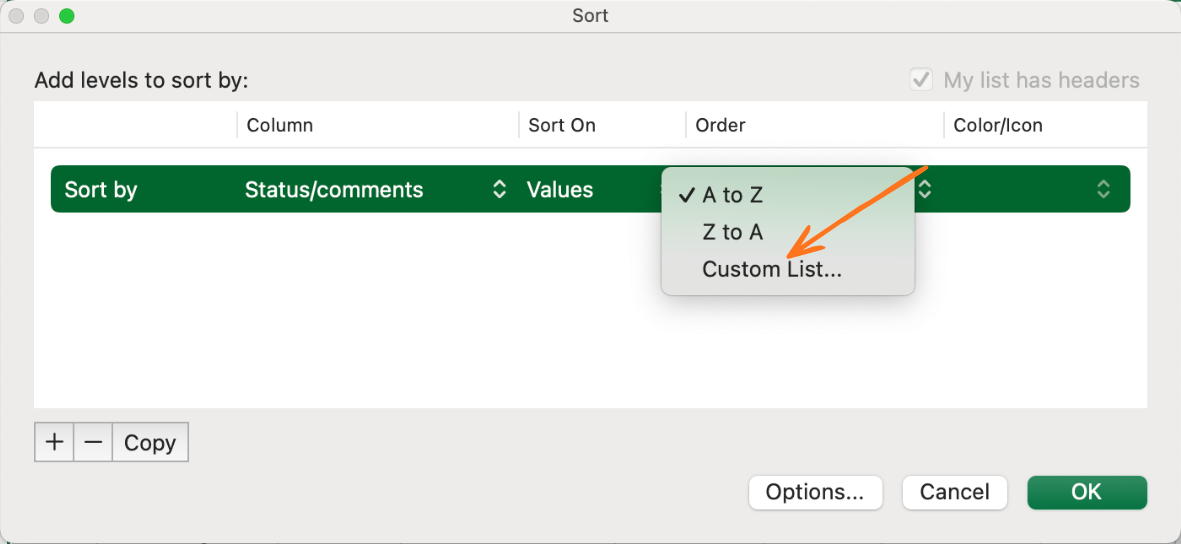
- In the Order dropdown, choose Custom List;
- Type your desired sequence one item per line (e.g. Pending → Paid → Cancelled) and click Add;
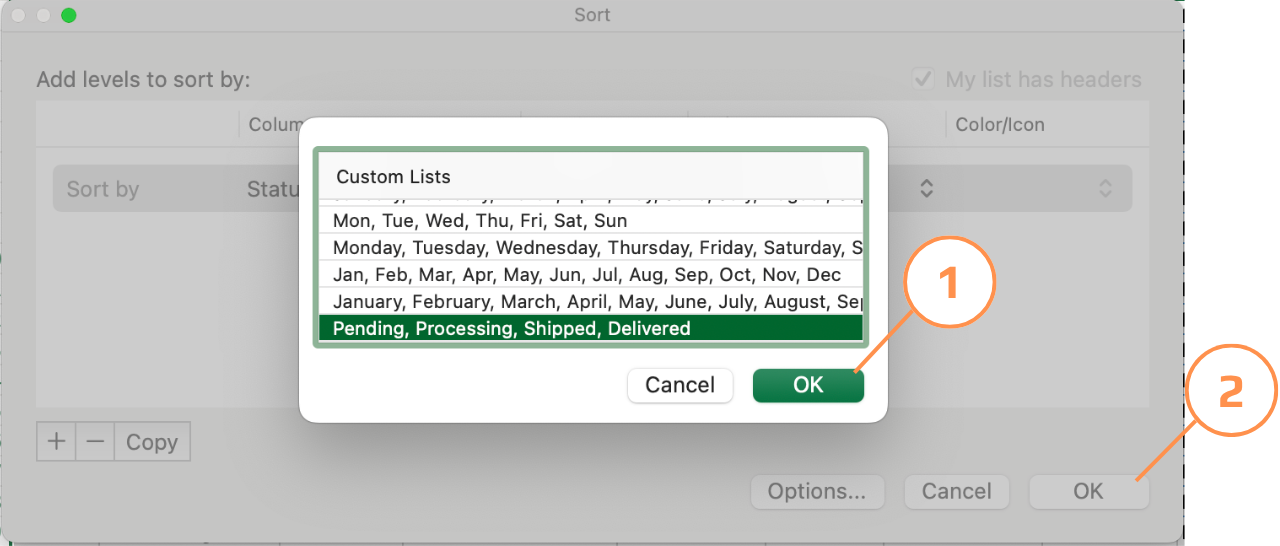
- Click OK twice — Excel reorders rows following your defined sequence, not alphabetical order.
Sorting by a custom list (Mac):
- First, create your custom list: go to Excel menu → Preferences → Custom Lists. Type your sequence one item per line (e.g. Pending → Paid → Cancelled) and click Add, then OK.
- Click any cell inside the table → Data → Sort to open the Sort dialog; 3, In the Sort By dropdown, choose the column (e.g. Status).
- In the Order dropdown, choose Custom List — your previously saved list will appear here;
- Select your list and click OK twice — Excel reorders the rows following your defined sequence.
Thanks for your feedback!
Ask AI

Ask AI

Ask anything or try one of the suggested questions to begin our chat
