Data Types and Cell Content
Swipe to show menu
Every new cell in Excel defaults to General format — a flexible catch-all that guesses what you mean.
The five types you'll use constantly, and how to tell them apart at a glance:
- General (default): no specific format assigned;
- Text: left-aligned — never used in calculations; -= Number: right-aligned — used in calculations;
- Currency: monetary values with symbol, number with financial formatting applied;
- Date: calendar dates (stored as integers), enables sorting, subtraction, and time math.
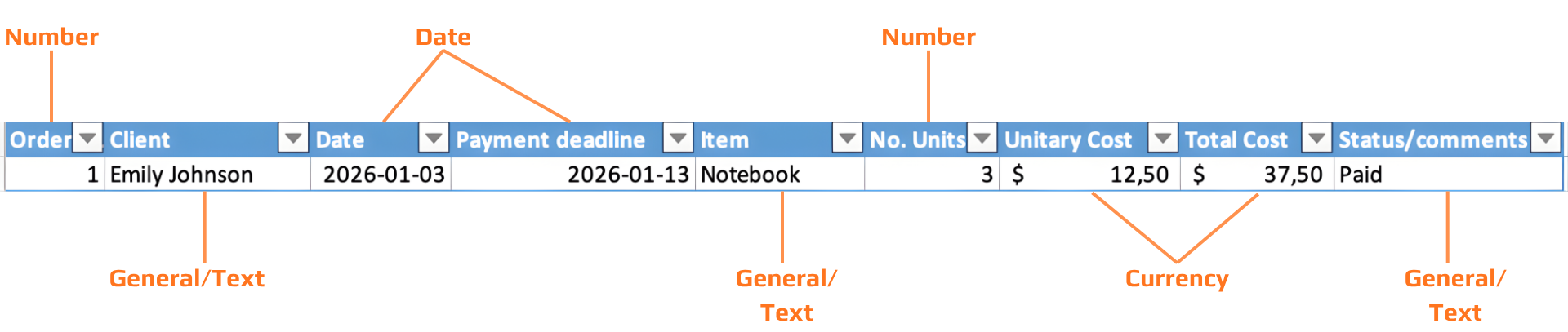

In Excel, text always aligns left; numbers always align right. If you format a column as Number and a cell is left-aligned, the value is being stored as text — not a number. It will not calculate correctly.
Every date is stored as an integer — a serial number counting days since January 1, 1900. The "date format" is just a display mask on top of that integer. This is why you can subtract dates, sort them chronologically, and calculate time differences.
Because dates are numbers, date arithmetic is just subtraction. =B2-A2 where both cells hold dates gives you the number of days between them. No special function needed.
Short date: 03/01/2026. Long date: Sunday, 1 March 2026. Changing the display format never changes the stored value, your calculations stay intact.
The ### Symbol
When a cell shows ###, the value is correct but the column is too narrow to display it. This happens most often with dates and currency values.
Fix: double-click the column border in the header row to auto-fit, or drag the border to widen manually. The data itself is untouched.
What else can a cell hold?
Beyond typed values, Excel cells can contain three other types of content — each inserted from the Insert tab, Illustrations group:
- Image: a photo or graphic inserted from your device or online. Floats over the grid — not bound to a single cell unless you use "Place in cell" (Excel 365);
- Icon: a scalable vector icon from Excel's built-in library. Unlike images, icons are resolution-independent and can be recolored. Insert via Insert → Icons;
- Hyperlink: a clickable link to a URL, file, email address, or location within the same workbook. Insert with
Ctrl+K. The cell displays display text; the actual URL lives in the link target. Useful for linking to source documents or external resources.
Find & Replace
Find & Replace lets you correct the entire dataset in seconds — and it respects your current selection, so you can scope it to a single column.
Replace All makes changes instantly across the entire scope. Use Find Next first to spot-check matches before committing to Replace All. If you make a mistake, Ctrl+Z / Cmd+Z undoes the entire Replace All operation in one step.
Task
-
Apply correct data formats
Format each column according to its purpose:- Client → Text
- Date → Date (Short Date format)
- No. of Units → Number
- Unit Cost → Currency
- Total Cost → Currency
After formatting, confirm:
- Text values are left-aligned.
- Numbers and dates are right-aligned.
-
Fix visibility issues (
###)- Identify any columns displaying
### - Adjust their width using AutoFit (double-click column border)
- Identify any columns displaying
-
Standardize data using Find & Replace
In the Status column:
- Replace all variations of “Paid” (e.g., “paid.”, “PAID”) with “Paid”
Use:
Ctrl/Cmd + H- Find Next → then Replace All
-
Add a new column for supporting content
Insert a new column to the right called: Receipts.
-
Insert visual and link elements
- In at least one row: insert an image in the Receipts column
- In another row: insert an icon in the Receipts column
- In the Item column: add a hyperlink (
Ctrl/Cmd + K)
Thanks for your feedback!
Ask AI

Ask AI

Ask anything or try one of the suggested questions to begin our chat
