Advanced Chart Readability and Axis Control
Swipe to show menu
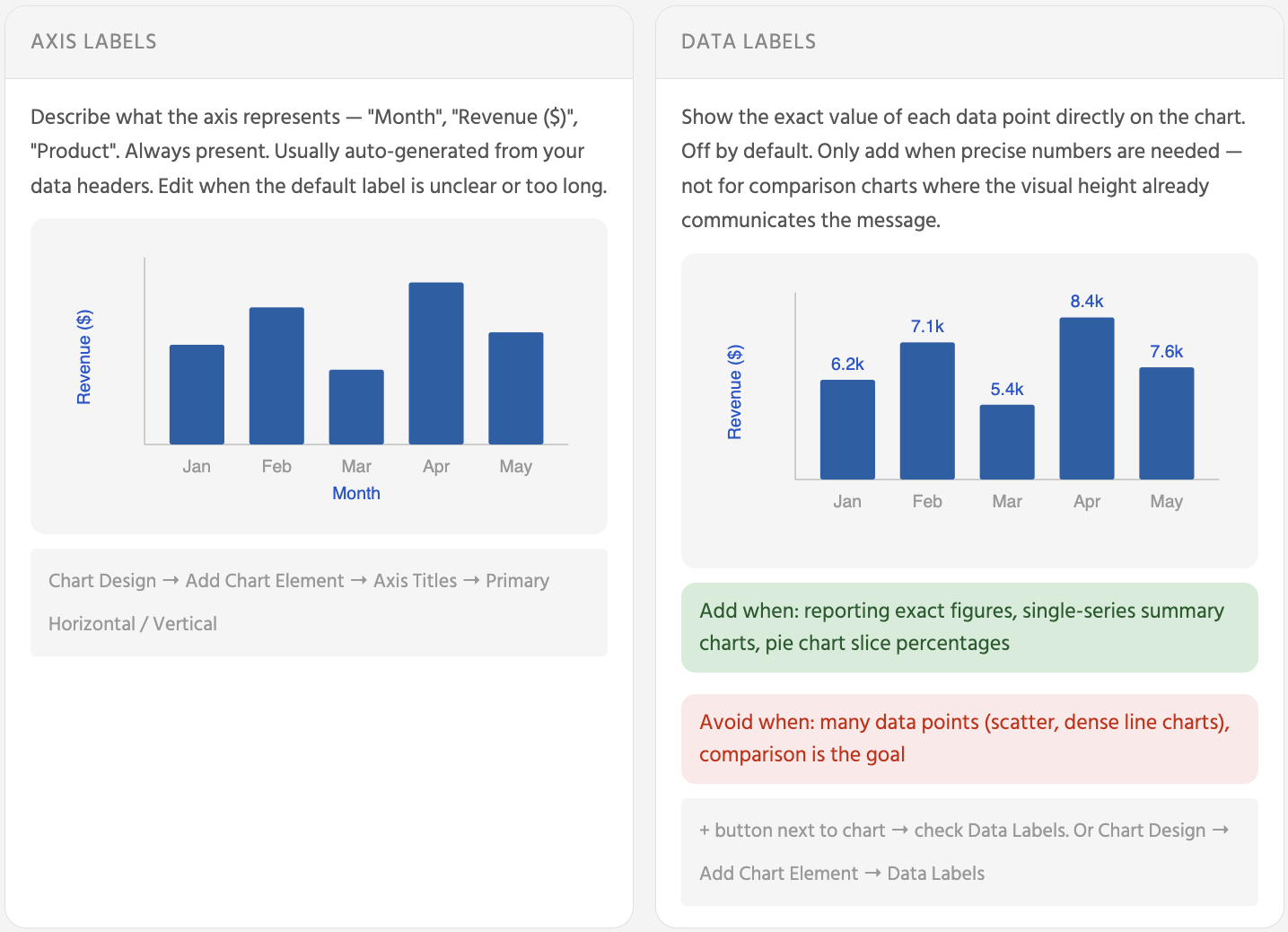
Axis labels describe what the axis represents — they are always present and rarely need changing. Data labels show the exact numeric value of each bar, line point, or pie slice — they are off by default, and should only be turned on when the reader genuinely needs the precise number rather than just the visual comparison.
Color Consistency
Avoid bright, saturated colors across many series. They compete for attention equally and make it hard to focus on the data point that matters. A muted palette with one accent color for the series you want to highlight is more effective than a rainbow.
Chart Design tab → Change Colors → pick a palette. Apply the same palette to every chart on the dashboard.
Or Chart Design → Chart Styles → choose a style and apply it consistently.
Axis Scale
The axis scale directly controls how large or small differences appear — which means it controls how dramatic or subtle the data looks.
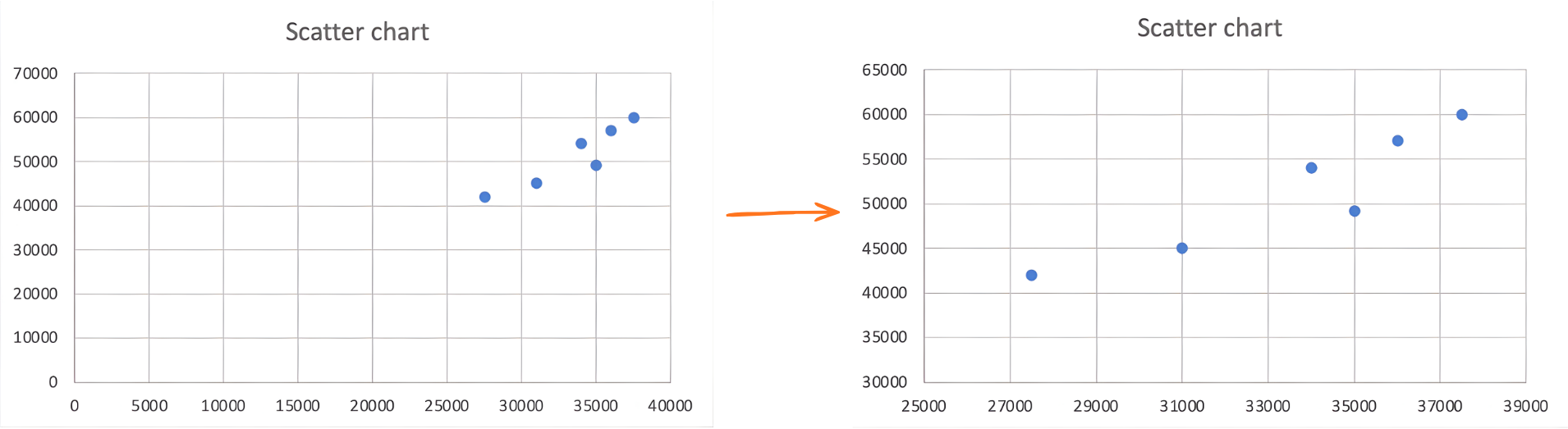
Starting at zero often wastes most of the visible chart area on empty space, compressing all the interesting variation into a thin band at the top. In those cases, setting the minimum to just below the lowest data point makes differences visible without distorting the comparison.
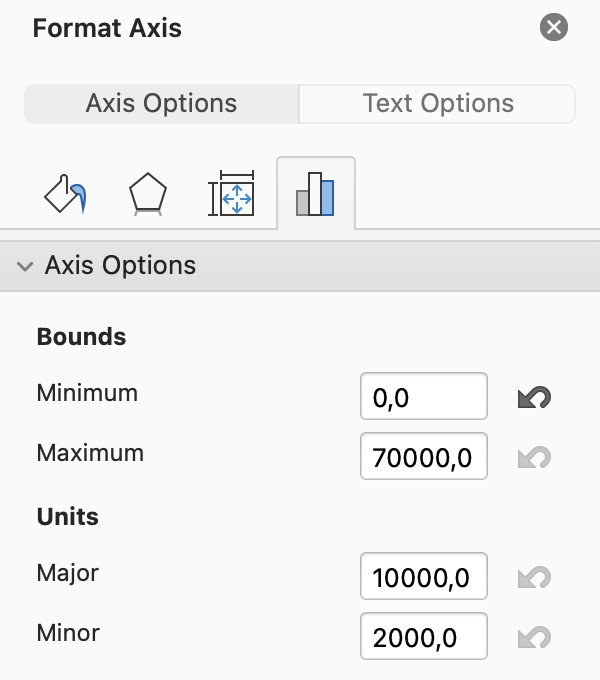
Right-click the axis → Format Axis → Axis Options → set Minimum to the lowest data value in your range (e.g. 27 500) and Maximum to the highest (e.g. 60 000). Click the number field and type the value — do not use the spinner arrows for large numbers.
Task
You already have a dashboard with four charts: Column (Revenue by Product), Line (Monthly Revenue Trend), Pie (Revenue Share), and Scatter (Tablet vs Smartphone).
Now, improve clarity and consistency:
-
Update chart titles
Replace default titles with clear, descriptive ones such as "Revenue by Product" or "Monthly Revenue Trend".
-
Clean up visual clutter
Review each chart and remove elements that do not improve readability, such as unnecessary gridlines, borders, or background fills. Keep only what helps interpret the data.
-
Adjust legends
Move any legend that overlaps the chart. If a chart has only one data series, remove the legend entirely.
-
Apply consistent colors
Use the same color for each product across all charts to improve recognition and comparison.
-
Use data labels selectively
Add labels only where exact values improve clarity (e.g., Column or Pie chart). Avoid adding labels to the Scatter chart if they reduce readability.
-
Adjust axis scale (Scatter chart)
Excel sets axis limits automatically, but these are not always optimal. If the range is too wide, differences appear smaller. If too narrow, differences look exaggerated.
Set a range that reflects the data clearly:
- Select the Scatter chart.
- Click the vertical axis.
- Open Format Axis.
- Set Minimum to 27 500 and Maximum to 60 000.
Observe how this improves visibility of differences between points.
Thanks for your feedback!
Ask AI

Ask AI

Ask anything or try one of the suggested questions to begin our chat
Advanced Chart Readability and Axis Control
Axis labels describe what the axis represents — they are always present and rarely need changing. Data labels show the exact numeric value of each bar, line point, or pie slice — they are off by default, and should only be turned on when the reader genuinely needs the precise number rather than just the visual comparison.
Color Consistency
Avoid bright, saturated colors across many series. They compete for attention equally and make it hard to focus on the data point that matters. A muted palette with one accent color for the series you want to highlight is more effective than a rainbow.
Chart Design tab → Change Colors → pick a palette. Apply the same palette to every chart on the dashboard.
Or Chart Design → Chart Styles → choose a style and apply it consistently.
Axis Scale
The axis scale directly controls how large or small differences appear — which means it controls how dramatic or subtle the data looks.
Starting at zero often wastes most of the visible chart area on empty space, compressing all the interesting variation into a thin band at the top. In those cases, setting the minimum to just below the lowest data point makes differences visible without distorting the comparison.
Right-click the axis → Format Axis → Axis Options → set Minimum to the lowest data value in your range (e.g. 27 500) and Maximum to the highest (e.g. 60 000). Click the number field and type the value — do not use the spinner arrows for large numbers.
Task
You already have a dashboard with four charts: Column (Revenue by Product), Line (Monthly Revenue Trend), Pie (Revenue Share), and Scatter (Tablet vs Smartphone).
Now, improve clarity and consistency:
-
Update chart titles
Replace default titles with clear, descriptive ones such as "Revenue by Product" or "Monthly Revenue Trend".
-
Clean up visual clutter
Review each chart and remove elements that do not improve readability, such as unnecessary gridlines, borders, or background fills. Keep only what helps interpret the data.
-
Adjust legends
Move any legend that overlaps the chart. If a chart has only one data series, remove the legend entirely.
-
Apply consistent colors
Use the same color for each product across all charts to improve recognition and comparison.
-
Use data labels selectively
Add labels only where exact values improve clarity (e.g., Column or Pie chart). Avoid adding labels to the Scatter chart if they reduce readability.
-
Adjust axis scale (Scatter chart)
Excel sets axis limits automatically, but these are not always optimal. If the range is too wide, differences appear smaller. If too narrow, differences look exaggerated.
Set a range that reflects the data clearly:
- Select the Scatter chart.
- Click the vertical axis.
- Open Format Axis.
- Set Minimum to 27 500 and Maximum to 60 000.
Observe how this improves visibility of differences between points.
Thanks for your feedback!
