Removing Extra Spaces with TRIM
Swipe to show menu
When working with text data in Excel, one of the most common problems is extra spaces.
These spaces may appear:
- At the beginning of a cell;
- At the end;
- Or between words.
The tricky part is that you often don't see them, but Excel does.
Because of this, two values that look identical may actually be different. This can break formulas like VLOOKUP, comparisons, filtering, and grouping.
For example, "John" and " John" look the same, but Excel treats them as different values.
TRIM function
To fix this, Excel provides the TRIM function, which removes leading spaces, trailing spaces, and extra spaces between words, leaving only a single space and making your text clean, consistent, and ready for further processing or analysis.
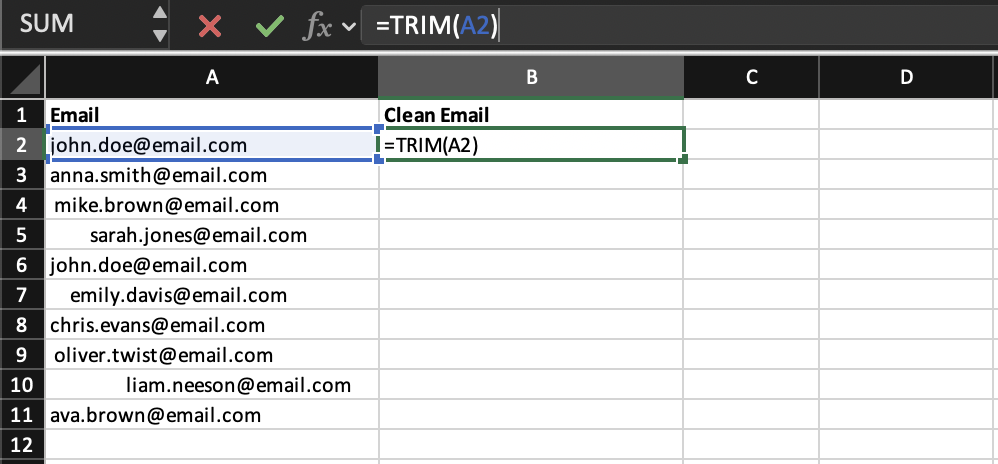
=TRIM(A2)
The formula =TRIM(A2) takes the text from cell A2 and automatically cleans it by removing leading and trailing spaces, as well as reducing multiple spaces between words to a single space.
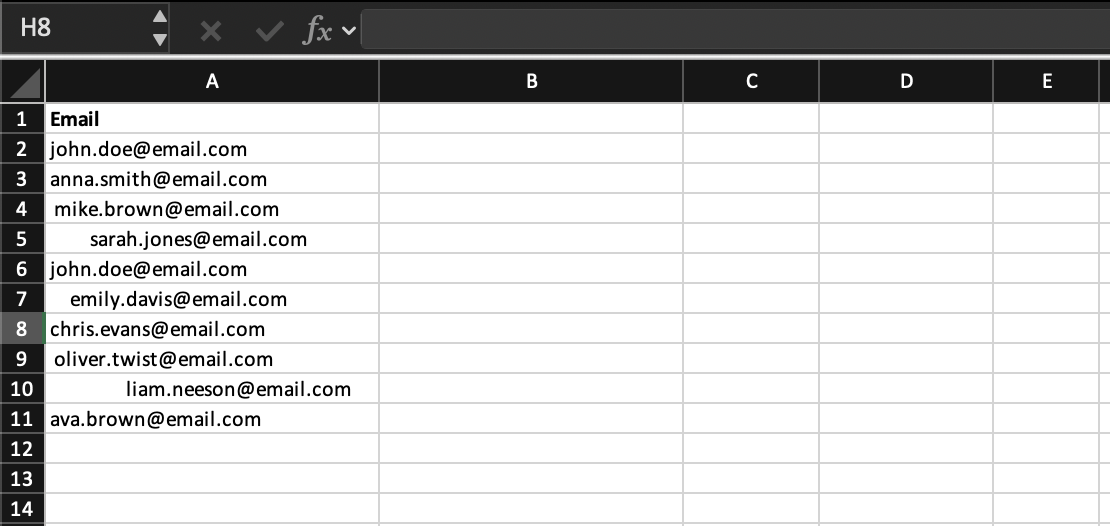
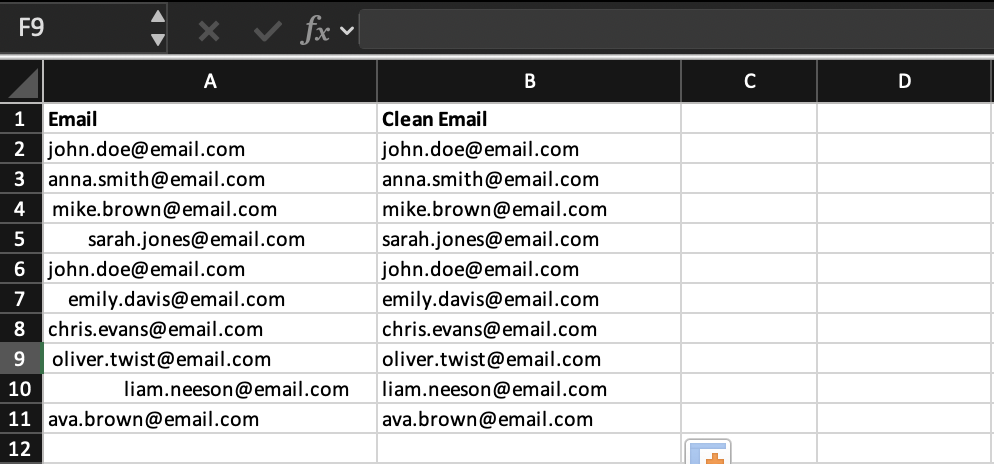
Use the dataset to clean text values using the TRIM function.
Create a new column Clean Email and apply TRIM to remove extra spaces from the original Email column. Fill the formula down for all rows so that all values are clean and consistent.
Use =TRIM(B2) and apply the formula to the entire column.
Thanks for your feedback!
Ask AI

Ask AI

Ask anything or try one of the suggested questions to begin our chat
