Handling Currency and Decimal Issues
Swipe to show menu
When working with numeric data, especially prices or financial values, you will often encounter problems related to currency symbols and decimal separators. These issues usually appear when data comes from different countries or systems with different regional settings.
At first glance, values may look like proper numbers, but Excel may treat them as text. For example, $10.50, 15,75, and 30.00 all represent numeric values, but they are written in different formats. Because of this, Excel may not recognize them consistently.
Why This Is a Problem
If Excel does not recognize these values as numbers, calculations will not work correctly. For example, summing or averaging prices may ignore some values or produce incorrect results. This happens because Excel treats $10.50 or 15,75 as text instead of numeric values.
How to Fix Currency and Decimal Issues
The goal is to convert all values into a clean numeric format.
First, you need to remove any currency symbols like $. This can be done using functions like SUBSTITUTE.
=SUBSTITUTE(A2, "$", "")
After that, you may need to fix decimal separators. For example, replace commas with dots:
=SUBSTITUTE(A2, ",", ".")
Finally, convert the result into a number:
=VALUE(A2)
Or you can combine these formulas:
=VALUE(SUBSTITUTE(SUBSTITUTE(A2,"$",""),",","."))
If a cell contains $40,00, Excel initially treats it as text. After removing the $ and replacing the comma with a dot, the value becomes 40.00, which Excel can recognize as a number. Once converted, it can be used in calculations normally.
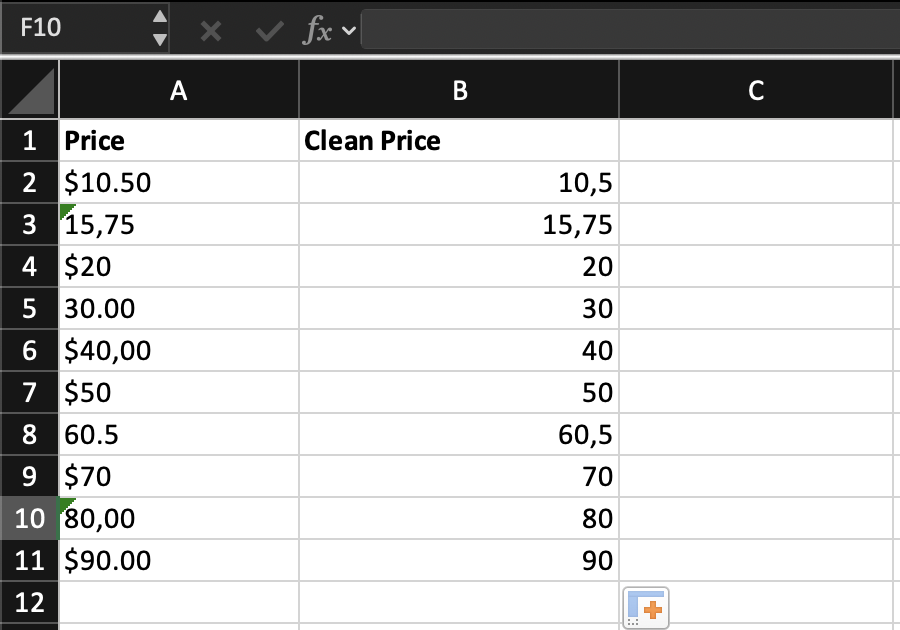

If this formula returns incorrect results, it’s likely due to regional settings. Replace the decimal separator to match your system (for example, change . to ,)
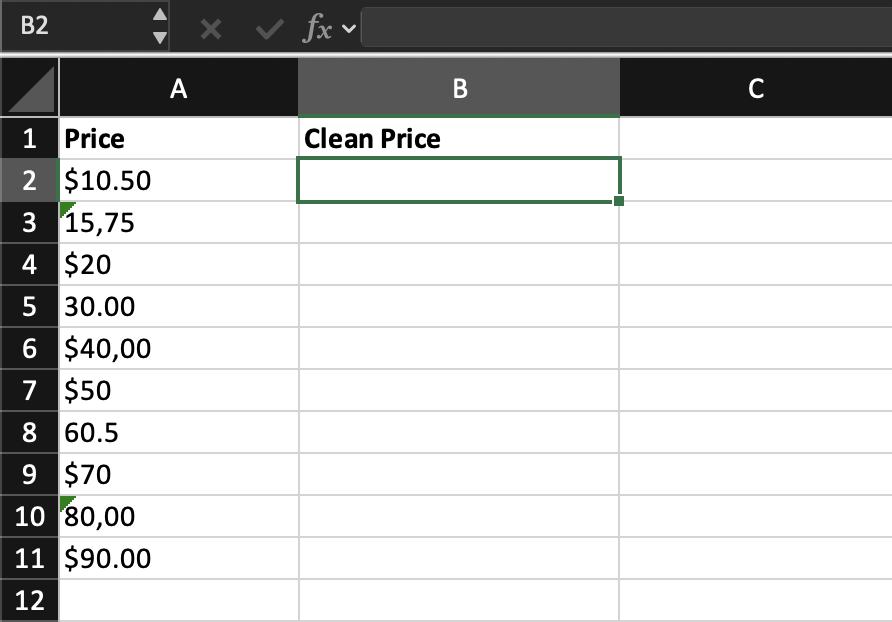
Create a new column called Clean Price.
Transform all values in the Price column into proper numeric values by removing currency symbols and fixing decimal separators.
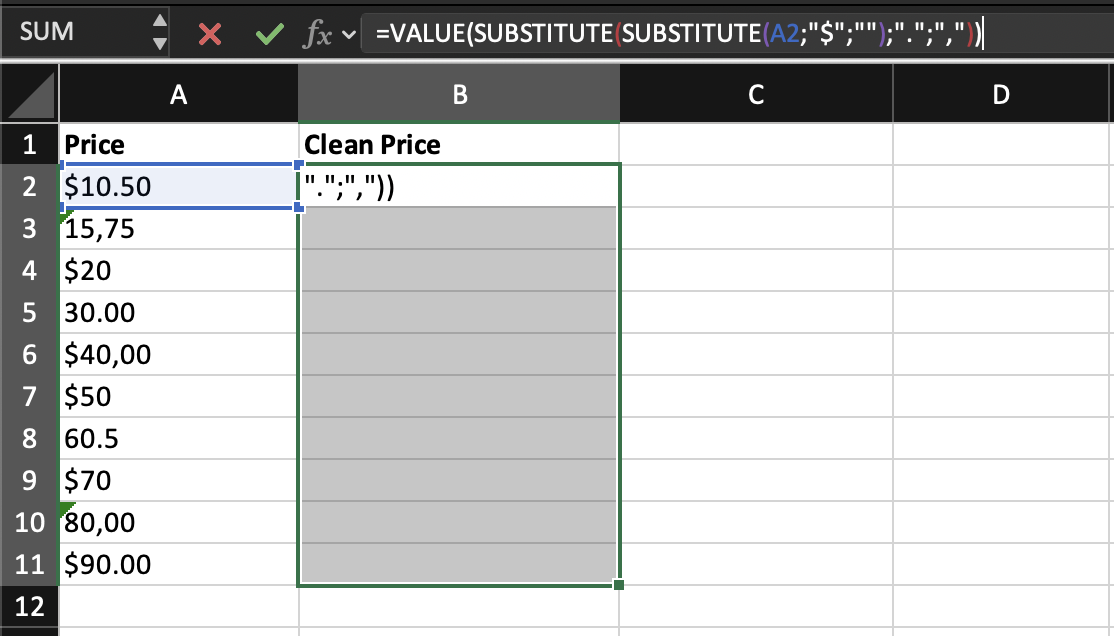
Apply the formula to all rows and ensure the result is recognized as a number.
Use SUBSTITUTE() to remove $ and fix separators, then wrap the result with VALUE() to convert it into a number.
If the result is still text, check your decimal separator.
Thanks for your feedback!
Ask AI

Ask AI

Ask anything or try one of the suggested questions to begin our chat
Handling Currency and Decimal Issues
When working with numeric data, especially prices or financial values, you will often encounter problems related to currency symbols and decimal separators. These issues usually appear when data comes from different countries or systems with different regional settings.
At first glance, values may look like proper numbers, but Excel may treat them as text. For example, $10.50, 15,75, and 30.00 all represent numeric values, but they are written in different formats. Because of this, Excel may not recognize them consistently.
Why This Is a Problem
If Excel does not recognize these values as numbers, calculations will not work correctly. For example, summing or averaging prices may ignore some values or produce incorrect results. This happens because Excel treats $10.50 or 15,75 as text instead of numeric values.
How to Fix Currency and Decimal Issues
The goal is to convert all values into a clean numeric format.
First, you need to remove any currency symbols like $. This can be done using functions like SUBSTITUTE.
=SUBSTITUTE(A2, "$", "")
After that, you may need to fix decimal separators. For example, replace commas with dots:
=SUBSTITUTE(A2, ",", ".")
Finally, convert the result into a number:
=VALUE(A2)
Or you can combine these formulas:
=VALUE(SUBSTITUTE(SUBSTITUTE(A2,"$",""),",","."))
If a cell contains $40,00, Excel initially treats it as text. After removing the $ and replacing the comma with a dot, the value becomes 40.00, which Excel can recognize as a number. Once converted, it can be used in calculations normally.
If this formula returns incorrect results, it’s likely due to regional settings. Replace the decimal separator to match your system (for example, change . to ,)
Create a new column called Clean Price.
Transform all values in the Price column into proper numeric values by removing currency symbols and fixing decimal separators.
Apply the formula to all rows and ensure the result is recognized as a number.
Use SUBSTITUTE() to remove $ and fix separators, then wrap the result with VALUE() to convert it into a number.
If the result is still text, check your decimal separator.
Thanks for your feedback!
