Quick Formatting at Scale
Swipe to show menu
Formatting is where a lot of invisible time disappears. Clicking Bold, choosing a fill color, adjusting alignment — each takes a second. Across a 50-row table with 5 columns, done inconsistently, it takes minutes and still looks uneven.
Essential Formatting Shortcuts
The fastest formatting operations never touch the ribbon.
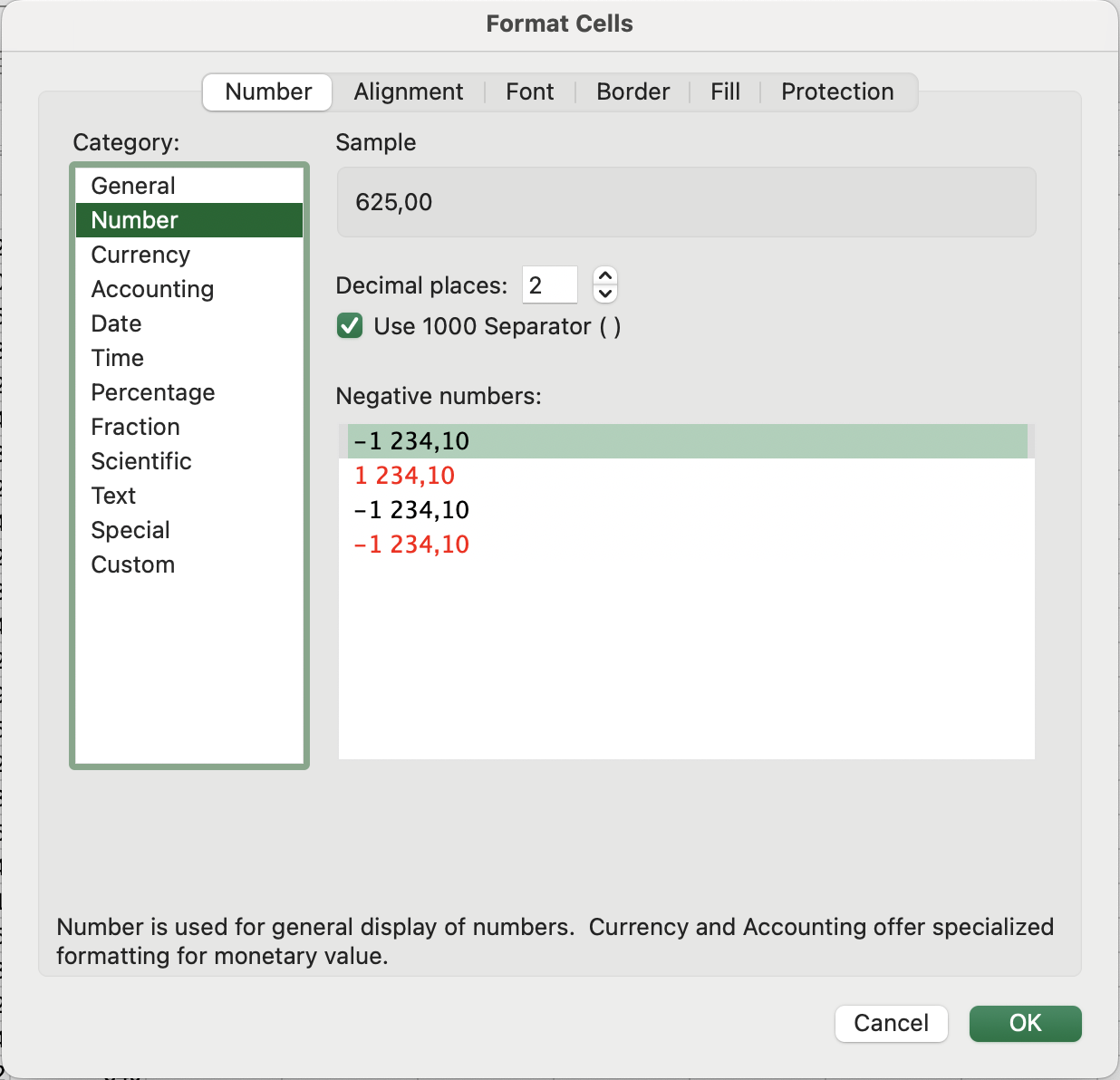
Format Cells Dialog
Opening Format Cells with Ctrl + 1 / Fn + Control + 1 and navigating by keyboard is often faster than using the ribbon, especially for less common formats.
Cell Styles
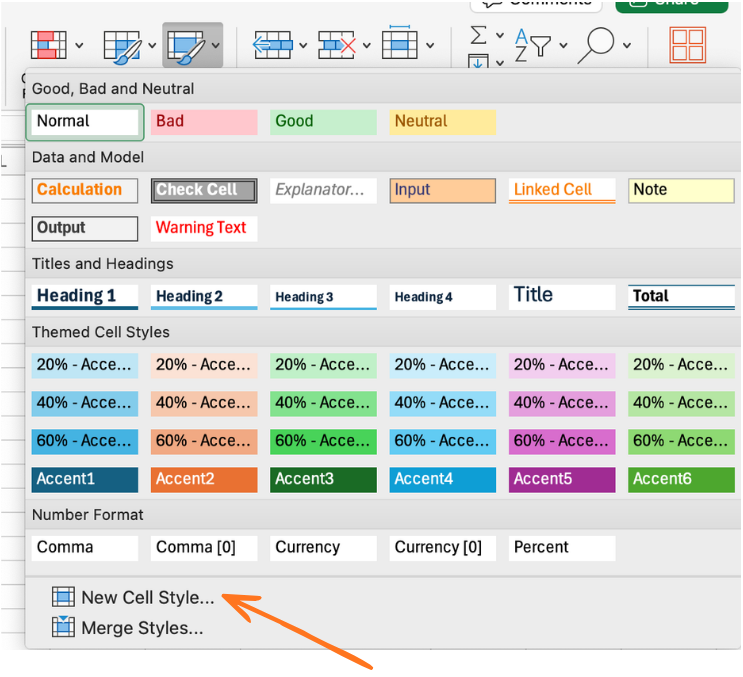
Cell Styles are named, pre-defined format sets that you can apply to any cell or range with a single click — and update globally in one step.
Applying a style: Home → Styles group → click any style (Heading 1, Good, Bad, Neutral, Calculation, etc.)
Why this matters for scale: if you apply the Heading 1 style to all your header rows and later decide headers should be a different color, you change the style definition once — every cell using that style updates automatically across the entire workbook.
Creating a custom style:
- Format a cell exactly as you want the style to look;
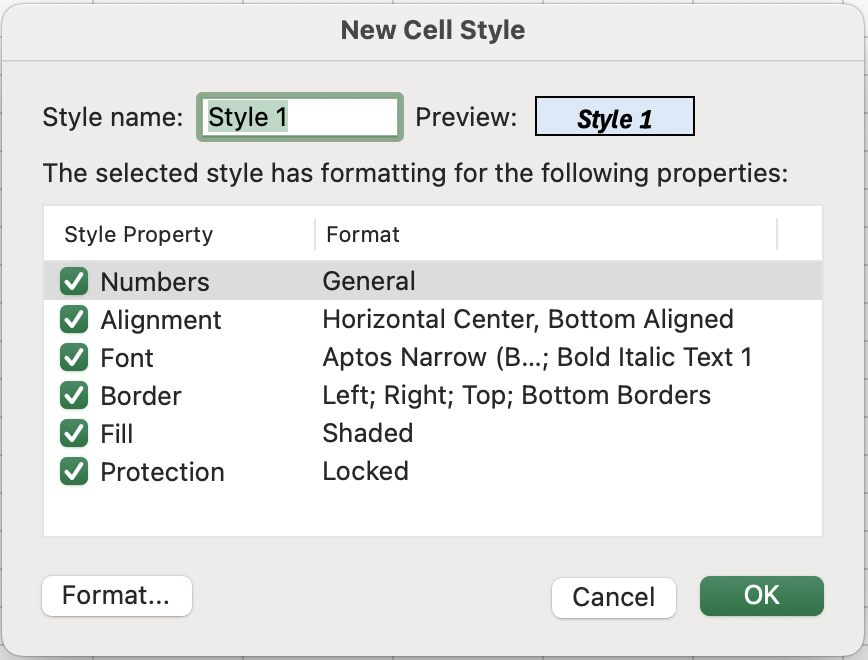
- Home → Cell Styles → New Cell Style;
- Name it (e.g. Sales Header, KPI Value);
- Click OK.
The style is now available in your workbook for instant reuse.
- Select the Unit Cost column header to select the entire column.
- Press
Ctrl + Shift + $to apply currency format. - Apply a custom Table Header style to row 1. For example, make it bold and italic, with a light blue background and borders.
Thanks for your feedback!
Ask AI

Ask AI

Ask anything or try one of the suggested questions to begin our chat
