Version History and File Recovery
Swipe to show menu
Excel automatically stores previous workbook versions when files are saved in OneDrive or SharePoint. This allows users to review older workbook states, recover lost information, and restore files after accidental changes.
Version History is one of the most important collaboration features because it helps teams safely manage shared workbooks over time.
Understanding Version History
Whenever changes are made to a cloud-based workbook, Excel saves historical versions automatically. These versions create a timeline of workbook updates.
Version History helps users:
- Restore older workbook states;
- Recover deleted information;
- Review previous workbook changes;
- Undo major editing mistakes.
This is especially useful when multiple collaborators work inside the same file.
Opening Version History
To view workbook history:
- Open the shared workbook;
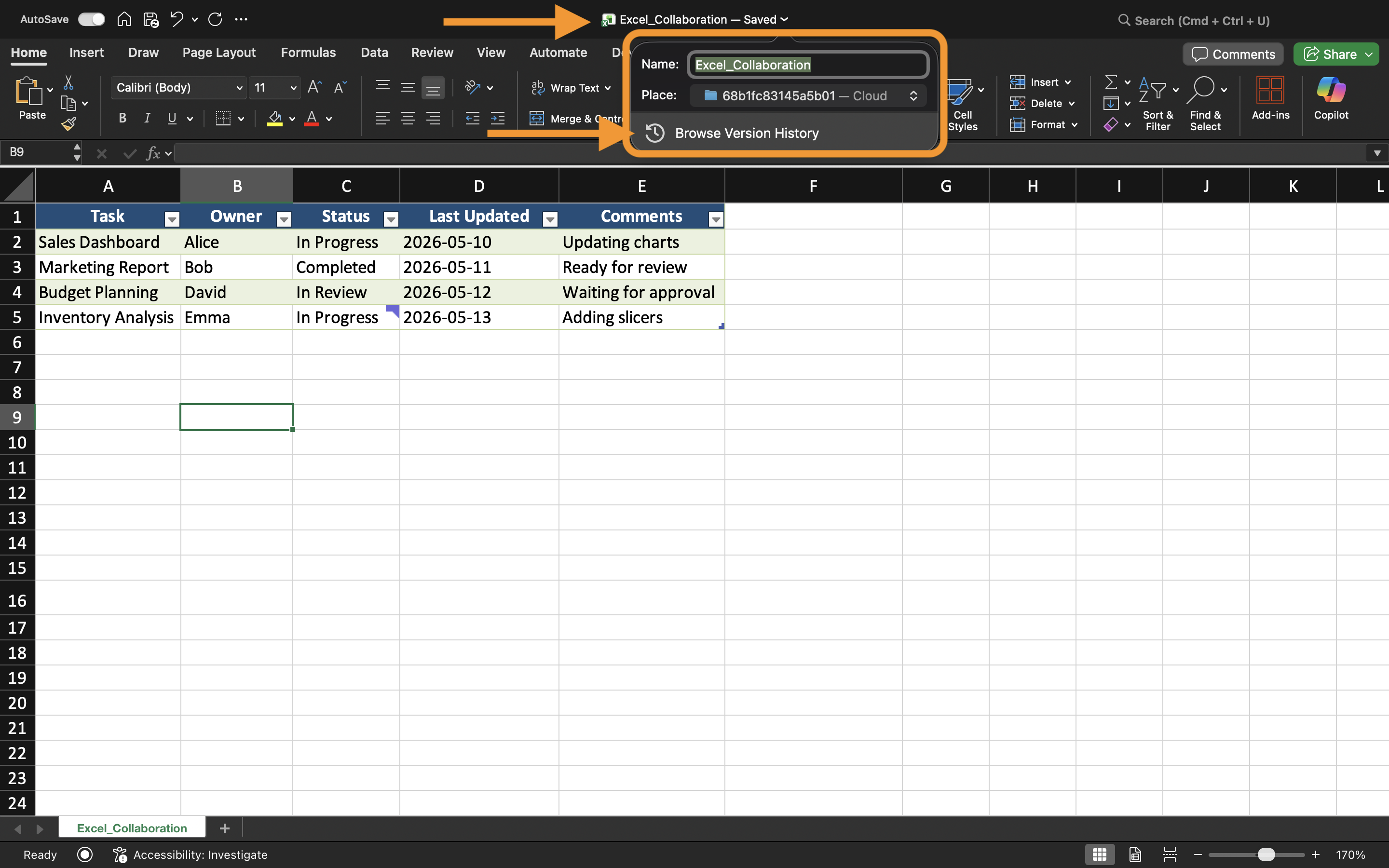
- Select the workbook name near the top of Excel;
- Choose Version History.
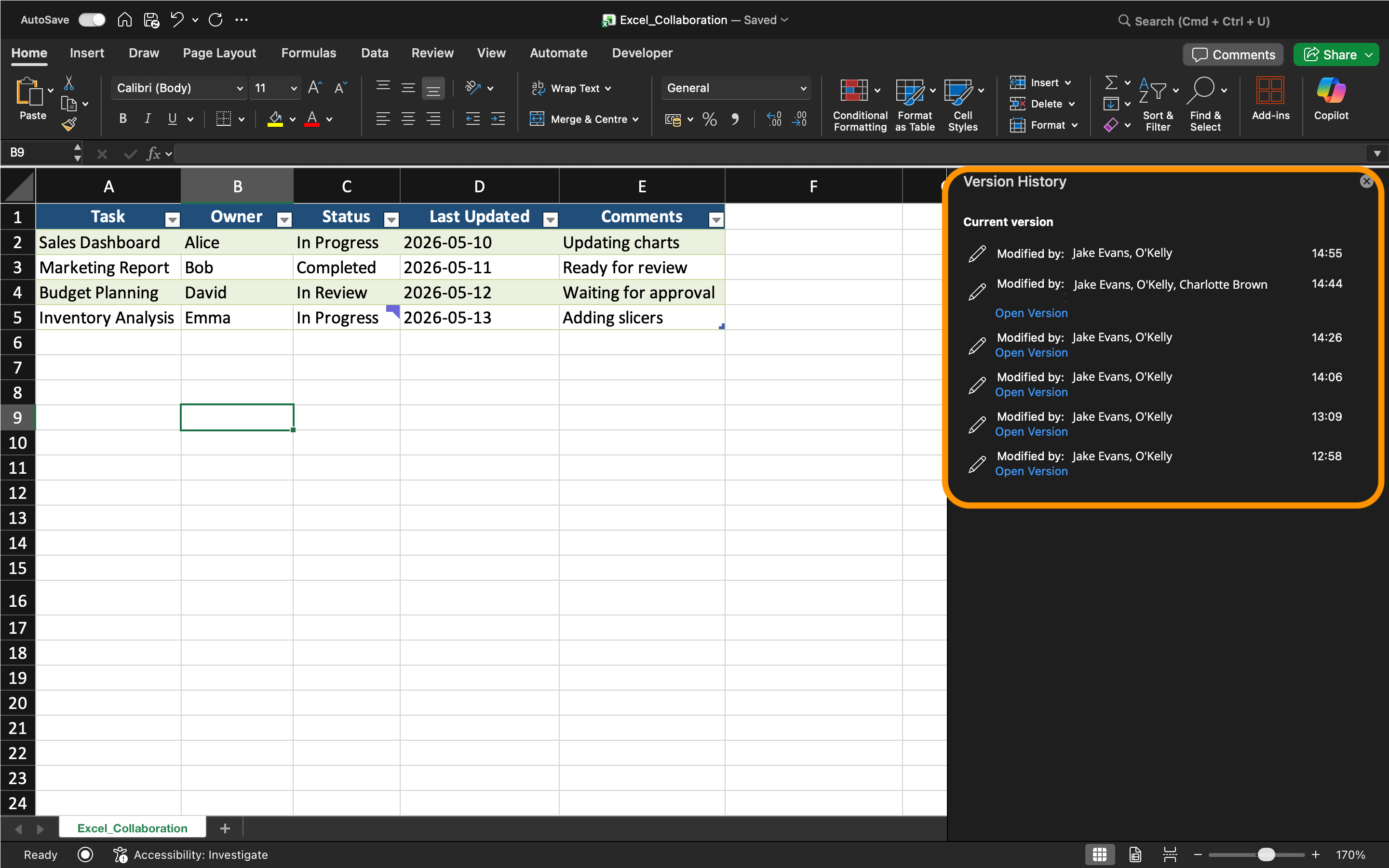
Excel displays a list of previously saved workbook versions along with timestamps and collaborator information.
Users can open older versions without immediately replacing the current workbook.
In Excel Desktop, you can also access Version History through File → Info → Version History.
Restoring Older Versions
If workbook data becomes corrupted or accidentally deleted, an older version can be restored.
To restore a version:
- Open Version History;
- Select the desired workbook version;
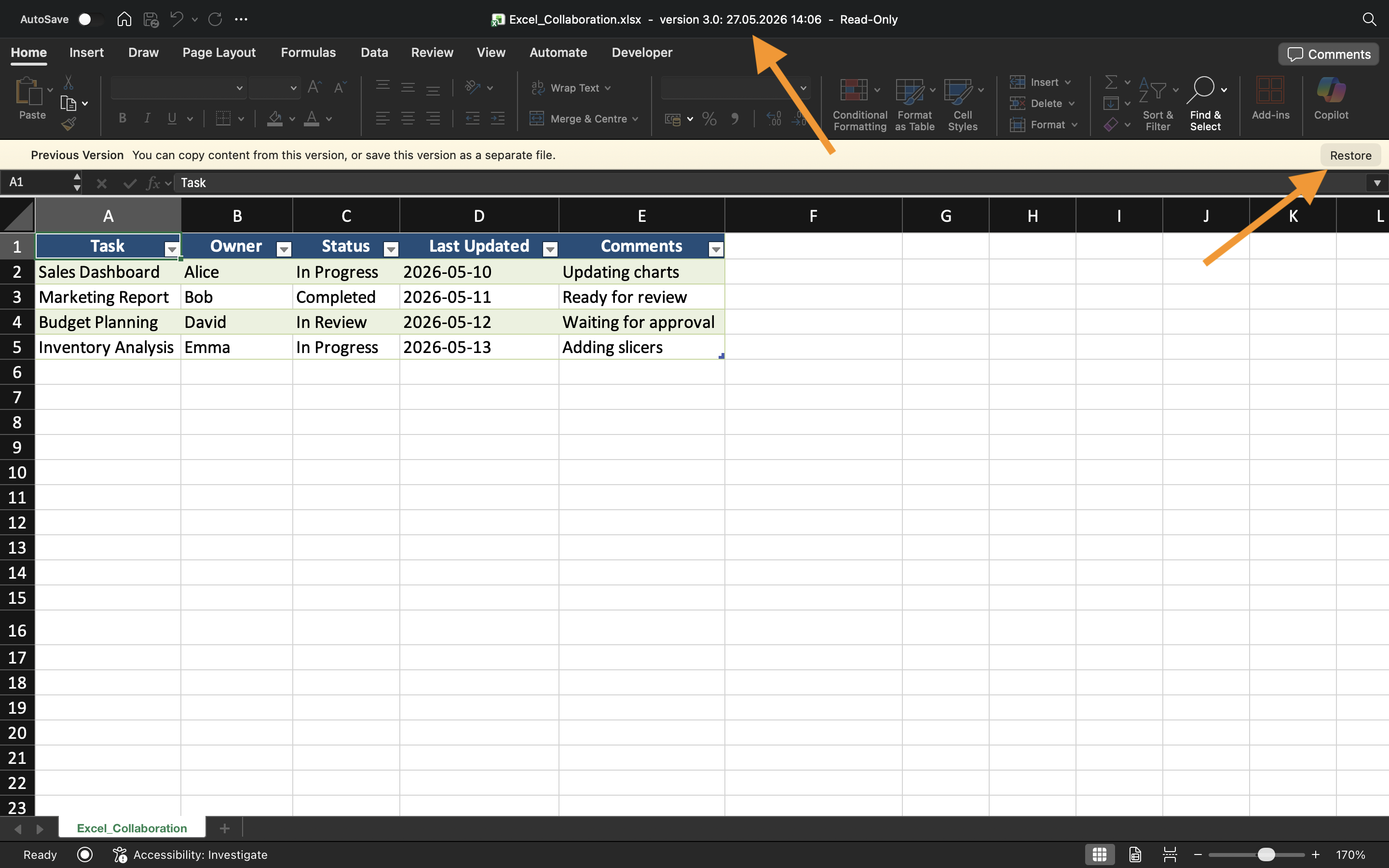
- Review the workbook contents;
- Choose Restore if the version is correct.
Excel then replaces the current workbook state with the selected historical version.
Restoring versions is commonly used after:
- Accidental deletions;
- Incorrect data imports;
- Formula errors;
- Large unwanted changes.
Recovering Unsaved Work
Excel also includes AutoRecover, which helps restore unsaved workbook changes after crashes or unexpected shutdowns.
When Excel closes unexpectedly, recovery files may appear automatically the next time the application opens.
AutoRecover is different from Version History:
Task
The workbook contains a shared operations report that was accidentally modified during collaboration. The goal is to review workbook history and recover a previous file version.
- Open the workbook Version History;
- Review available workbook versions;
- Open an older workbook state;
- Restore the selected workbook version;
- Test AutoRecover by reopening a temporary unsaved workbook.
Thanks for your feedback!
Ask AI

Ask AI

Ask anything or try one of the suggested questions to begin our chat
