Controlling Workbook Structure
Swipe to show menu
In addition to protecting worksheet contents, Excel also allows users to protect the overall workbook structure. This helps prevent collaborators from changing how worksheets are organized inside the file.
Workbook structure protection is commonly used in shared reports, templates, dashboards, and operational systems where worksheet organization should remain stable.
Understanding Workbook Structure Protection
Workbook structure protection restricts actions that affect worksheet organization. Once enabled, users may no longer be able to add, delete, rename, move, hide, or unhide worksheets.
Protecting Workbook Structure
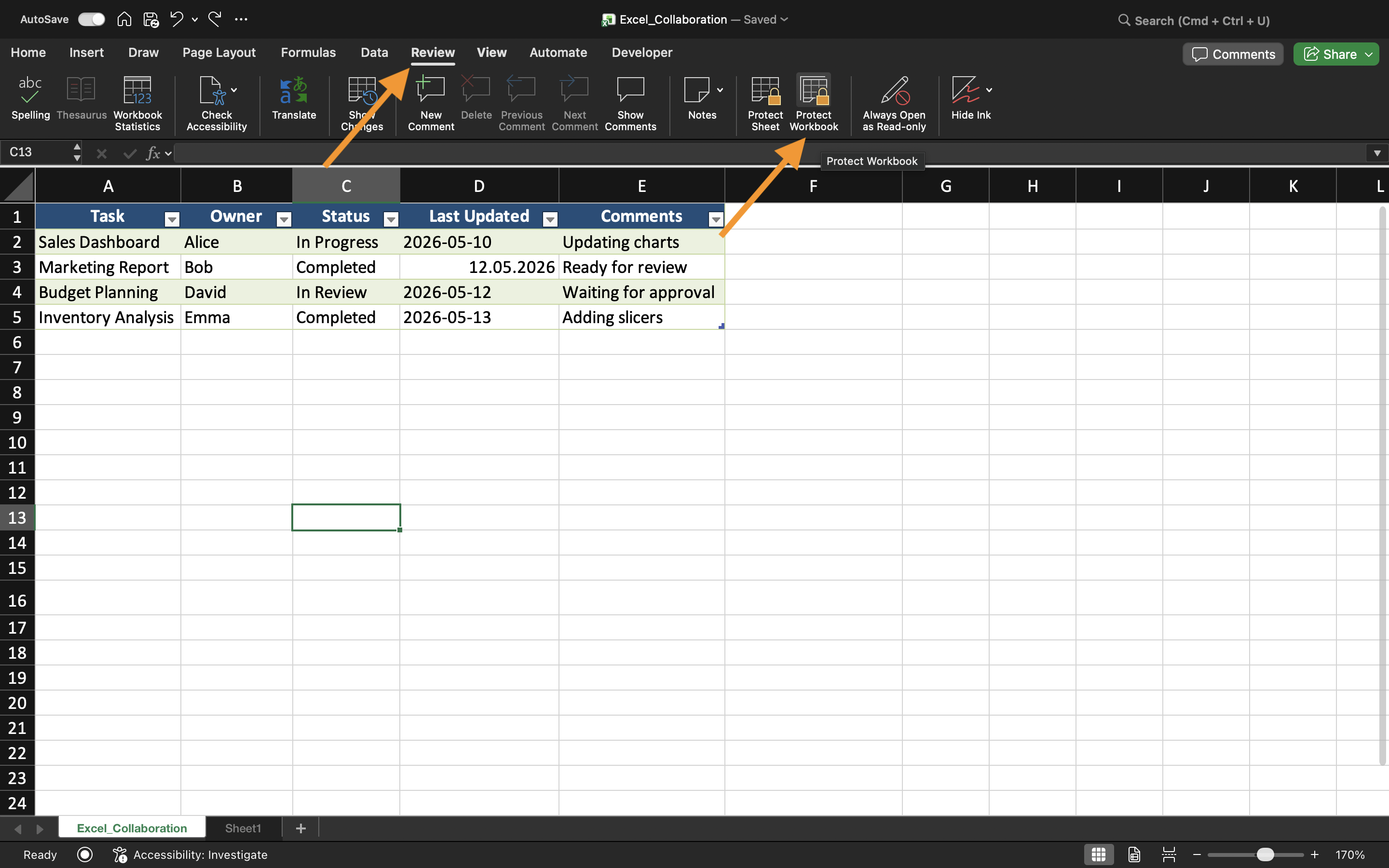
To protect workbook structure:
- Open the Review tab;
- Select Protect Workbook;
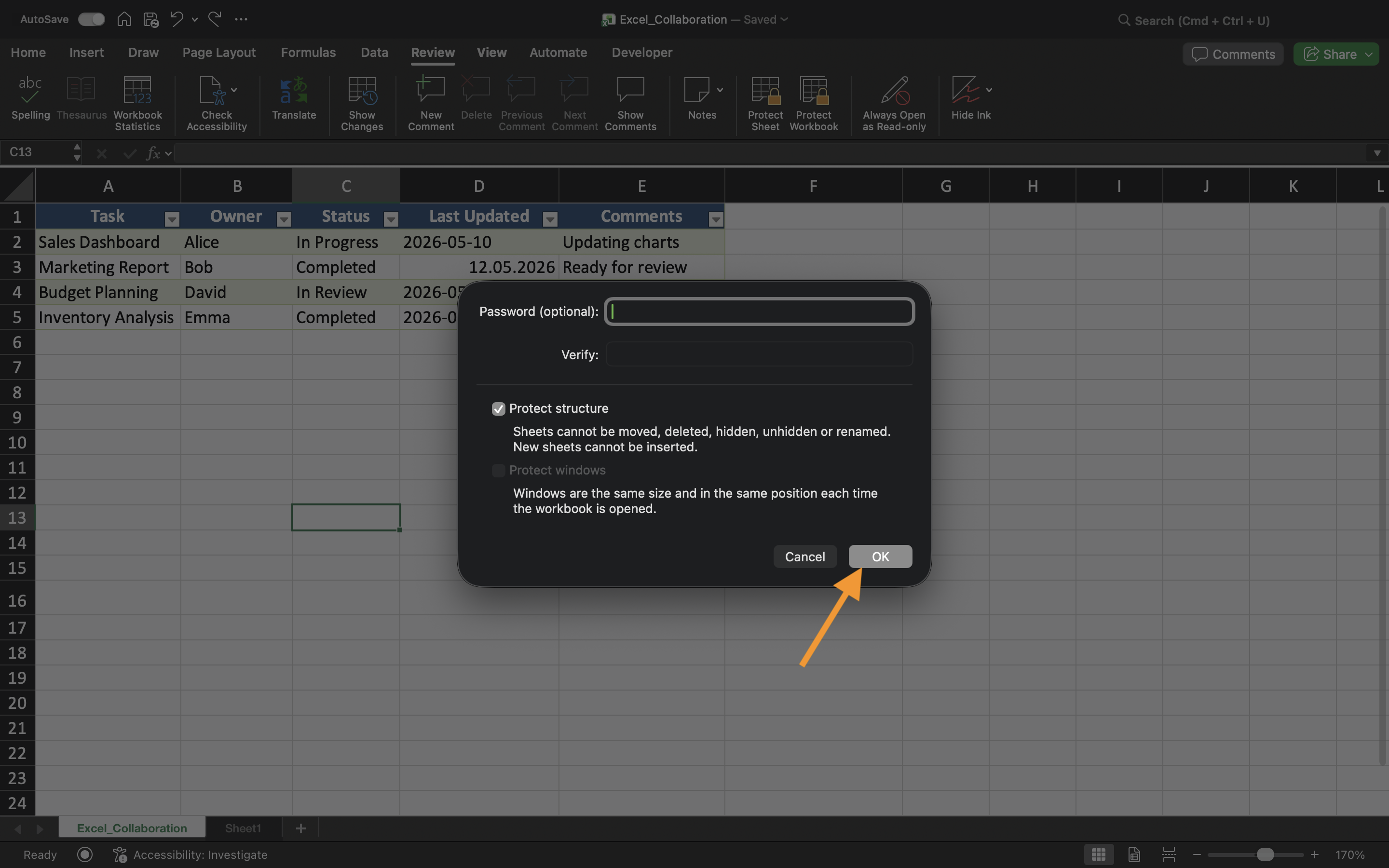
- Enable Structure protection;
- Apply the settings.
After protection is enabled, worksheet organization becomes restricted for collaborators.
This is especially useful when workbooks contain carefully organized reporting systems or linked worksheet structures.
Hiding Worksheets
Excel also allows users to hide worksheets from normal workbook view. Hidden sheets remain inside the workbook but are not immediately visible to collaborators.
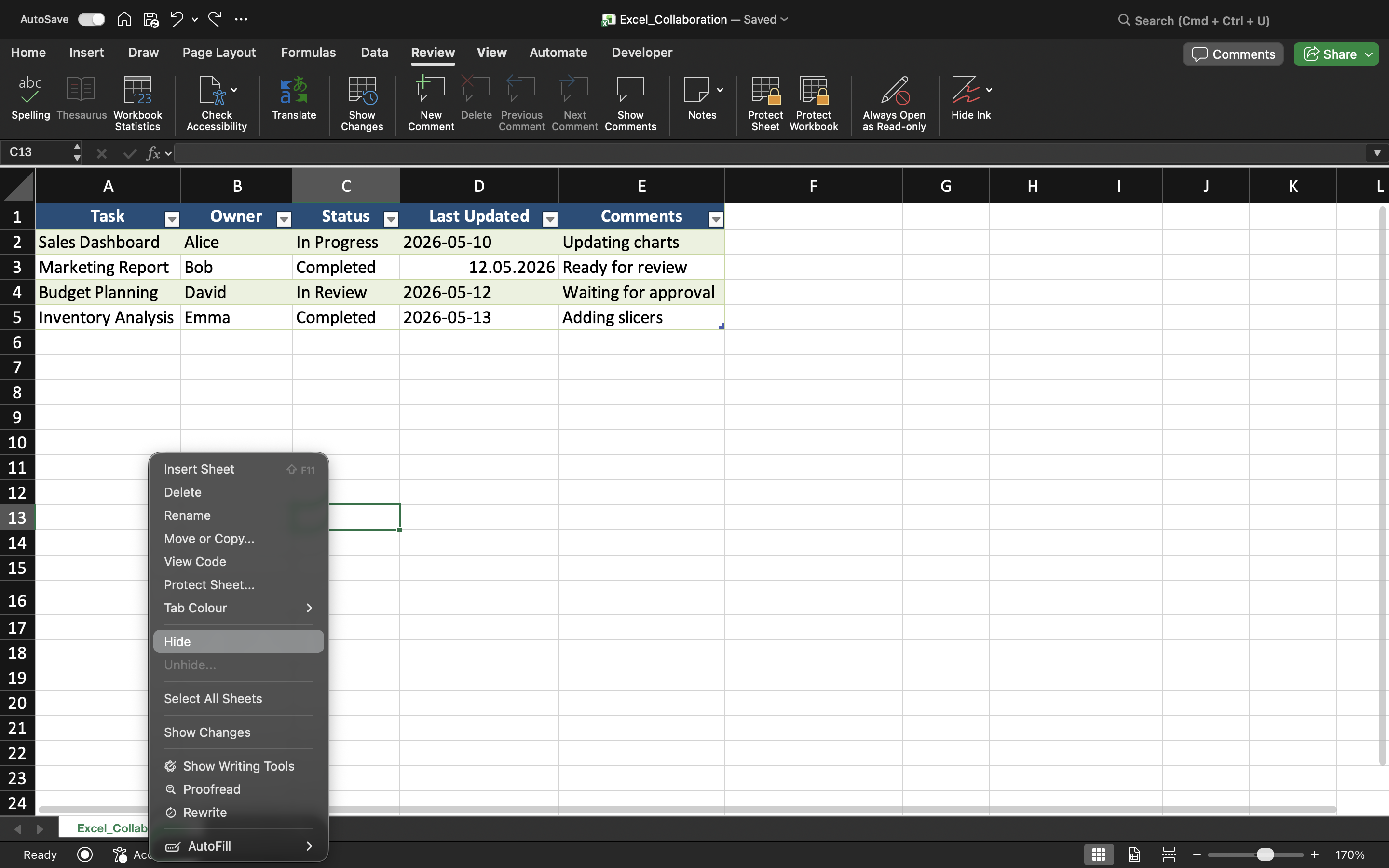
To hide a worksheet:
- Right-click the worksheet tab;
- Select Hide.
Hidden worksheets are often used for supporting calculations, archived data, helper tables, or administrative information. This helps create cleaner and more organized workbook interfaces.
Unhiding Worksheets
If workbook structure protection is disabled, hidden worksheets can be restored through the Unhide option. However, when workbook structure protection is active, collaborators may be prevented from unhiding sheets themselves. This adds another layer of organizational control inside shared workbooks.
When Workbook Structure Protection Is Useful
Workbook structure protection is especially helpful when teams collaborate inside complex workbook systems or dashboards with carefully organized worksheet layouts.
Without structural protection, collaborators may accidentally reorganize worksheet tabs, remove important sheets, or disrupt workbook navigation.
Task
The workbook contains a shared reporting system with multiple worksheets and hidden calculation tabs. The goal is to protect workbook organization and prevent structural changes during collaboration.
- Protect the workbook structure;
- Hide selected worksheets;
- Attempt to rename or move worksheet tabs;
- Verify that structural changes are restricted;
- Test unhiding worksheets before and after protection.
Thanks for your feedback!
Ask AI

Ask AI

Ask anything or try one of the suggested questions to begin our chat
