Protecting Sheets and Cells
Swipe to show menu
Excel allows users to protect worksheets and lock important cells to prevent accidental edits. This is especially useful when shared workbooks contain formulas, calculations, templates, or important business data.
Worksheet protection helps maintain workbook accuracy while still allowing collaborators to interact with selected areas of the file.
Understanding Locked Cells
In Excel, all worksheet cells are technically marked as Locked by default. However, this setting only becomes active after worksheet protection is enabled.
This means users can normally edit locked cells until the worksheet is protected.
Protected worksheets are commonly used to:
- Prevent formula deletion;
- Restrict editing access;
- Protect reporting structures;
- Control user input areas.
Protecting a Worksheet
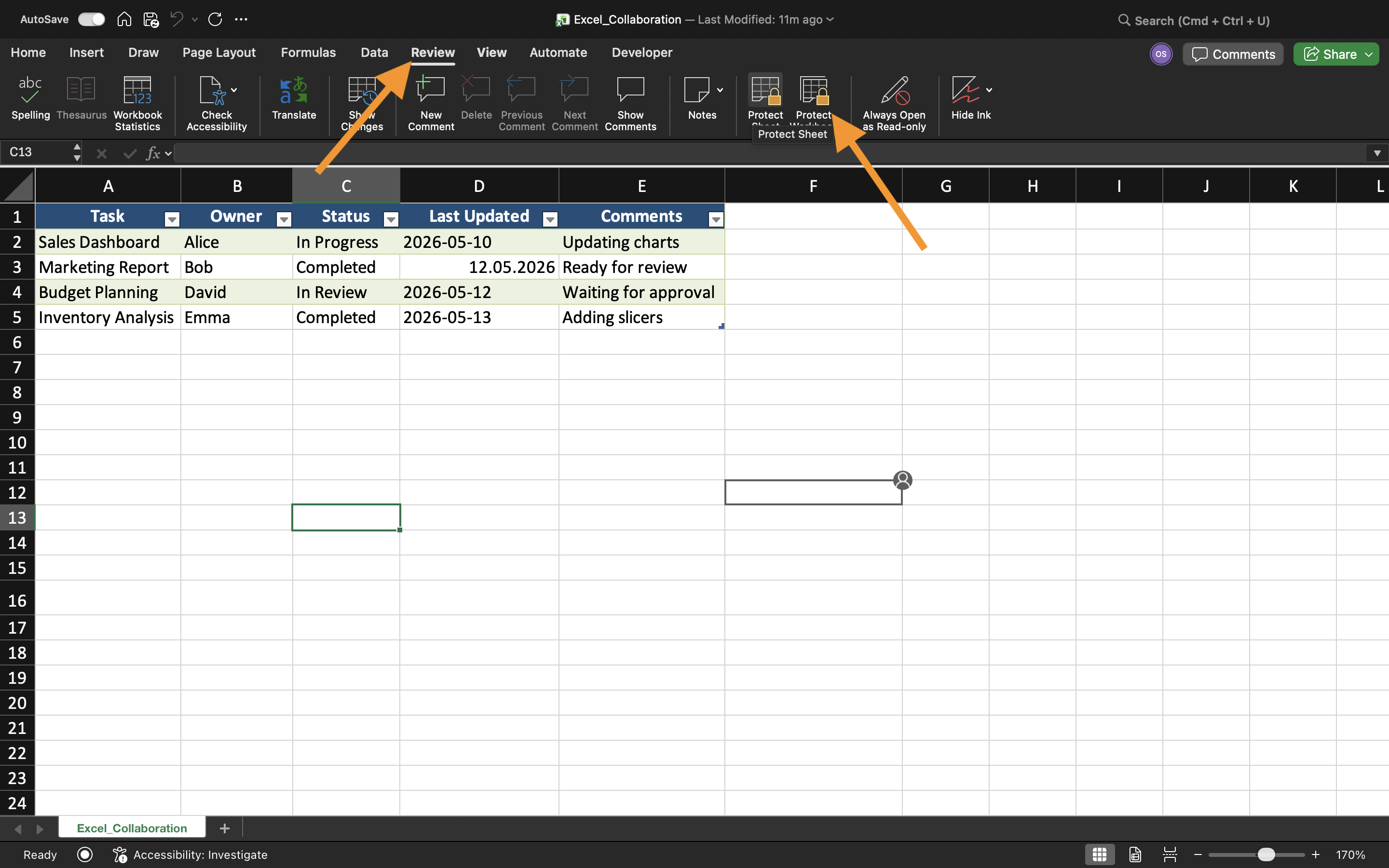
To protect a worksheet:
- Open the worksheet;
- Select the Review tab;
- Choose Protect Sheet;
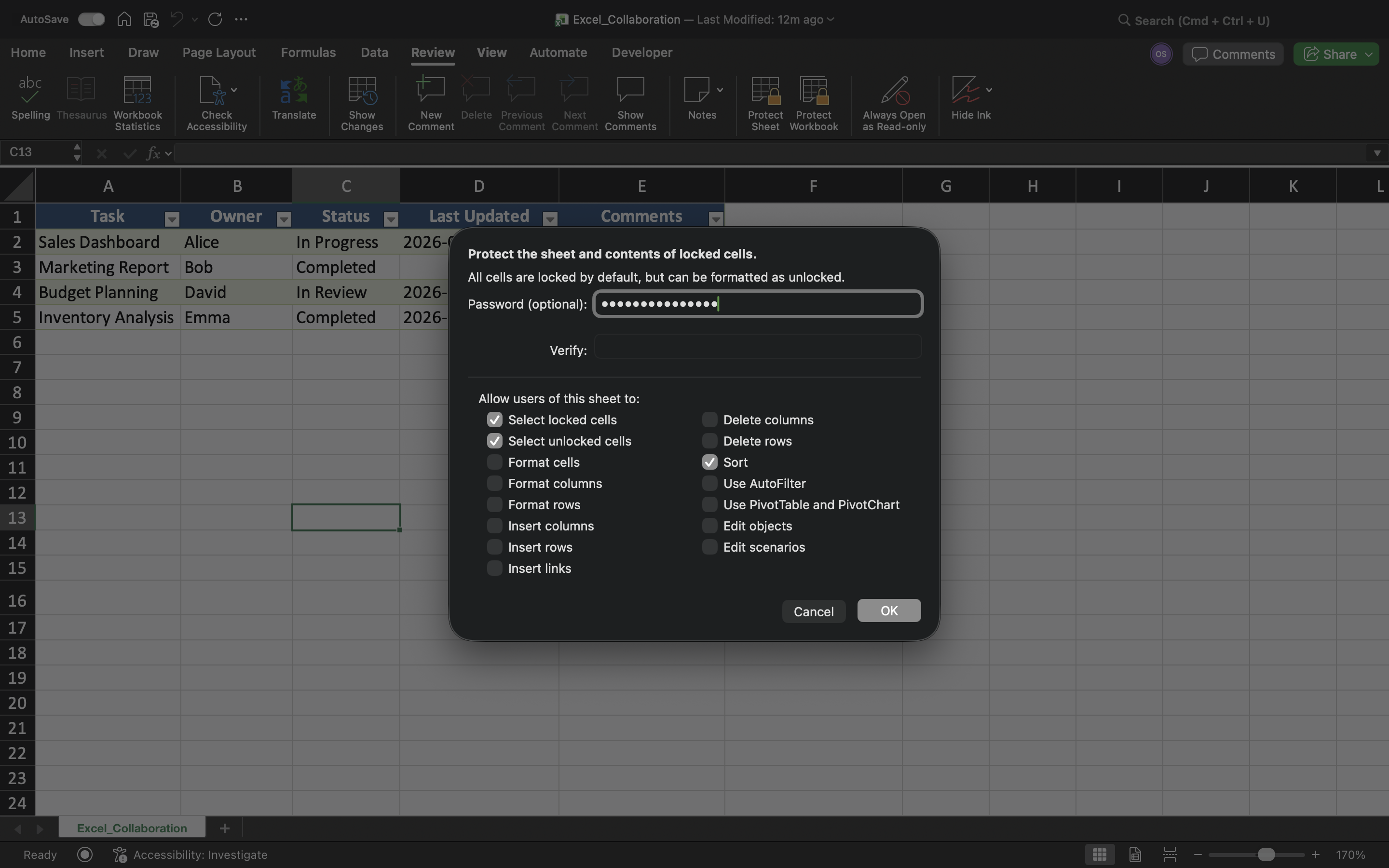
- Configure protection settings;
- Apply the protection.
Excel can restrict actions such as editing cells, deleting rows, inserting columns, or changing worksheet formatting.
Allowing Editable Input Areas
Although worksheet protection restricts editing, specific cells can still remain editable.
To create editable areas:
- Select the input cells;
- Open Format Cells;
- Disable the Locked setting;
- Protect the worksheet.
Protecting Formulas
One of the main reasons for worksheet protection is preventing accidental formula changes.
Without protection, collaborators may accidentally:
- Delete formulas;
- Overwrite calculations;
- Break worksheet logic;
- Change important references.
Protection Limitations
Worksheet protection improves workbook safety, but it is not designed as advanced security encryption. Experienced users may still bypass weak protection methods.
Because of this, worksheet protection should mainly be viewed as a tool for preventing accidental edits rather than fully securing sensitive business data.
Task
The workbook contains a shared expense tracker used by multiple employees. The goal is to protect formulas and worksheet structure while allowing users to edit only selected input areas.
- Protect the worksheet using Protect Sheet;
- Lock formula cells;
- Create editable input areas;
- Test editing restrictions;
- Verify that protected cells cannot be modified.
Thanks for your feedback!
Ask AI

Ask AI

Ask anything or try one of the suggested questions to begin our chat
