Real-Time Editing
Swipe to show menu
One of the biggest advantages of cloud-based Excel workbooks is real-time collaboration. Multiple users can work inside the same file simultaneously without creating separate workbook copies.
When a shared workbook is stored in OneDrive or SharePoint, Excel synchronizes updates automatically across all collaborators.
Understanding Co-Authoring
Real-time collaboration in Excel is commonly called co-authoring. This allows several users to edit the workbook at the same time.
When collaborators open the same file:
- Excel displays active users near the top-right corner;
- Changes appear automatically as users edit the workbook;
- Updates synchronize continuously in the background.
This creates a much faster workflow compared to sending updated workbook attachments manually.
Seeing Live Workbook Changes
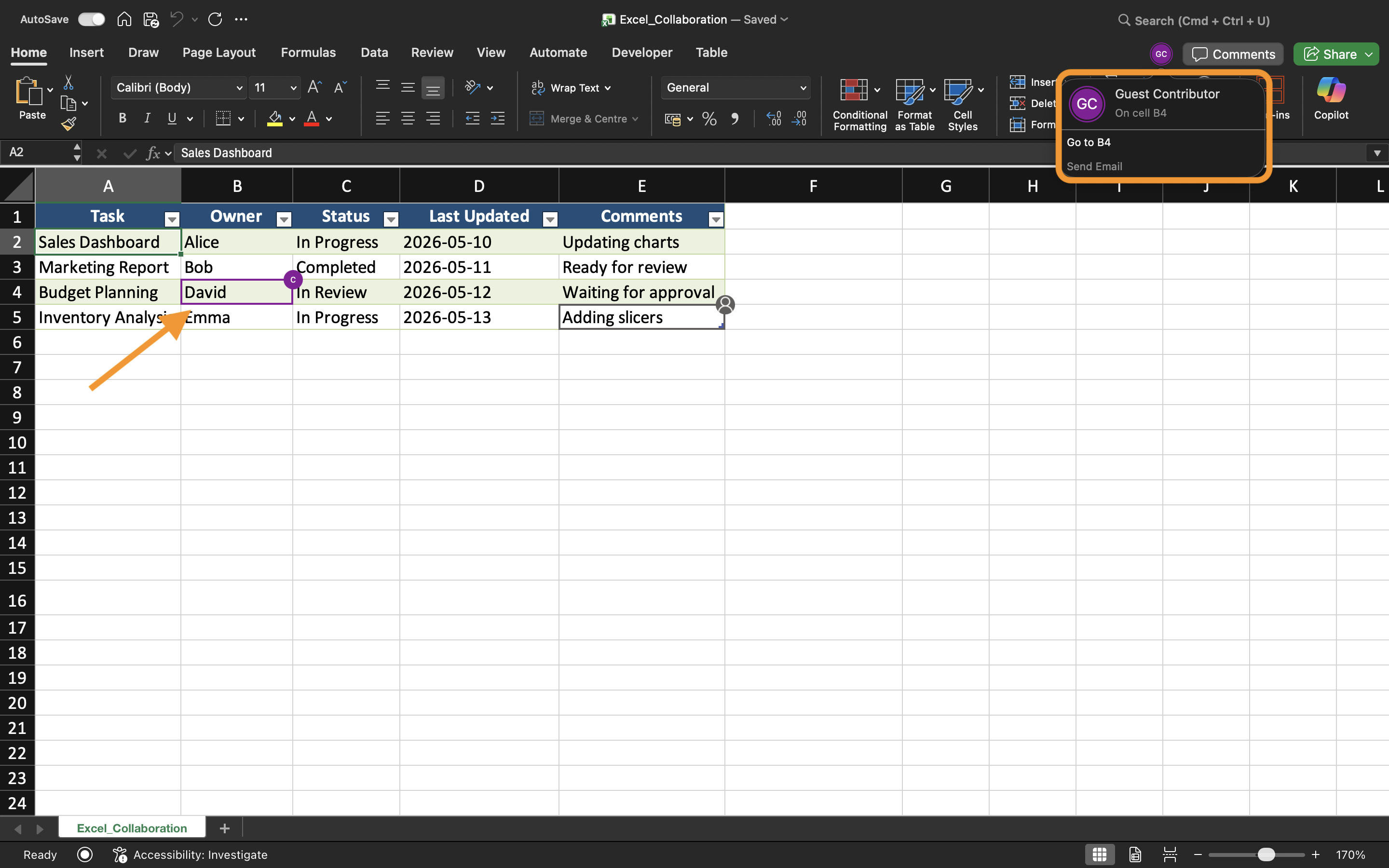
As collaborators edit the workbook, Excel updates cells in real time. Users may notice highlighted selections or indicators showing where another person is currently working.
For example, if one user updates sales numbers while another edits regional data, both changes can appear almost instantly across the shared workbook.
This helps teams stay synchronized during collaborative work sessions.
Avoiding Editing Conflicts
Although Excel handles most synchronization automatically, conflicts can still occur when multiple users edit the same cells simultaneously.
To reduce editing issues:
- Assign different worksheet areas to collaborators;
- Communicate before making large structural changes;
- Avoid deleting worksheets during active collaboration;
- Keep AutoSave enabled.
These practices help maintain smoother shared workflows.
Working Across Desktop and Web Excel
Real-time collaboration works in both the Excel Desktop App and Excel for the Web. Users can collaborate even when working from different devices and operating systems.
However, some advanced Excel features may behave differently depending on the platform being used. For the best collaboration experience, teams should try to use compatible Excel versions whenever possible.
Benefits of Real-Time Editing
Real-time editing improves teamwork by making collaboration faster and more transparent. Teams can review updates immediately, reduce communication delays, and avoid confusion caused by outdated workbook copies.
This workflow is especially useful for:
- Budget planning;
- Sales reporting;
- Project tracking;
- Team scheduling;
- Operational dashboards.
Task
The workbook contains a shared quarterly sales report managed by multiple department members. The goal is to test real-time collaboration and observe how workbook updates synchronize between users.
- Open the shared workbook from two separate devices or browser sessions;
- Edit different worksheet areas simultaneously;
- Observe how Excel synchronizes workbook changes;
- Verify that updates appear automatically for all collaborators;
- Test collaboration using both Desktop Excel and Excel for the Web.
Thanks for your feedback!
Ask AI

Ask AI

Ask anything or try one of the suggested questions to begin our chat
