Pie and Doughnut Charts
Swipe to show menu
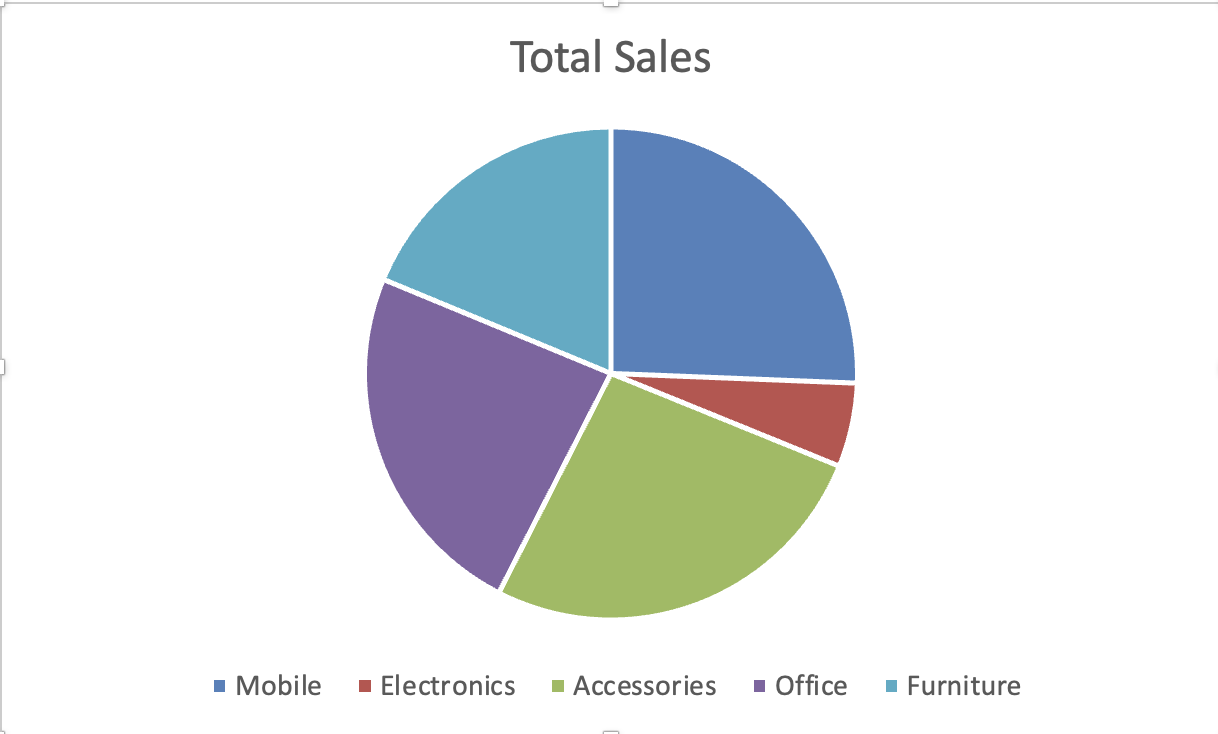
Pie and doughnut charts display proportions. They show how categories contribute to a total. Use them when the goal is to show part-to-whole relationships, not comparison between many categories.
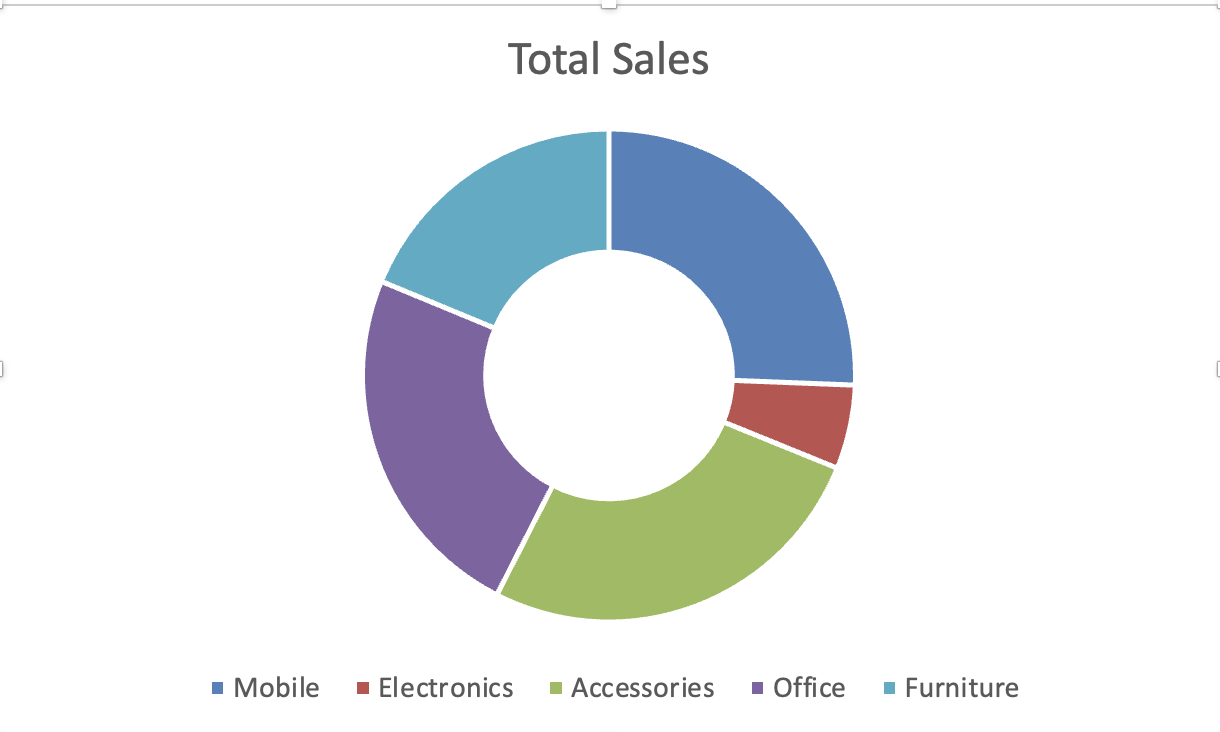
A pie chart displays one circular data series. A doughnut chart displays the same structure with a hollow center and can support multiple series.
Creating a Pie Chart
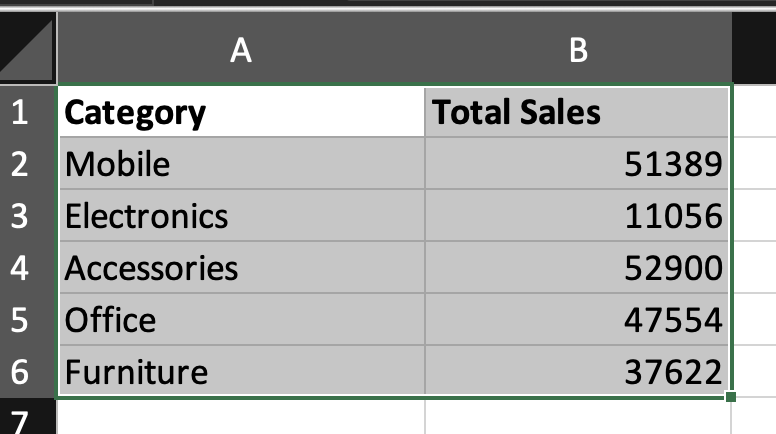
- Select categorical data and corresponding values;
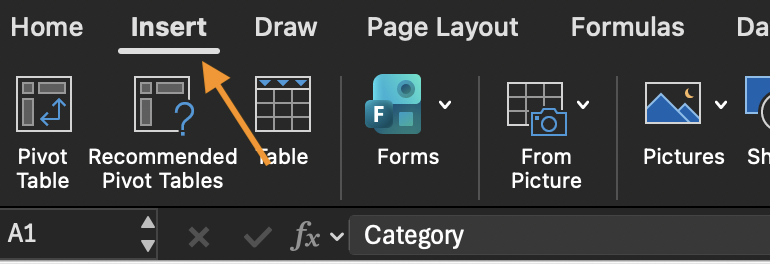
- Go to Insert;
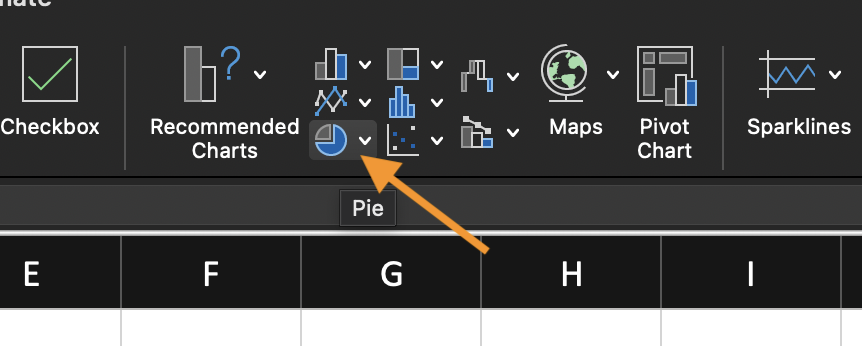
- Choose Pie Chart;
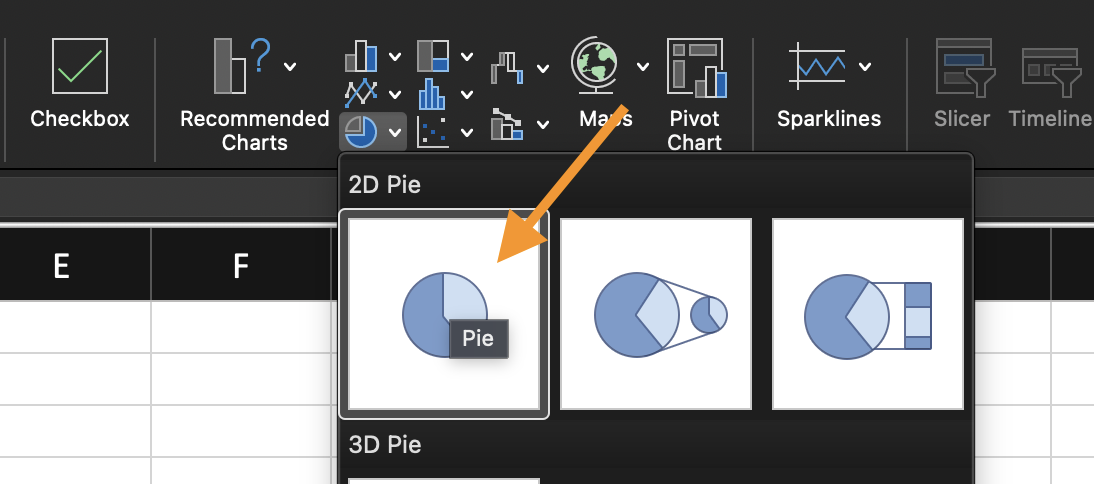
- Select a basic 2-D Pie option.
Each slice represents a percentage of the total.
Switching to Doughnut
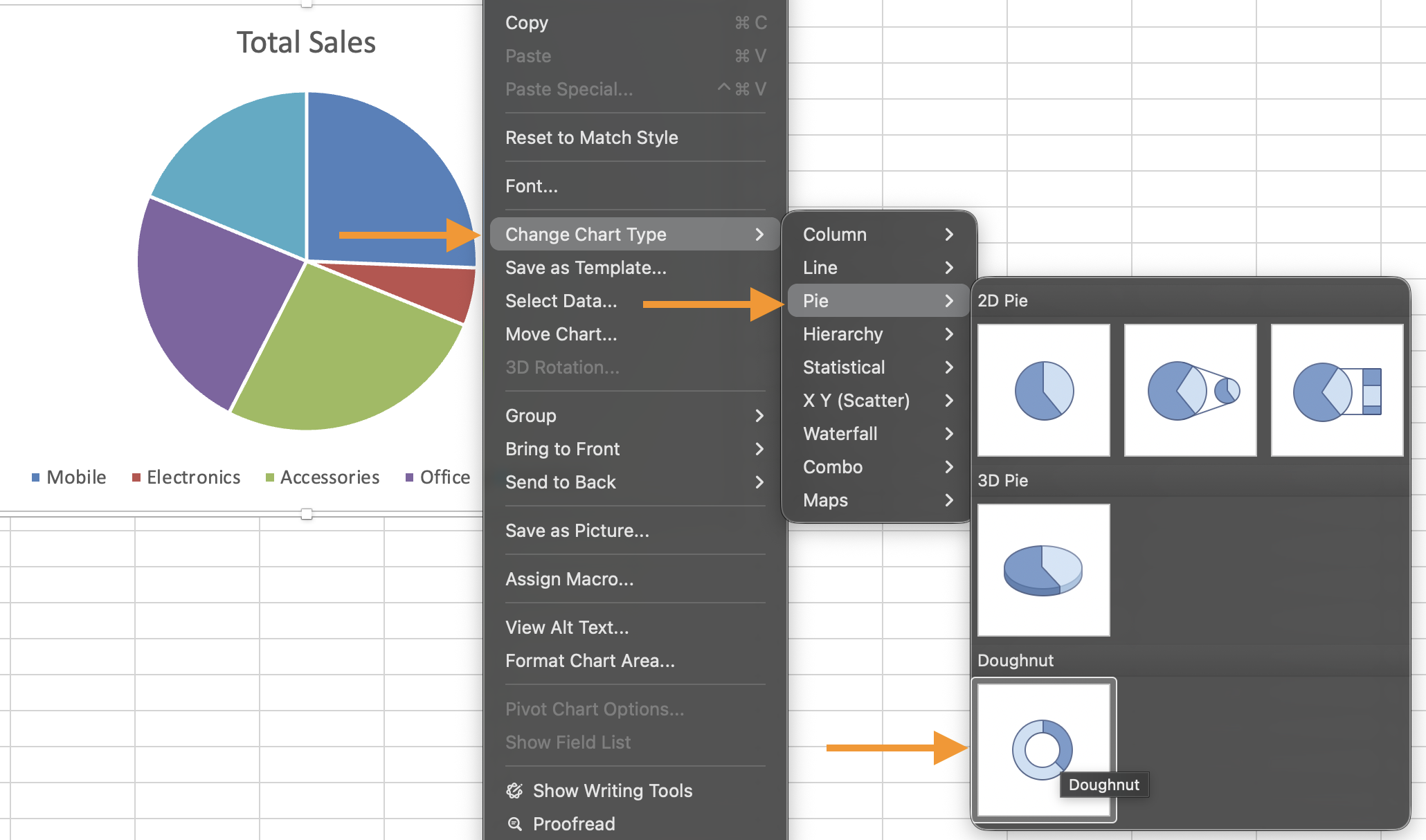
- Select the chart;
- Click Change Chart Type;
- Choose Doughnut Chart.
The underlying data remains the same. Only the visual structure changes.
Important Limitation
Pie and doughnut charts show proportion, not ranking clarity. If the viewer needs to compare slices precisely, a column chart may be more effective.
Using the provided dataset:
- Insert a 2-D Pie Chart;
- Change the chart type to a Doughnut Chart;
- Observe how proportions are displayed in both formats.
Goal: visualize how categories contribute to the total.
Thanks for your feedback!
Ask AI

Ask AI

Ask anything or try one of the suggested questions to begin our chat
