Slicers and Interactive Filtering
Swipe to show menu
Slicers add interactive filtering to charts. They allow users to filter data visually without changing the source manually. Slicers work with Excel Tables and Pivot Tables.
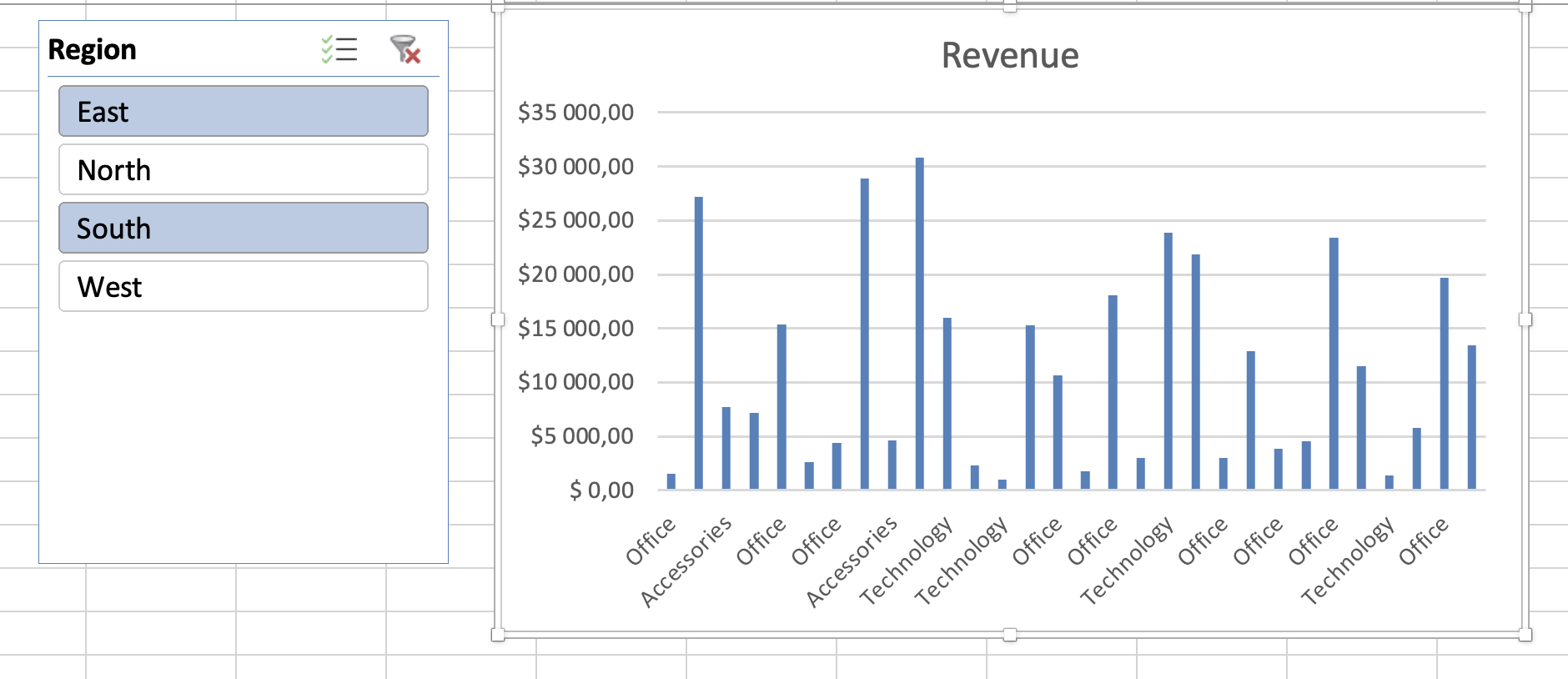
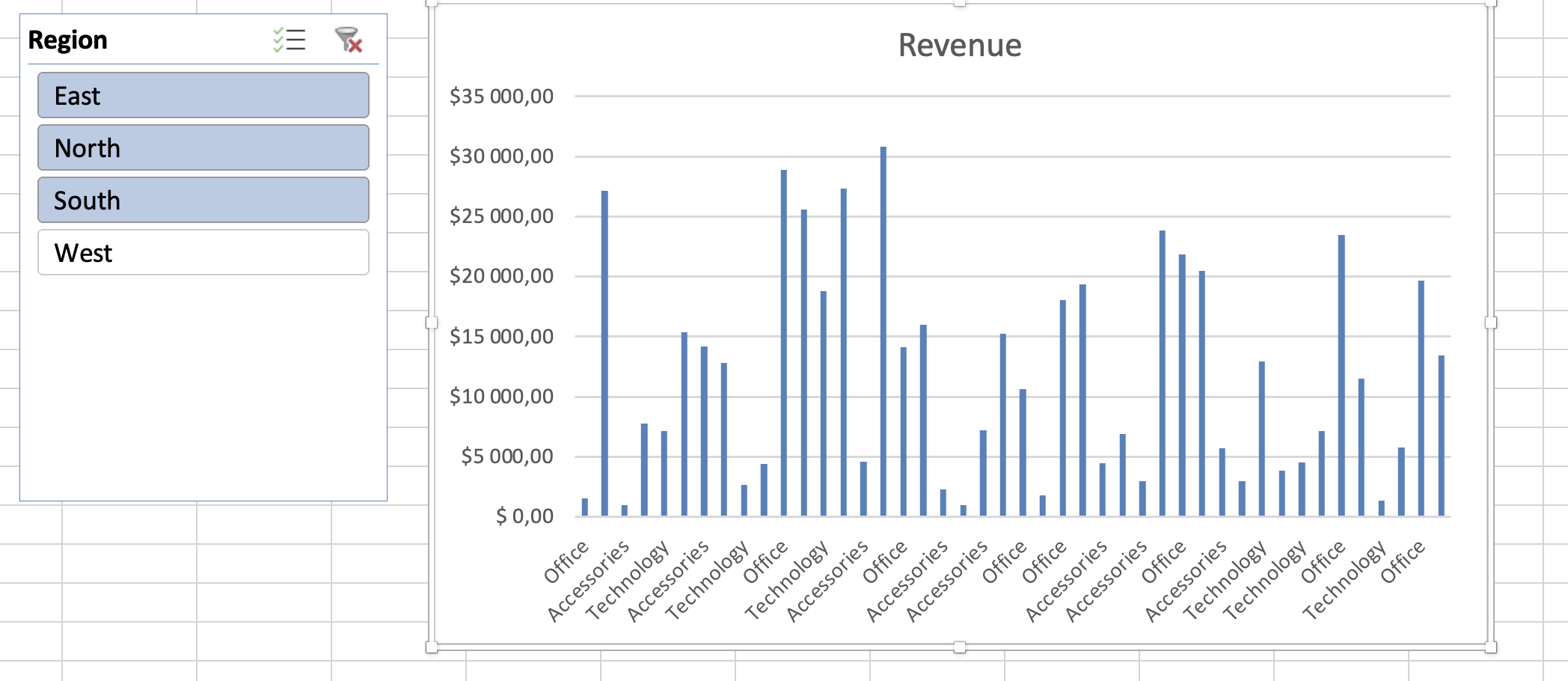
When connected properly, charts update instantly based on slicer selection.

If you want to explore advanced filtering and aggregation with Pivot Tables, consider continuing with the Pivot Tables course after completing this one.
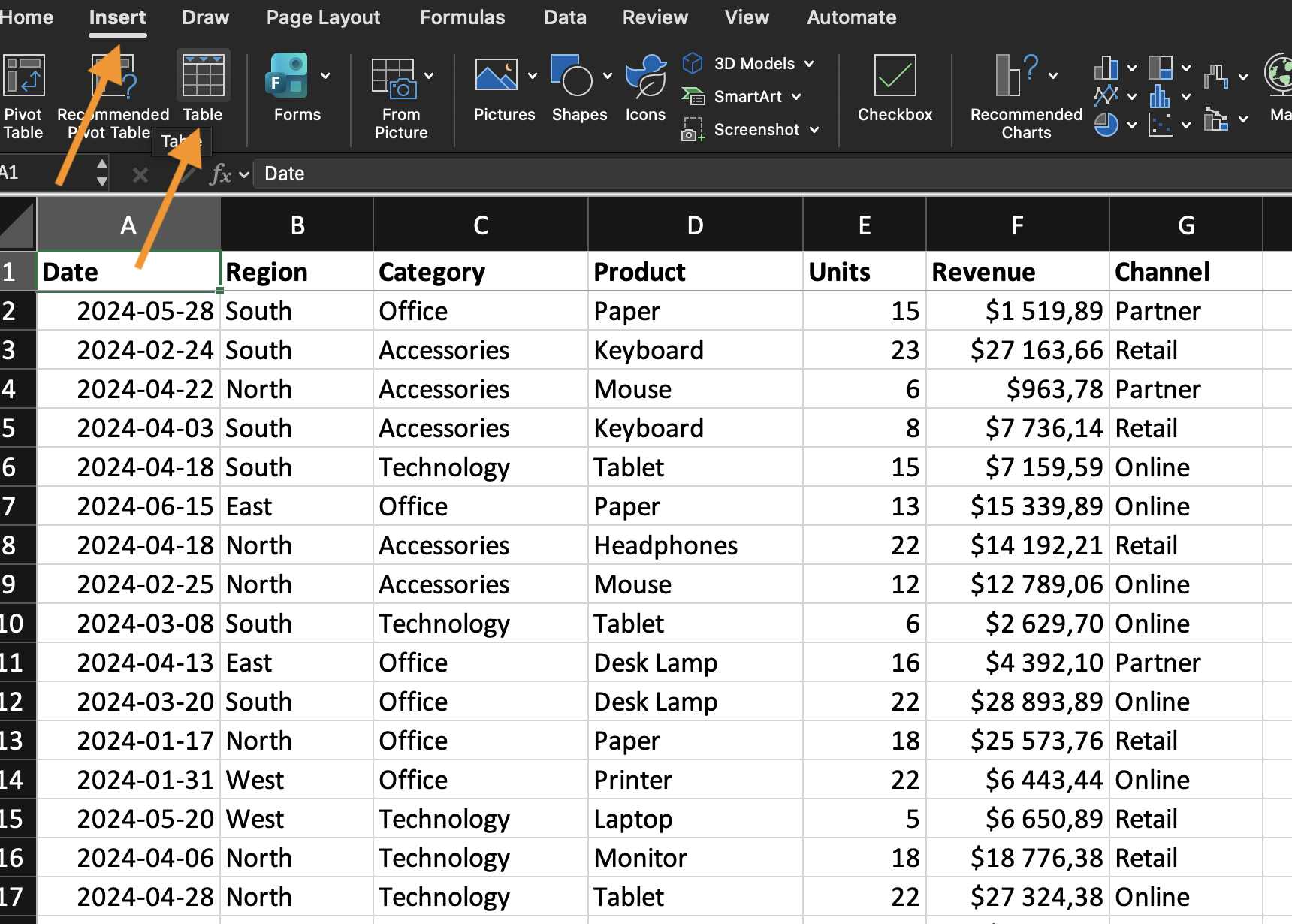
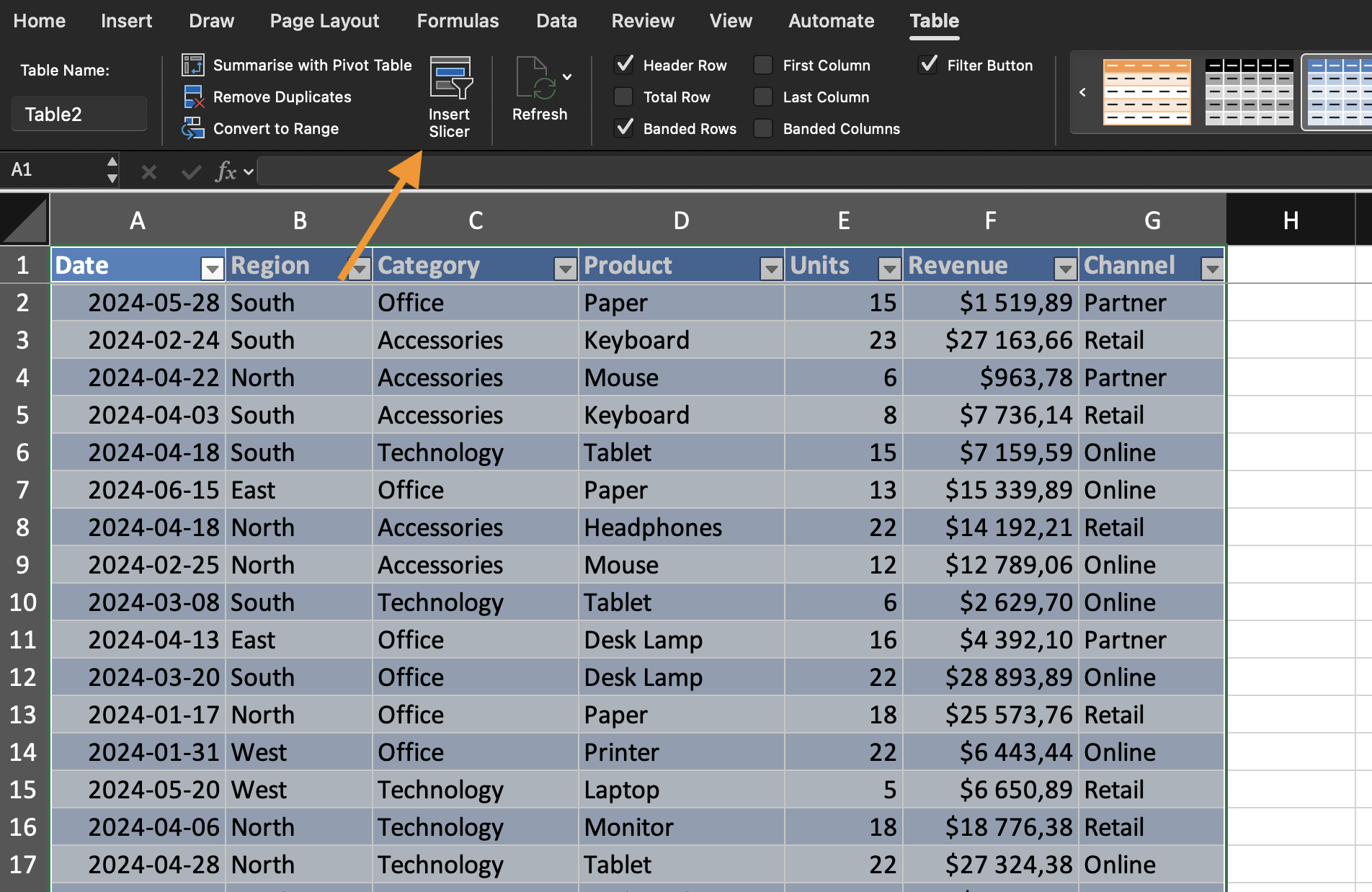
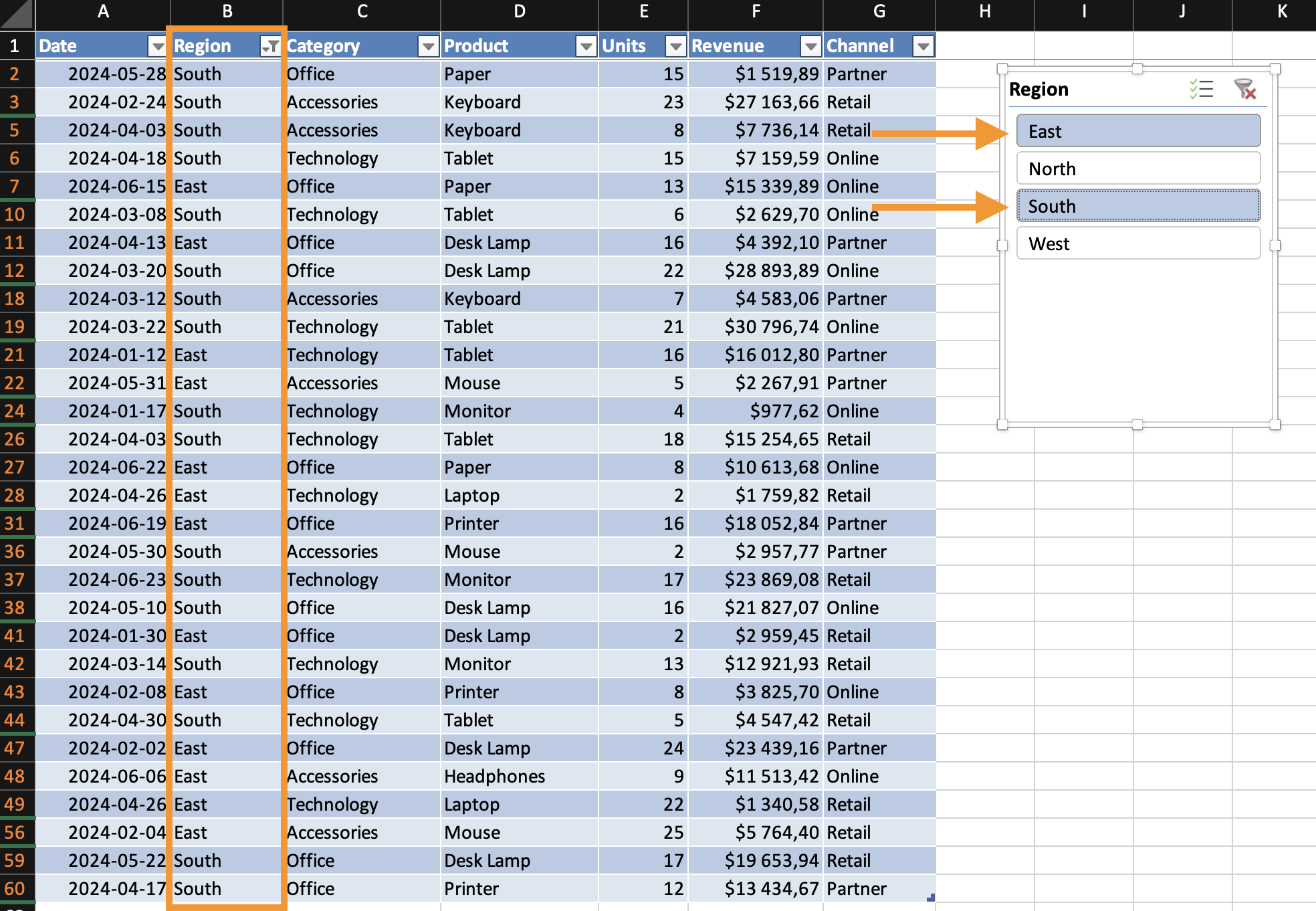
Adding a Slicer to a Table
- Click inside the Excel Table;
- Go to Table Design;
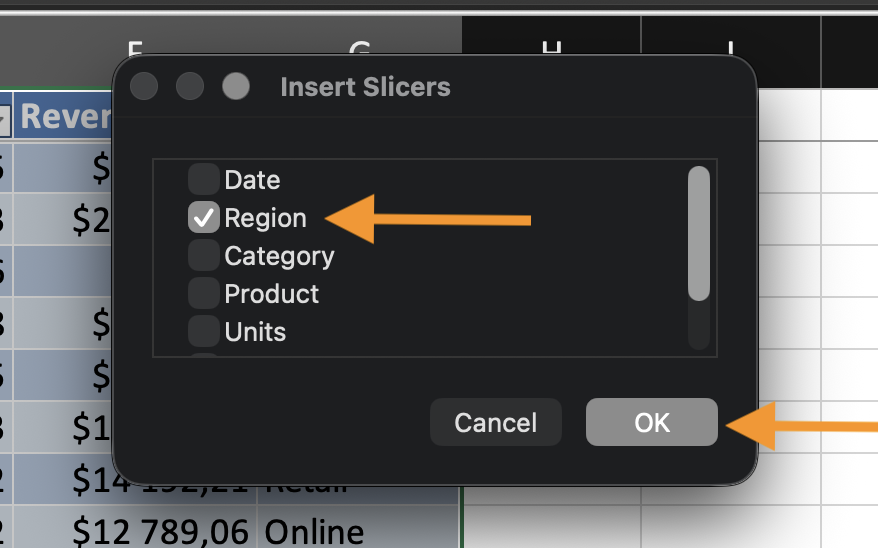
- Click Insert Slicer;
- Select the column you want to filter by.
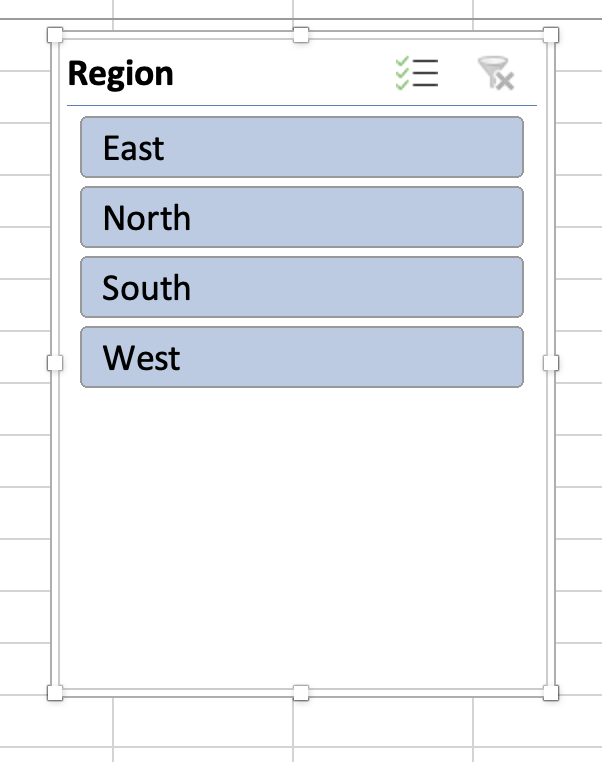
A slicer panel appears with selectable buttons.
Connecting the Chart
If the chart is built from the table:
- Select values in the slicer filters the table;
- The chart updates automatically.
If multiple charts use the same table, they respond to the same slicer.
Using Slicers Effectively
Slicers work best when:
- Filtering by category (Region, Product, Year);
- The dataset contains multiple segments;
- Users need quick comparison.
Avoid adding too many slicers. Too many filters reduce clarity.
Using the provided dataset:
- Convert the dataset into an Excel Table;
- Insert a Slicer for a categorical column;
- Insert a Column or Line Chart from the table;
- Use the slicer to filter the data and observe the chart update;
Goal: control chart output using interactive filters.
Thanks for your feedback!
Ask AI

Ask AI

Ask anything or try one of the suggested questions to begin our chat
