Trendlines and Forecasting
Swipe to show menu
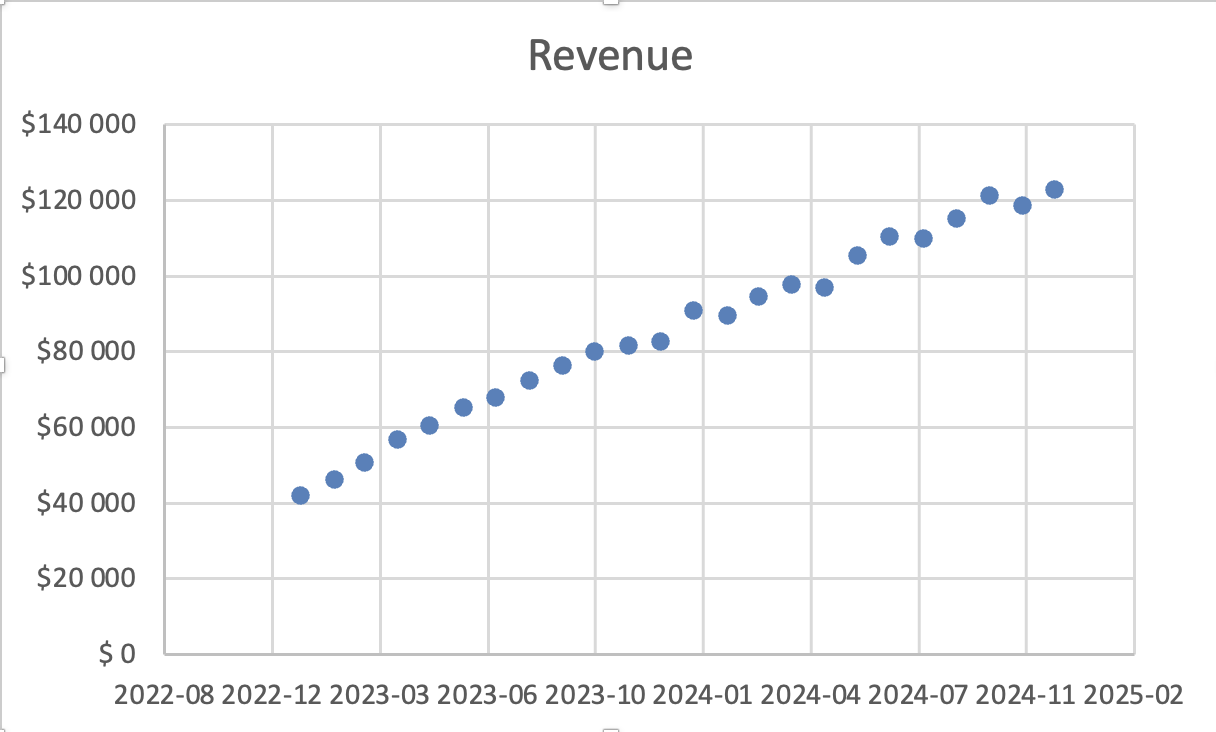
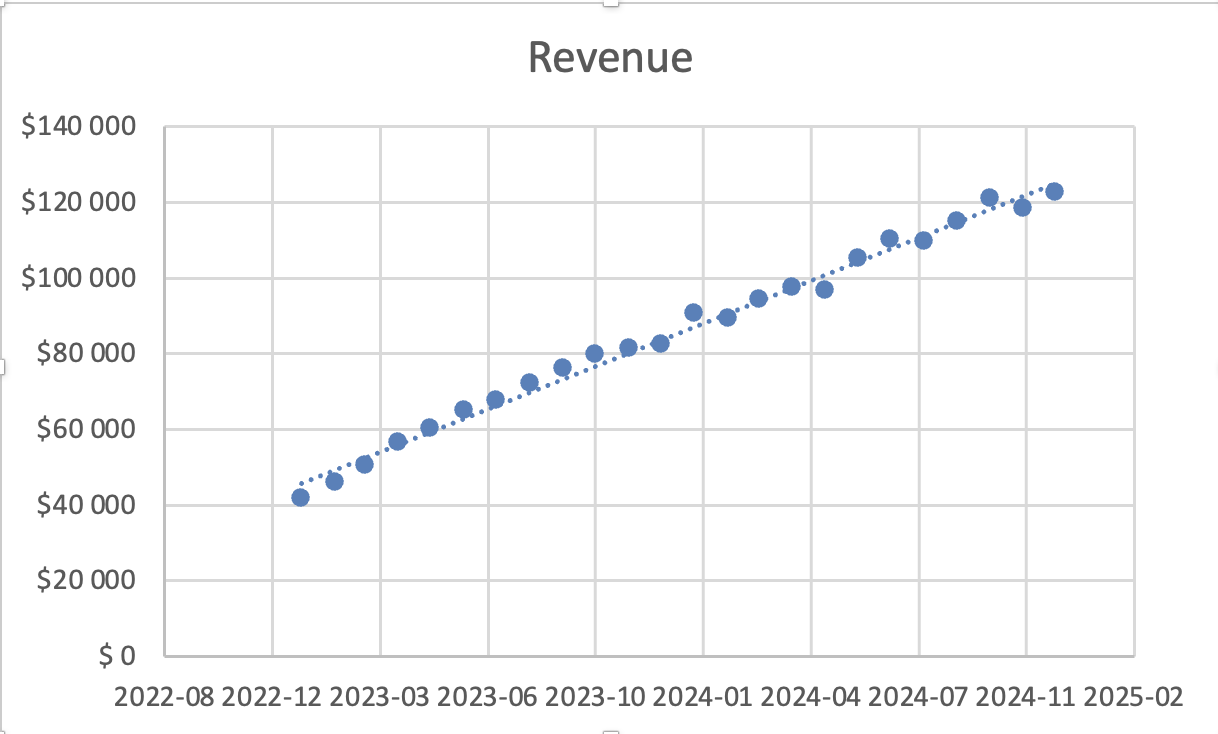
Trendlines highlight patterns in data. They help identify direction and estimate future movement. Trendlines are typically used with line charts and scatter plots.
They show whether the data is increasing, decreasing, or stable.
Adding a Trendline
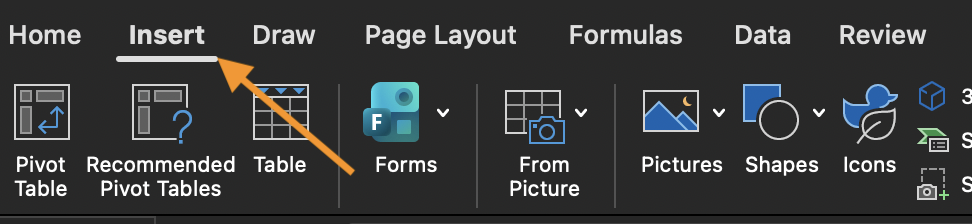
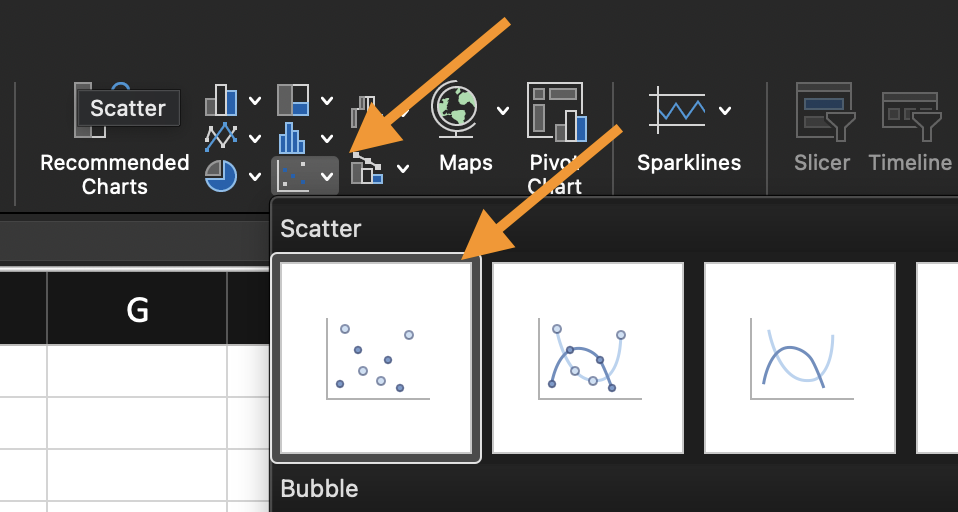
- Insert a Line Chart or Scatter Plot;
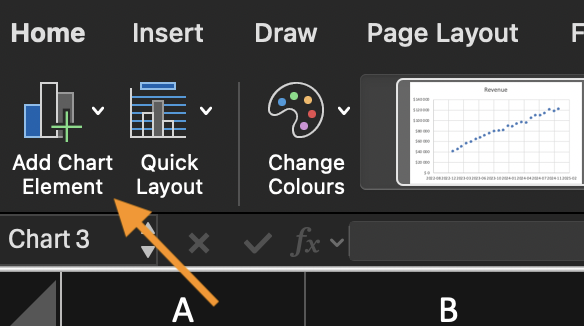
- Find Add Chart Element;
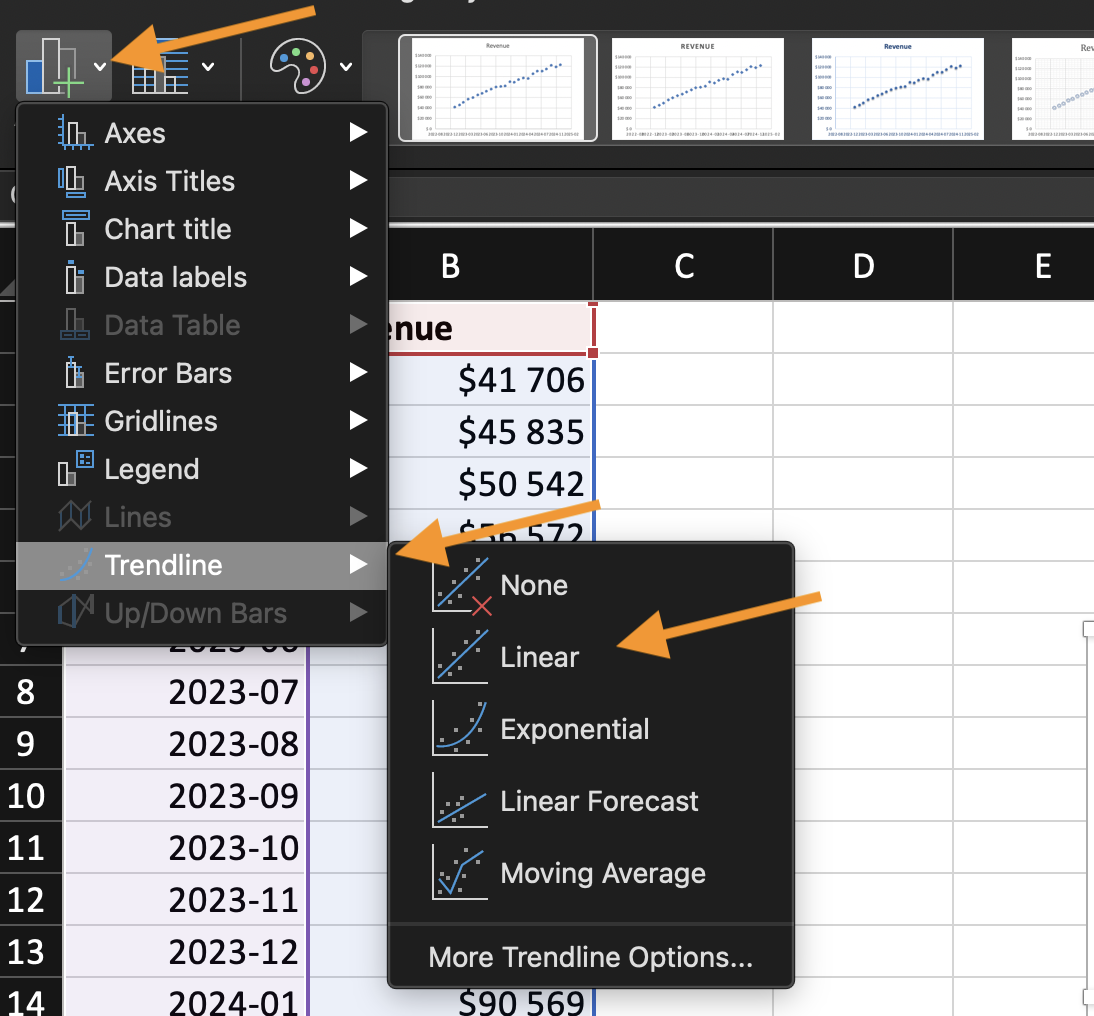
- Click Add Trendline;
- Choose a trendline type (Linear is most common).
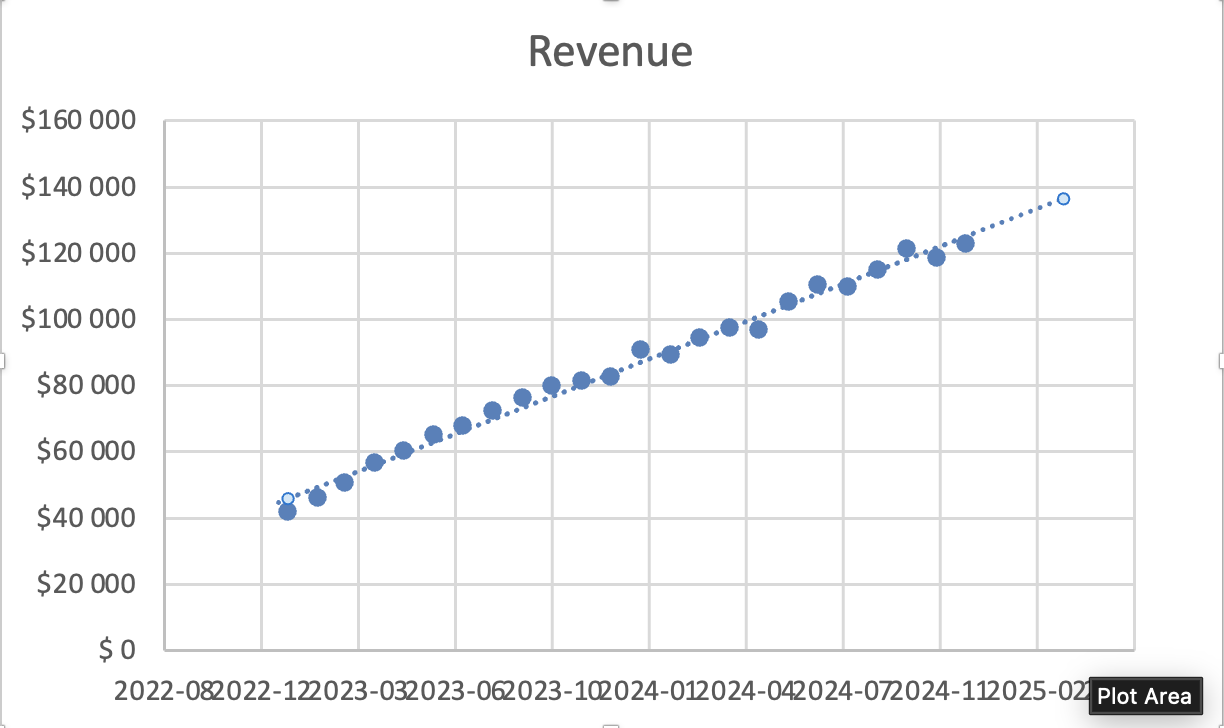
Excel overlays a fitted line based on the selected series.
Trendline Types
- Linear: used when data changes at a steady rate;
- Exponential: used when growth accelerates.
Other types exist, but Linear is sufficient for most business scenarios.
Displaying Forecast
After adding a trendline:
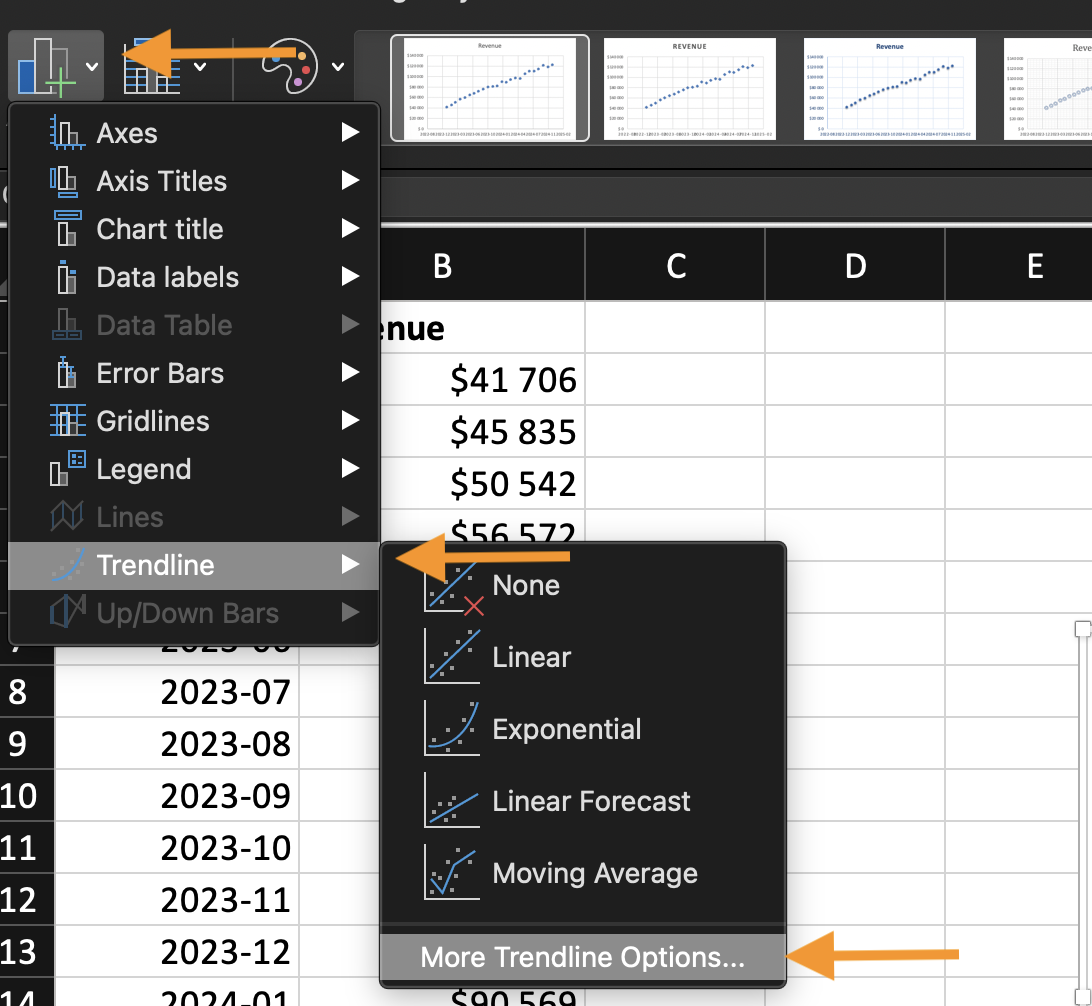
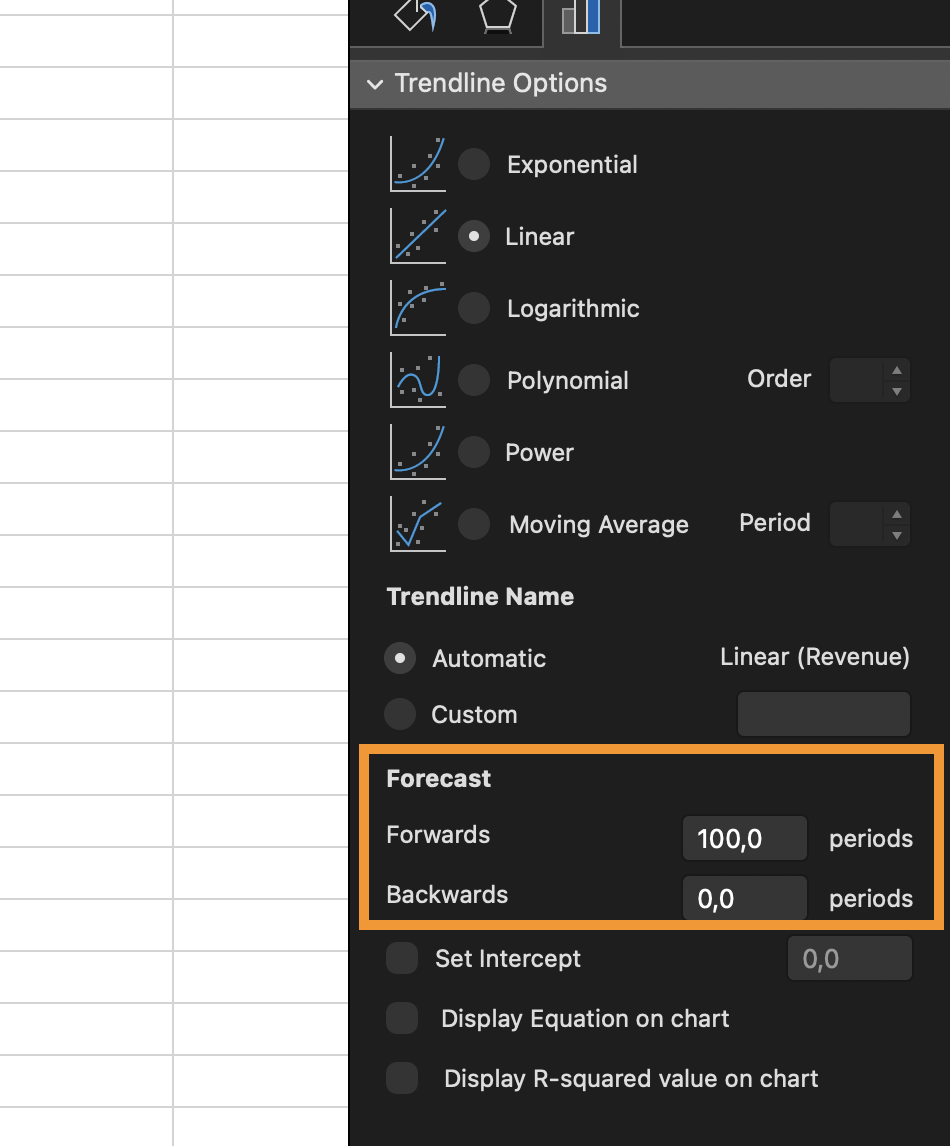
- Open More Trendline Options;
- Set a Forward Forecast period.
Excel extends the line beyond existing data. Forecasting is an estimate. It assumes past patterns continue.
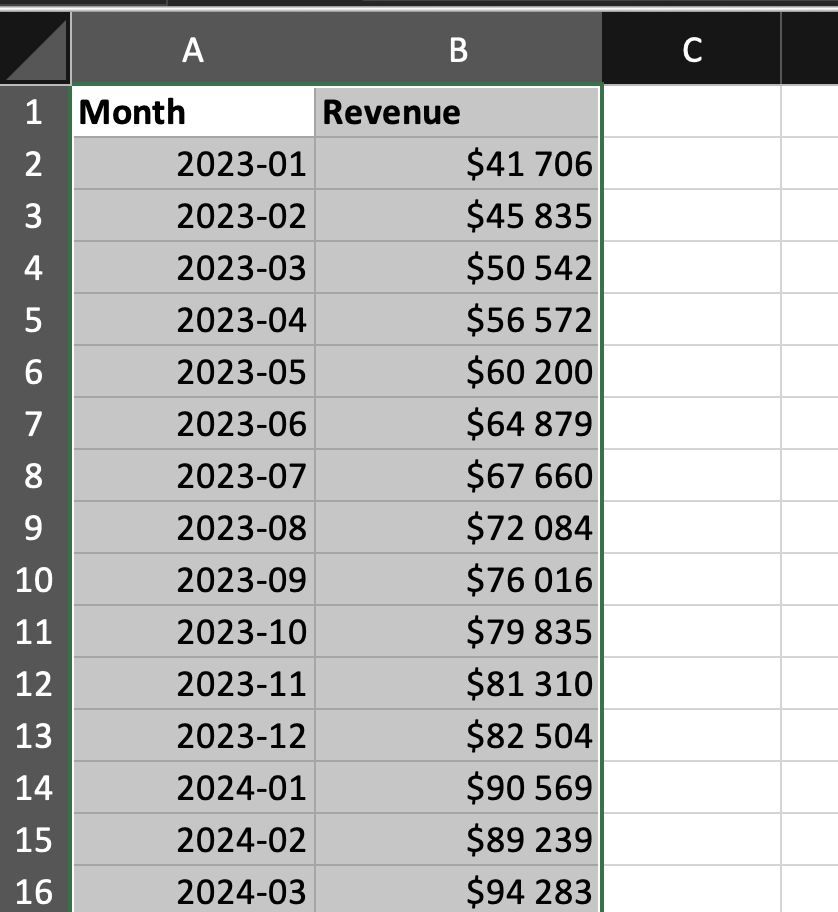
Using the provided dataset:
- Insert a Line Chart;
- Add a Linear Trendline;
- Display a Forward Forecast for the future 5-month period.
Goal: visualize direction and estimate continuation of the trend.
Everything was clear?
Thanks for your feedback!
Section 2. Chapter 2
Ask AI

Ask AI

Ask anything or try one of the suggested questions to begin our chat
