Combo Charts and Secondary Axes
Swipe to show menu
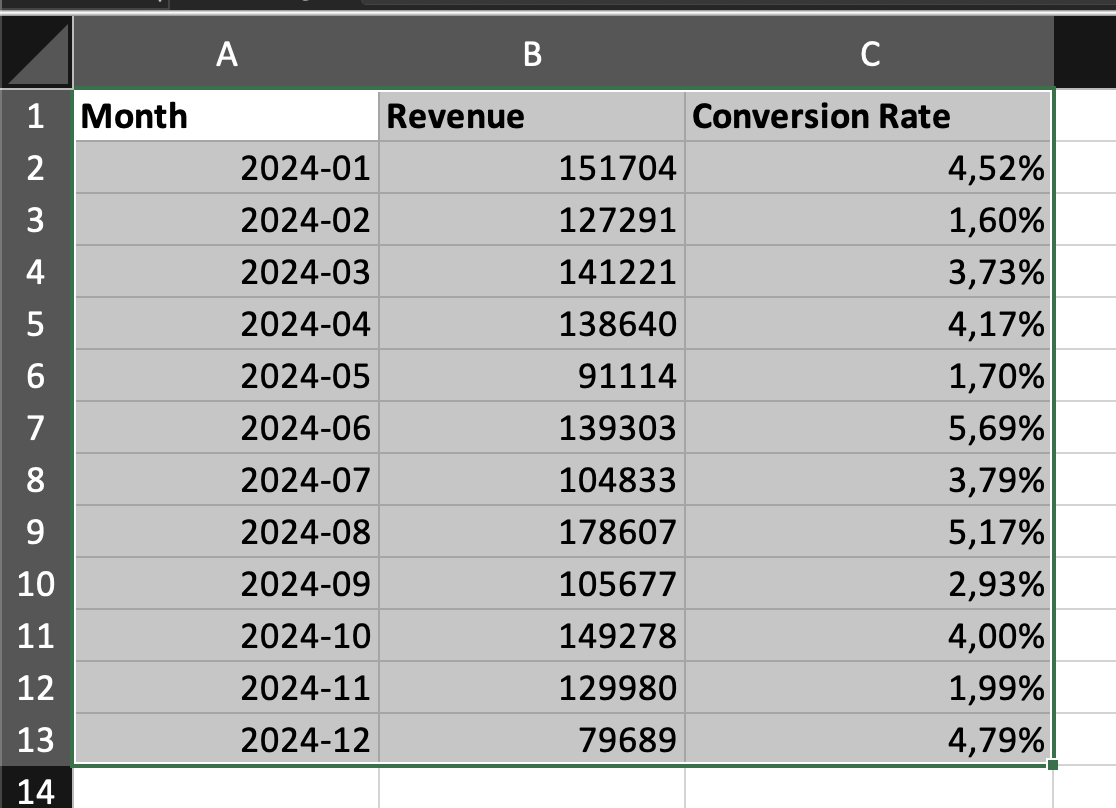
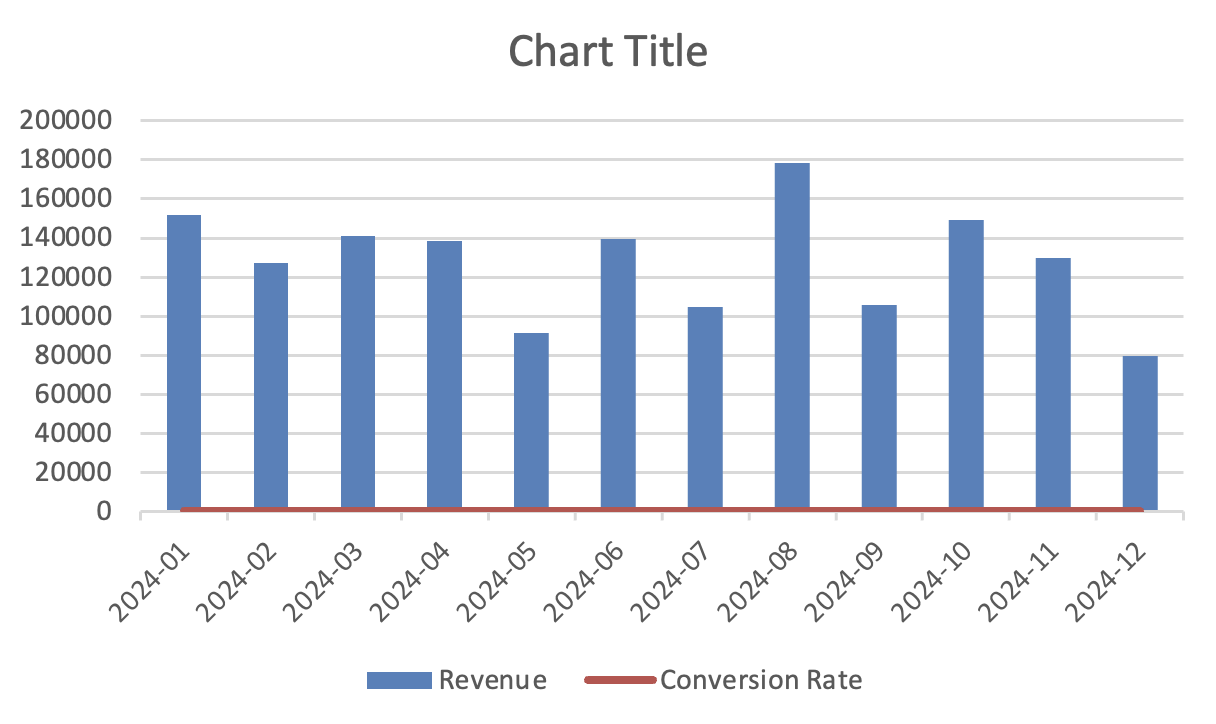
Combo charts combine two chart types in one visualization. They are used when two data series have different scales but need to be shown together. A common example is: revenue (large numbers) and conversion rate (percentage).
If both are plotted on the same axis, one series becomes unreadable. A secondary axis solves this.
Creating a Combo Chart
- Select the dataset with multiple numeric series;
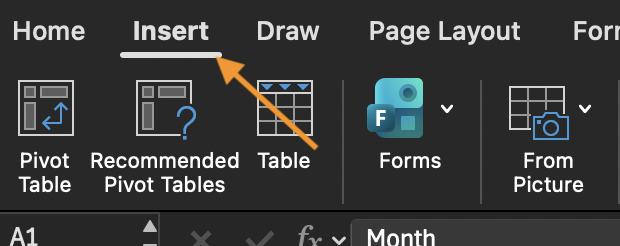
- Go to Insert;
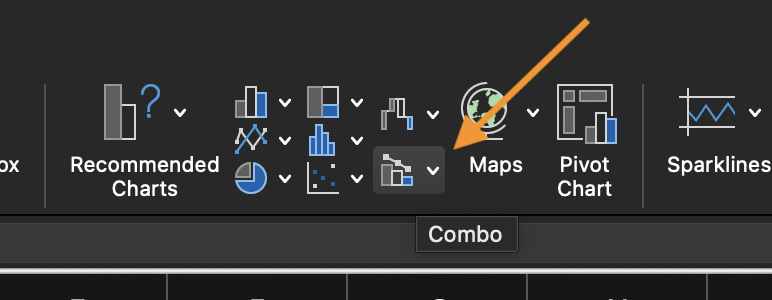
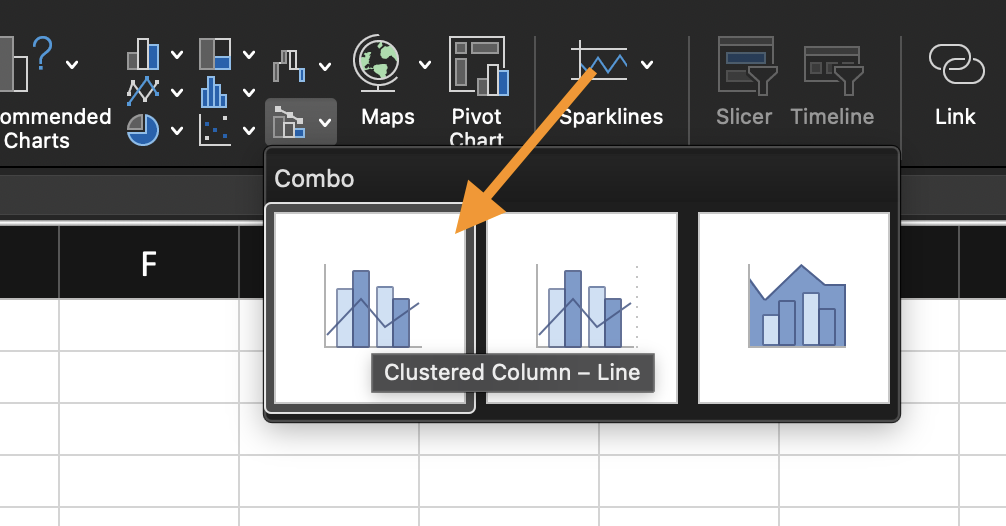
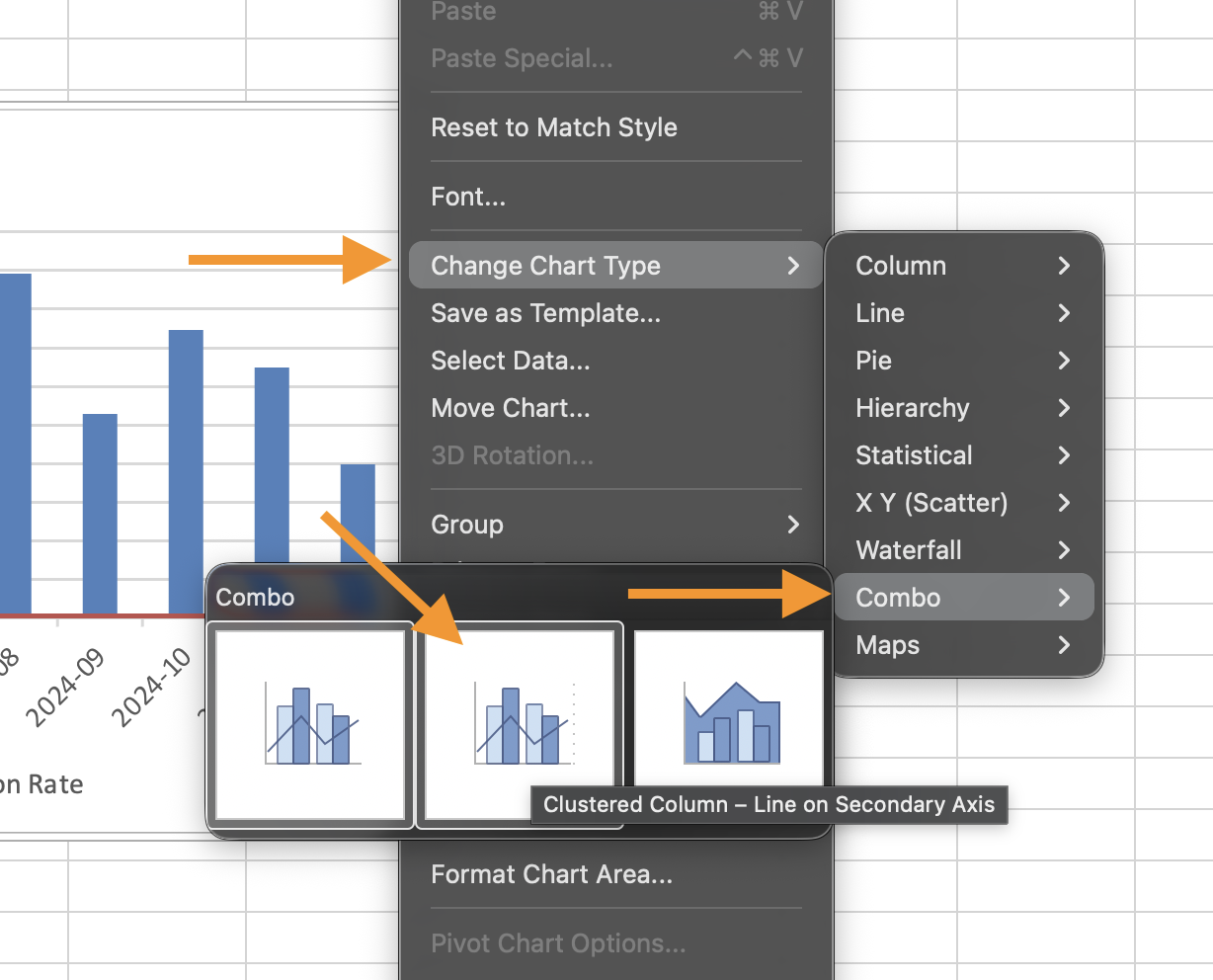
- Choose Combo Chart;
- Assign different chart types to each data series;
- Enable Secondary Axis for the series with a different scale.
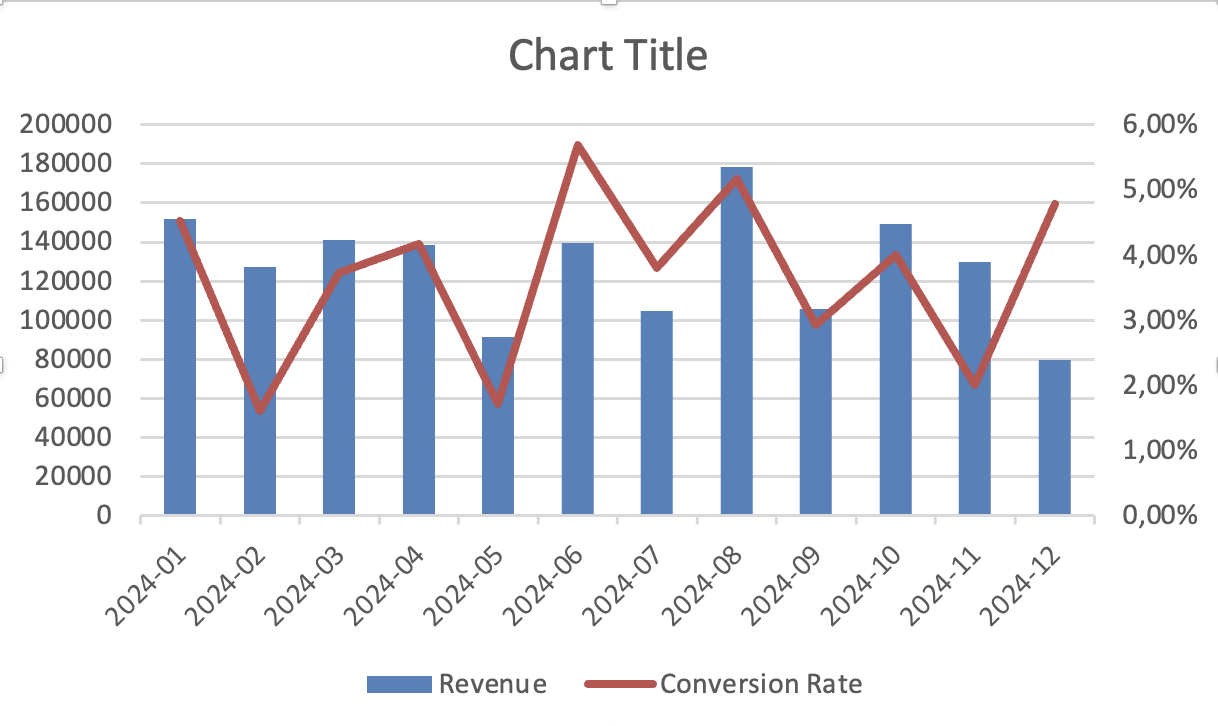
Excel will display one axis on the left and another on the right.
When to Use a Secondary Axis
Using the provided dataset:
- Insert a Combo Chart;
- Set one series as a Column Chart;
- Set the second series as a Line Chart;
- Enable a Secondary Axis for the line series.
Goal: display both series clearly despite different value scales.
Everything was clear?
Thanks for your feedback!
Section 2. Chapter 1
Ask AI

Ask AI

Ask anything or try one of the suggested questions to begin our chat
