Waterfall Charts
Swipe to show menu
Waterfall charts show how individual components contribute to a final total. They are used to visualize cumulative change. Typical use cases are prrofit breakdown, budget changes, revenue to net income bridge.
Waterfall charts help explain how you move from a starting value to an ending value.
Creating a Waterfall Chart
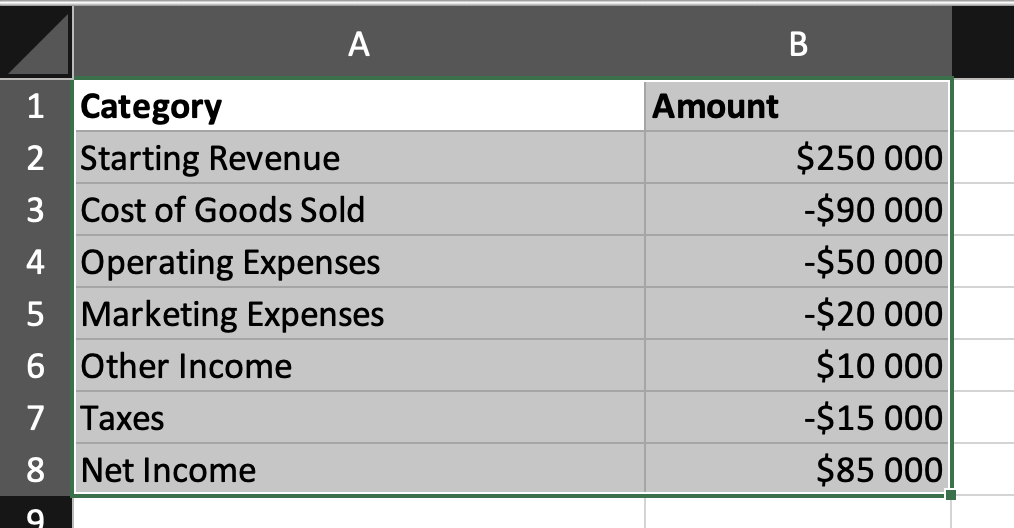
- Select the category and value columns;
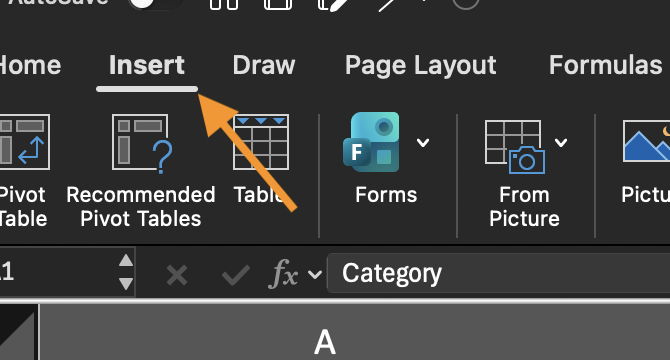
- Go to Insert;
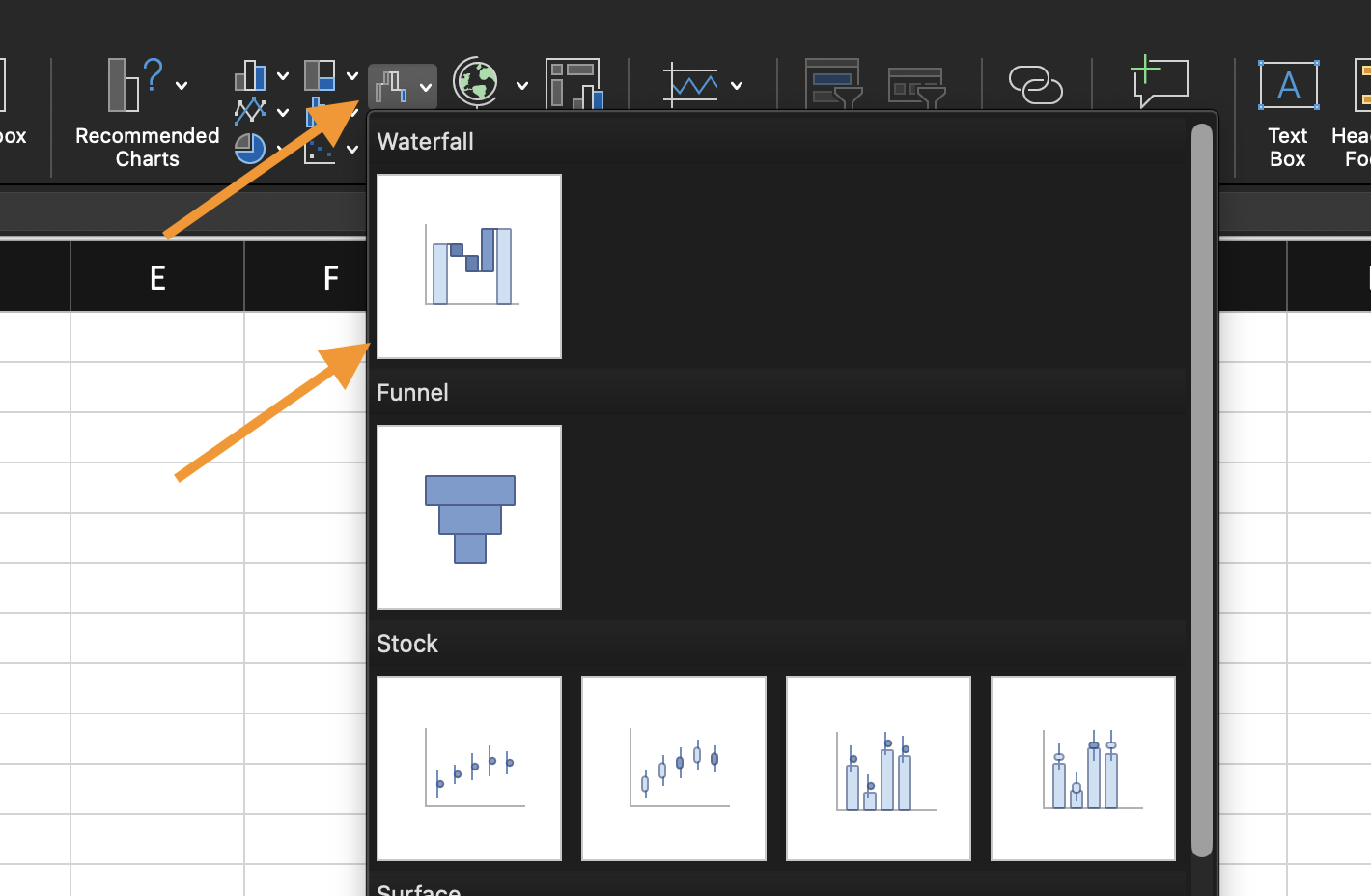
- Choose Waterfall Chart.
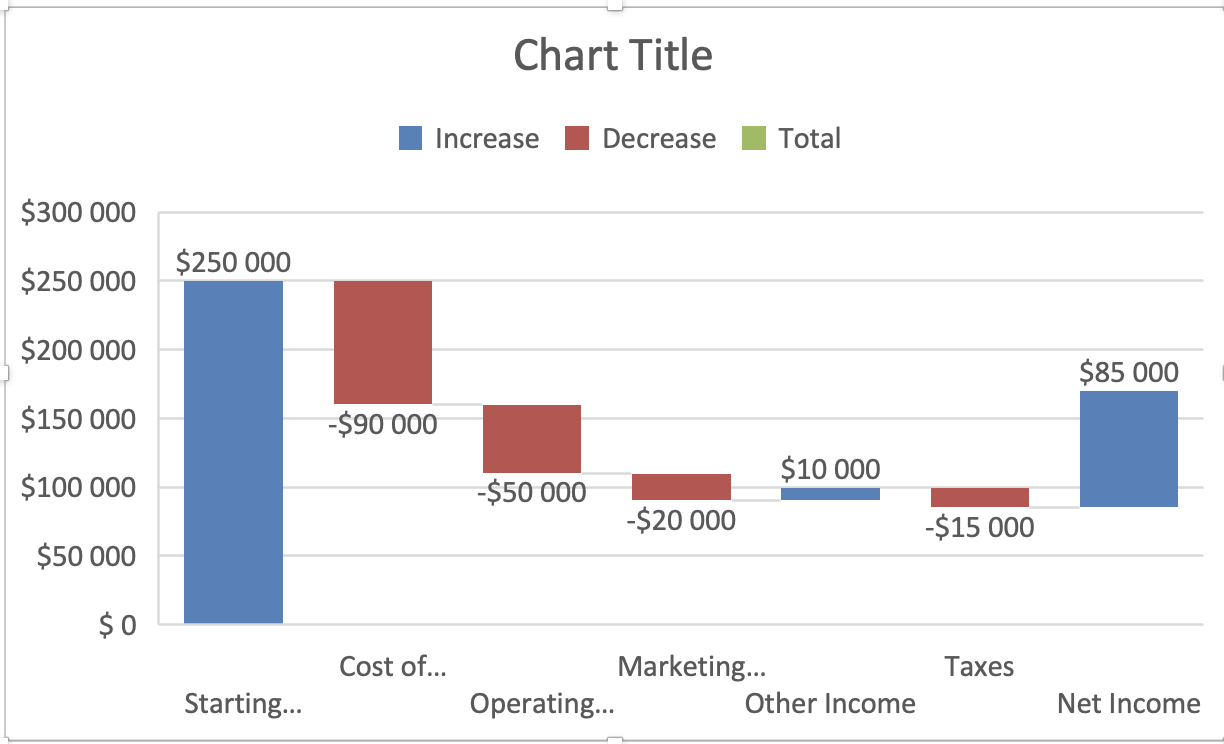
Excel automatically builds cumulative columns based on positive and negative values. Positive values increase the total. Negative values decrease the total.
Setting Total Columns
Some values represent totals rather than changes. To mark a column as a total:
- Select the column in the chart;
- Right-click;
- Choose Set as Total.
This prevents Excel from treating it as a cumulative change.
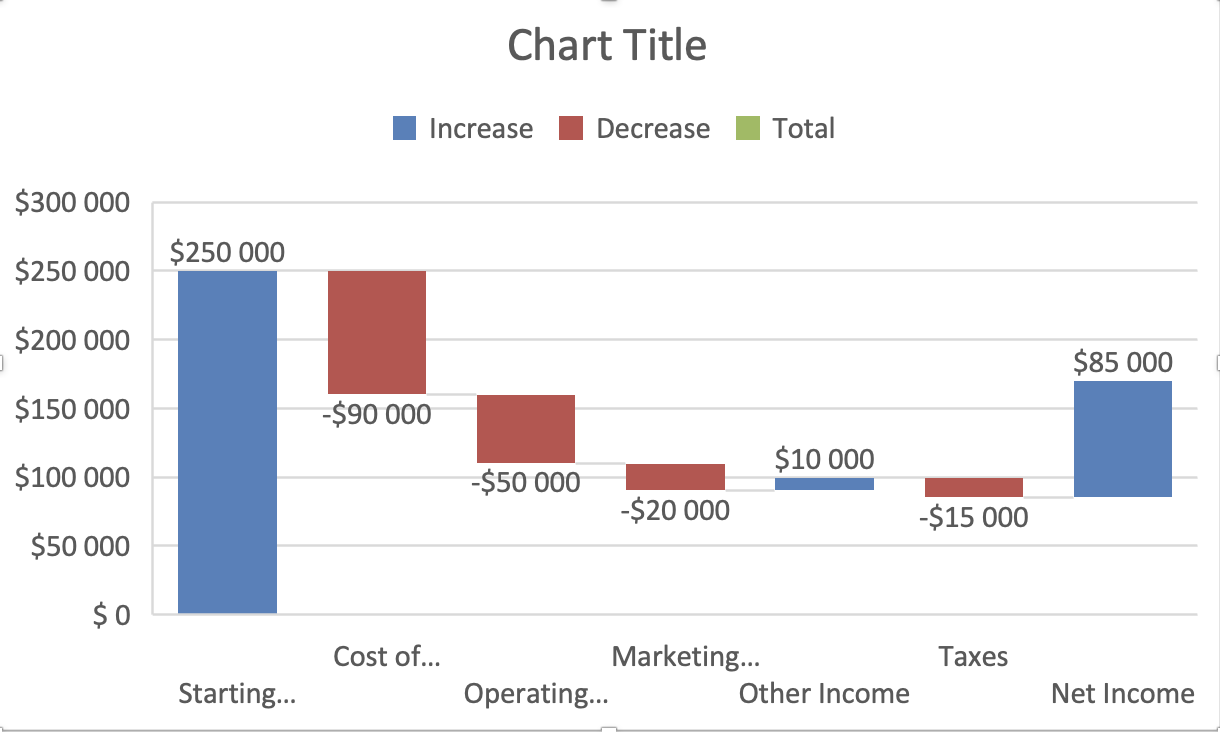
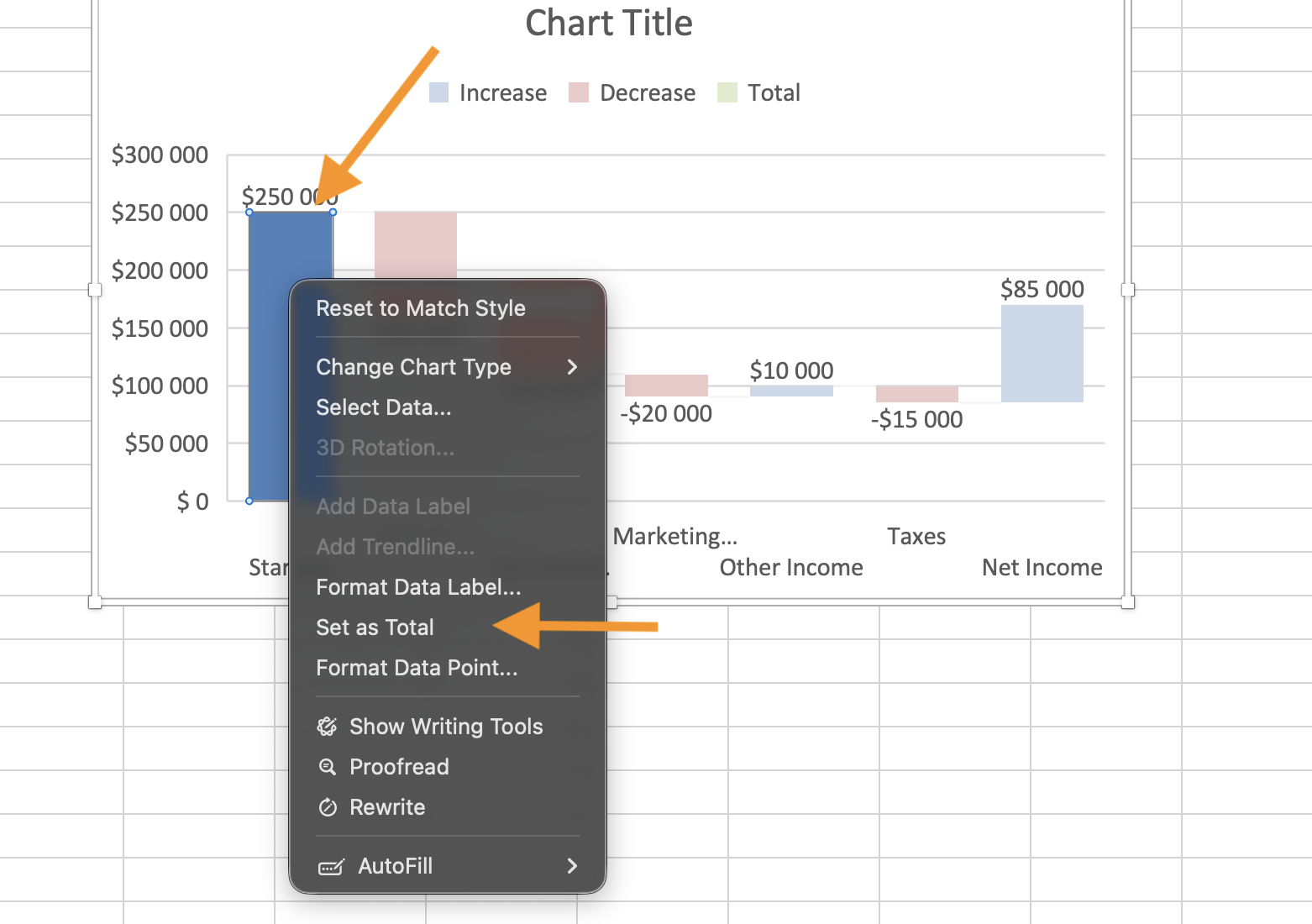
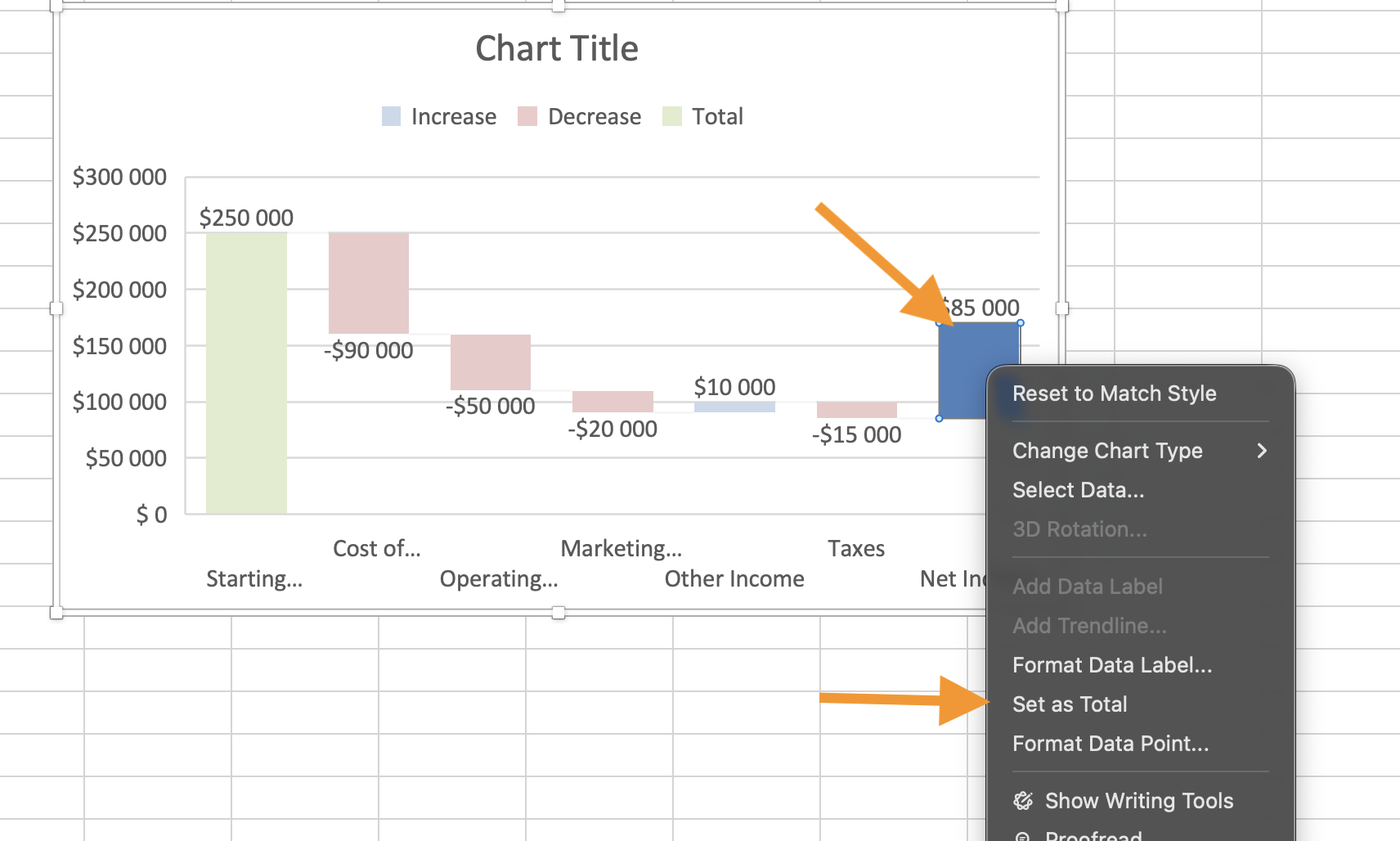
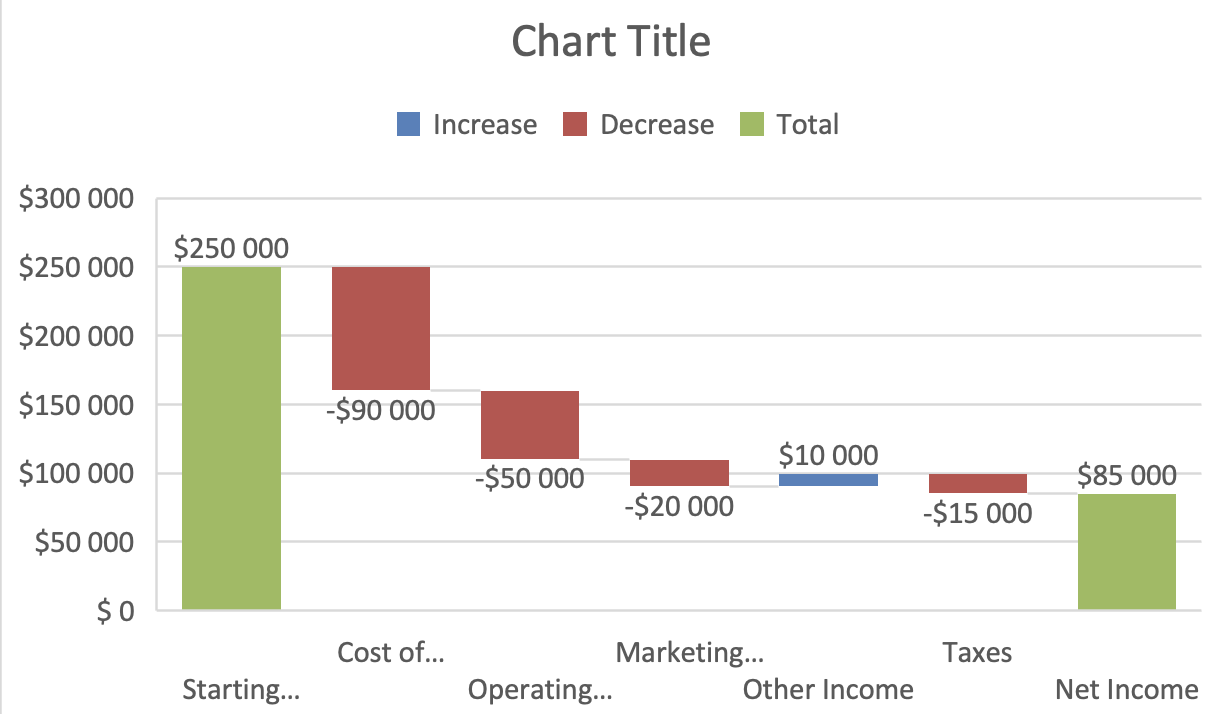

Setting a column as Total tells Excel to treat it as an absolute value instead of a change. This prevents incorrect cumulative calculations.
When to Use Waterfall Charts
Use waterfall charts when:
- You need to explain movement from start to finish;
- Components add and subtract from a base value;
- A simple column chart cannot explain the progression clearly.
Using the provided dataset:
- Insert a Waterfall Chart;
- Set the "Starting Revenue" value as a total;
- Set the "Net Profit" as a total;
- Confirm increases and decreases are displayed correctly.
Goal: visualize how individual components lead to the final result.
Thanks for your feedback!
Ask AI

Ask AI

Ask anything or try one of the suggested questions to begin our chat
