Custom Validation with Formulas
Swipe to show menu
What Is Formula-Based Validation?
That's where Custom validation comes in. Instead of picking a type from the Allow dropdown, you choose Custom and write a formula directly. Excel evaluates that formula every time a value is entered — if it returns TRUE, the entry is accepted; if it returns FALSE, it's rejected.
How It Works
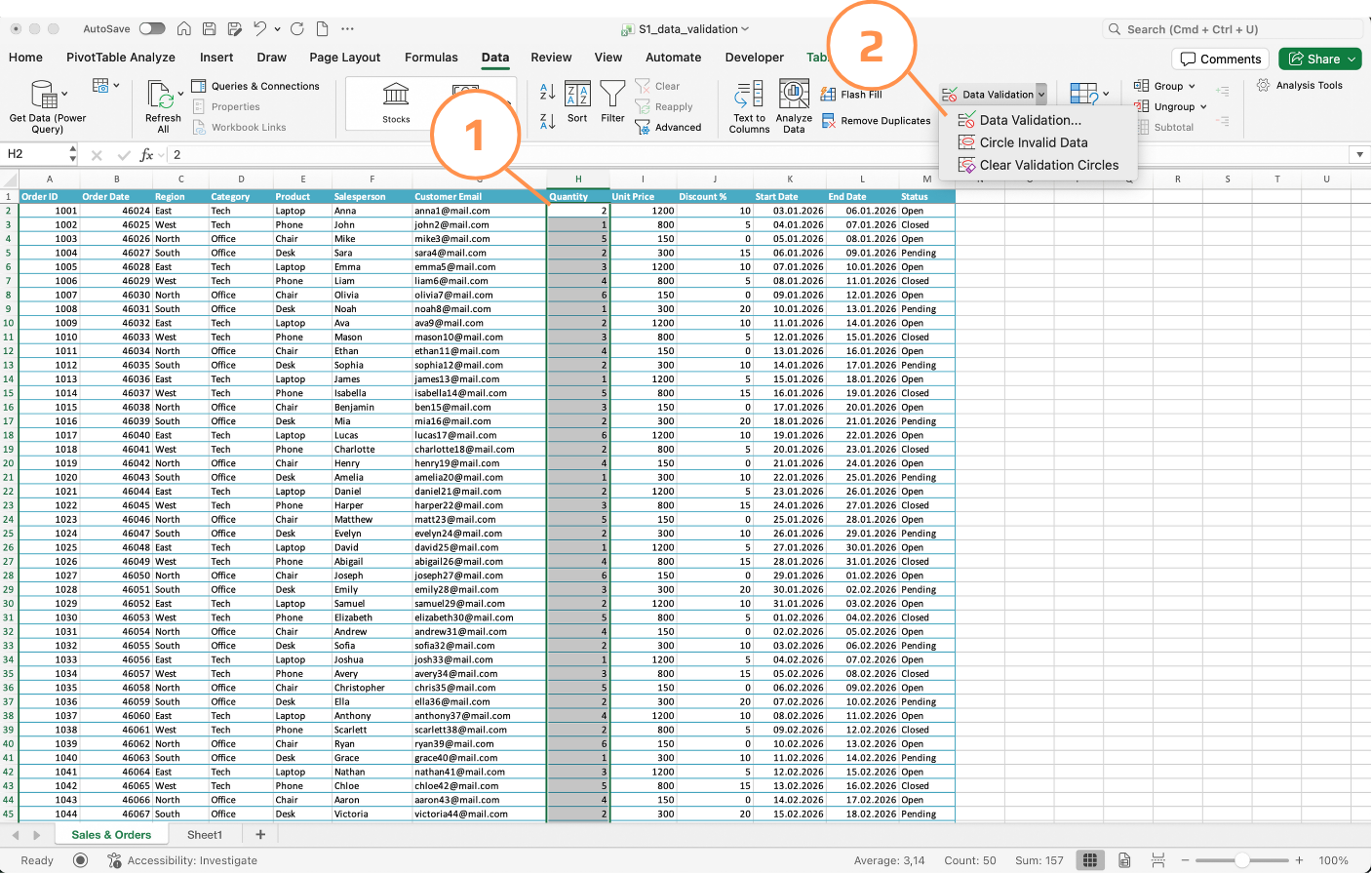
- Select the target cells;
- Open Data Validation → Settings;
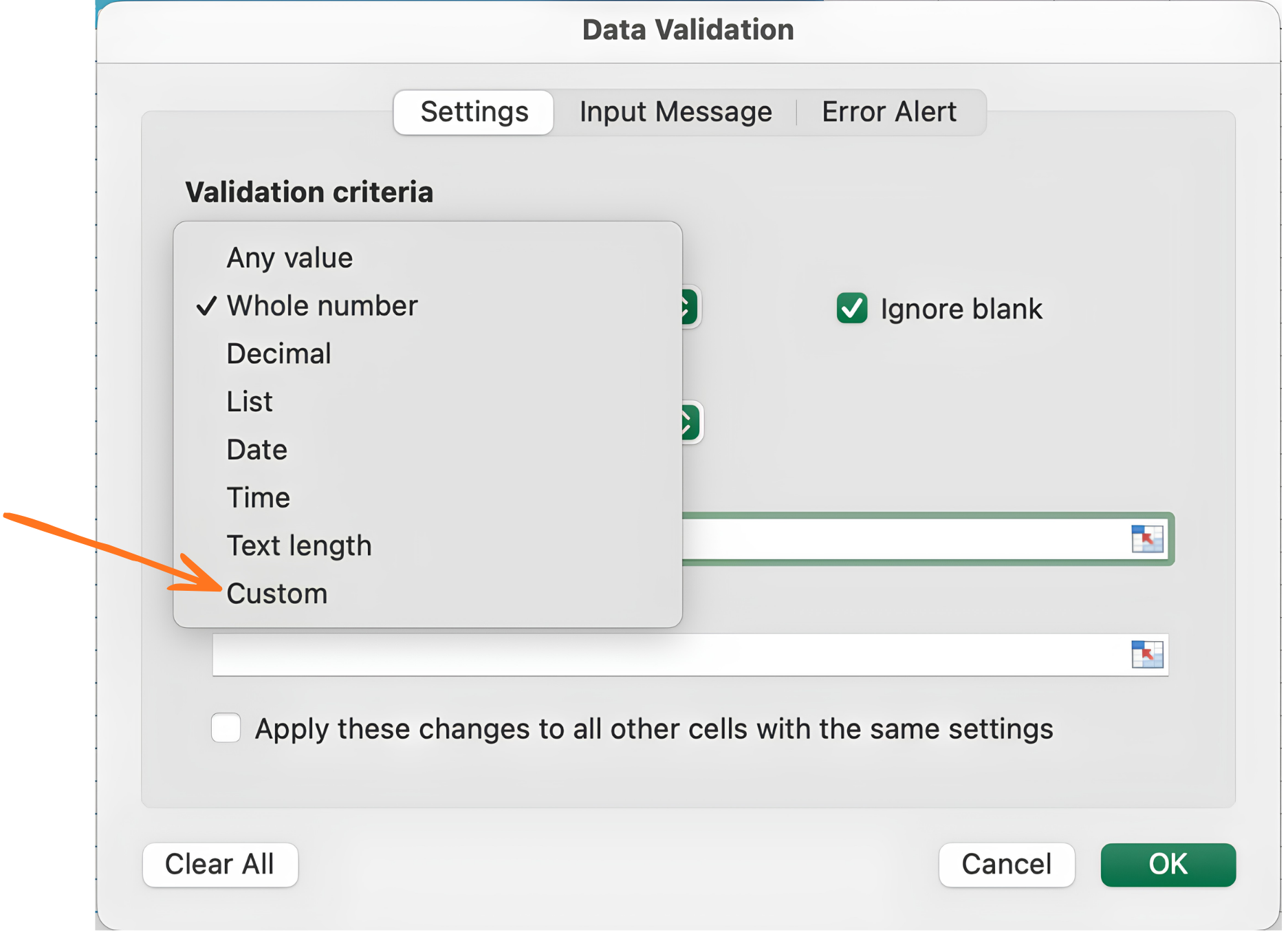
- In Allow, choose Custom;
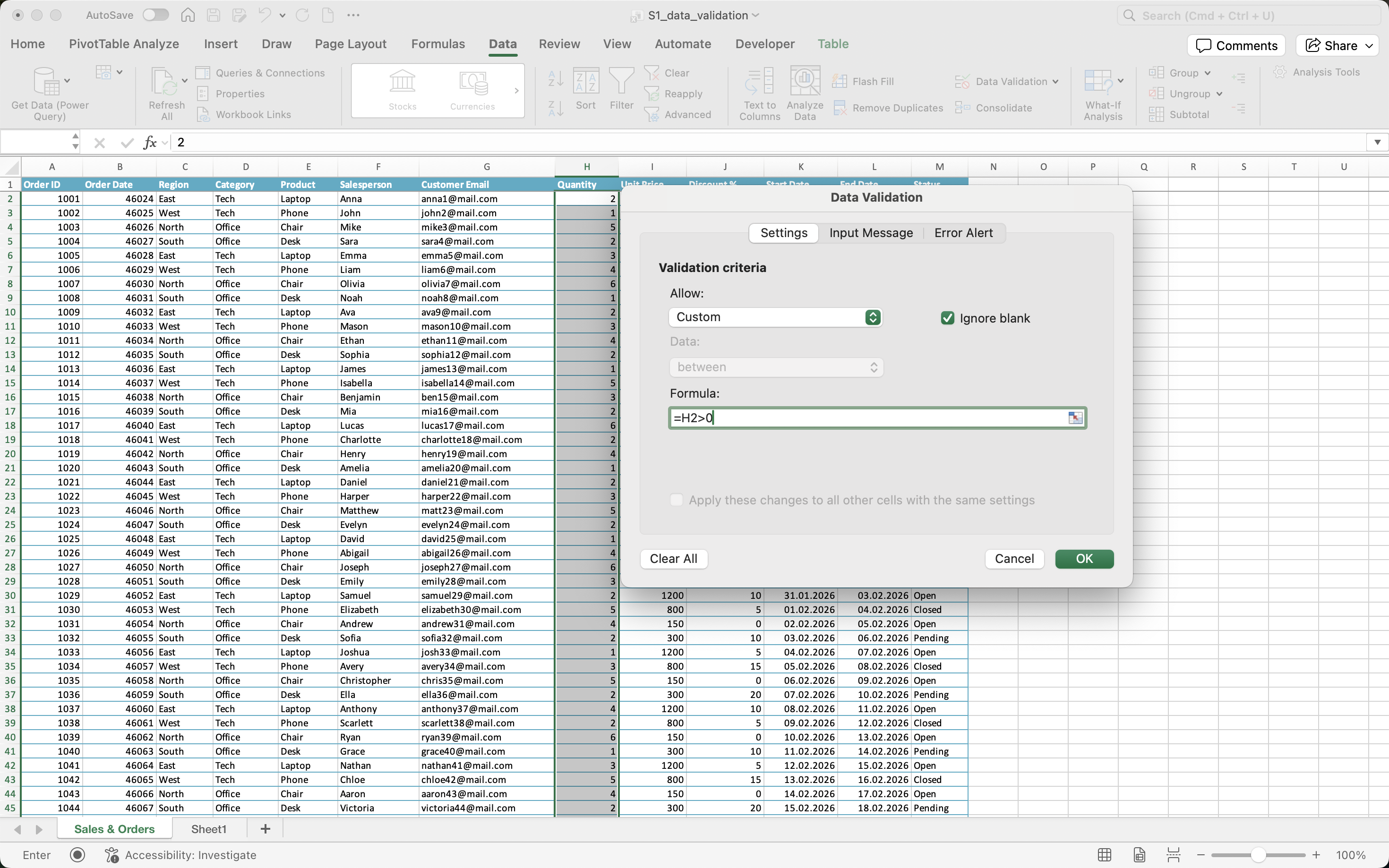
- In Formula, enter any logical expression that returns
TRUEorFALSE; - Click OK.
The formula is evaluated relative to the first cell in your selection — exactly like a conditional formatting rule. If you select H2:H51 and write =H2>0, Excel automatically adjusts it to H3>0, H4>0 and so on down the column.
Customer Email Example
The Customer Email column should always contain an @ symbol — that's the minimum check for a valid email format. No built-in rule covers this, but a custom formula does it in one line:
=ISNUMBER(FIND("@",G2))
How it works:
FIND("@",G2)searches for@in the email cell — returns its position if found, an error if not;ISNUMBER()converts that toTRUE(found) orFALSE(not found);- Excel accepts the entry only if the result is
TRUE.
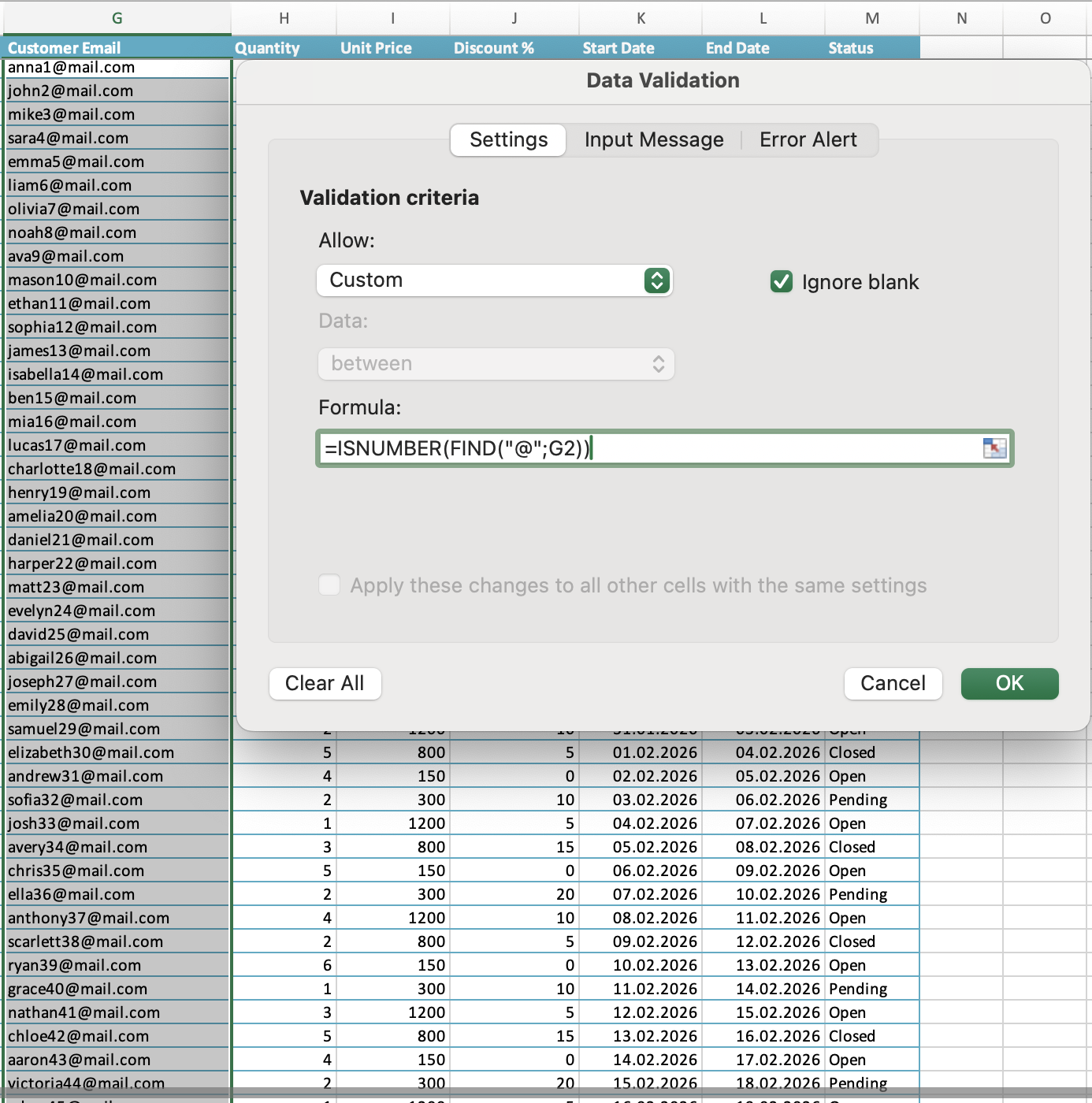

Depending on your Excel version and regional settings, formulas may use either commas , or semicolons ; as argument separators.
For example:
=ISNUMBER(FIND("@",G2))
=ISNUMBER(FIND("@";G2))
What Makes a Valid Custom Formula
- Must return
TRUEorFALSE(or 1/0); - Can reference other cells in the same row;
- Can use any Excel function —
IF,AND,OR,ISNUMBER,LEN,FIND,COUNTIF, and more; - Cannot reference cells on other sheets directly in some Excel versions — use a named range as a workaround.
Task
Discount Only If Quantity Is Met
- Apply a custom validation to the Discount % column:
- Formula:
=OR(H2>=3,J2=0); - Error style: Warning;
- Error message: "Discount is only allowed for quantities of 3 or more";
- Formula:
- Test by entering a discount of
10with a quantity of1— observe the warning; - Change the quantity to
3and re-enter the discount — confirm it is accepted.
Thanks for your feedback!
Ask AI

Ask AI

Ask anything or try one of the suggested questions to begin our chat
Custom Validation with Formulas
What Is Formula-Based Validation?
That's where Custom validation comes in. Instead of picking a type from the Allow dropdown, you choose Custom and write a formula directly. Excel evaluates that formula every time a value is entered — if it returns TRUE, the entry is accepted; if it returns FALSE, it's rejected.
How It Works
- Select the target cells;
- Open Data Validation → Settings;
- In Allow, choose Custom;
- In Formula, enter any logical expression that returns
TRUEorFALSE; - Click OK.
The formula is evaluated relative to the first cell in your selection — exactly like a conditional formatting rule. If you select H2:H51 and write =H2>0, Excel automatically adjusts it to H3>0, H4>0 and so on down the column.
Customer Email Example
The Customer Email column should always contain an @ symbol — that's the minimum check for a valid email format. No built-in rule covers this, but a custom formula does it in one line:
=ISNUMBER(FIND("@",G2))
How it works:
FIND("@",G2)searches for@in the email cell — returns its position if found, an error if not;ISNUMBER()converts that toTRUE(found) orFALSE(not found);- Excel accepts the entry only if the result is
TRUE.
Depending on your Excel version and regional settings, formulas may use either commas , or semicolons ; as argument separators.
For example:
=ISNUMBER(FIND("@",G2))
=ISNUMBER(FIND("@";G2))
What Makes a Valid Custom Formula
- Must return
TRUEorFALSE(or 1/0); - Can reference other cells in the same row;
- Can use any Excel function —
IF,AND,OR,ISNUMBER,LEN,FIND,COUNTIF, and more; - Cannot reference cells on other sheets directly in some Excel versions — use a named range as a workaround.
Task
Discount Only If Quantity Is Met
- Apply a custom validation to the Discount % column:
- Formula:
=OR(H2>=3,J2=0); - Error style: Warning;
- Error message: "Discount is only allowed for quantities of 3 or more";
- Formula:
- Test by entering a discount of
10with a quantity of1— observe the warning; - Change the quantity to
3and re-enter the discount — confirm it is accepted.
Thanks for your feedback!
