Using Validation with Conditional Formatting
Swipe to show menu
Why Combine the Two?
Data validation controls what gets entered. Conditional formatting controls how cells look. On their own, each is useful — together, they create a system that both prevents bad data and visually communicates the state of the data to anyone reading the sheet.
A validated cell that contains an invalid value (entered before rules were applied, or pasted in) shows no visual warning by default. Conditional formatting fills that gap — flagging problem cells with color so issues are impossible to miss.
How They Work Together
The key insight is that both tools can use the same logical conditions. If your validation rejects a discount above 30%, your conditional formatting can highlight any cell where the discount exceeds 30% in red. One rule enforces, the other visualizes.
Setting Up Conditional Formatting
- Select the target cells;
- Go to Home → Conditional Formatting → New Rule;
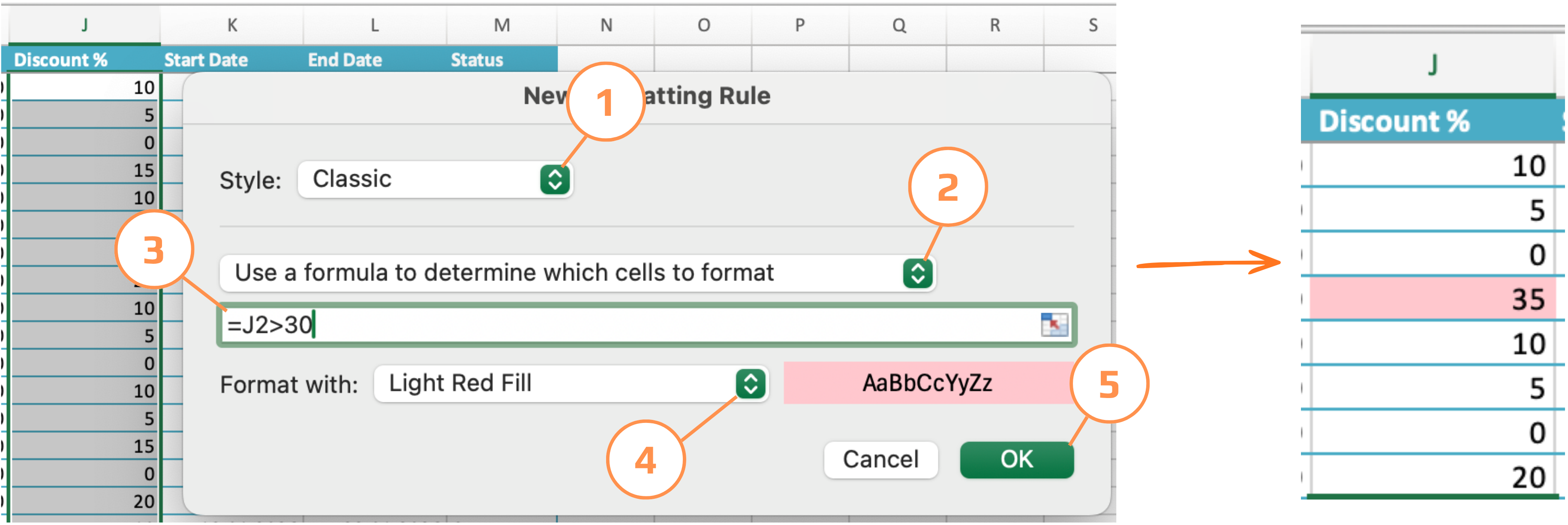
- Choose Use a formula to determine which cells to format;
- Enter your formula;
- Set the format (fill color, font color, border);
- Click OK.
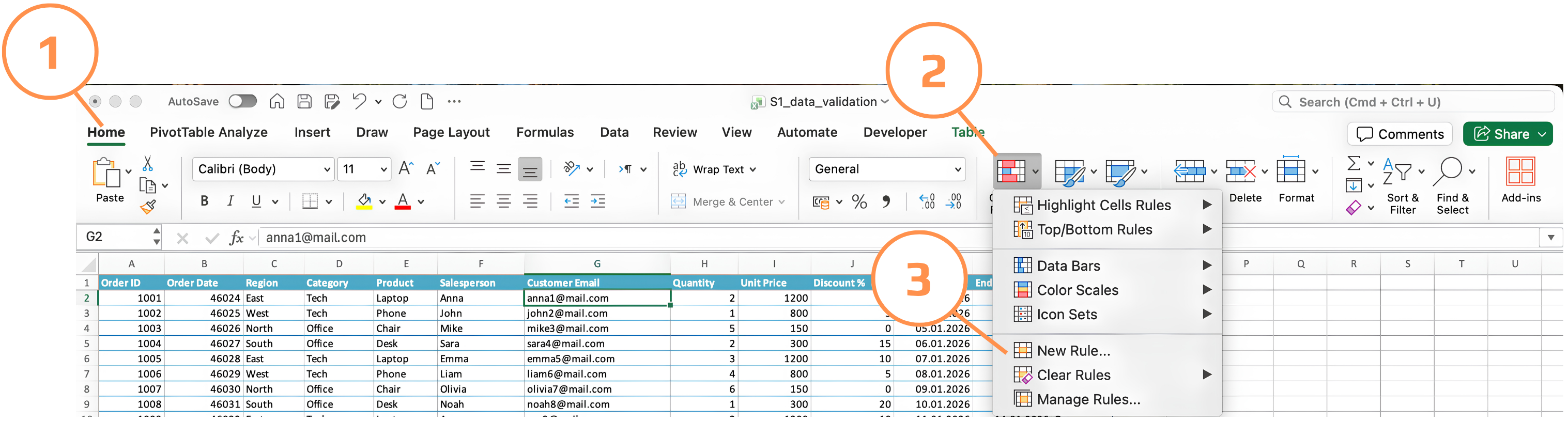
Example 1: Highlight Invalid Discounts
Validation rule already rejects discounts above 30%. But what about values that slipped in before the rule was applied? Conditional formatting catches them visually.
Applied to the Discount % column (J):
=J2>30
Format: red fill. Any cell exceeding 30% turns red immediately.
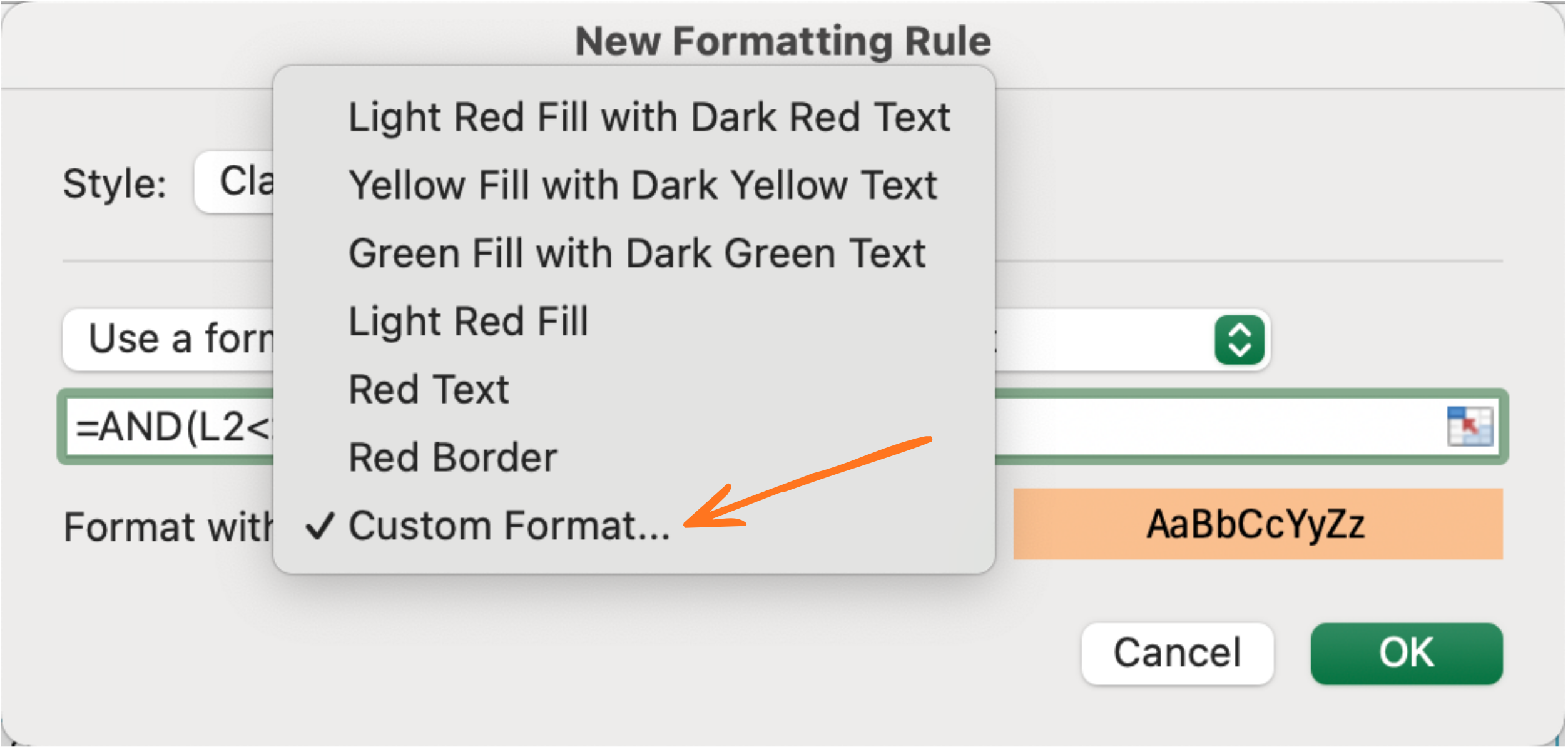
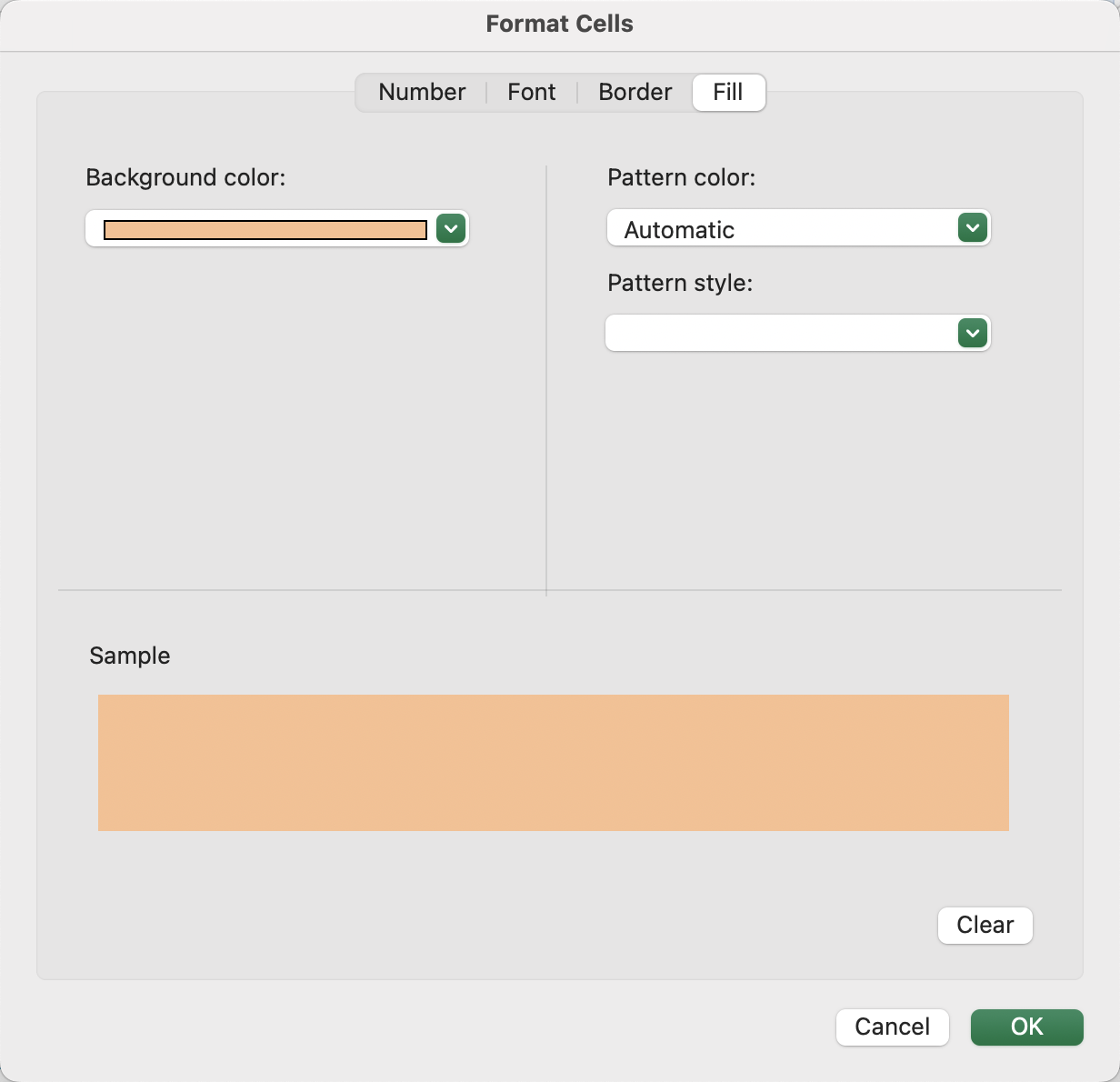
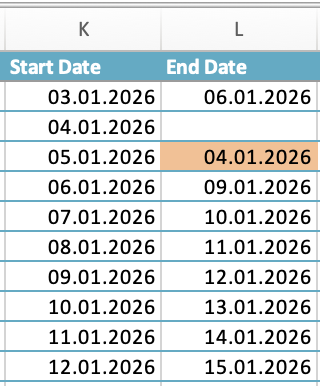
Example 2: Flag End Date Before Start Date
Validation blocks new violations, but existing ones need to be visible. Assuming Start Date in column K and End Date in column L:
Applied to the End Date column L:
=AND(L2<>"", L2<=K2)
Format: orange fill. The L2<>"" check ensures blank End Dates aren't flagged unnecessarily.
Example 3: Highlight Incomplete Rows
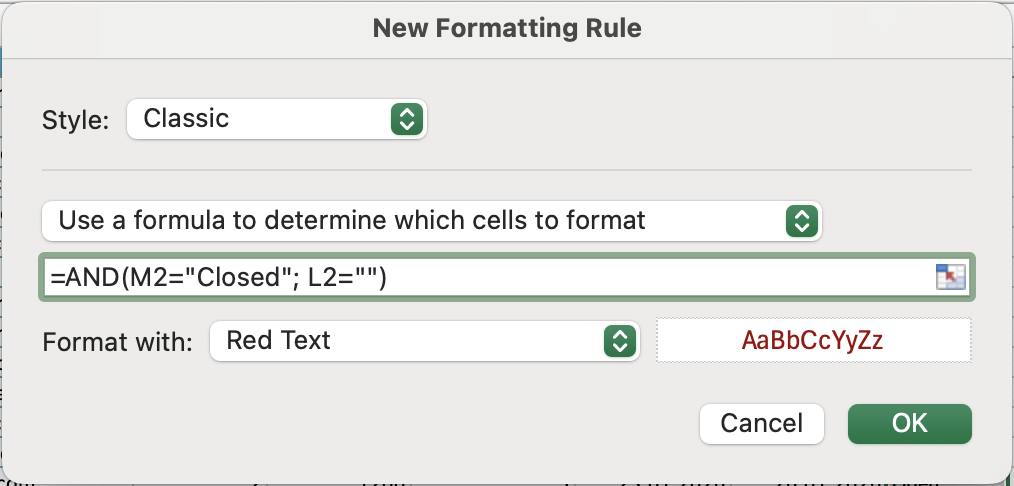
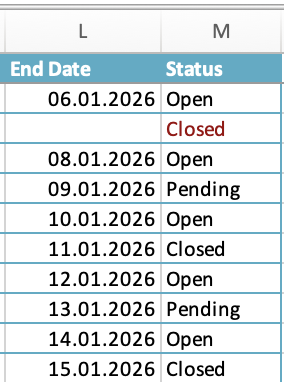
A row where Status is Closed but End Date is empty is logically incomplete. Make it stand out:
Applied to the Status column (M):
=AND(M2="Closed", L2="")
Format: red font. Any closed order without an End Date is immediately visible.
Example 4: Green for Valid, Red for Invalid
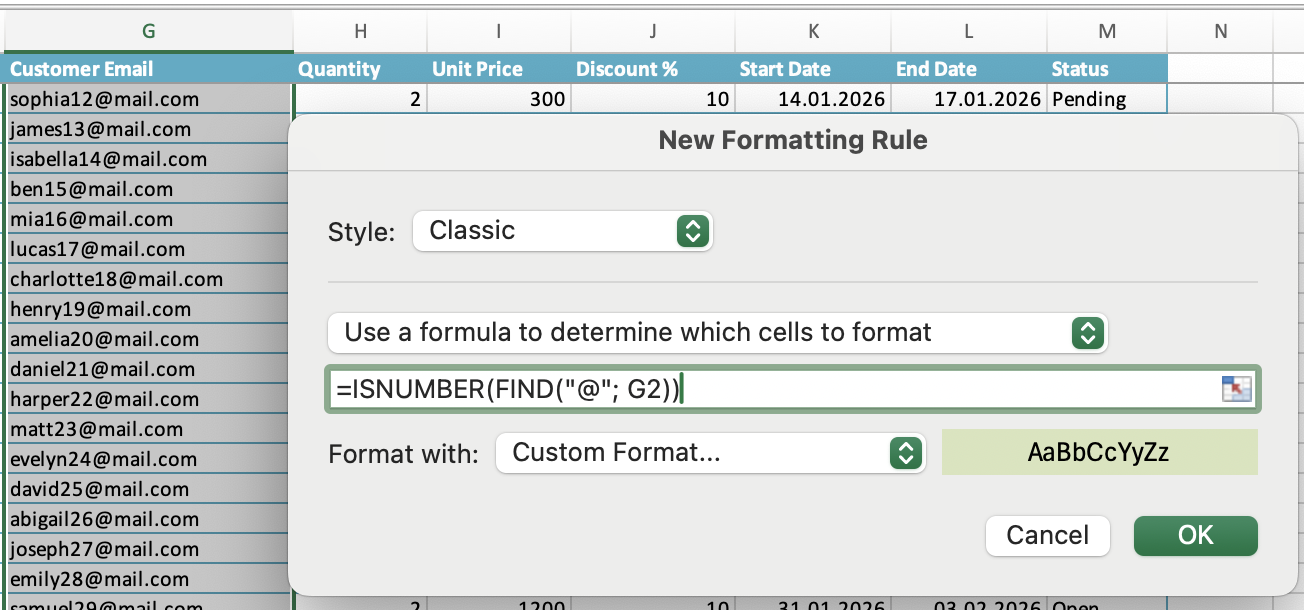
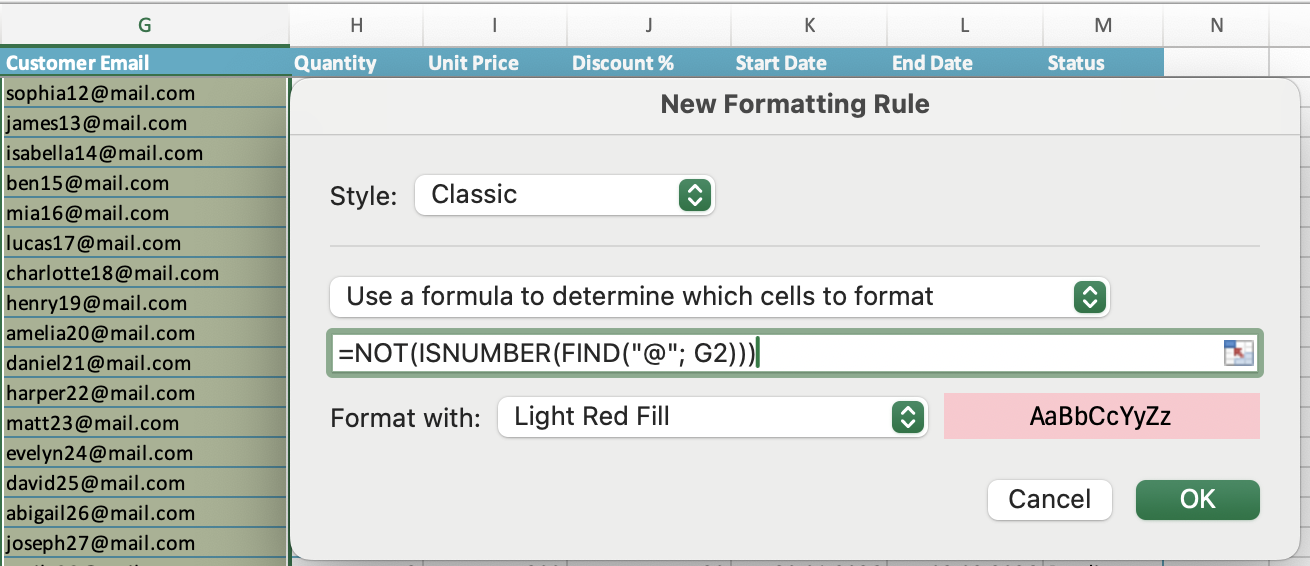
For a column like Customer Email, you can use two rules to create a traffic-light effect:
- Green fill:
=ISNUMBER(FIND("@", G2))— valid email; - Red fill:
=NOT(ISNUMBER(FIND("@", G2)))— invalid email.
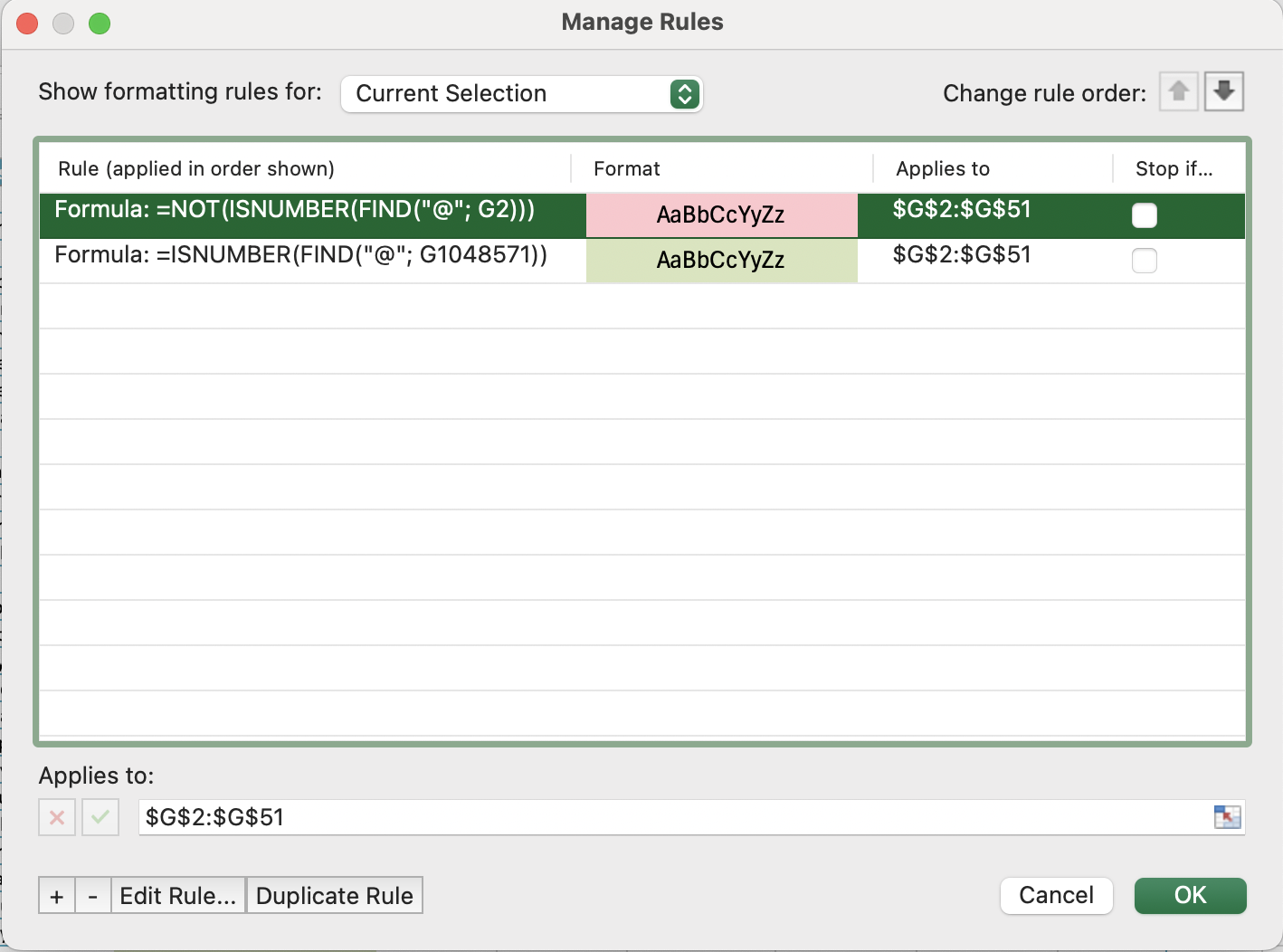
Conditional formatting evaluates rules in order — make sure the more specific rule sits higher in the priority list (Manage Rules → use the arrow buttons to reorder).
Managing Rule Priority
When multiple conditional formatting rules apply to the same cell, Excel evaluates them top to bottom and applies the first match. This matters when rules overlap.
To manage priority:
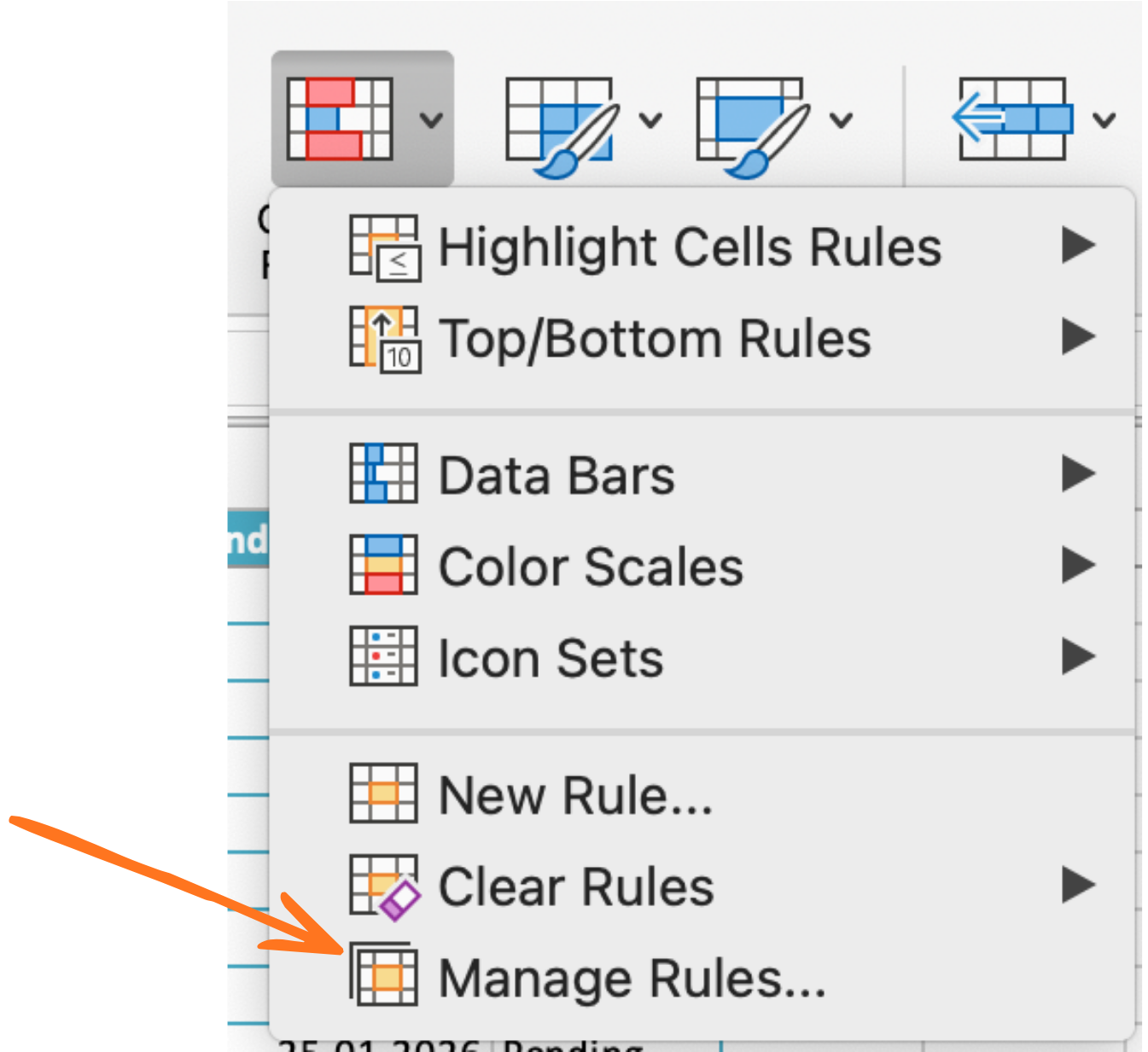
- Go to Home → Conditional Formatting → Manage Rules;
- Select the sheet scope at the top;
- Use the up/down arrows to reorder rules;
- Check Stop If True to prevent lower rules from overriding a match.

Conditional formatting and data validation are complementary but independent — removing one doesn't affect the other. For a fully robust sheet, you want both: validation to block bad input going forward, and conditional formatting to surface any issues already present in the data.
Task
-
Apply a red fill conditional formatting rule to the Discount % column:
- Formula:
=J2>30
- Formula:
-
Apply an orange fill rule to the End Date column:
- Formula:
=AND(L2<>"", L2<=K2)
- Formula:
-
Apply a red font rule to the Status column:
- Formula:
=AND(M2="Closed", L2="")
- Formula:
-
Apply a two-rule traffic-light format to the Customer Email column:
- Green fill:
=ISNUMBER(FIND("@", G2)) - Red fill:
=NOT(ISNUMBER(FIND("@", G2)))
- Green fill:
-
Deliberately enter invalid values in each column and confirm the formatting fires correctly;
-
Open Manage Rules and practice reordering the email rules — observe how priority affects which format wins when both conditions could apply;
-
Add a row with Status
Closedand no End Date — confirm the red font appears on the Status cell.
Thanks for your feedback!
Ask AI

Ask AI

Ask anything or try one of the suggested questions to begin our chat
