Understanding Ignore Blank Behavior
Swipe to show menu
What Is "Ignore Blank"?
If you've been following the Data Validation dialog closely, you may have noticed a checkbox in the Settings tab that's ticked by default: Ignore blank. It's easy to overlook, but it has a direct impact on how your validation rules behave when a cell is left empty.
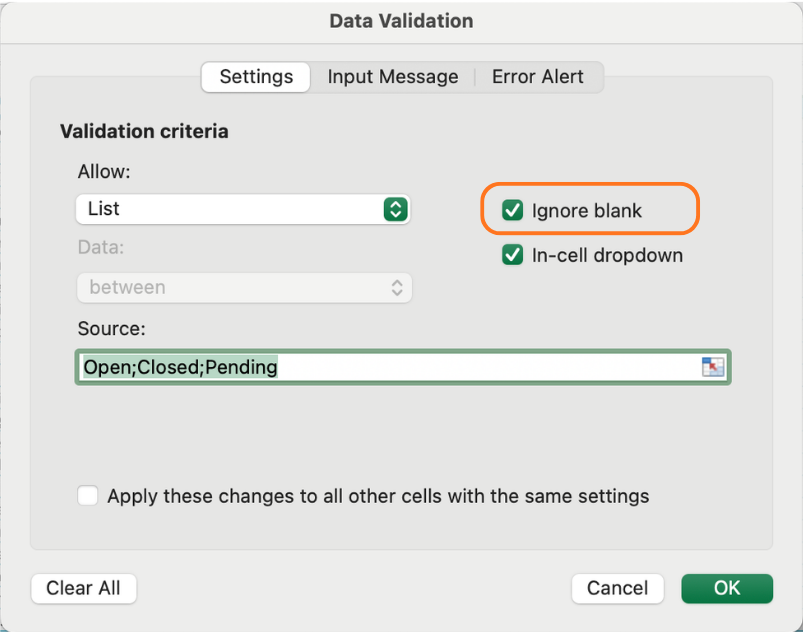
When Ignore blank is ON, Excel treats empty cells as exempt from the rule — no error fires, the cell is simply skipped. When Ignore blank is OFF, leaving a cell empty is treated as a violation, and Excel will flag it.
When "Ignore Blank" Makes Sense
For most fields, leaving it on is the right call. Not every row is complete at the time of entry — orders get started before all details are filled in, dates get added later, and so on. Forcing every field to be filled immediately creates unnecessary friction.
Good candidates for Ignore blank ON:
- End Date — may not be known at order creation;
- Discount % — zero discount is valid, but a blank means "not yet decided";
- Notes or comments — optional by nature.
When You Should Turn It Off
Some fields are mandatory by definition. If a core identifier or required field is blank, the record is incomplete and shouldn't pass silently.
Good candidates for Ignore blank OFF:
- Order ID — every record must have one;
- Order Date — a record without a date is untrackable;
- Status — an order must always have a defined state;
- Quantity — a sales record without quantity is meaningless.
To turn it off: open Data Validation → Settings and uncheck Ignore blank.
A Subtle but Important Detail
Turning off Ignore blank doesn't automatically make a field required in the traditional sense — Excel won't prevent the user from moving past a blank cell unless a rule is actively triggered. What it does is ensure that if validation is re-evaluated (e.g., via Circle Invalid Data), blank cells in that column will be flagged as violations.
This makes it especially useful when auditing a dataset after the fact — a topic covered later in the course.
Ignore Blank and List Validation
There's one specific interaction worth knowing: if you have a List rule and Ignore blank is ON, an empty cell won't show an error even though an empty string isn't in your list. Turn it OFF if you want blank cells to be flagged in a required dropdown column like Status.
Task
- Open Data Validation for the Status column and uncheck Ignore blank — this field is always required.
- Do the same for Order Date and Quantity.
- Leave Ignore blank ON for Discount % and End Date.
- Go to the Data tab and click Circle Invalid Data — observe which blank cells get flagged.
- Fill in some of the circled cells and notice the circles disappear once valid data is entered.

The Circle Invalid Data button is found in the Data Validation dropdown on the Data tab — click the small arrow beneath the Data Validation button to reveal it.
Thanks for your feedback!
Ask AI

Ask AI

Ask anything or try one of the suggested questions to begin our chat
