Input Messages & Error Alerts
Swipe to show menu
In the previous chapter, you saw Excel's default error message — a generic popup that says something like "The value you entered is not valid." It blocks the entry, but tells the user nothing useful: not what the rule is, not what format is expected, not how to fix it.
Excel gives you two tools to improve this experience: Input Messages and Error Alerts.
Input Messages
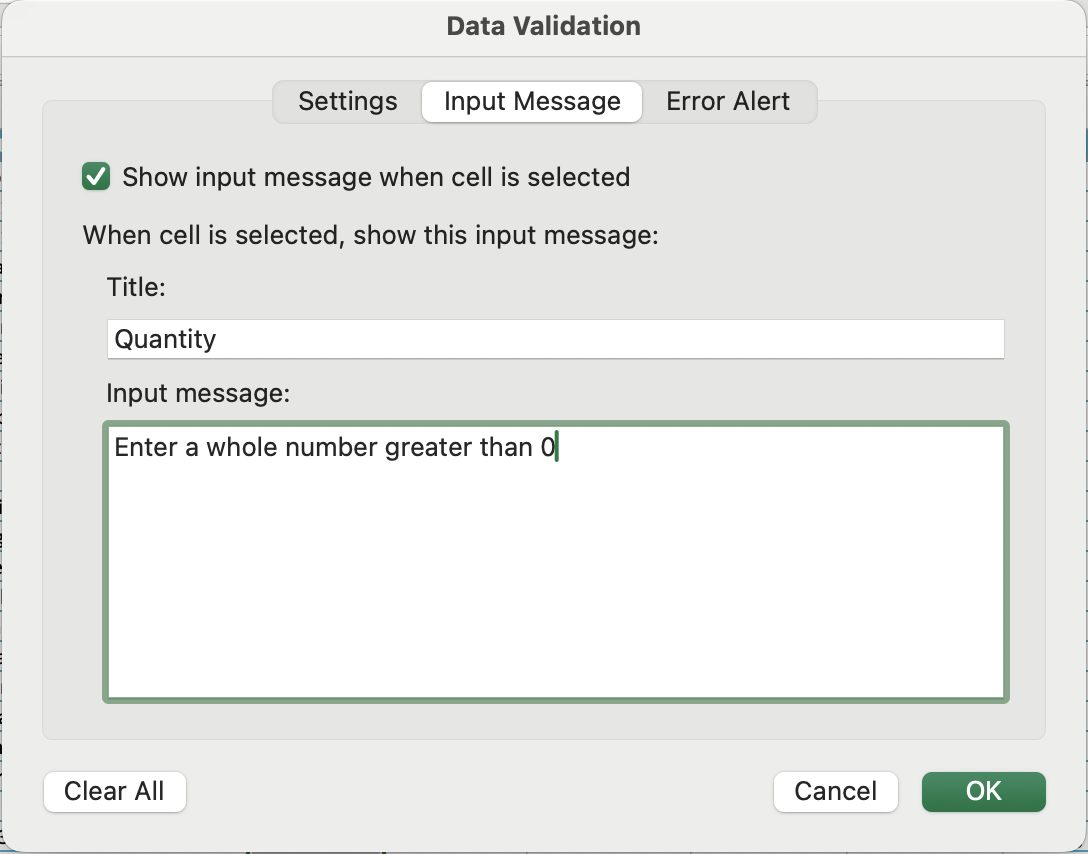
An input message appears as a small tooltip when the user clicks on a validated cell — before they even start typing. It's a proactive hint, not a reaction to an error.
How to set it up:
- Select the validated cell or range;
- Open Data Validation → go to the Input Message tab;
- Check Show input message when cell is selected;
- Enter a Title (bold, short — e.g.,
Quantity); - Enter a Message (e.g.,
Enter a whole number greater than 0); - Click OK.
Use input messages to guide users before mistakes happen — especially useful for less obvious rules like date formats or discount limits.
Error Alerts
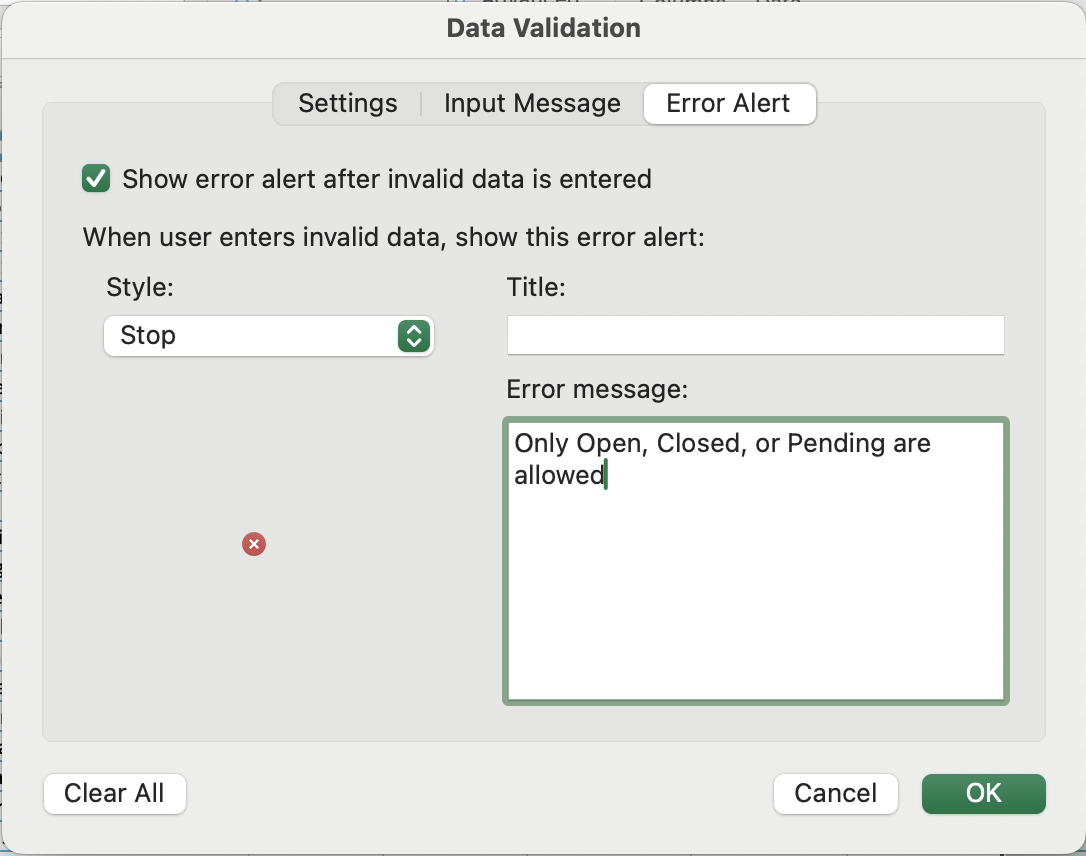
An error alert fires after an invalid value is entered. You control both the message content and how strictly Excel reacts.
How to set it up:
- Open Data Validation → go to the Error Alert tab;
- Check Show error alert after invalid data is entered;
- Choose a Style, write a Title and an Error message.
The Three Alert Styles
This is the most important decision when configuring an error alert:
Stop
The strictest option. Excel completely blocks the entry — the user cannot proceed until they enter a valid value or press Cancel. Use this when bad data would break your logic.
Warning
Excel flags the issue but gives the user a choice: proceed anyway or cancel. Useful when the rule is a guideline rather than a hard requirement.
Information
The most relaxed option. Excel shows the message, but accepts the value regardless. Best for advisory notes where flexibility is needed.
Task
File: S1_data_validation.xlsx → Chapter 4 sheet after applying all validation rules.
The five validation rules from Chapter 3 are already applied. Your task is to add Input Messages and Error Alerts to each column:
After setting everything up, test each column by clicking a cell first (check the tooltip appears), then entering an invalid value (check the alert fires with your message). Notice how the Warning on Discount % still lets you proceed, while Stop on Quantity does not.
Thanks for your feedback!
Ask AI

Ask AI

Ask anything or try one of the suggested questions to begin our chat
