Types of Validation Rules
Swipe to show menu
Excel offers several built-in validation types, each designed for a specific kind of data. Choosing the right type is the first step toward building a reliable input system.
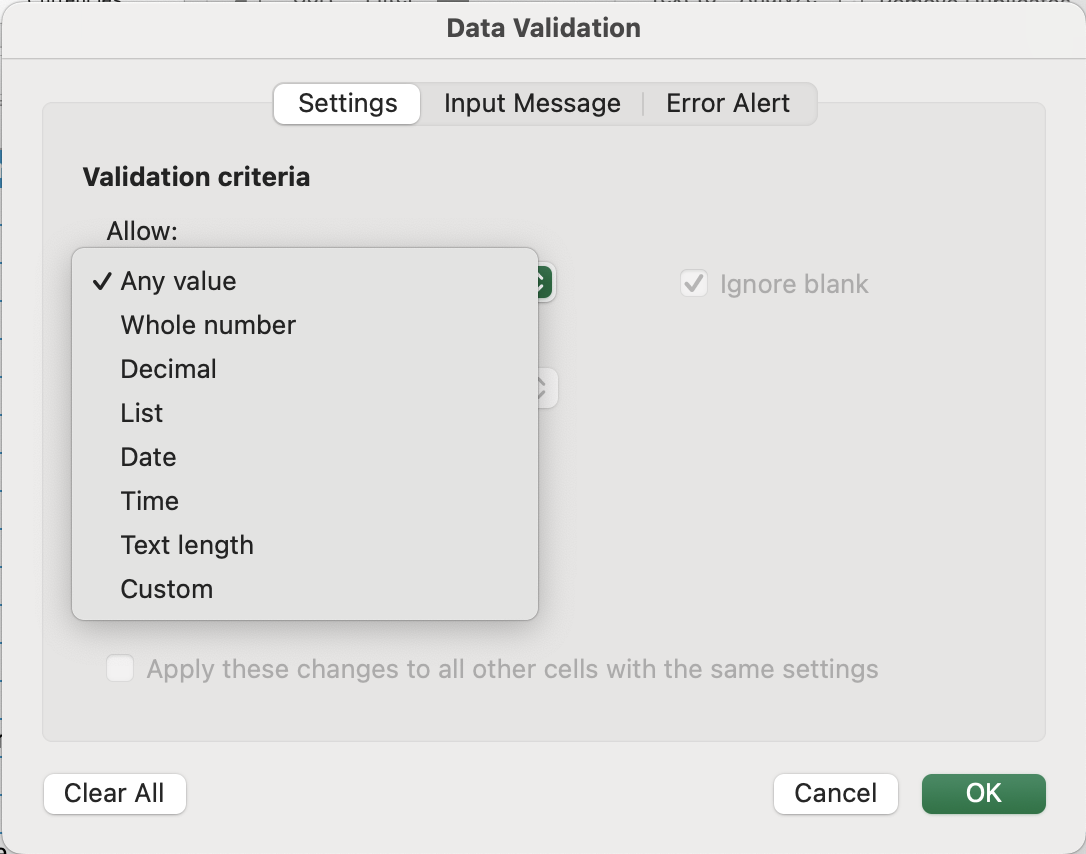
1. List
Restricts input to a predefined set of values. Users see a dropdown arrow and can only pick from the options you define.
Use when: the field has a fixed set of acceptable values — statuses, regions, categories, yes/no fields.
Example: the Status column should only accept Open, Closed, or Pending — nothing else.
You can type the list directly into the validation dialog (comma-separated) or reference a range on the sheet.
2. Number (Whole Number & Decimal)
Restricts input to numeric values within a defined range. You can require whole numbers or allow decimals, and set minimum/maximum boundaries.
Use when: a field must be numeric and within a logical range.
Examples:
- Quantity → whole number, greater than 0;
- Discount % → decimal, between 0 and 30;
- Unit Price → decimal, greater than 0.
3. Date
Limits input to valid dates, optionally within a specific range. Excel treats dates as numbers internally, so this rule works reliably with comparisons.
Use when: a field records when something happened or is scheduled.
Examples:
- Order Date → must be a valid date;
- Start Date → must be on or after a project launch date;
- End Date → must be after Start Date (covered in Section 3 with formulas).
4. Text Length
Doesn't control what text is entered, but how long it can be. Useful for fields with known character limits.
Use when: an entry must fit a specific format or system constraint.
Example: a product code must be exactly 6 characters; a comment field shouldn't exceed 100 characters.
5. Custom
Allows any formula to drive the validation logic. This is the most powerful type and the focus of Section 3. For now, just know it exists — the Customer Email rule (must contain "@") is one early example of where custom validation becomes necessary.
How Excel Evaluates Rules
When a user enters a value, Excel checks it against your rule on cell exit. If it fails, Excel responds based on the alert type you've configured — it can block the entry, warn the user, or simply display a message.
Thanks for your feedback!
Ask AI

Ask AI

Ask anything or try one of the suggested questions to begin our chat
