Creating Your First Validation Rules
Swipe to show menu
Opening the Data Validation Dialog
All validation rules are created in the same place. Here's how to get there:
- Select the cell or range you want to restrict;
- Go to the Data tab in the ribbon;
- Click Data Validation in the Data Tools group;
- The dialog opens with three tabs: Settings, Input Message, and Error Alert — for now, work in Settings.
Setting the Rule
In the Settings tab you'll find the Allow dropdown — this is where you choose the validation type. Each type reveals additional fields below it.
List
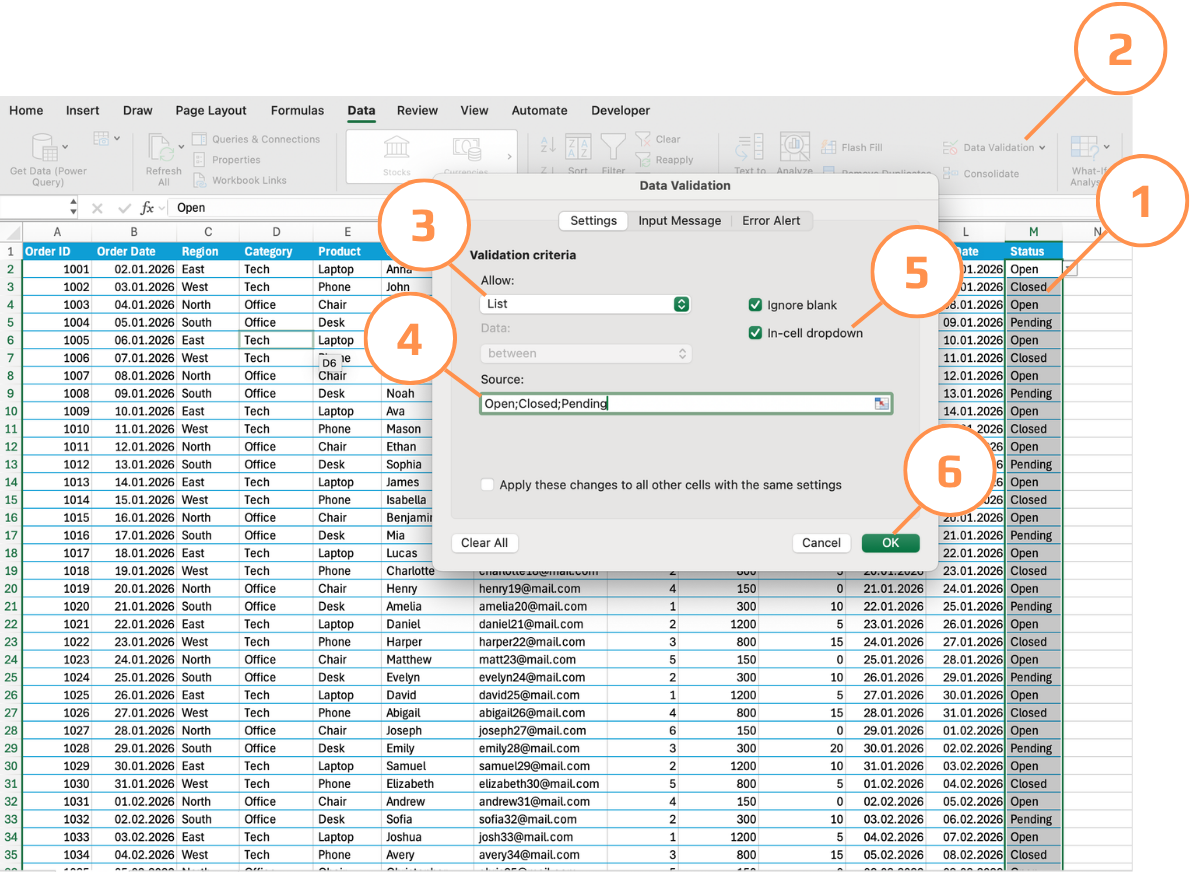
- Select the Status column cells (
M2:M51); - Open Data Validation → Settings;
- In Allow, choose List;
- In the Source field, type:
Open,Closed,Pending; - Make sure In-cell dropdown is checked;
- Click OK.
A dropdown arrow will now appear in each cell. Only these three values are accepted.

Depending on your regional settings and Excel version, the List source field may require a semicolon as a separator instead of a comma. If typing Open,Closed,Pending doesn't work or all three values appear as a single item in the dropdown, try Open;Closed;Pending instead. This is common in European regional settings where a semicolon is the default list separator.
Whole Number
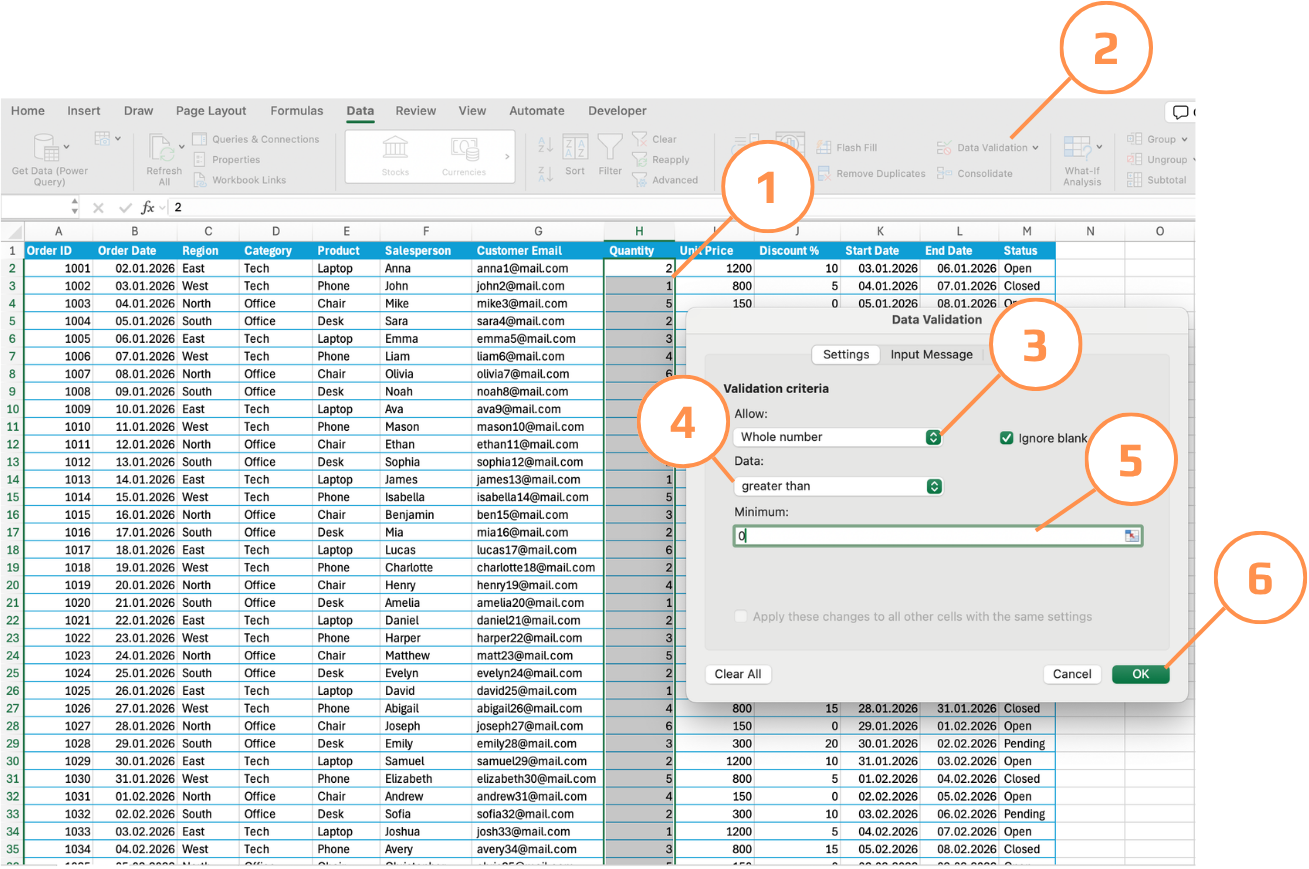
- Select the Quantity column cells (
H2:H51); - Open Data Validation → Settings;
- In Allow, choose Whole number;
- In Data, choose greater than;
- In Minimum, enter
0; - Click OK.
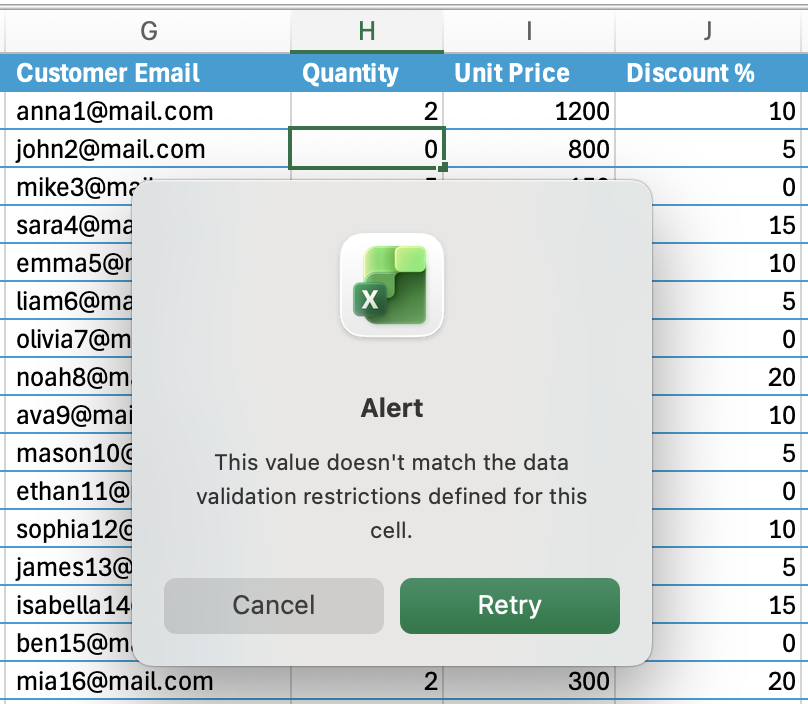
This blocks decimals, zeros, and negative numbers.
Decimal
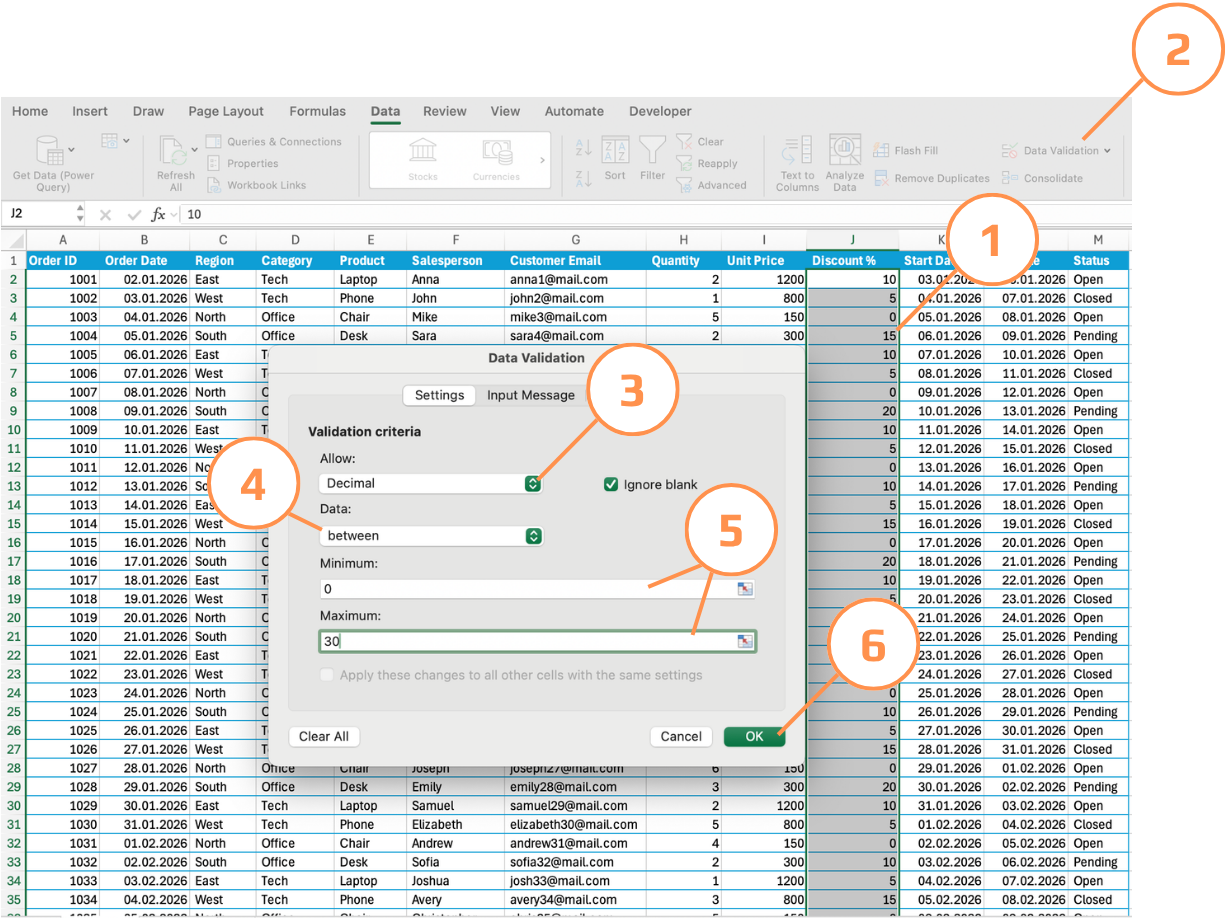
- Select the Discount % column cells (
J2:J51); - Open Data Validation → Settings;
- In Allow, choose Decimal;
- In Data, choose between;
- Set Minimum to
0and Maximum to30; - Click OK.
Values like –5 or 45 will be rejected; 15.5 is accepted.
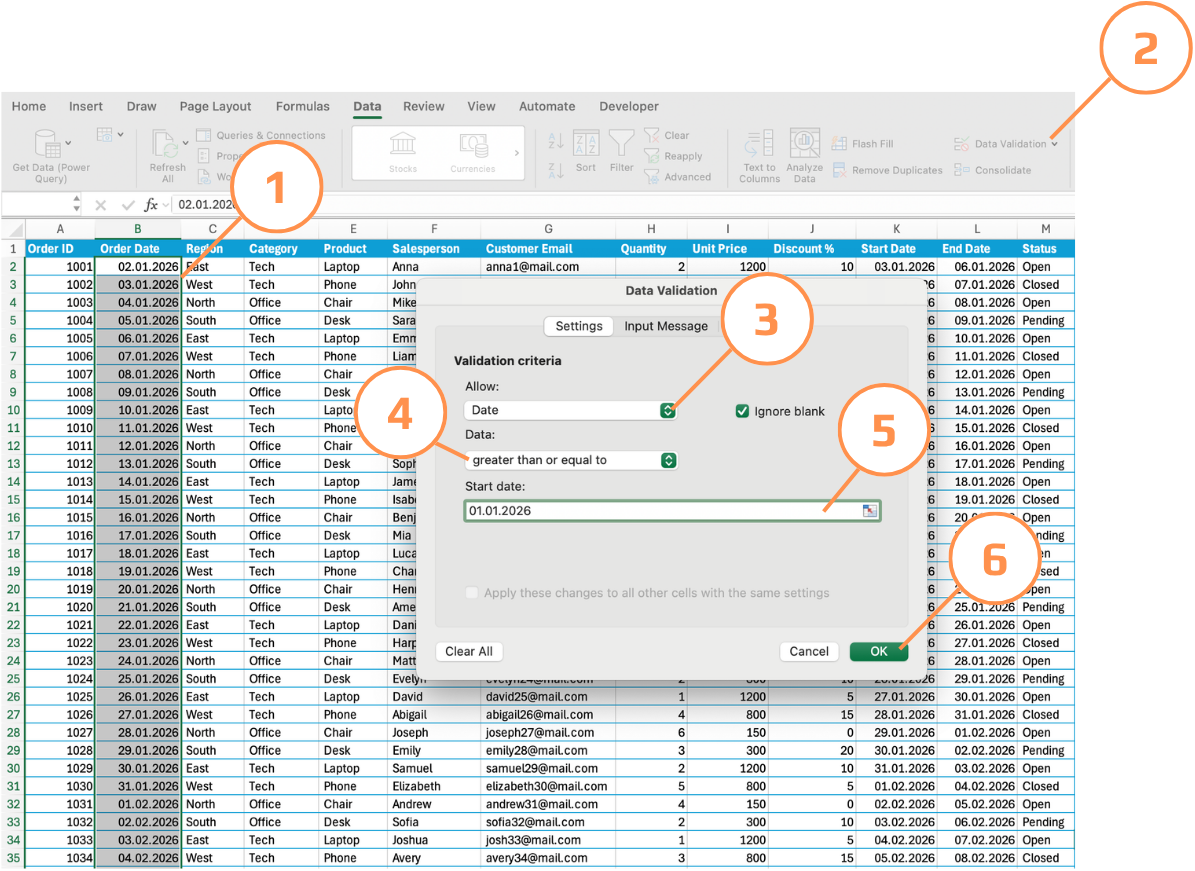
Date
- Select the Order Date column cells (
B2:B51); - Open Data Validation → Settings;
- In Allow, choose Date;
- In Data, choose greater than or equal to;
- In Start date, enter
01/01/2026; - Click OK.
Any date before January 1, 2026 will be blocked.
Task
The first four rules above are already applied as examples. Your task is to add the fifth one independently:
Salesperson column → apply a Text Length rule:
- Allow: Text length.
- Data: between.
- Minimum:
2. - Maximum:
50.
Once done, test all five rules by trying to enter invalid values in each column:
- Type
Cancelledin Status. - Enter
0or-3in Quantity. - Enter
85in Discount %. - Enter a date from 2025 in Order Date.
- Type a single letter in Salesperson.
Observe the error that appears — it's Excel's default generic message. Notice it gives no context about what went wrong or what the user should do instead.
Thanks for your feedback!
Ask AI

Ask AI

Ask anything or try one of the suggested questions to begin our chat
