Creating Dynamic Dropdowns from Tables
Swipe to show menu
You already learned how to point a dropdown at a fixed range such as the Status column. That works, but it breaks the moment your list grows — the new entry sits outside the reference and never shows up in the dropdown.
Excel Tables solve this cleanly. When a dropdown's source is an Excel Table column, the reference expands automatically as you add rows.
Setting Up a Reference Sheet
Before creating any table, it's good practice to keep your list data on a dedicated sheet — separate from the main data entry area. This keeps the workbook clean and makes lists easy to manage.
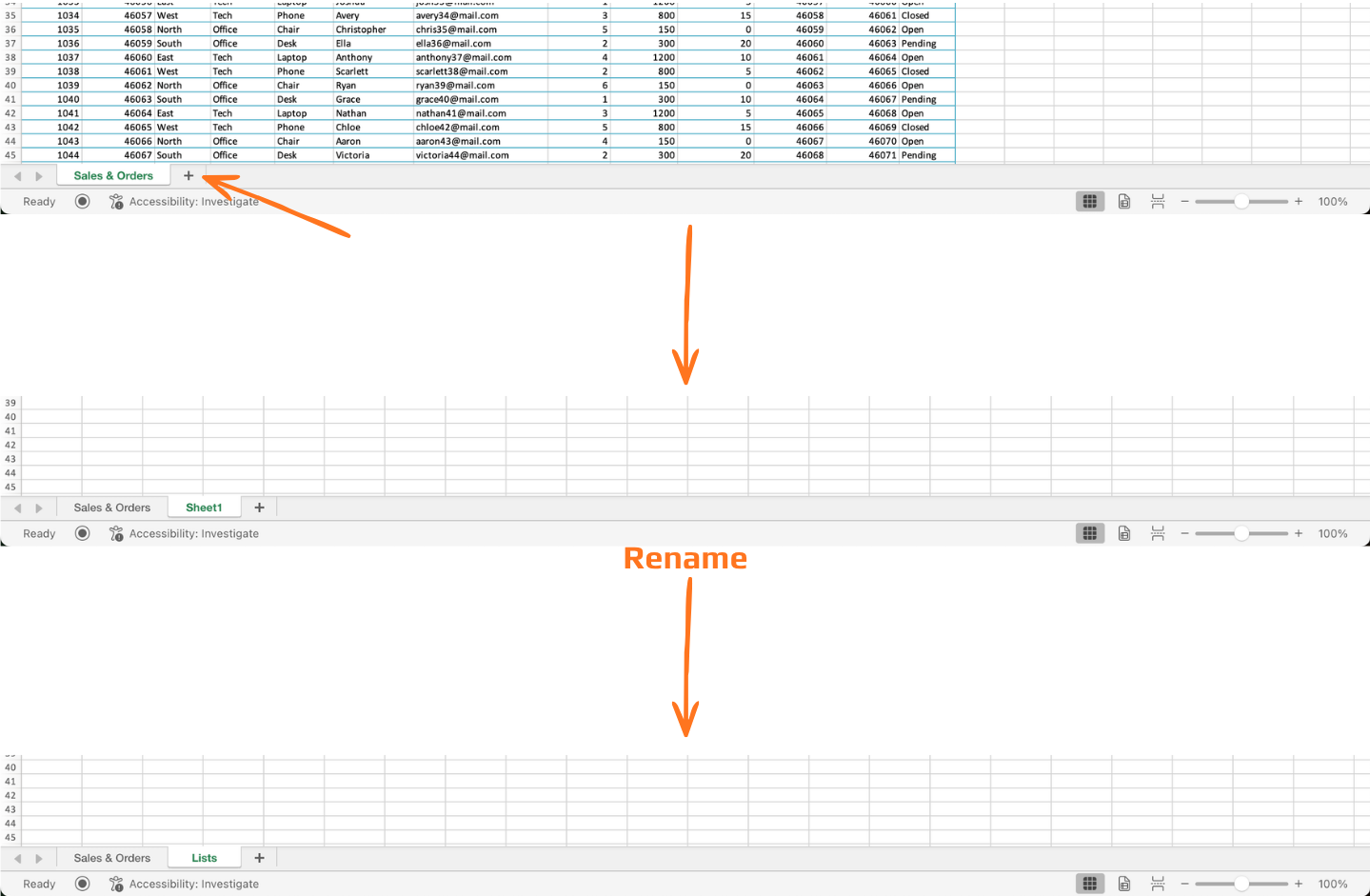
Step 1 — Creating a new sheet:
- Simply click the
+icon next to the last tab; - Double-click the new tab and rename it to
Lists.
Step 2 — Adding your first list:
- Click cell A1 and type a header — e.g.,
Status; - Enter each value in the rows below, one per cell:
- A2:
Open - A3:
Closed - A4:
Pending
- A2:
- Keep the column clean — no blank rows, no extra spaces, no merged cells.
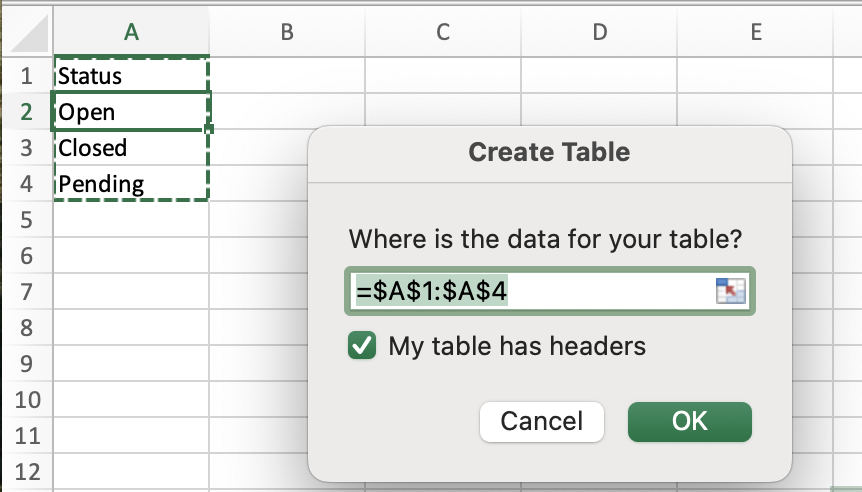
Step 3 — Converting a Range to an Excel Table:
Before linking a dropdown to a table, your list data needs to be formatted as one:
- Click anywhere inside your list range;
- Press
Ctrl + T(Win) orcmd + T(Mac); - Confirm the range and check My table has headers;
- Click OK.
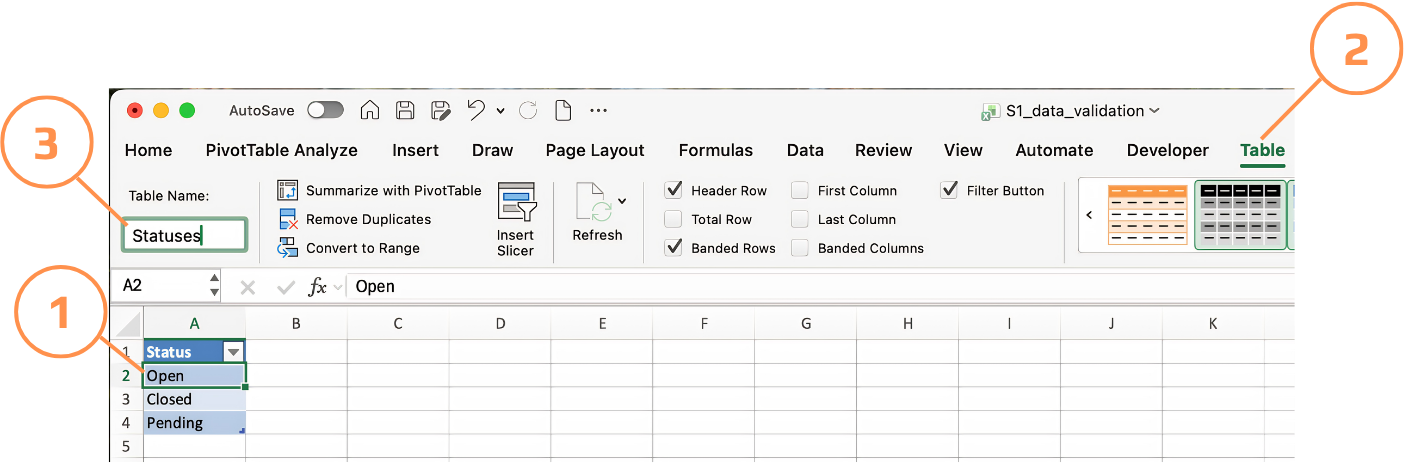
Excel assigns the table a default name like Table1. Rename it to something meaningful — e.g., Statuses — via the Table Design tab.
Referencing a Table Column in Validation
You can't type a structured reference like =Statuses[Status] directly into the Data Validation source field — Excel doesn't accept it there. One clean workaround is using the INDIRECT function, which converts a text string into a valid range reference.
Step by step:
- Select the
Statuscolumn cells in your main table; - Open Data Validation → Settings → List;
- In Source, type:
=INDIRECT("Statuses"); - Click OK.
Now when a new value is added to the Statuses, the dropdown reflects it immediately — no Name Manager required.

INDIRECT is a volatile function, meaning Excel recalculates it every time the workbook recalculates. For a small reference list like this, that's not a problem. However, in very large workbooks with many validated cells, it can slow things down — in that case, the Named Range approach is preferable. You'll learn more about this trade-off in the next chapter.
Task
File: continue to work with the same file from the previous section.
- Go to the Lists sheet and add a new value below
Pendingin the Statuses table:- A5:
Cancelled
- A5:
- Return to the main sheet and click the dropdown in any Status cell.
- Confirm that
Cancellednow appears in the list alongsideOpen,Closed, andPending.
This confirms that the INDIRECT reference is live — the dropdown updated without any changes to the validation rule itself.
Thanks for your feedback!
Ask AI

Ask AI

Ask anything or try one of the suggested questions to begin our chat
